Apps (Portal Pages) allow embedding elements from Metric Insights. Use an iframe to embed viewing options such as Tiles, Previews, Live Dashboards and Viewers. This article explains how to embed these options for both undimensioned and dimensioned elements, including static and interactive (live) content.
For embedding, follow these steps:
- Get the Embed code for an Element, Category, Folder or a Favorite Folder.
- For more information on where to find the code, see Embedding Overview.
- Copy the code for any of the available viewing options.
- Refer to Embedding with iframe on an HTML Page for details.
- Insert the Embed code into your App's (Portal Page's) Code tab.

- MI v7.1.0+: Go to Admin > Apps > Apps List > New/Existing App
- MI prior to v7.1.0: Go to Admin > Portal Pages > Portal Pages List > New/Existing Page
- Insert your Embed Code into the Code tab.
- Click [Save].
- [View] results.

After viewing the elements you have embedded on your custom page, you may need to make some adjustments. Changes can be made in the Code tab of the App (Portal Page). It is possible to:
- Scale up or scale down your elements (by changing the "
width" and "height" values for thestyleattribute). - Add a border for your iframe (by either modifying the "
border" value or that of theframeBorderattribute). - Add
widthandheightto the URL.
NOTE: Both the width and height values can differ for the style and src attributes as the style attribute sets the dimensions of the iframe embedded on a custom App, and the src will point to a specific size of the element that is requested from the server.
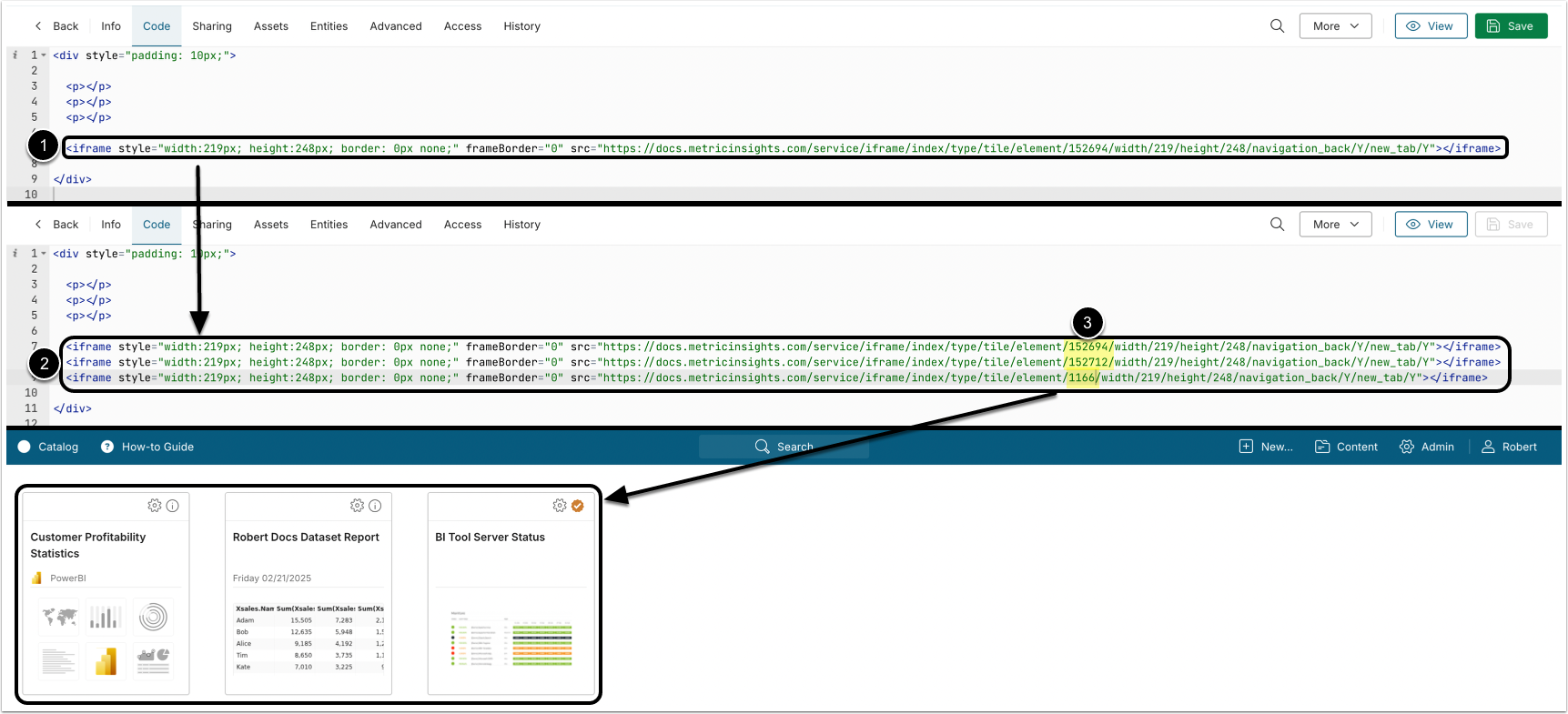
If you need to embed several elements, Categories or Folders into your HTML page like in the example above, you do not have to look for the Embed codes for all of them.
You can:
- Use the code for one element as a snippet.
- Copy it for every element you need.
- Only change the replacement parameters (Tile ID).
NOTE: If you do not want all of your elements to link back to Metric Insights, just switch the navigation_back parameter from the default Y (yes) to N (no).
1. Embedding Undimensioned Elements (Static)

The URL (src) part of the Embed code refers to:
- The type of viewing option (Tile).
- Element ID.
2. Embedding Dimensioned Elements (Static)
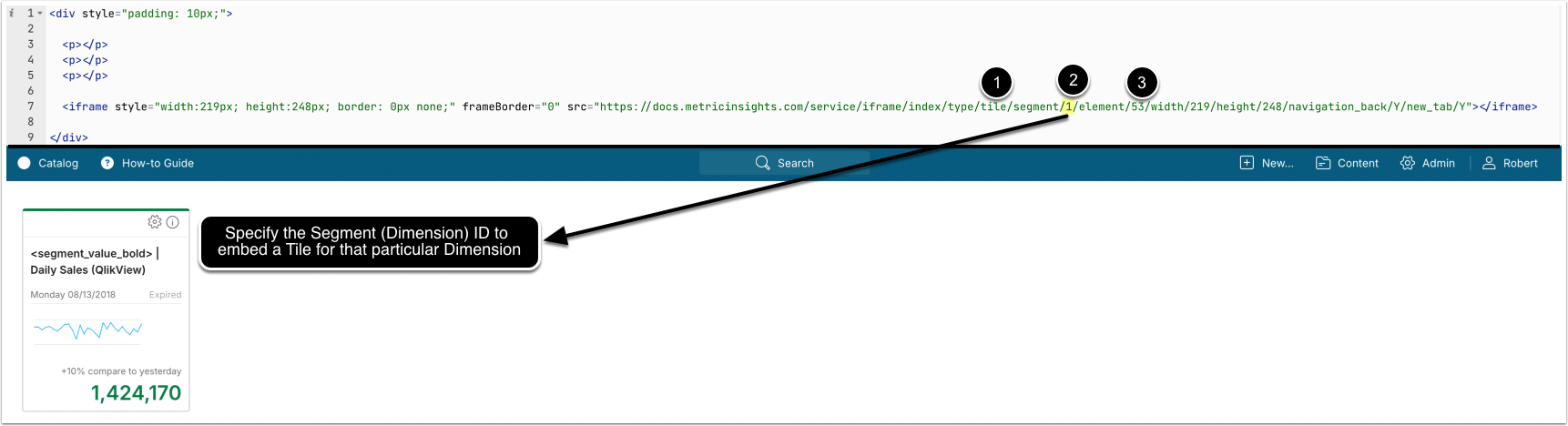
The URL part of the code for a Dimensioned Tile refers to:
- The type of viewing option (Tile).
- Segment (Dimension) ID.
- Element ID.
ID parameters are configurable. To embed several Dimensions for the same Tile, copy the iframe code snippet and change the Segment (Dimension) IDs.
NOTE: To get all of the Dimensions, specify the element ID only and do not reference the Segment (Dimension). This means that you will have to exclude the segment/ID parameters from the URL (src) part of the iframe code.
3. Embedding Live Elements
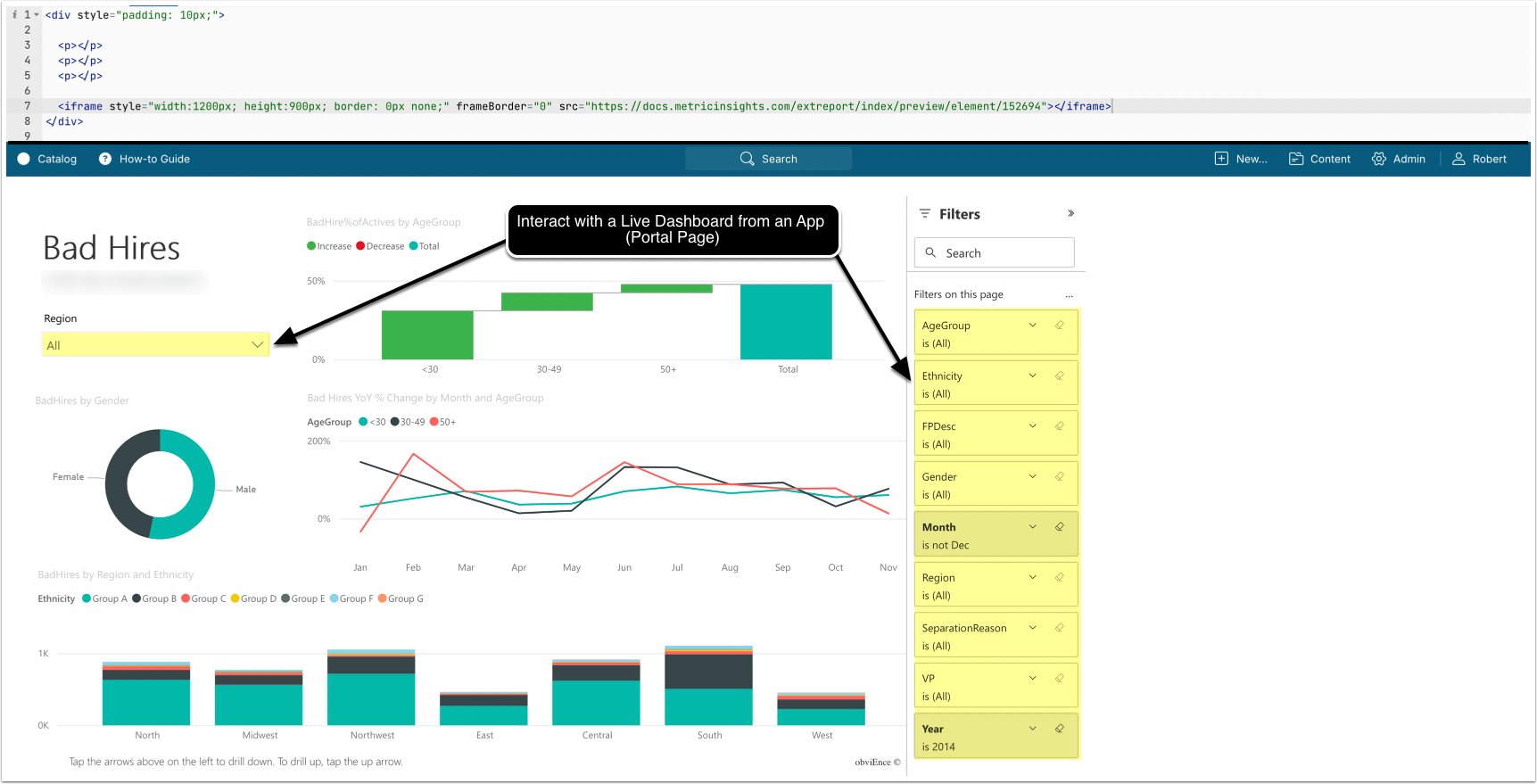
Embedded Live Elements are interactive and allow you to easily surface relevant data right from the App (Portal Page).
4. Embedding a Category
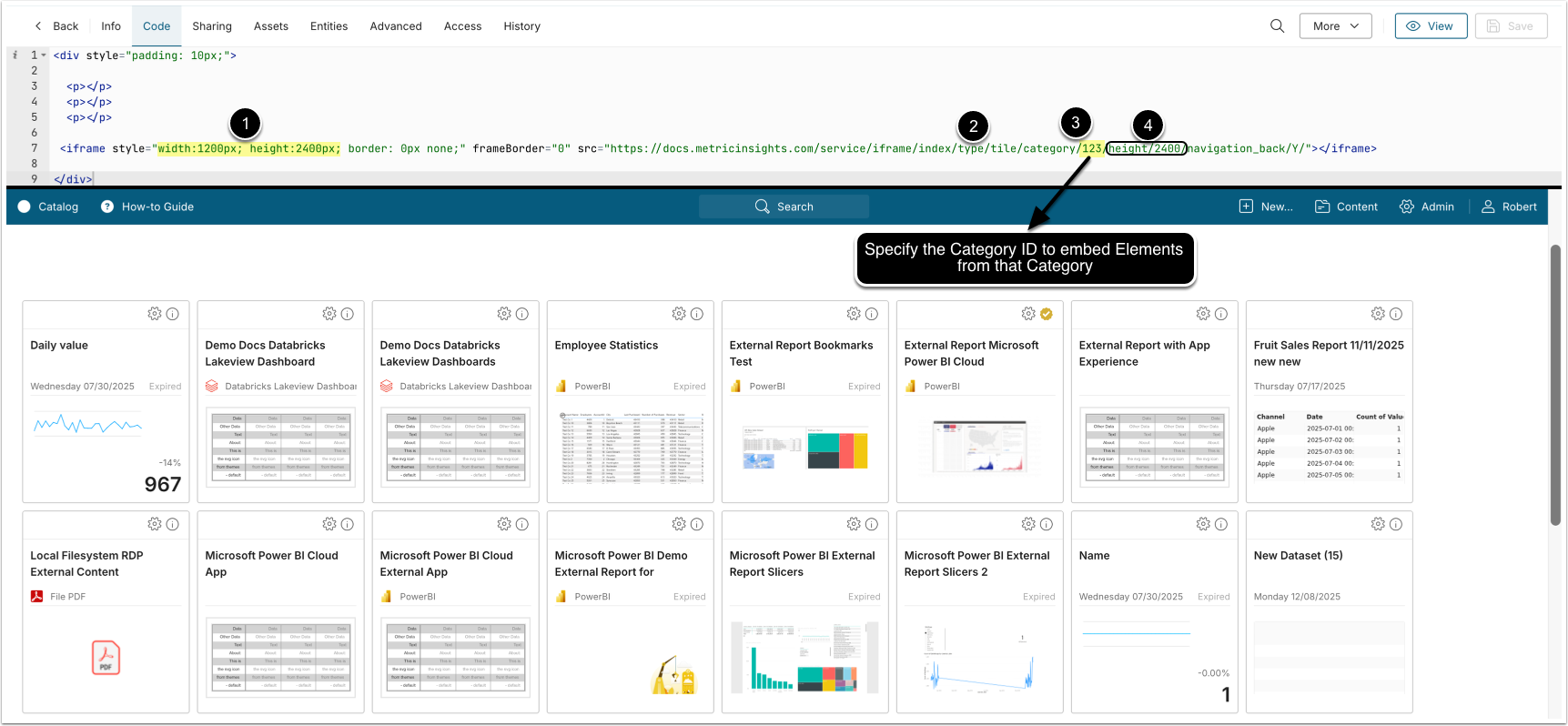
Modify the URL for Category embedding:
<iframe style="width:1700px; height:2400px; border: 0px none;" frameBorder="0" src="/service/iframe/index/type/tile/category/<ID>/height/2400/navigation_back/Y"></iframe>- Adjust
widthandheightparameters of the iframe. - The type of viewing option for Categories is
tile. - Specify the Category ID.
- Set
heightfor the embedded tiles.
5. Embedding a Folder
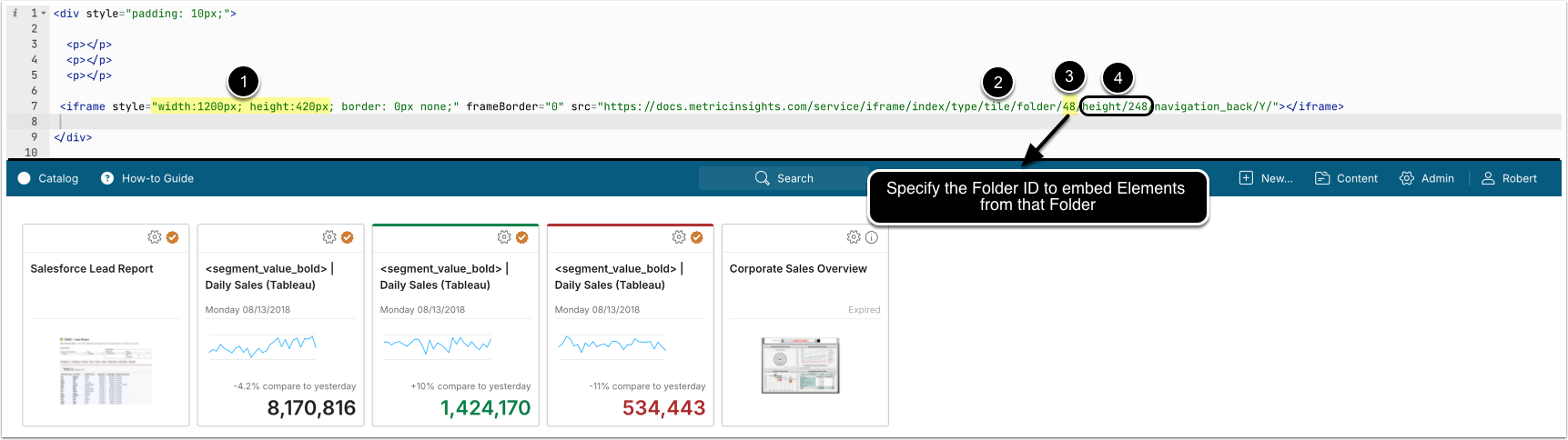
Modify the URL for Folder embedding:
<iframe style="width:1700px; height:2400px; border: 0px none;" frameBorder="0" src="/service/iframe/index/type/tile/folder/<ID>/height/2400/navigation_back/Y"></iframe>- Adjust
widthandheightparameters of the iframe. - The type of viewing option for Folders is
tile. - Specify the Folder ID.
- Set
heightfor the embedded tiles.