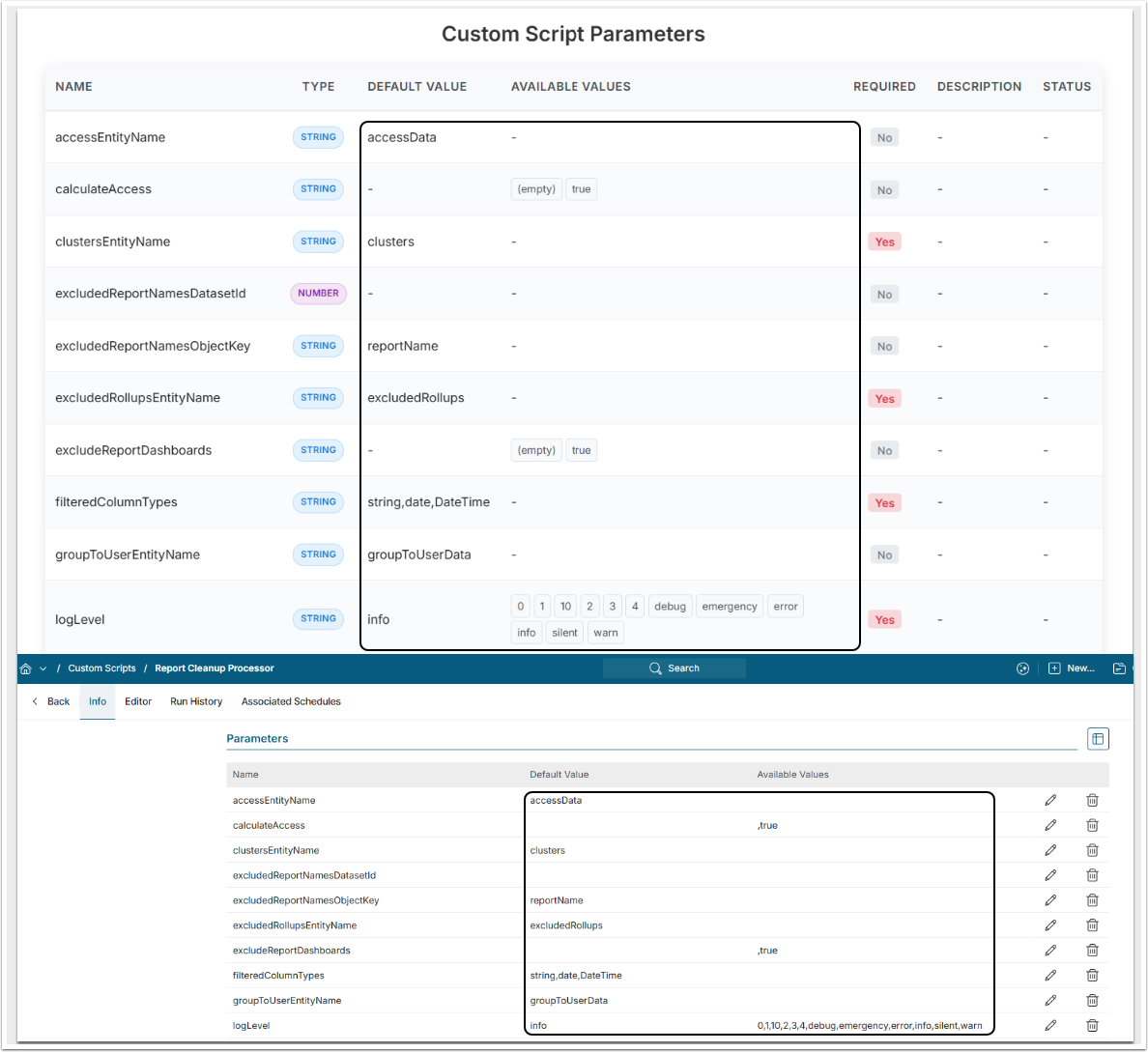
Custom Scripts and their Parameter configuration can be handled manually. However, there's a way to automate this process by configuring a dedicated Custom App. This Custom App provides a more efficient alternative by automating Parameter and Parameter Set population while simplifying Script troubleshooting in a centralized interface.
PREREQUISITES:
- Latest Custom App Assets and Custom Script files requested from support@metricinsights.com.
- Configured External Application for the Custom Script. The Application must have "Application Can Manage Users" enabled.
NOTE: This article assumes that you are using the latest Custom Script build that includes the Base64-encoded parameter definition. Automated Parameter population and troubleshooting is not available with older builds. The only automated option in this case is to migrate Parameters from the latest Custom Script to the older one.
1. Add New Custom Script
You can also use the existing Custom Script. However, it must include one or more Parameters. Once you upload a new Custom Script from a .js file, these Parameters will be overwritten.
Access Admin > System > Custom Scripts > [+New Custom Script]
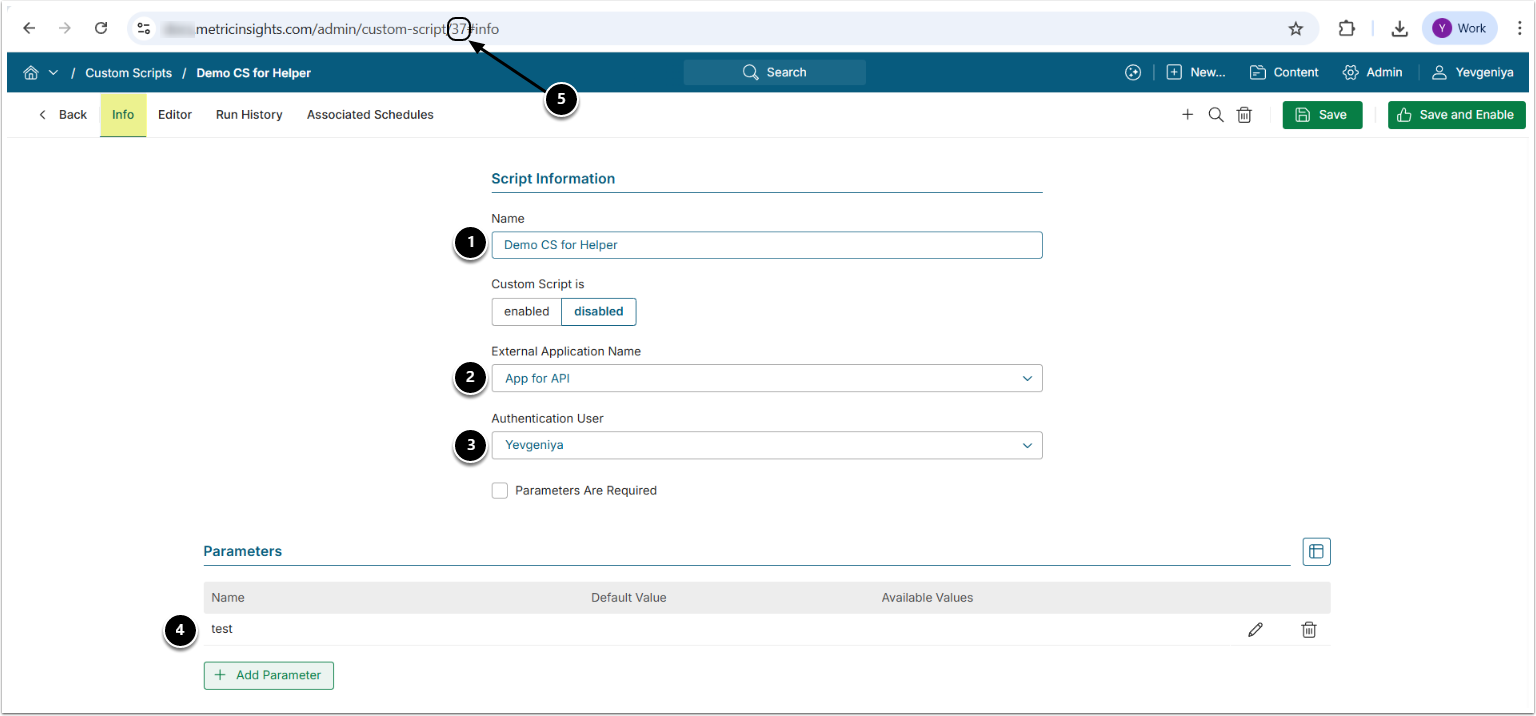
- Name: Provide a descriptive name.
- External Application Name: Choose an External Application (See prerequisites above).
- Authentication User: Specify an Admin or System Admin for authentication.
- IMPORTANT: At least one Parameter must exist for a Custom Script. It is not required to specify any settings. This Parameter will then be overridden.
- Note the Custom Script ID to be used to work with the Custom App.
2. Create Custom App
2.1. Specify Required Details
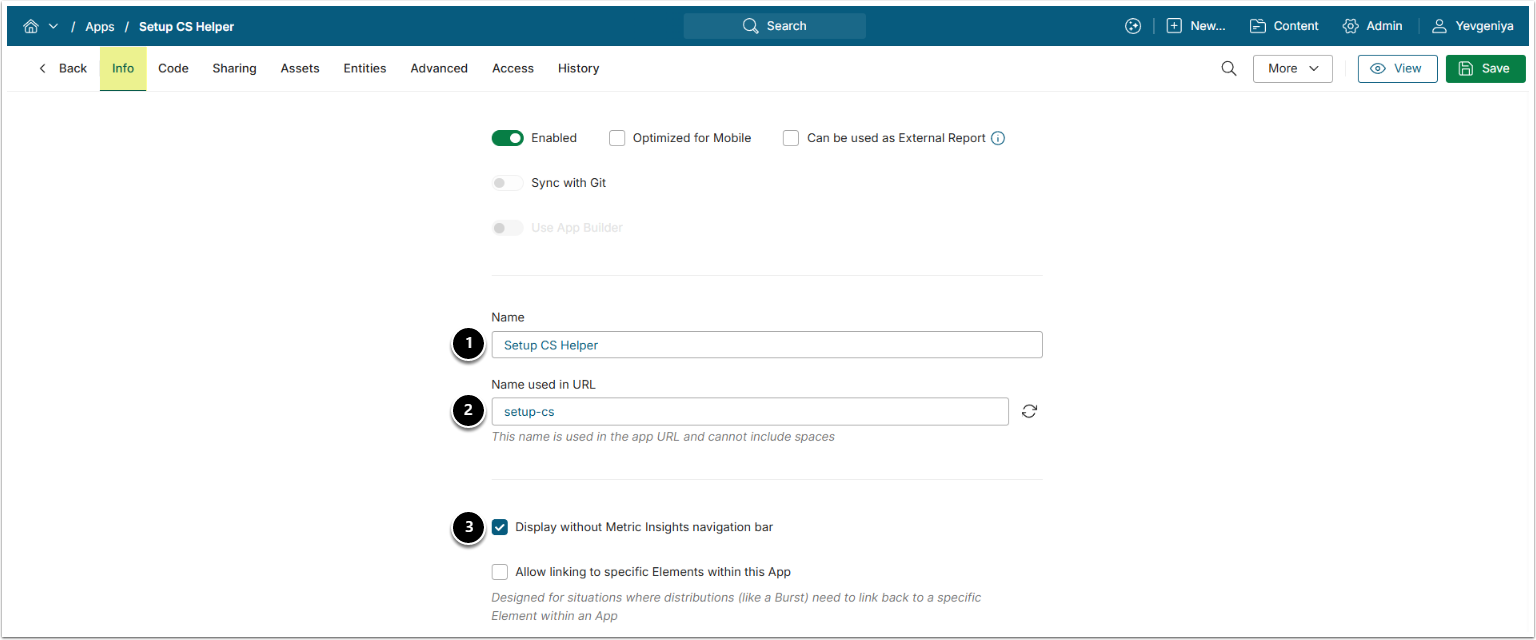
- Name: Provide a descriptive name.
- Name used in URL: Must be set to "setup-cs".
- Display without Metric Insights navigation bar: Must be checked.
2.2. Upload Assets
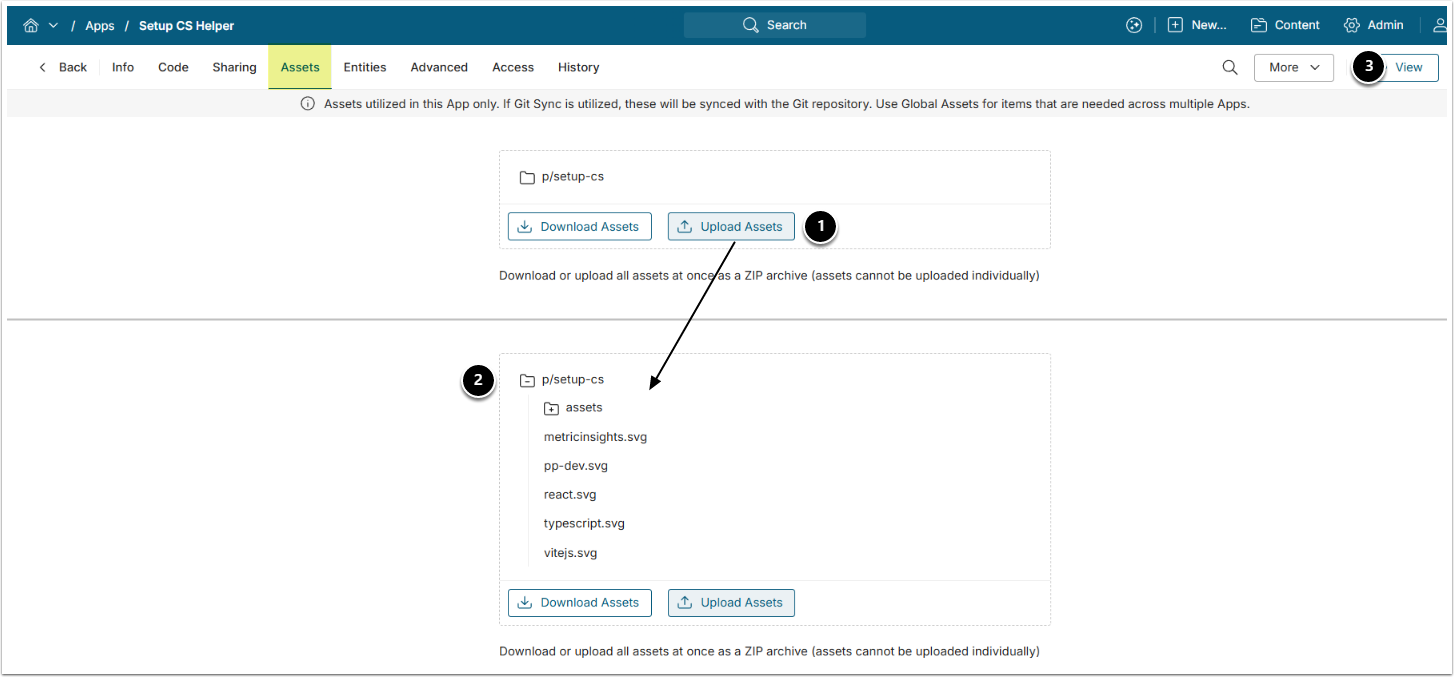
- From the Assets tab, upload the Assets requested from Metric Insights Support as part of the prerequisites.
- The uploaded Assets will appear as a list.
- [View]
2.3. Upload Custom Script Code
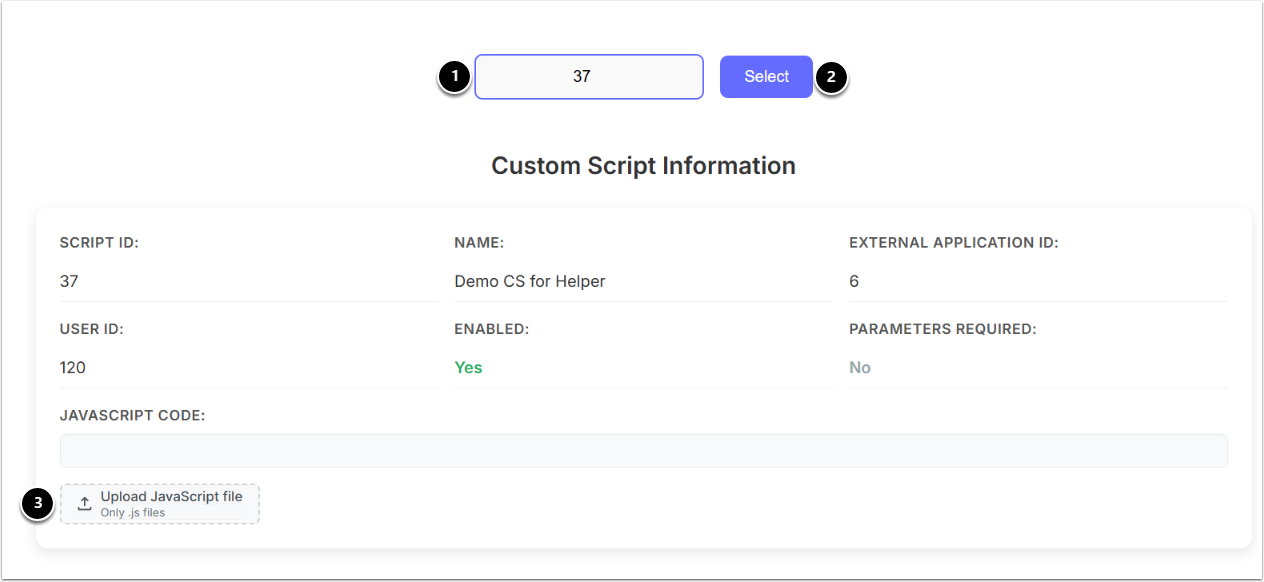
- Specify the Custom Script ID from Step 1.
- [Select]
- [Upload JavaScript file]: Upload the latest .js file requested from our support team.
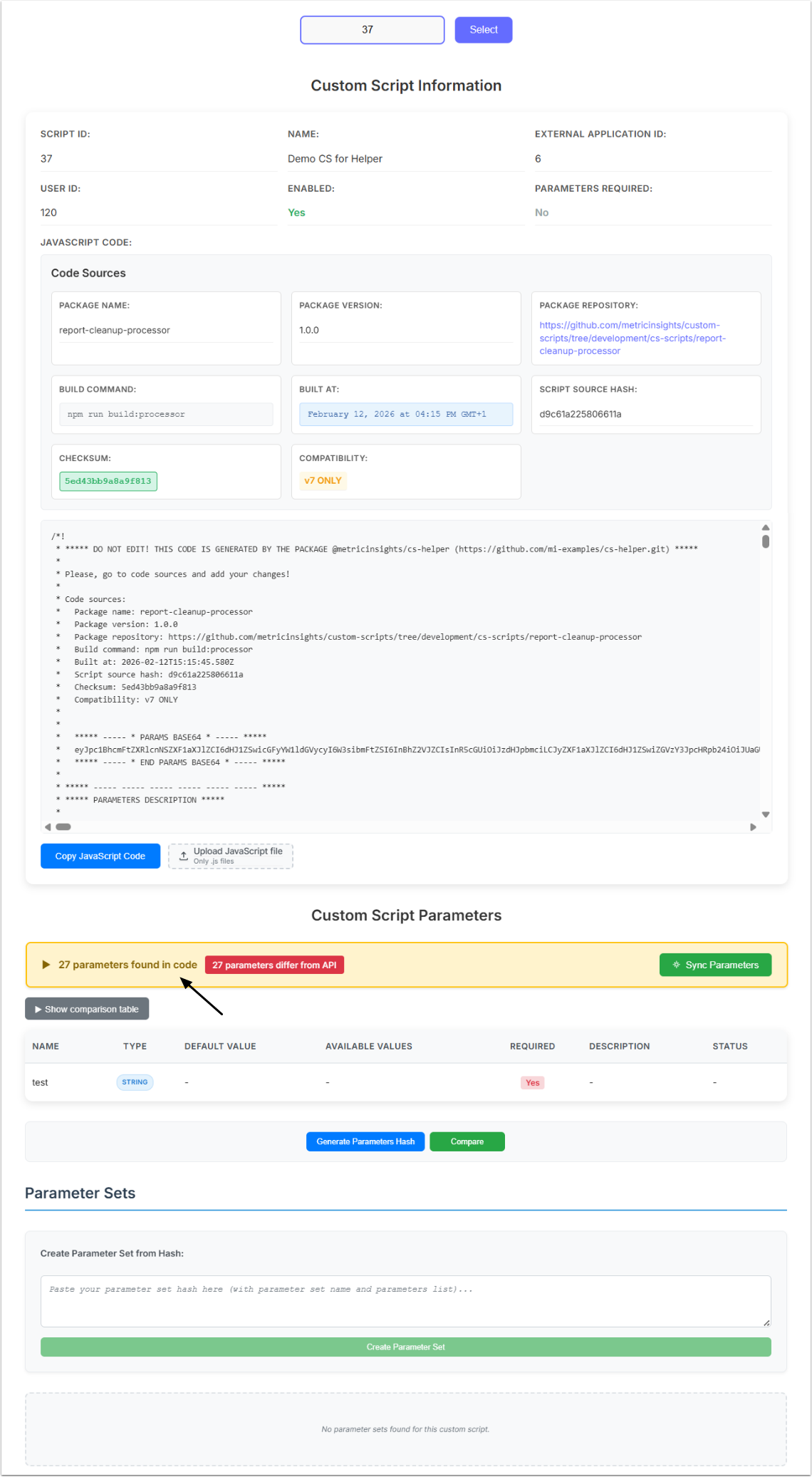
Once the upload is complete, the Custom App will appear as shown below. The App may take some time to finish processing API requests. When it displays the number of Parameters detected in the code, you can proceed with the following actions:
- Automatically populate Parameters for the new Custom Script;
- Troubleshoot existing Custom Scripts;
- Migrate Parameter Sets between Scripts;
- Compare Parameters between Scripts.
Populate Parameters Automatically
This Step demonstrates how to populate Parameters for a newly-added Custom Script; however, the same process can also be used to update existing Custom Scripts, for example, when changes have been introduced between versions. In such cases, the App detects differences in the latest uploaded Custom Script file and applies the updates accordingly.
1. Populate Parameters
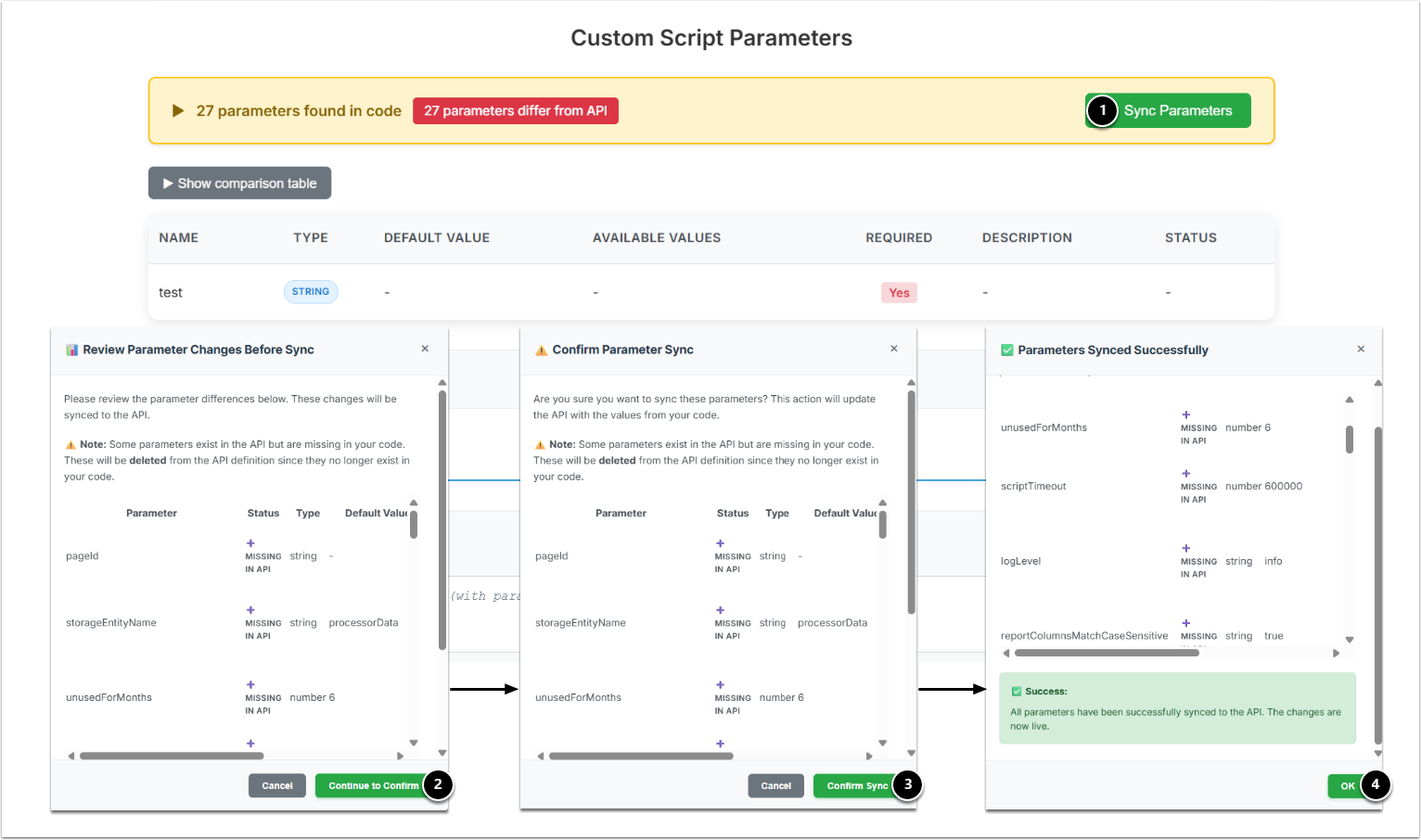
- [Sync Parameters]
- [Continue to Confirm]
- [Confirm Sync]
- [OK]
2. Verify Result
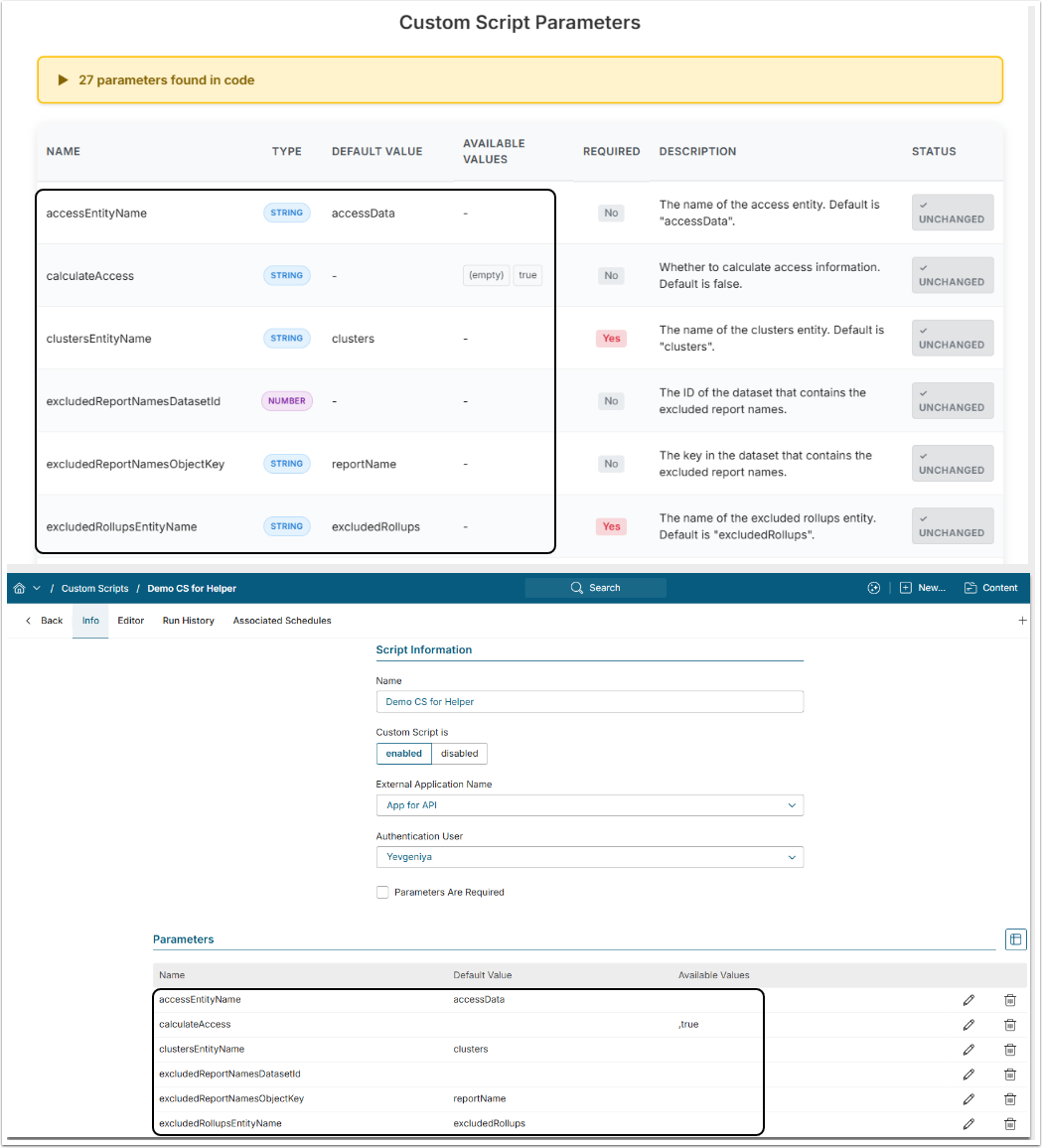
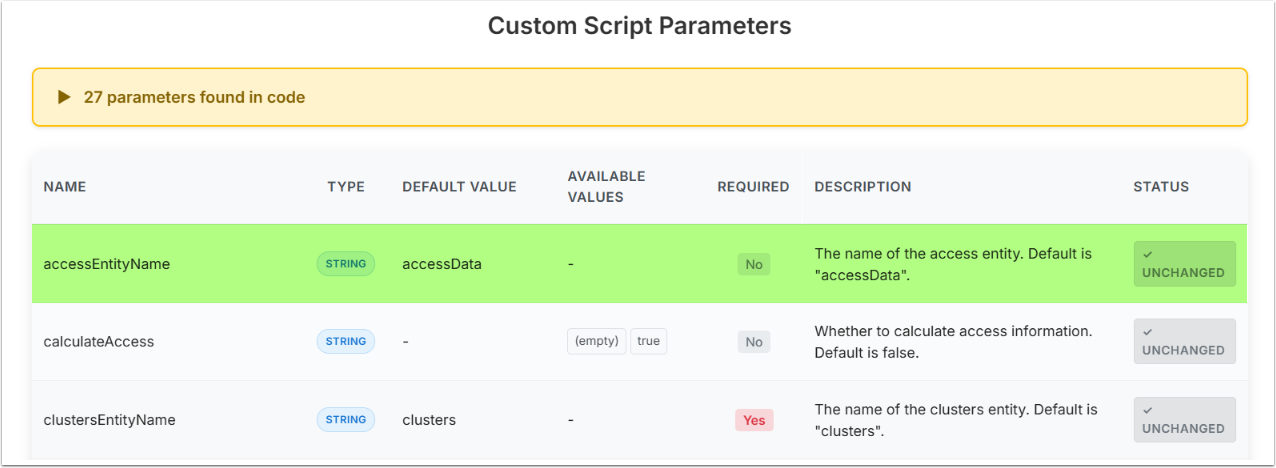
As a result, the list of Parameters will be displayed in both the App and the Custom Script Editor. If the updates are not immediately visible, refresh the Custom Script Editor to load the changes.
Troubleshoot Custom Scripts
If unintended changes were introduced to the Custom Script or Parameters were configured incorrectly, the App can help detect and highlight these inconsistencies.
1. Identify Changes and Sync
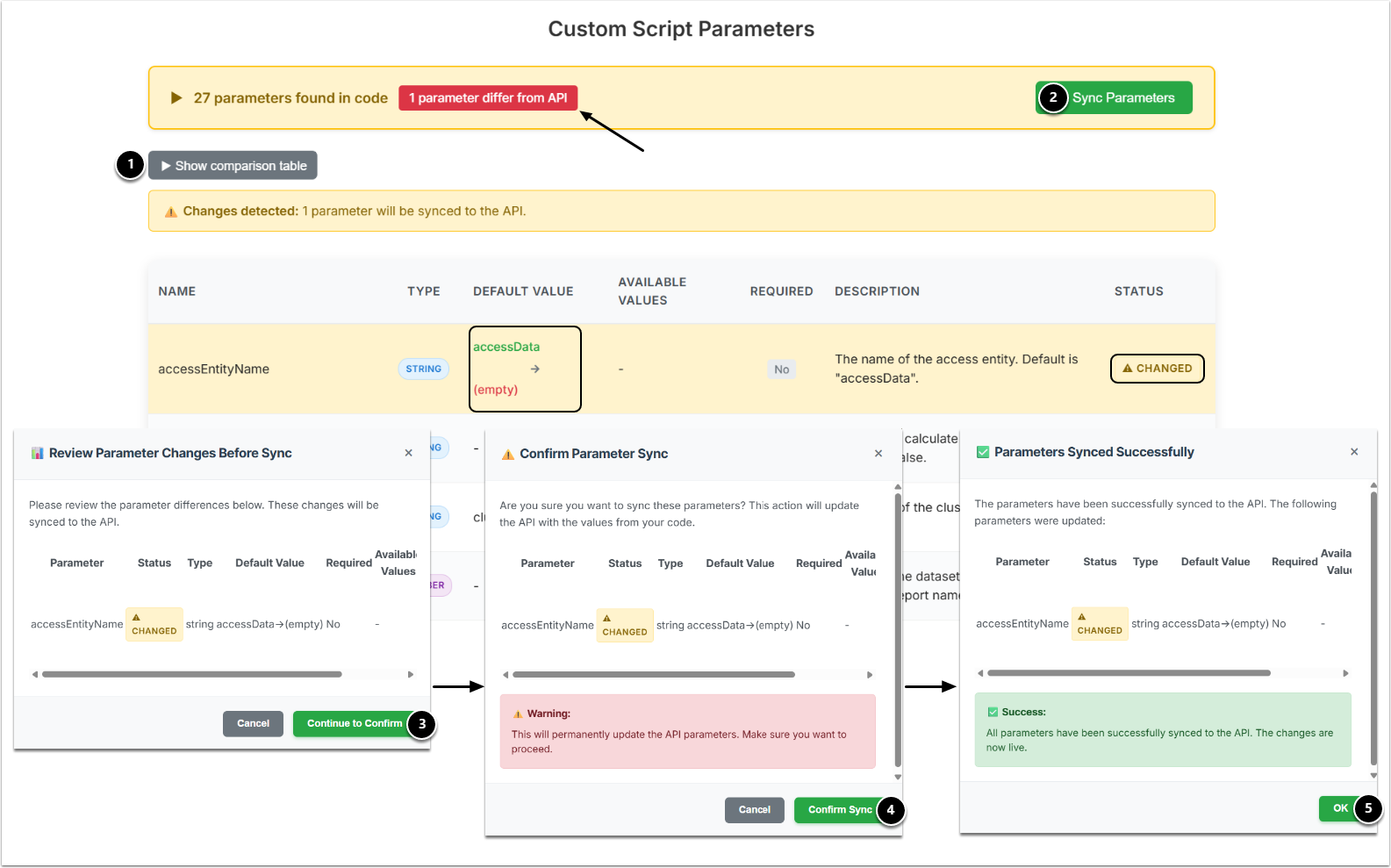
- Show comparison table: If you see that there are Parameter changes, you can view them before syncing.
- [Sync Parameters] to revert changes/fix errors.
- [Continue to Confirm]
- [Confirm Sync]
- [OK]
2. Verify Result
As a result, the inconsistencies are resolved and the Custom Script is aligned with the expected Parameter configuration.
Migrate Parameter Sets from Other Scripts/Instances
In case you have an identical Custom Script with the Parameter Set configured, you can migrate the Parameter Set to another Custom Script.
1. Create Hash and Sync
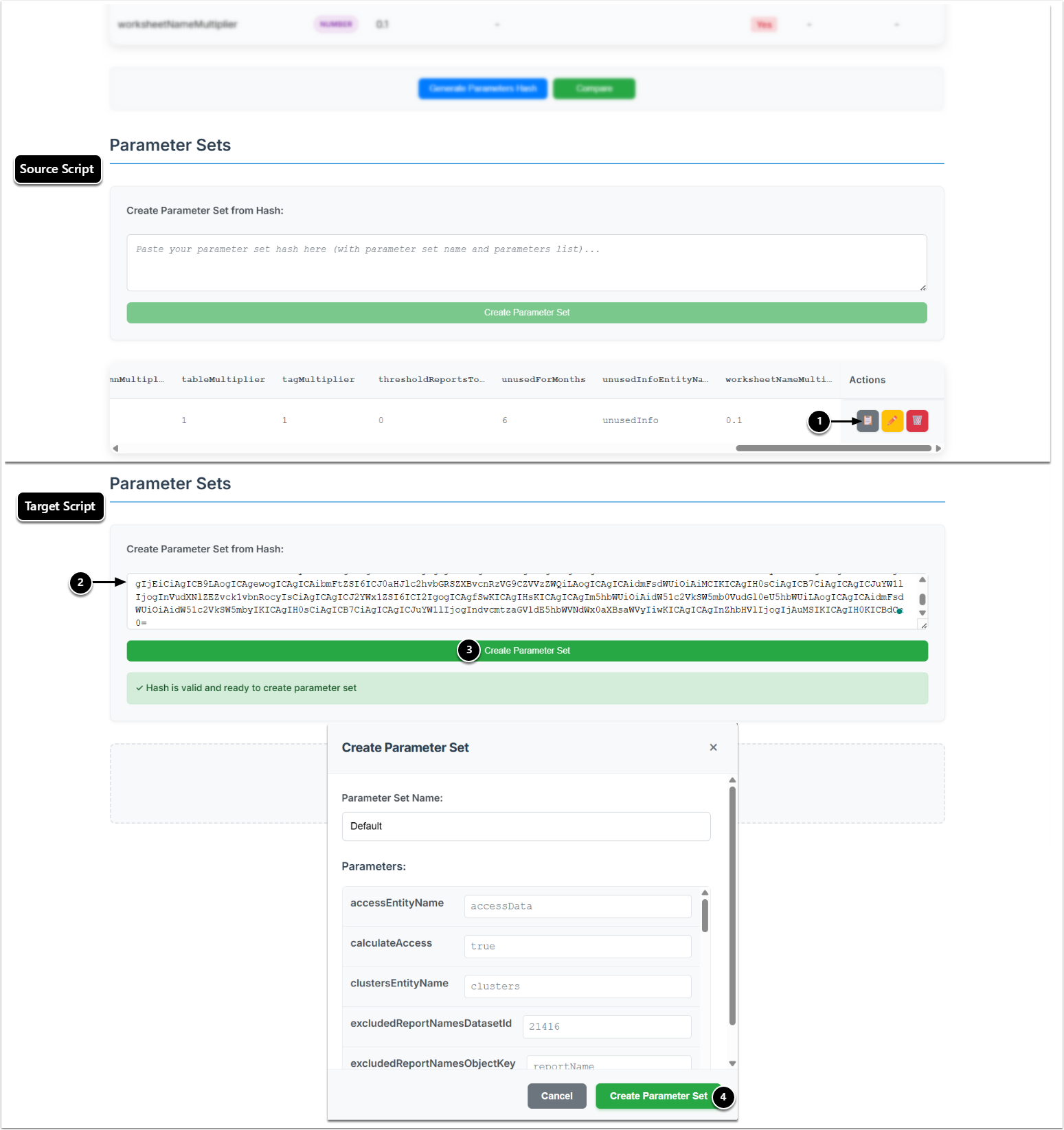
- Copy Parameter Set: Copy the hash from the source Custom Script.
- Open the target Custom Script. The hash should be automatically pasted into the Custom Script hash field. If it is not populated automatically, paste it manually.
- [Create Parameter Set]
- [Create Parameter Set] to confirm and complete the action.
2. Verify Result
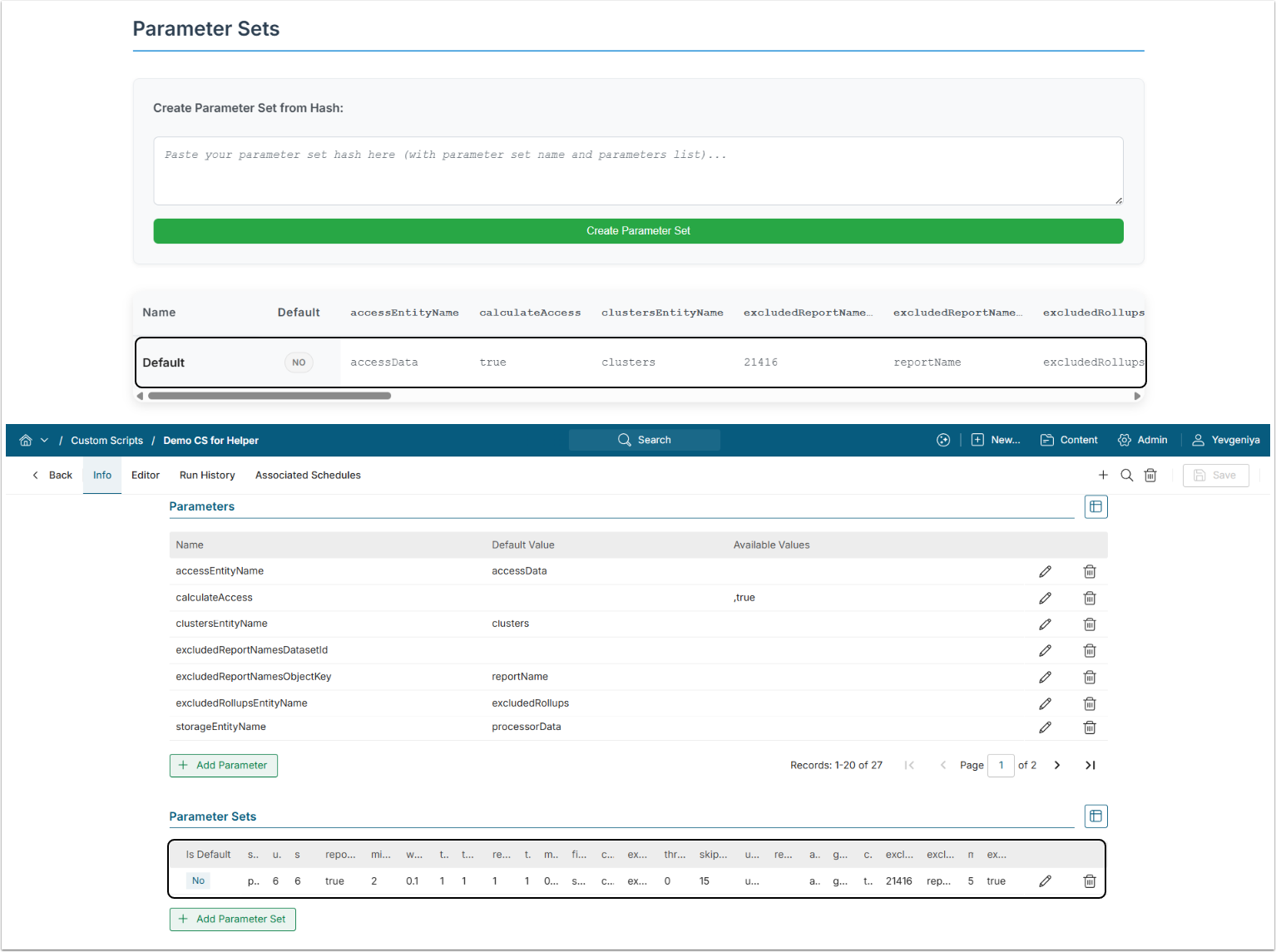
As a result, the Parameter Set will be displayed in both the App and the Custom Script Editor. If the updates are not immediately visible, refresh the Custom Script Editor to load the changes.
NOTE: Is Default must be set manually for the Parameter Set in Custom Script Editor.
Compare Parameters Between Scripts
In case you have a Custom Script from an older version (without a Base64-encoded parameter definition) configured, and changes have been introduced between versions, you can compare the two Scripts and then sync them so they include the same Parameters.
1. Compare Parameters
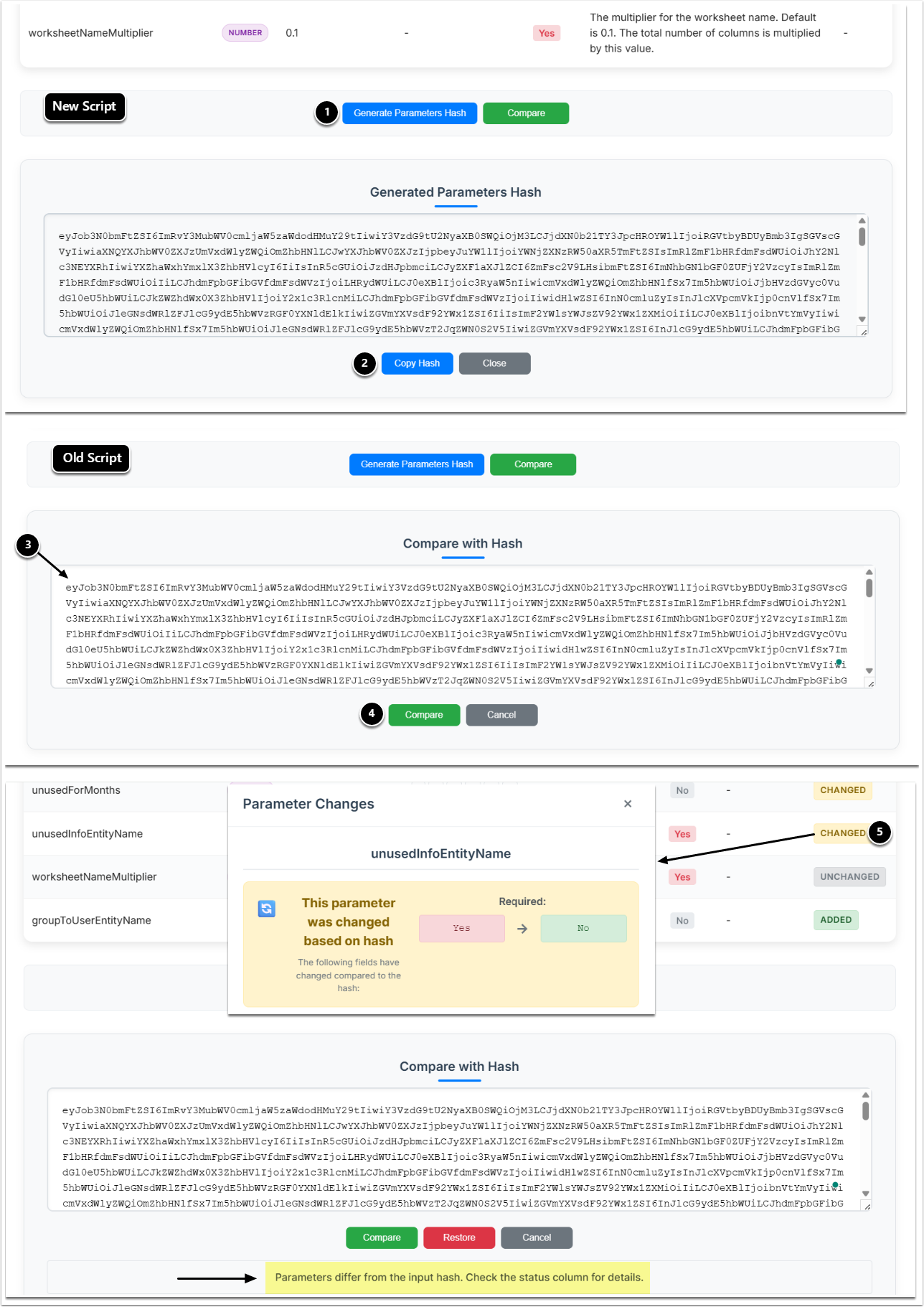
- [Generate Parameters Hash] for a new Script.
- [Copy Hash]
- Open the old Script. The hash should be automatically pasted into the Custom Script hash field. If it is not populated automatically, paste it manually.
- [Compare]
- See if Parameters differ from the input hash and view differences, if needed.
2. Restore Parameters
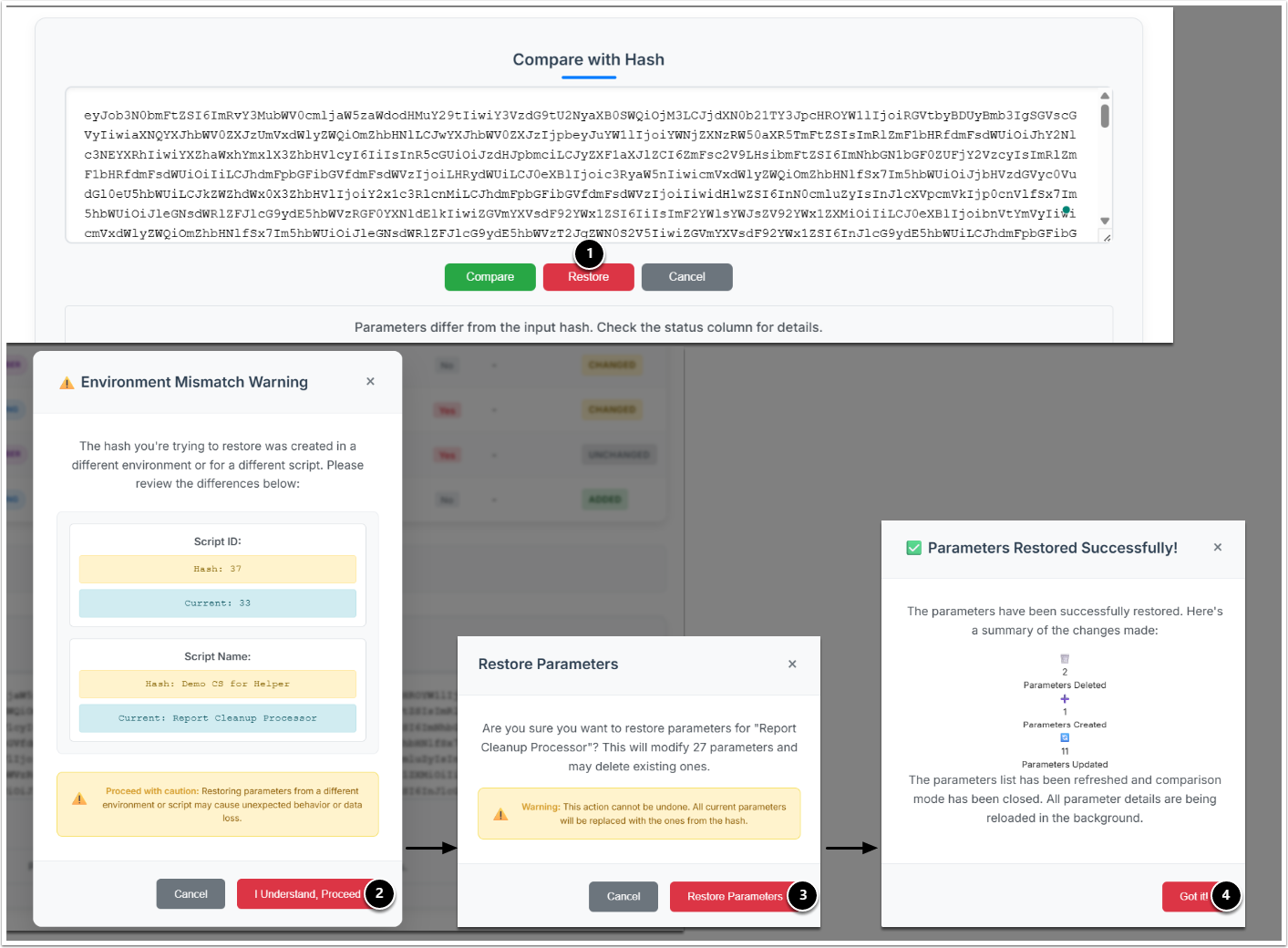
- [Restore]
- [I understand, proceed]
- [Restore Parameters]
- [Got it!]
3. Verify Result
As a result, you can compare the Parameters between the Scripts and synchronize them to ensure they are identical. The Parameters for the old script are displayed in both the App and the Custom Script Editor. If the updates are not immediately visible, refresh the Custom Script Editor to load the changes.
NOTE: Parameters for the old Script are synchronized without descriptions.