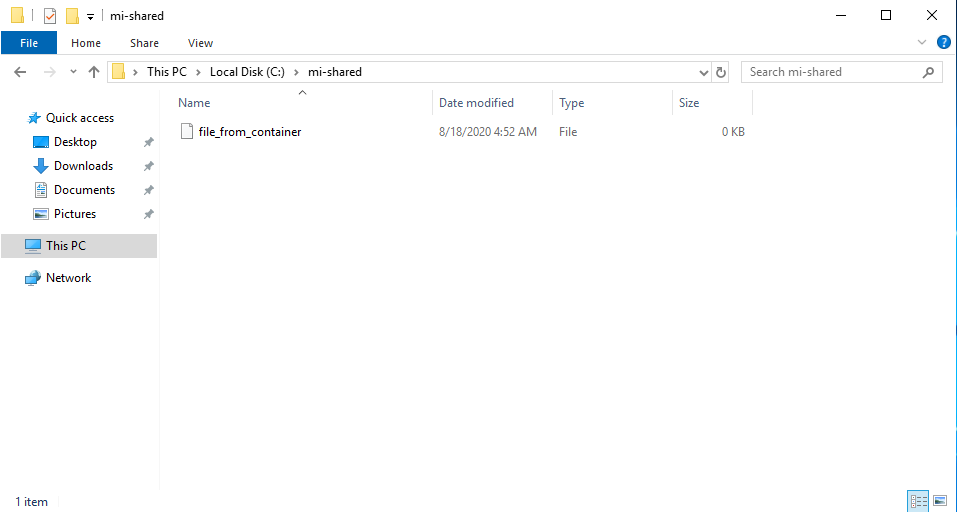
Moving a large amount of data into Microsoft SQL Server is most performant by bulk loading via a shared folder. This document describes the steps required to setup a shared folder in Windows Server 2019.
PREREQUISITE:
Example Specifications:
- SQL Windows Server :Windows Server 2019 Standard (Desktop Experience)
- MI Application 6.2.0: Debian 10 / Ubuntu 18.04 / CentOS 7 / CentOS 8
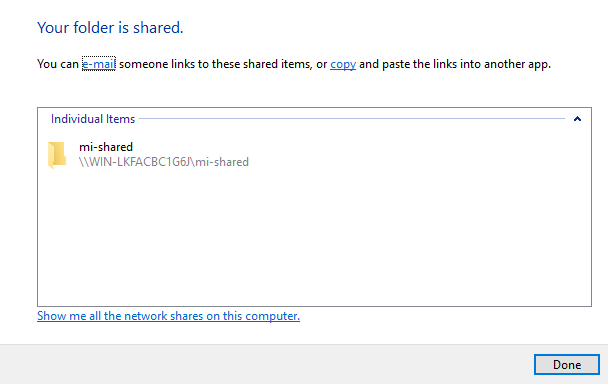
Open Shared folder on Windows Server
- Right click on Shared Folder → Properties → Sharing tab → Share
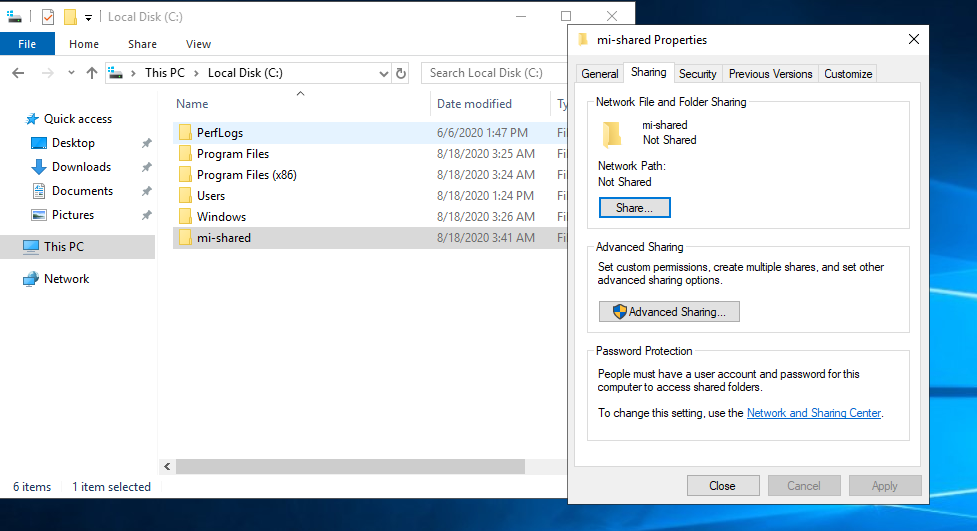
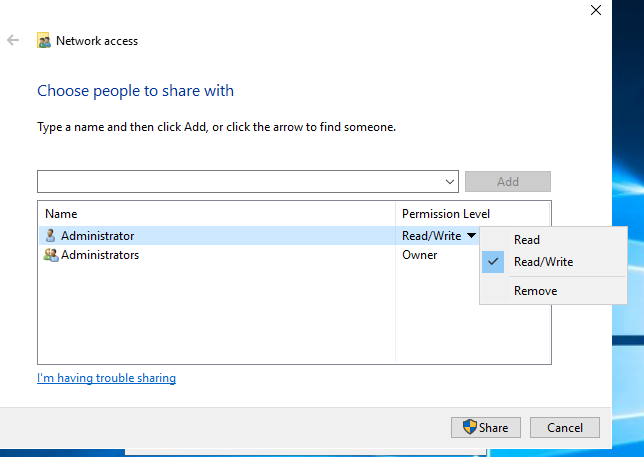
2. Add user for Shared folder
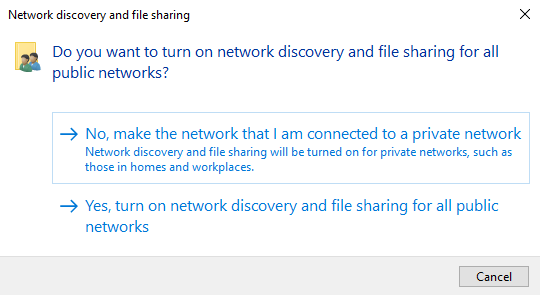
3. Turn onNetwork Discoveryfor all public networks
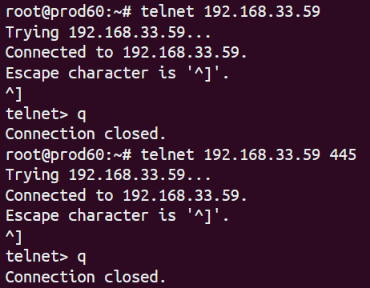
4. Make sure that SMB ports (139 and 445) on Windows Server is opened and you have access to SMB from Linux Instance
Mount Shared folder from Windows to Linux instance
Make sure that your Linux Instance have access to Windows Server.
- Create Shared folder
$ mkdir -p /opt/mi/shared2. Install required package
Via Debian or similar OS:
$ apt-get install cifs-utilsVia RedHat or similar OS:
$ yum install cifs-utils3. Mount Shared folder from Windows Server to Linux Instance
root@mi61:/opt/mi# sudo mount -t cifs //192.168.33.59/mi-shared /opt/mi/shared -o user=Administrator
Password for Administrator@//192.168.33.59/mi-shared: *******Where:
- 192.168.33.59 - IP of Windows Serverwith opened Shared Folder
- mi-shared - Opened folder on Windows Server
- /opt/mi/shared - folder for mount on Linux Instance
- user=Administrator - Windows Server user for access to shared folder
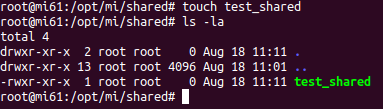
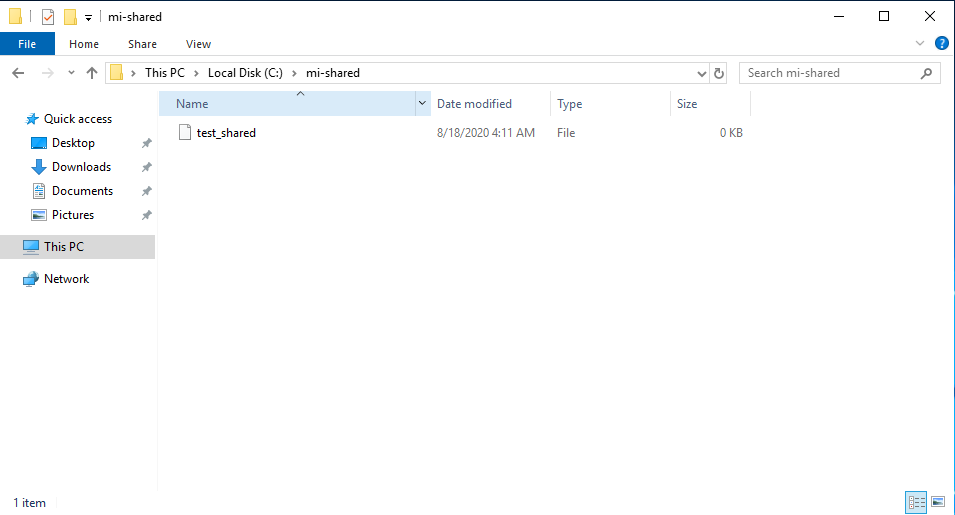
4. Confirm that mounting was successful

To add the shared folder to Docker container, add a mount point from Linux Instance to Docker container.
1. Edit docker-compose yml file of docker container
$ vi /opt/mi/config/deployment/docker-compose.dataprocessor.yml2. Add mount point

Where:
- /opt/mi/shared:/opt/mi/shared:rw - shared folder on Linux Instance and inside Docker container, with read/write permissions
3. Launch the dataprocessor viaroot user
$ vi /opt/mi/config/deployment/credentials/dataprocessor.envAnd set variableUSER=root
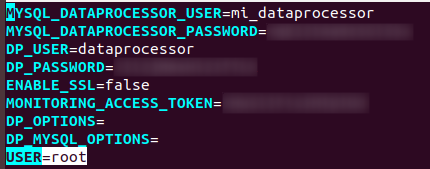
Variable USER=root need to set possibility for running dataprocessor by root user with access to shared folder
4. Recreate the Docker container
$ mi-control up -d dataprocessor
Recreating mi_dataprocessor_1 ... done5. Check Shared folder inside docker container
$ docker exec -it mi_dataprocessor_1 bash
$ cd /opt/mi/shared
$ touch file_from_container