PPT Report Packs enable distribution of hundreds of views in a single PPT file. This is useful for some enterprise reporting use-cases that are otherwise very clunky to implement in reporting tools, or require manual creation or scripting to fully implement.
Report Packs can be distributed via Bursts to multiple delivery destinations, including Email, FTP, Shared Drive, and SharePoint Online. They include visualizations of External Reports included in the Burst. You can customize the look of the file by adding your logo (which will appear on each page at the bottom left).
The default Custom Script allows you to include only a logo. You can request the implementation of other customization options at support@metricinsigts.com.
PREREQUISITES:
- The ENABLE_BURST_PPT_REPORT_PACK System Variable must be enabled for the Report Pack section to appear in Burst Editor.
- The article assumes that you have already finished all the required Burst configuration as described in Create New Burst.
For more details about PPT generation, refer to How PPT Generation Works.
Similar functionality is available for PDF Report Packs.
1. Configure Sending PPT Report Packs
Access Burst > Customize > Report Pack
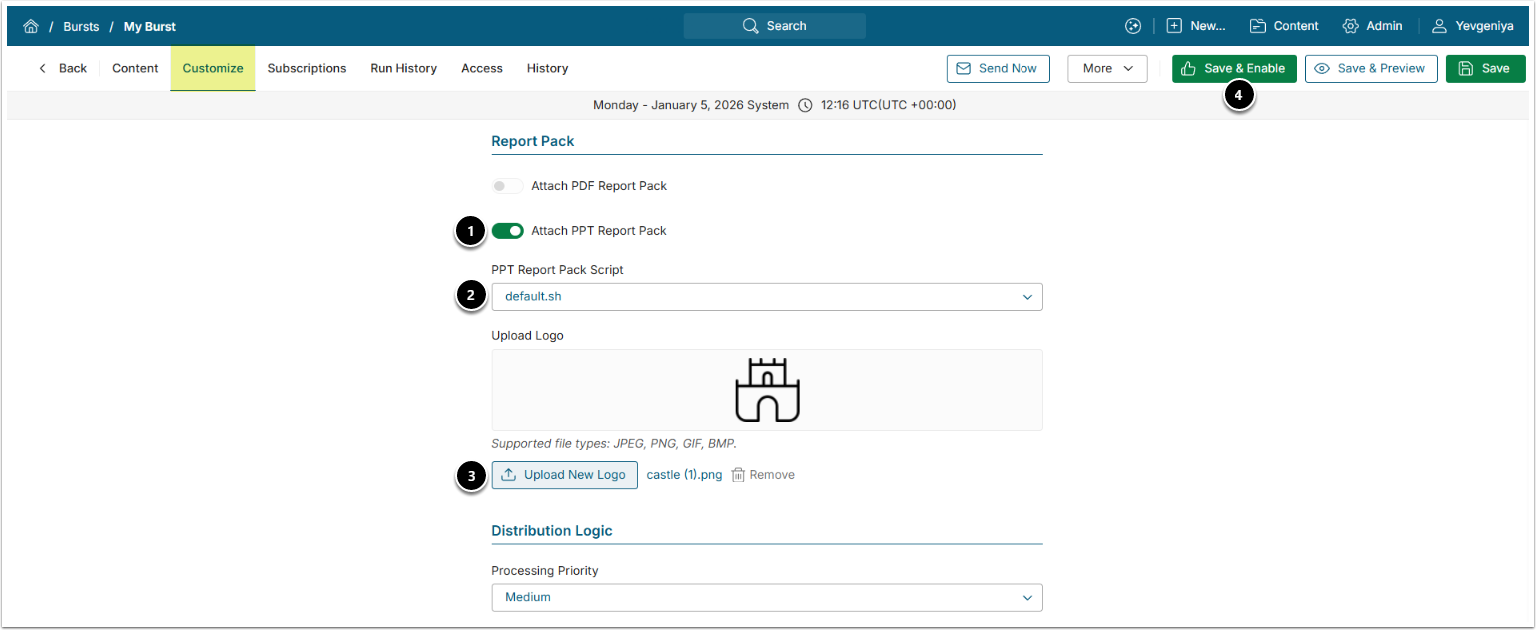
- Attach Report PPT Pack: Toggle on.
- PPT Report Pack Script: Select "default.sh".
- You can request a custom one to cover your customization needs at support@metricinsights.com.
- [Upload Logo]: Optional.
- [Save & Enable] to send the Burst upon the next Trigger run.
2. Verify Result
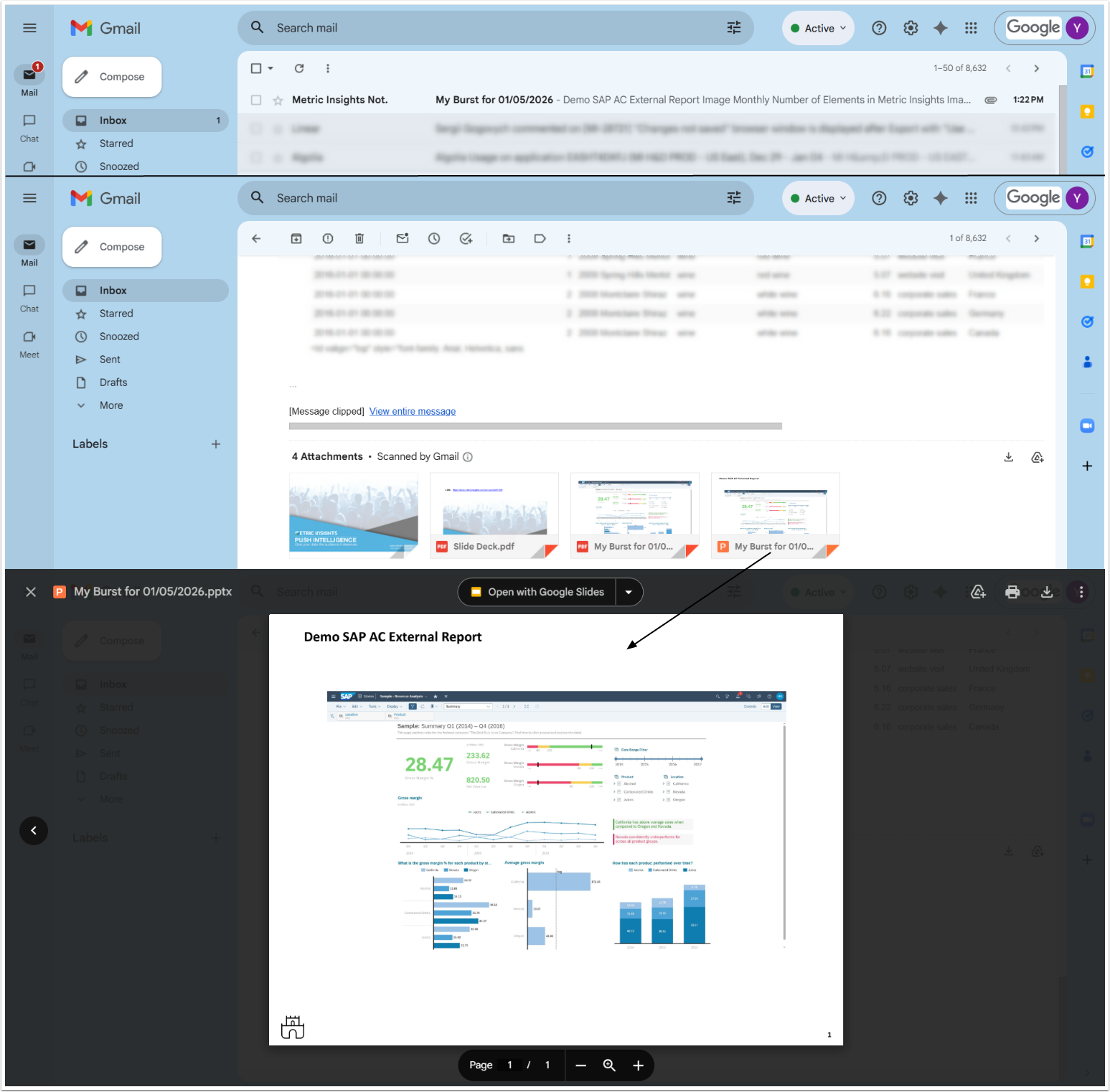
Filtered External Reports will be included as a separate page for each Filter+Value pair.