In Metric Insights, Users can apply custom PowerPoint Templates to the content of Bursts they send. You can start with a Sample Template and edit it in PowerPoint to create a new custom POTX template to use with Bursts and Favorites. This functionality allows Users to modify the look and feel of PowerPoint attachments with custom logo, change the position of images, and customize the text that is displayed on slides.
In this article:
NOTE: When modifying Templates, use images/pictures instead of shapes.
1. Add New Template
Access Admin > System > PowerPoint Templates and click [+ New Template]
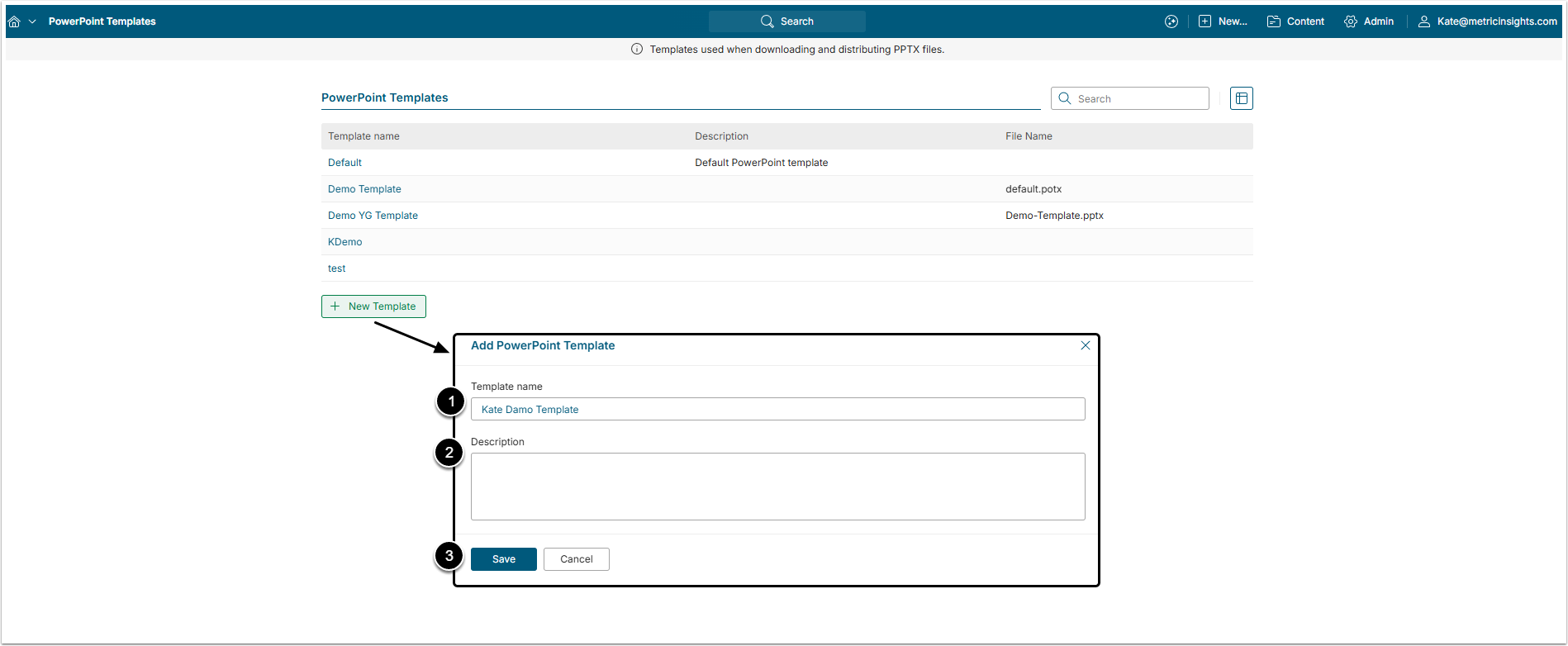
- Template name: Give your Template a unique name.
- Description: Optionally, add a description that will be visible n the list.
- [Save]
2. Create New Template by Using Default PPTX
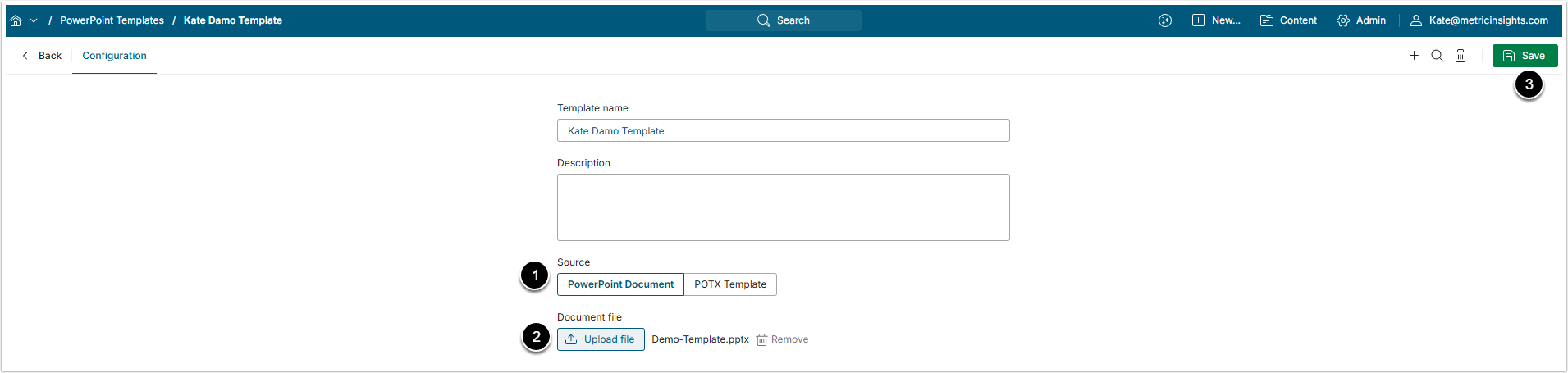
- Source: Select the source of the Template.
- [Upload file] to upload the Template file.
- [Save]
1. Copy the Default File
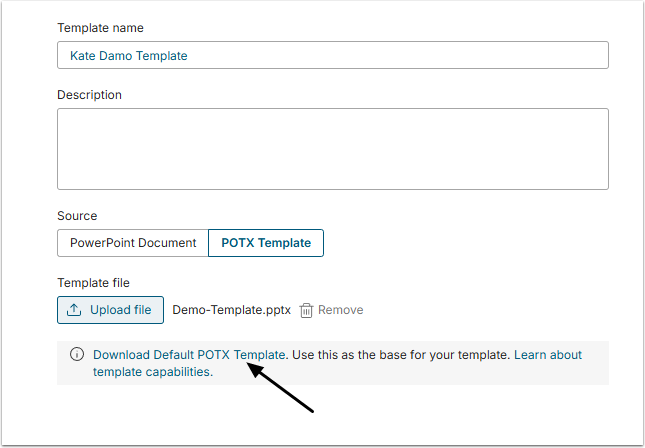
Click the Download Default POTX Template link to download the example file automatically. Open the file on PowerPoint.
2. Open Slide Master
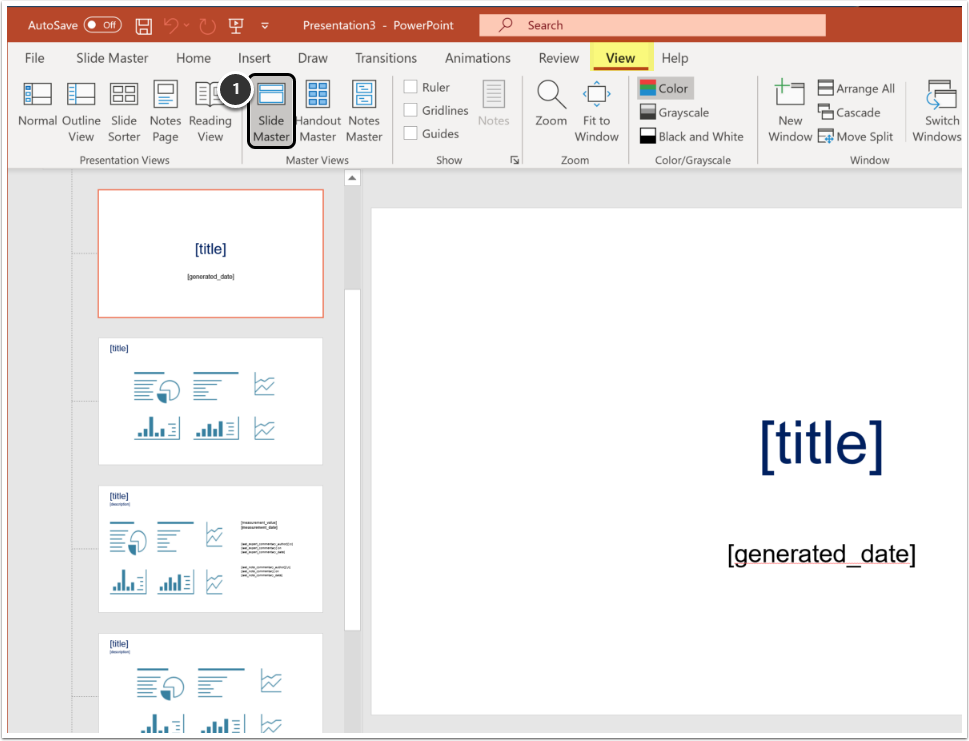
In the View tab, select Slide Master to view the sample Slide types provided by default Template POTX.
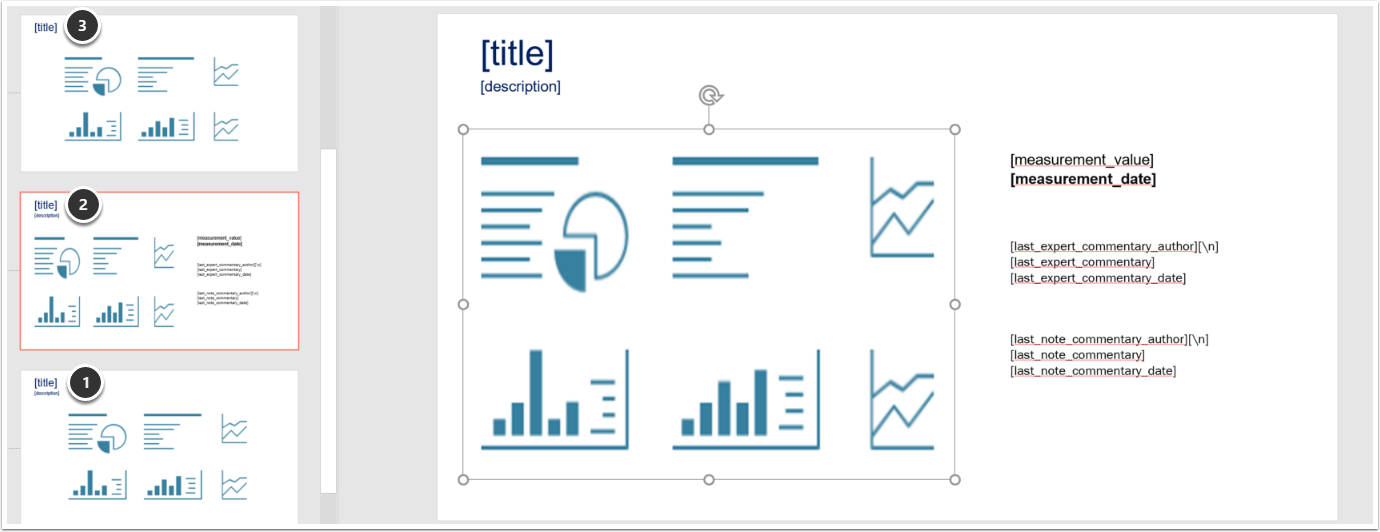
Hover over the [title] on each slide to view the supported layouts.
- External Report layout;
- Metric layout;
- Content Layout.
In addition, there is a Title layout and an End Slide layout. These layouts can be modified, copied, and deleted as needed. Metric Insights will use the picture portion of each layout to insert the corresponding Elements. Alt text can be added or removed as well. See list of supported Slide types and Tags at the end of this article.
NOTE: When modifying Templates, use images/pictures instead of shapes.
2.1. Save Adjusted Slide Master as POTX File
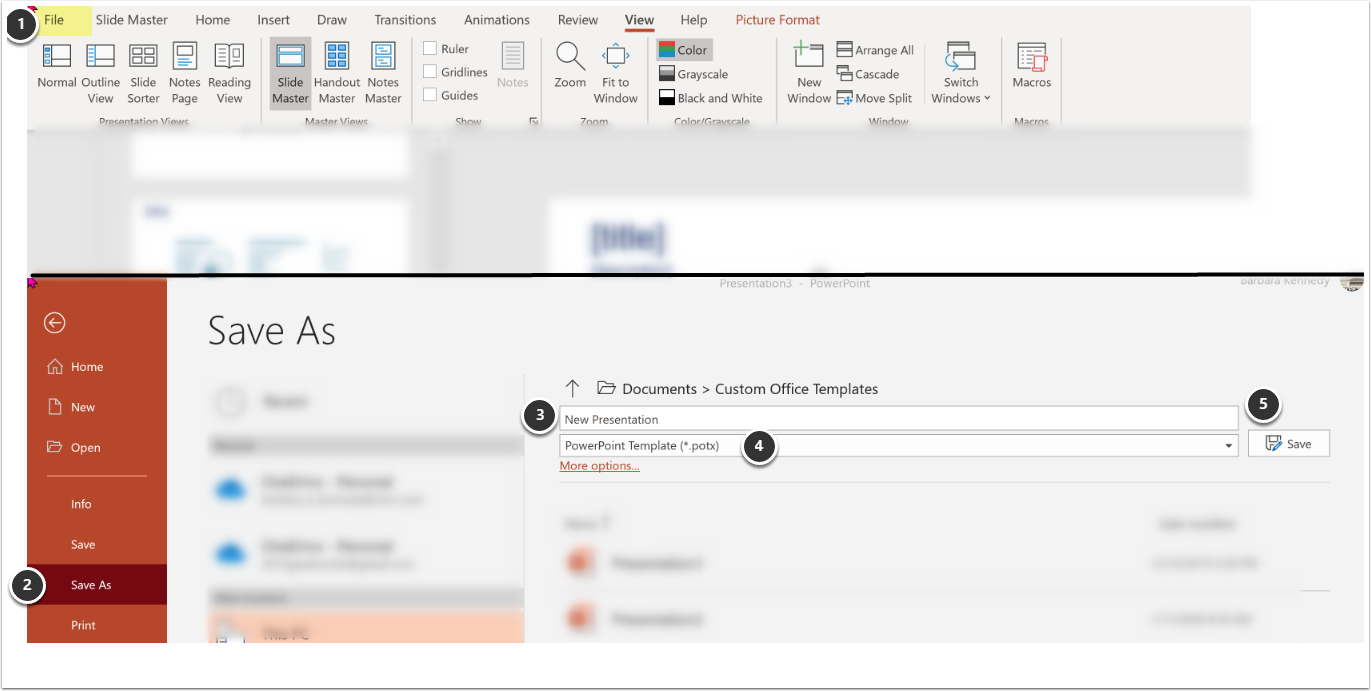
- Select File.
- Save As.
- Name your new Template.
- Be sure to select POTX as file type.
- [Save] to a location on your computer.
3. Example of Slide for a Metric using your Template
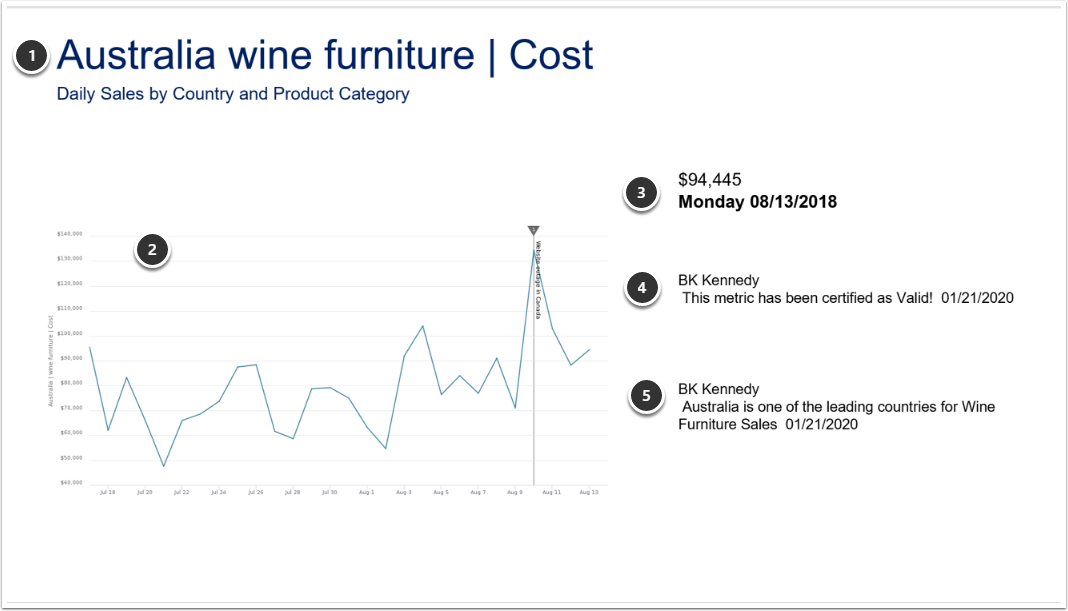
- Metric Name and Description;
- Chart image;
- Measurement Value and Time;
- Expert Commentary information;
- Most recent Comment.
4. Slide Types and Tags Supported in Custom PowerPoint Templates
New Slide types and Tags supported in Metric Insights PowerPoint templates:
- Slide types:
- "Content";
- "Title";
- "End";
- "Metric";
- "Report";
- "External Report".
- Tags/variables:
- [title] - name of the MI Element;
- [element_image];
- [description];
- [measurement_date];
- [measurement_value];
- [generated_date];
- [last_expert_commentary];
- [last_expert_commentary_author];
- [last_expert_commentary_date];
- [last_note];
- [last_note_author];
- [last_note_date].
- [/n] - carriage return.
5. How to Use Custom Templates in Bursts
Access Content > Bursts click the necessary Burst to open Burst Editor
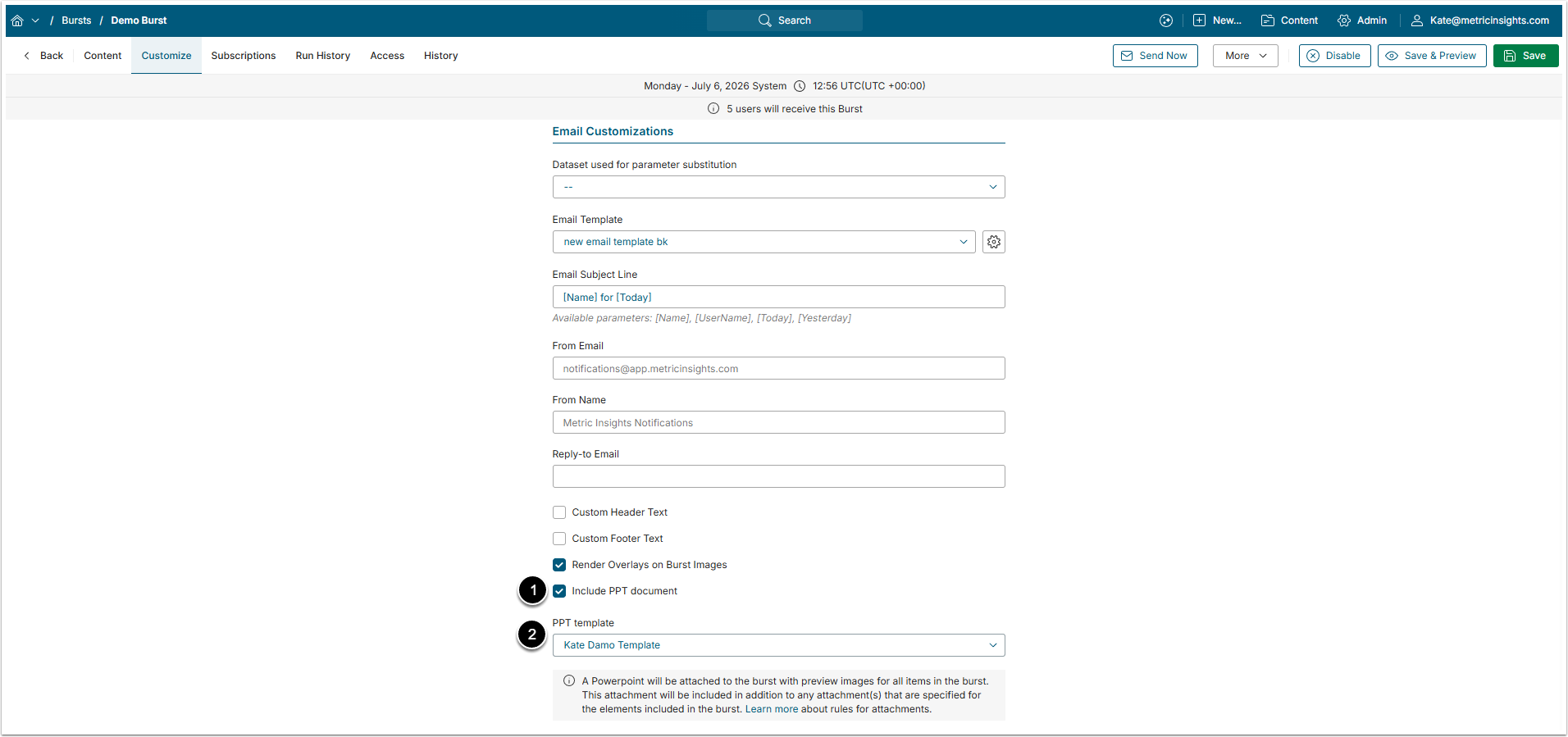
On the Customize tab:
- Select "Include PPT document".
- PPT Template: Select the template from the drop-down list.
6. How to Use Custom Templates in Favorites
Access Content > Favorites
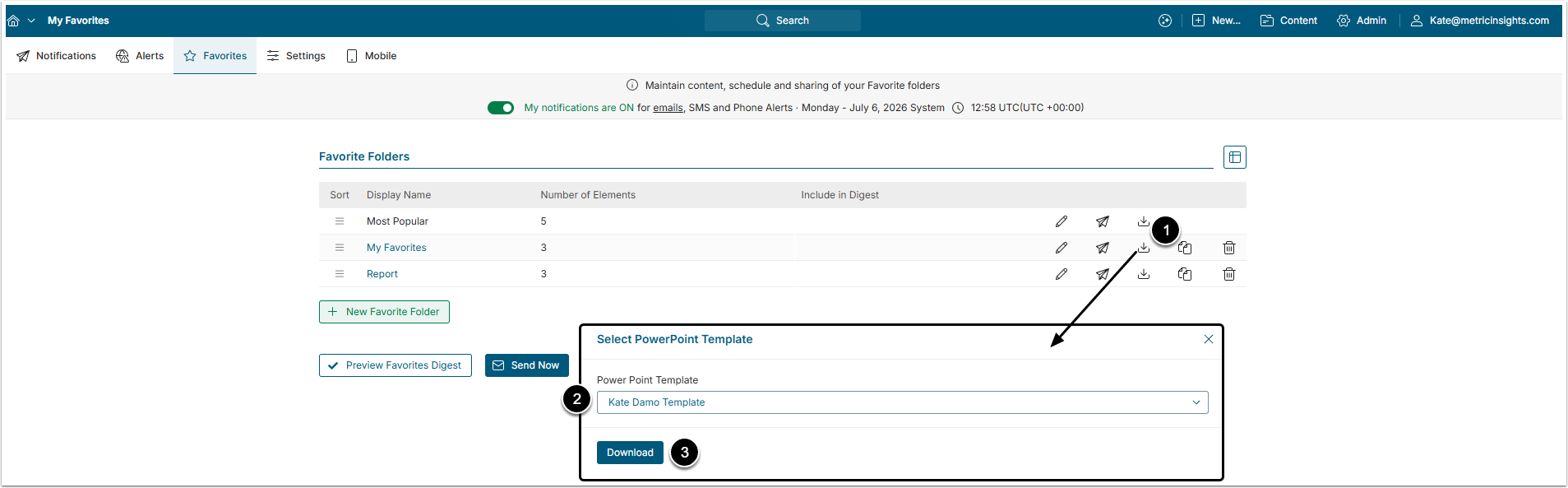
- Select Download as PowerPoint.
- PowerPoint Template: Select the Template from the dropdown menu.
- [Download]