The Group as a functionality allows assigning Privileges and Permissions to all Users who are members of that Group.
This article describes how to create a new Group and assign Users to it.
Table of contents:
1. Create a New Group
Access Admin > Users & Groups and open the Groups tab (for Power Users that have the Privilege to create Groups it will be Admin > Groups)
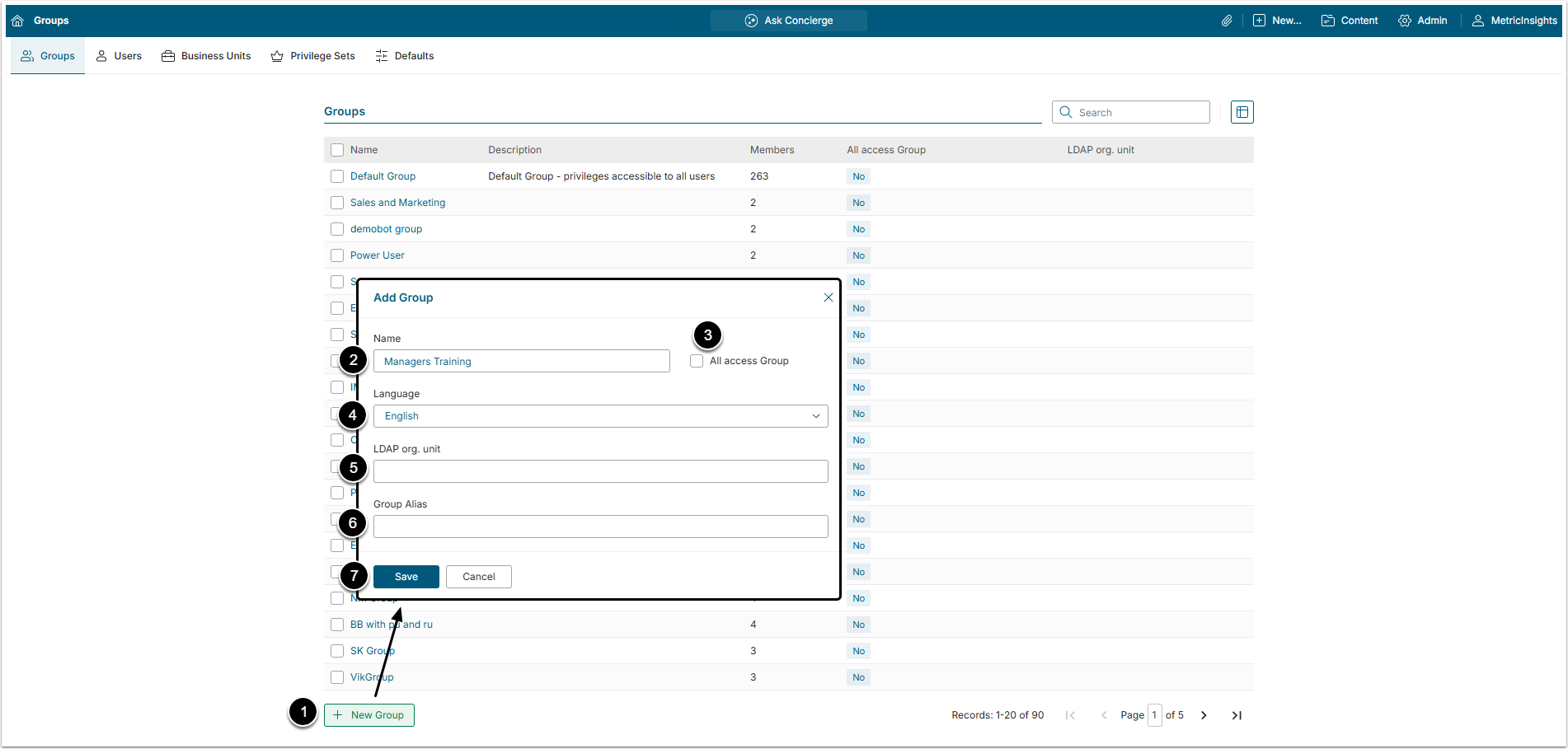
- [+New Group]
- Name: Give the Group a descriptive name.
- All access Group (this option is available to Admins only): Select it to grant this Group a View Access to all available Elements and Dimensions.
- Language: Optionally, select the default language of the group from the dropdown menu.
- LDAP Org. Unit: In most cases this field will be filled automatically.
- To learn more about managing Users/Groups via LDAP, refer to Script for synchronizing/creating users with LDAP.
- Group Alias: Optionally, add the displayed name of the Group.
- [Save] to access the Group Editor.
2. Complete the Info Tab
A Group does not have to be granted any Privileges and/or Permissions at the time it is created. The initial ability of the Group's members to access content and perform system functions will be extremely constrained until some Privileges and Permissions will be assigned to it. However, be aware, that Users can be members of several Groups and will inherit Privileges and Permissions from them.
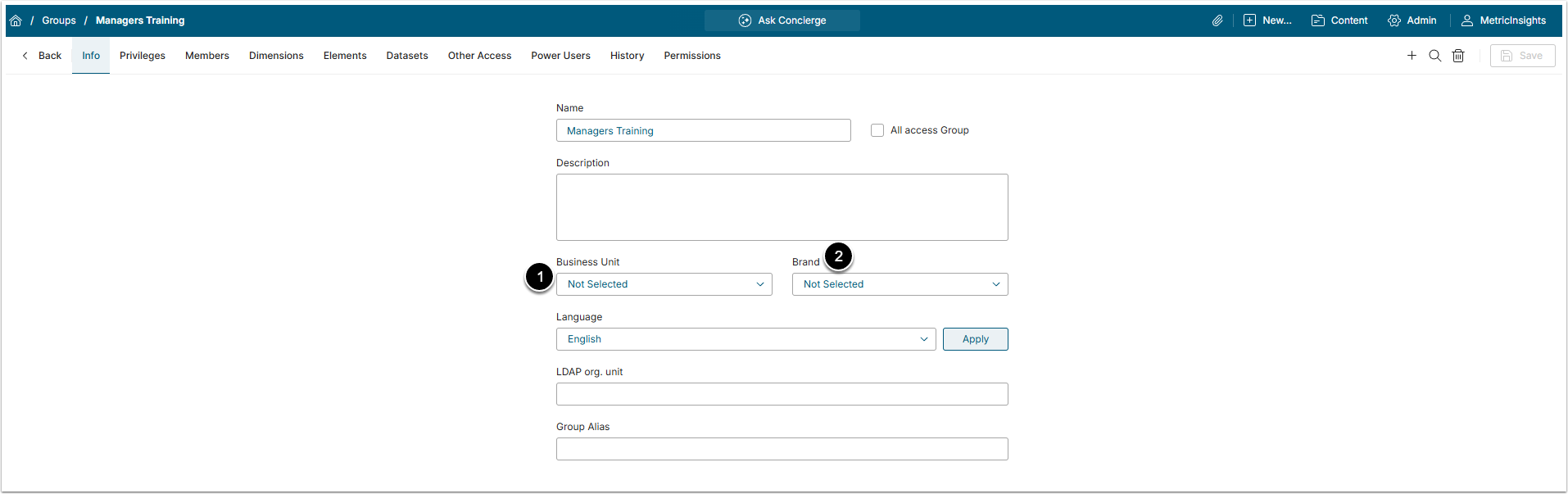
- Business Unit: Select the Business Unit for the Group.
- For more details about Business Units, refer to the Create a Business Unit article.
- Brand: Select a Brand that defines the appearance of the Metric Insights instance for the Group members.
- To learn more about Brands, check the Multiple Branded Experiences on the Same Instance article.
3. Add Privileges to the Group
Open Privileges tab
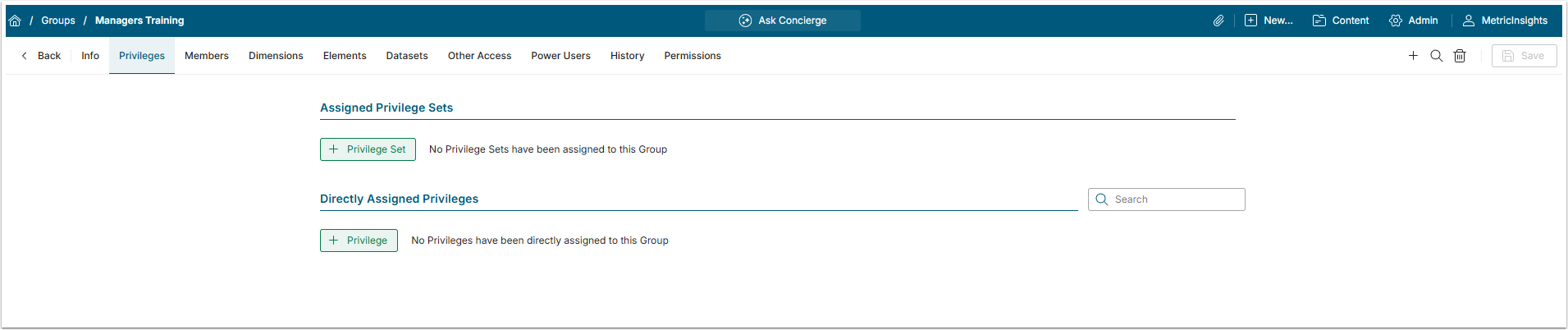
Here you can set Privileges and Privilege Sets to the Group by clicking [+Privilege] or [+Privilege Set].
For more details about how to assign Privileges, check Assigning Privileges and Permissions to the Group article.
4. Add Members to the Group
Open Members tab
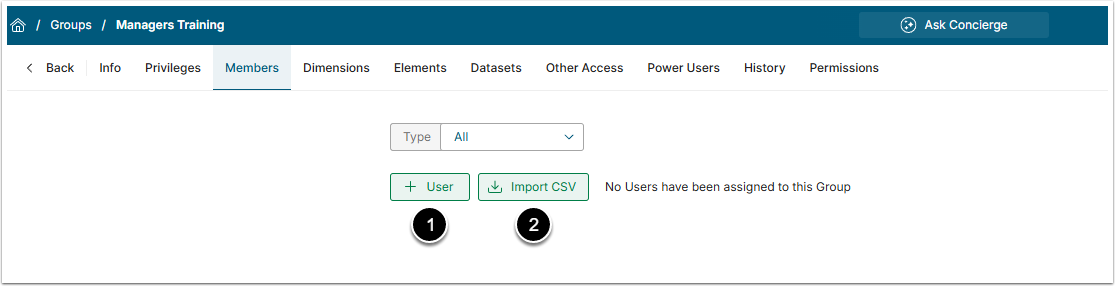
There are several ways of adding Users to the Group:
- Manually;
- Via the CSV file.
Besides that, it is possible to sync Users from LDAP/AD. To learn more about this method, check the Syncing Groups and Users from LDAP/AD using 'mi-ldap-usersync' script article.
4.1. Manually Add Users
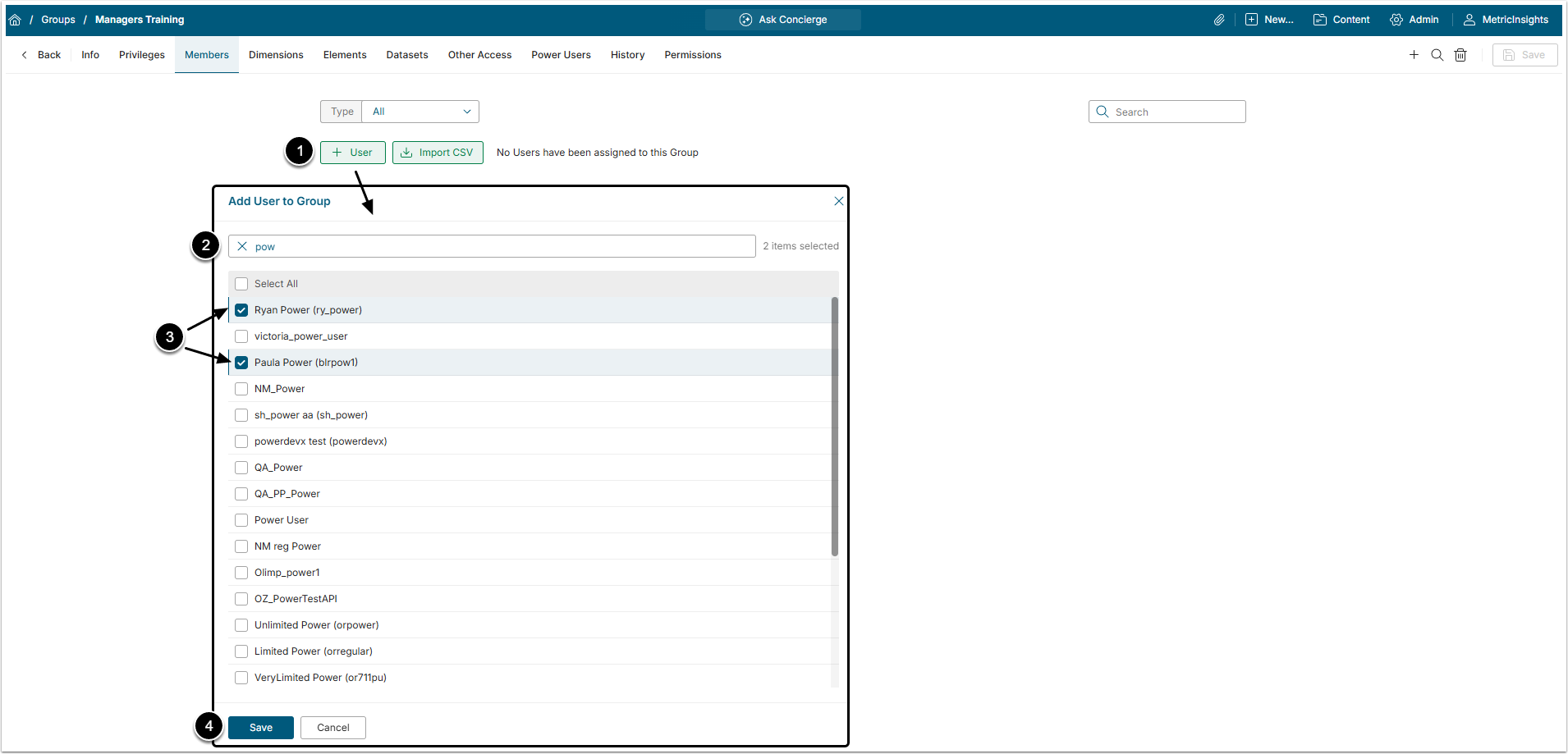
- [+User]
- Use Search bar to shorten the list of Users.
- Choose the Users by selecting checkboxes.
- [Save]
For more details about User creation refer to Create a New User Account and Assign to Group article.
NOTE: Be aware, that the User who was manually added to the Group auto-synced with a LDAP org. unit will be removed from the Group after the next sync.
4.2. Add Members Via a CSV File
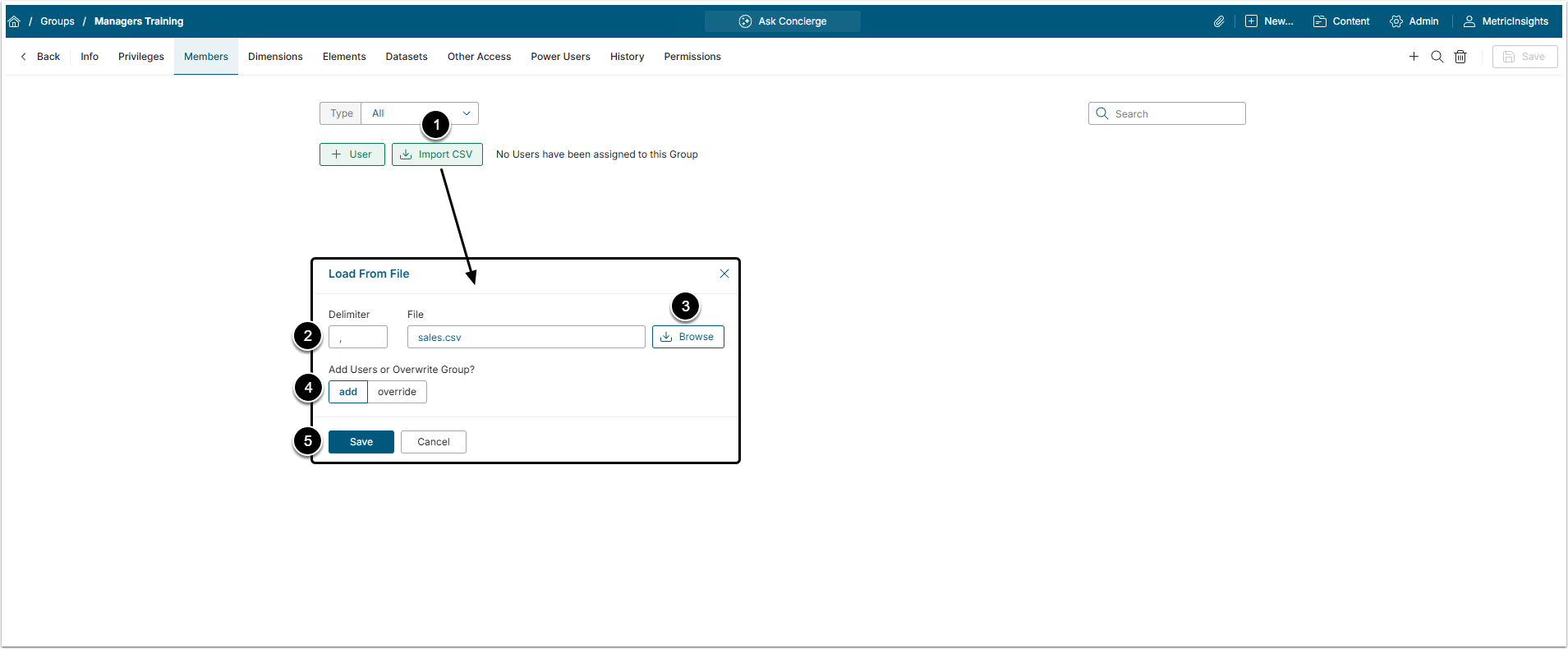
- [Import CSV]
- Delimiter: Indicate the Delimiter your input file uses.
- [Browse] and select the CSV file from the local PC.
- Add Users or Overwrite Group: Define if you want to just add the Users from the file to the Group or or remove all Users currently in the Group and replace them with the Users from the file.
- [Save]
All other tabs of the Group Editor are described in the Assigning Privileges and Permissions to the Group article.
5. Delete Users from the Group
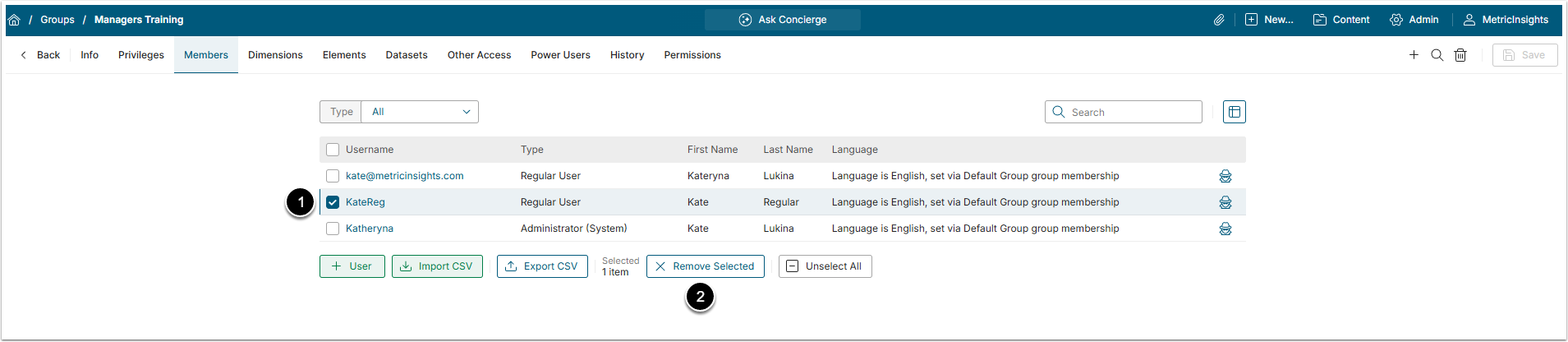
- Select the User from the list.
- [Remove Selected]
NOTE: When a User is removed from a Group, they may temporarily retain Privileges assigned through that Group due to caching. Refresh the User Editor page to ensure the Privileges are removed after the User is removed from the Group.