Beginning in v7.2.1, Concierge can answer questions about Power BI Cloud External Reports and provide analysis based on Power BI metadata.
To enable this functionality, ensure all prerequisites are met, enable the ENABLE_TALK_TO_YOUR_DATA System Variable, open Concierge from the External Report viewer, run the corresponding commands to enable the feature and update learnings, verify setup in the Learning editor, then navigate to the External Report Viewer and enter questions about the External Report.
PREREQUISITES:
- The Azure App used in the Data Source must be configured for OAuth and must be granted Dataset.Read.All permission.
- The Power BI Cloud Data Source of the External Report must have the OAuth Auth Type.
- The External Report must have the Microsoft Power BI OAuth Report Profile.
TABLE OF CONTENTS:
1. Enable ENABLE_TALK_TO_YOUR_DATA System Variable
Access Admin > System > System Variables

- Enter
ENABLE_TALK_TO_YOUR_DATAin the search box. - Locate the ENABLE_TALK_TO_YOUR_DATA System Variable, select the gear icon, assign the value to Y, then [Save]
- [Commit Changes]
2. Configure Data Source
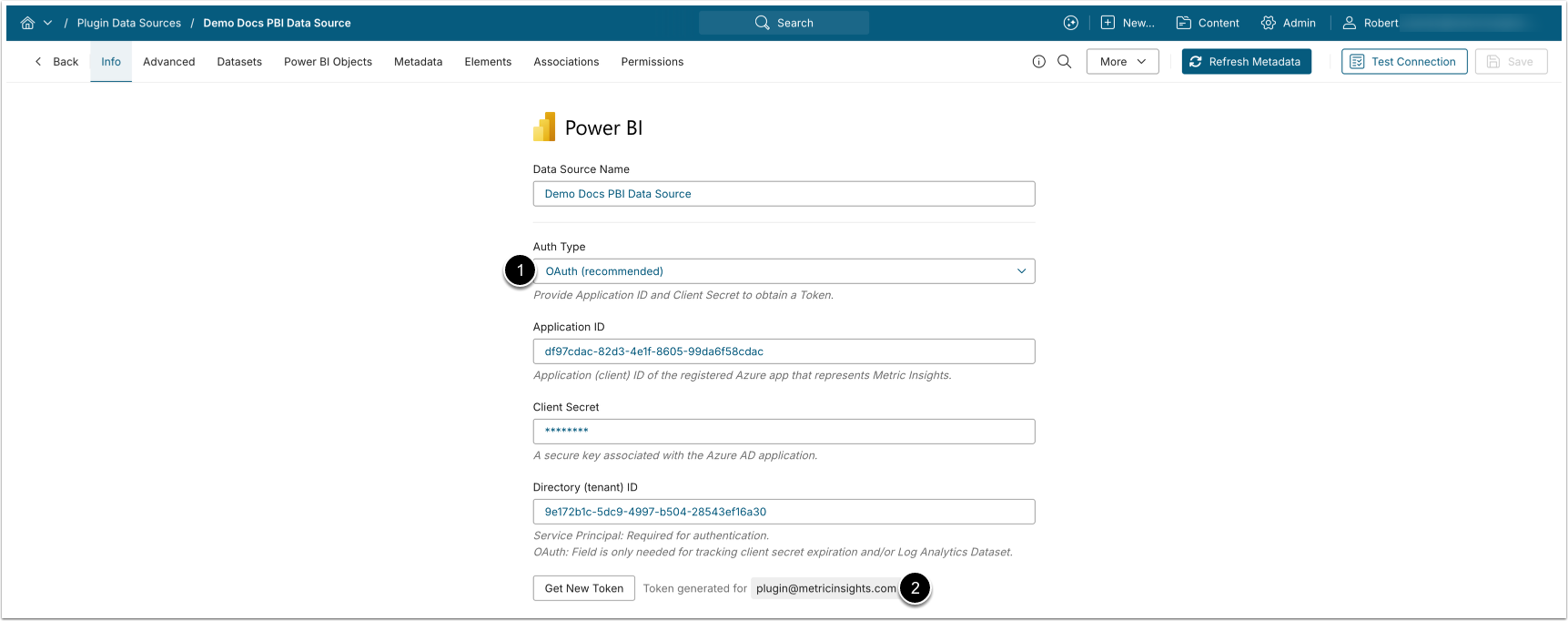
- Ensure that OAuth Auth Type is selected.
- Verify that the Token has been generated for the User, who has access to the corresponding Power BI objects.
3. Sync Metadata
Access the Metadata tab
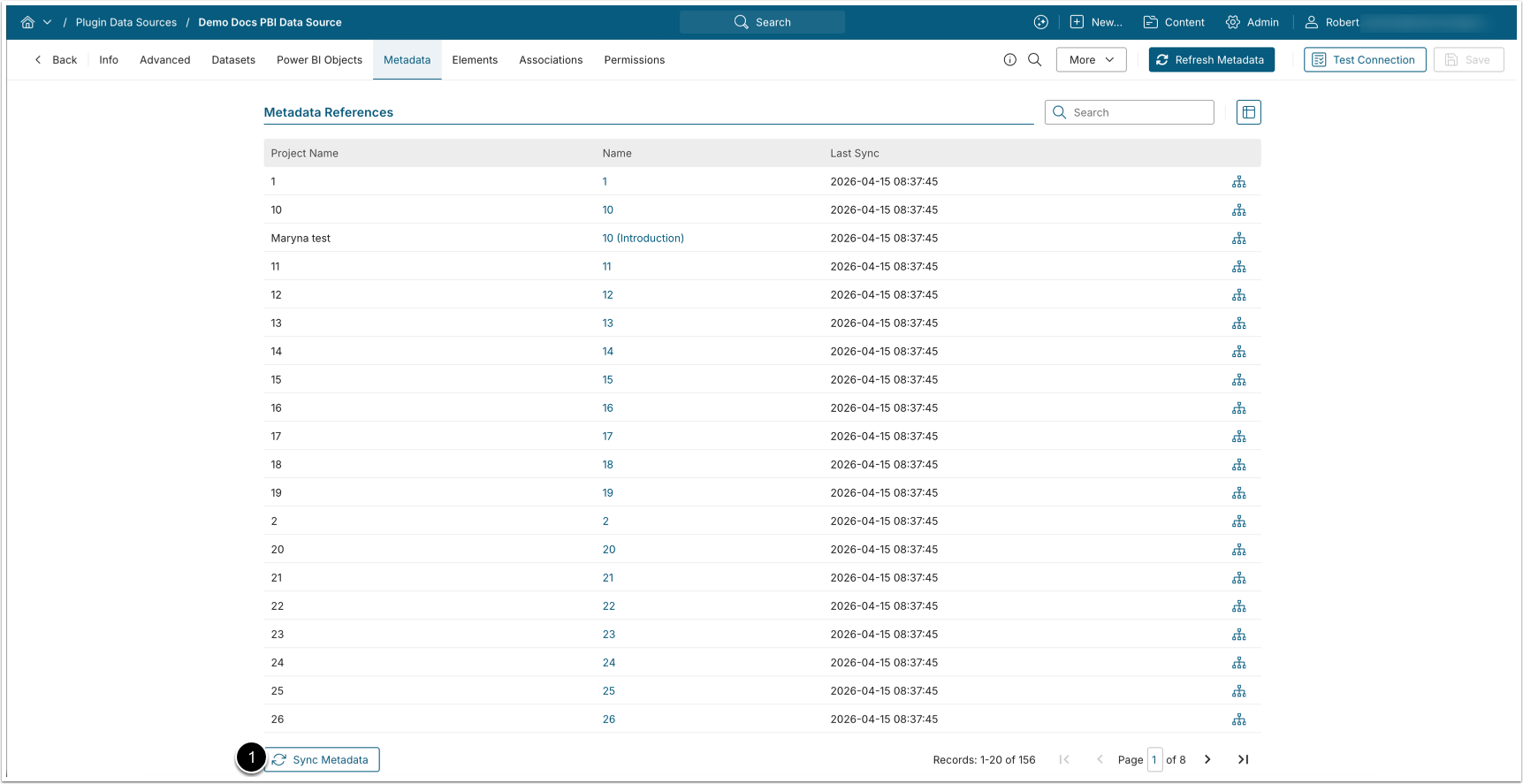
- [Sync Metadata] at the bottom of the page to update the learnings for the External Report and improve Concierge answer speed.
4. Verify External Report Profile
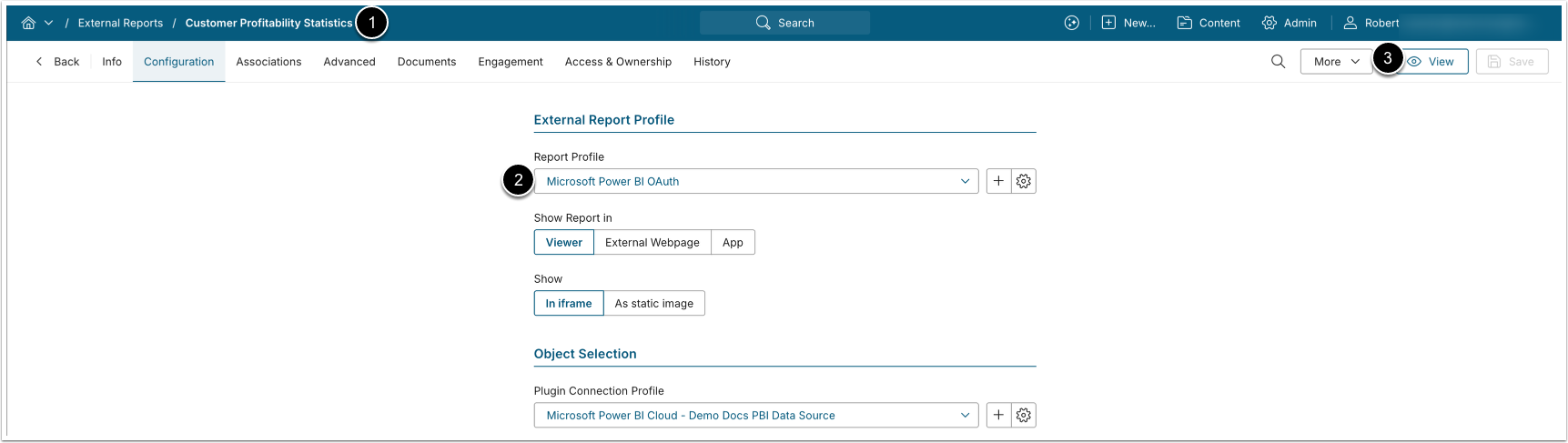
- Open the External Report.
- Verify that the External Report's Profile is set to Microsoft Power BI OAuth.
- [View]
5. Enable Talk to Your Data for the External Report
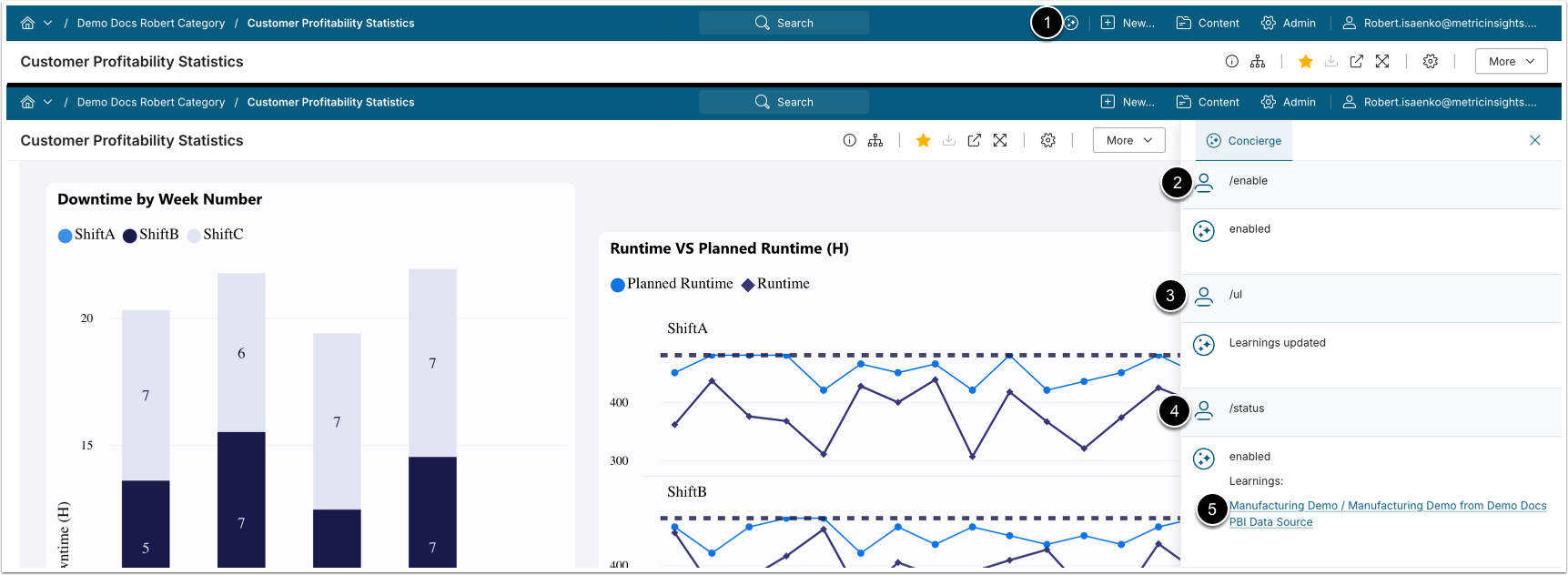
- Open Concierge.
- Enable "Talk to your data" for the External Report:
/enable - Update learnings:
/ul - Verify the status of learnings:
/status - Access the generated learnings.
6. Verify Learning Configuration
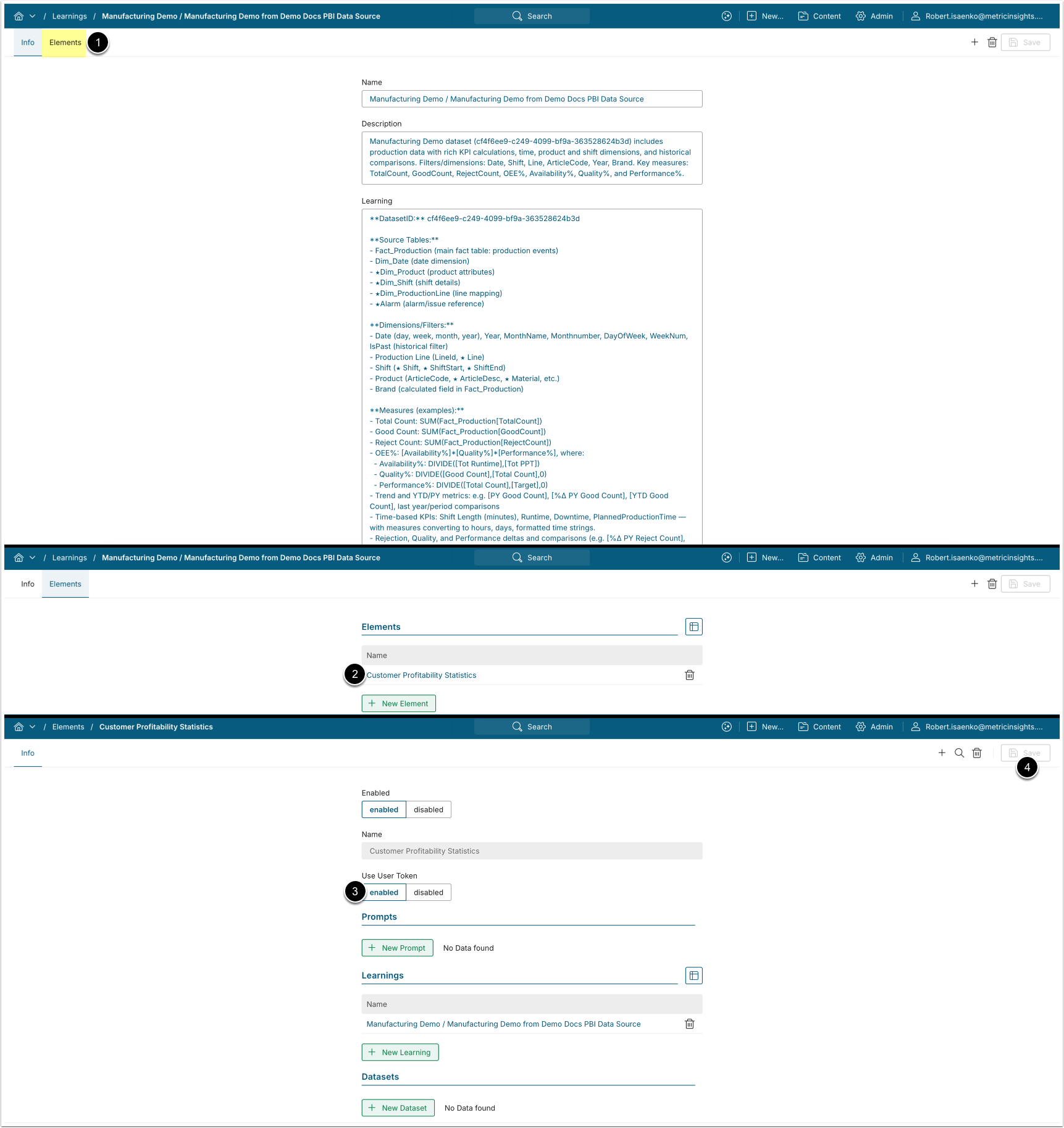
- Alternatively, you can access the Element's Learnings configuration directly via the URL:
https://<MI_hostname>/editor/llm/element/<Element_id>#info
NOTES:
- The Info tab displays the External Report information fetched from the Power BI metadata.
- Enabling the Use User Token option is highly recommended, as it limits the scope of accessed metadata to the user's permissions in Power BI, eliminating potential security risks related to service account credential usage.
- Access Elements.
- Select the External Report.
- Ensure the Use User Token option is enabled.
- [Save] if the configuration has been changed.
7. Talk to Your Data
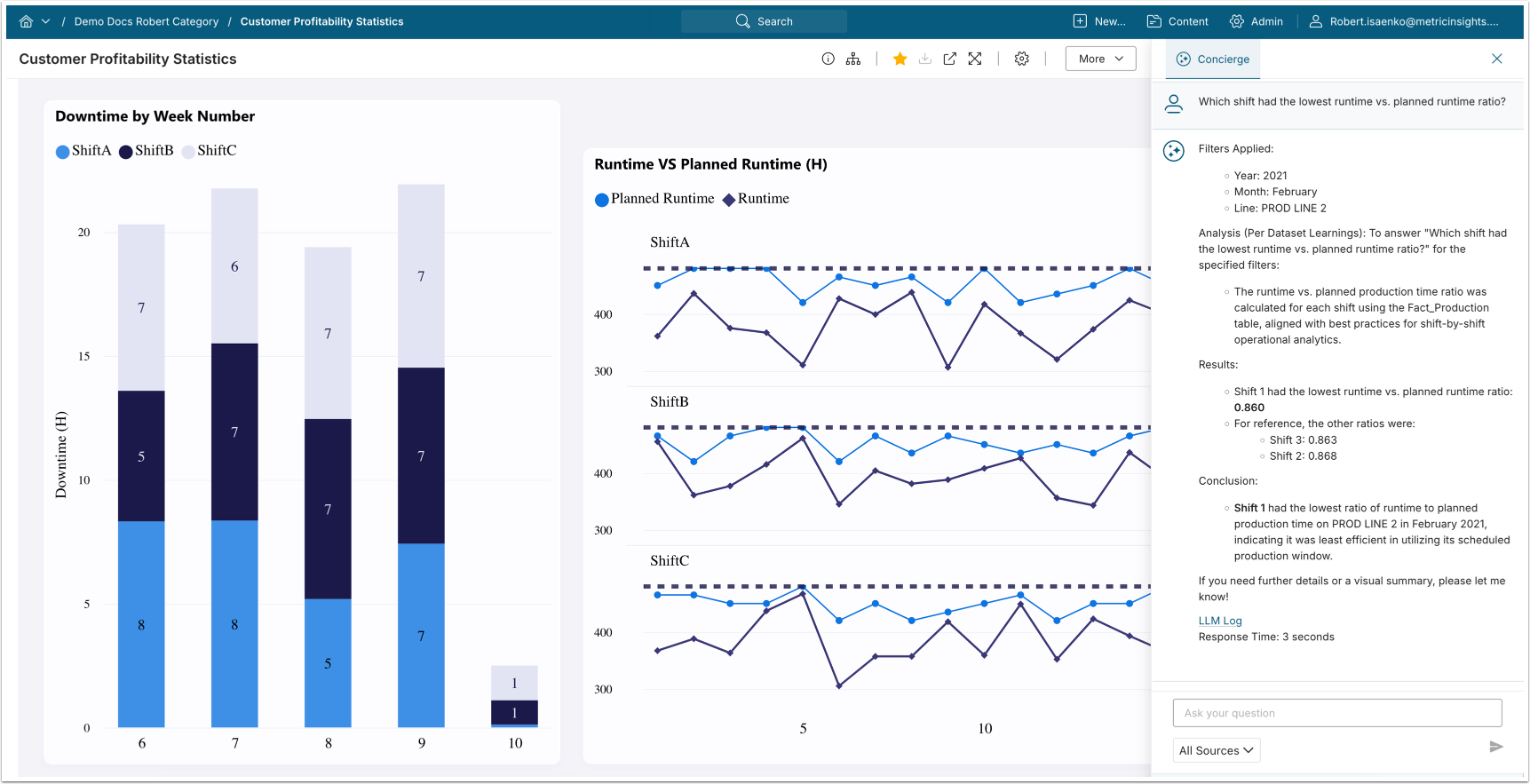
After verifying the learning configuration, setup is complete. Navigate back to the External Report viewer and enter questions about the External Report in the Concierge panel.