This article describes how to connect to MySQL plugin in order to load data into Datasets and Reports in Metric Insights.
1. Create a New Data Source
Access Admin > Collection & Storage > Data Sources
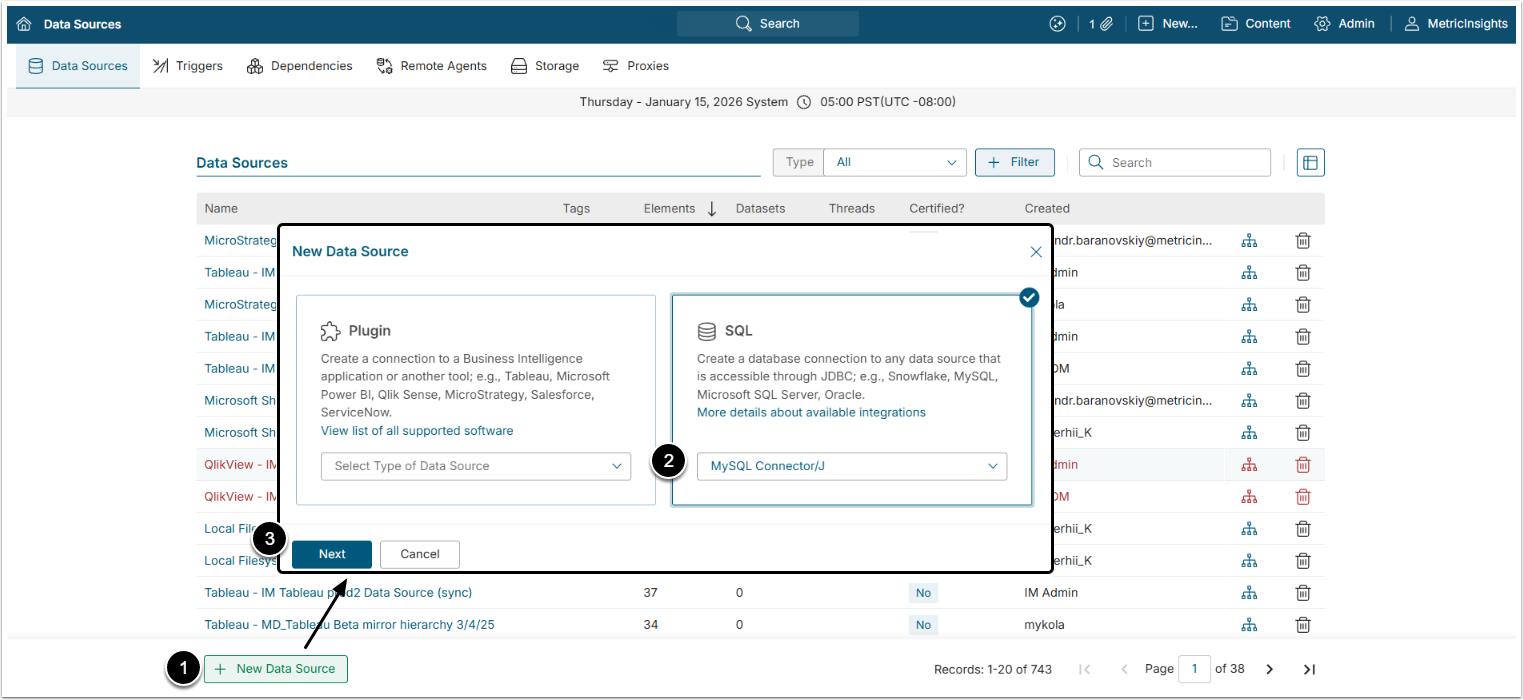
- [+ New Data Source]
- Select "MySQL Connector/J" in the SQL section.
- [Next]
2. Complete Data Source Creation
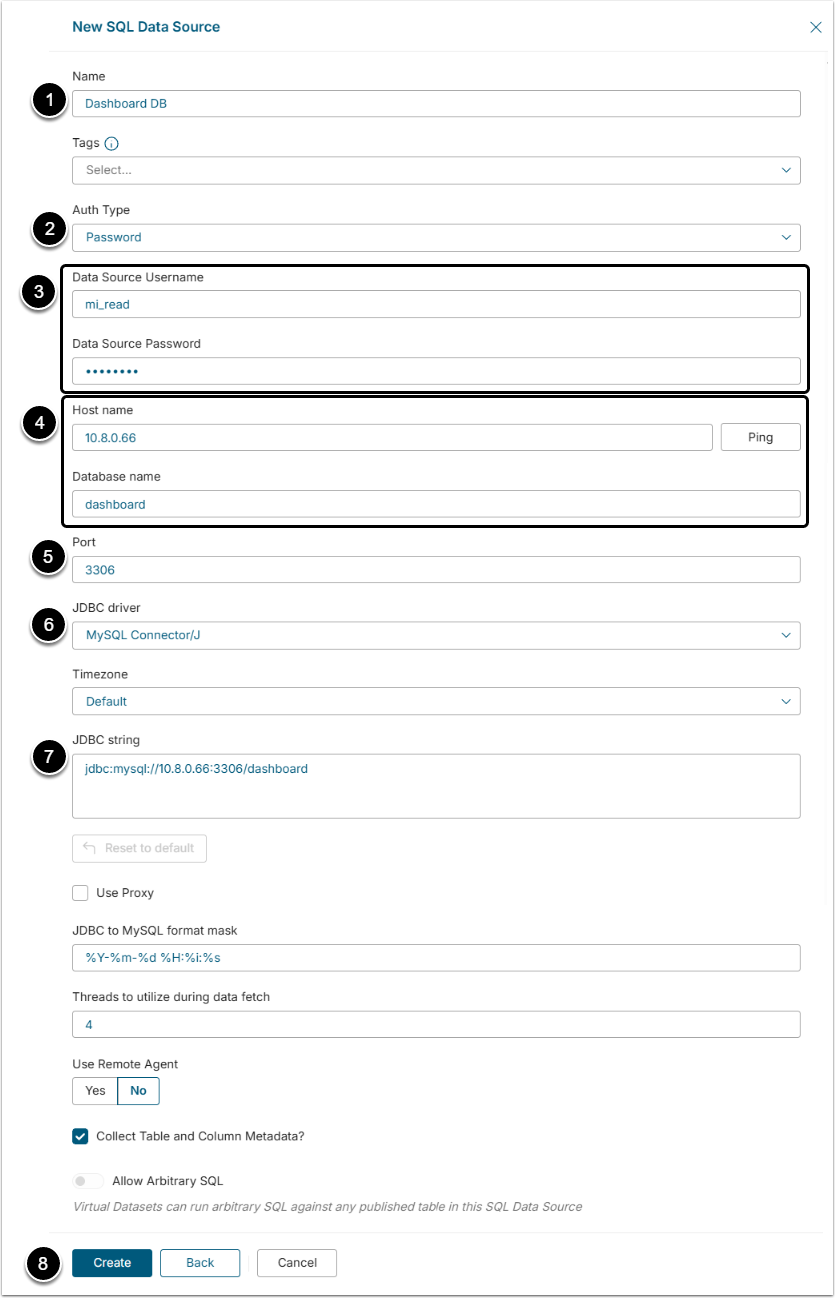
- Name: Give the Data Source a descriptive name.
- Auth Type: Select the authorization type:
- Password: Use the credentials to provide access to the database.
- Identity Profile: Select the existing Identity Profile in the Identity Profile field.
- Data Source Username and Data Source Password are obtained from from service provider (in case of AWS or Azure usage) or from database administrator (in case of on-prem usage).
- Host name and Database name: Provide the database host name and the title of the database.By clicking [Ping] the user can check connection to the mentioned host.
- Port: The "3306" value is auto-filled by default.
- JDBC driver: The "MySQL Connector/J" value is chosen in this field by default.
- JDBC string: This string is auto-generated by default, but the User can change it according to specific needs.
- [Create]
3. Check the Connection
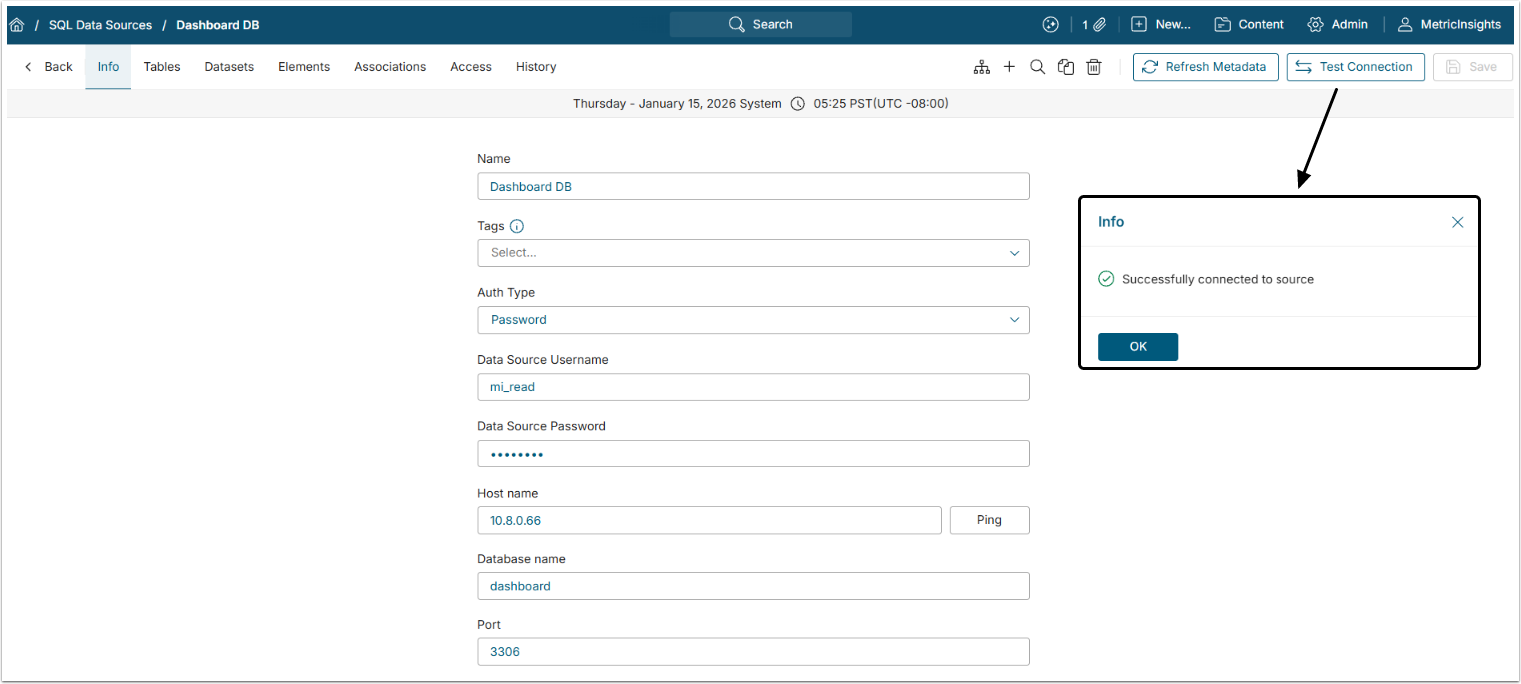
[Test Connection] to check if the system connects to the database successfully.
The next step would be creating a Dataset from MySQL Data Source. For more information on that, check the Create Dataset from Plugin or SQL Data Source article.