This article describes how to connect to Microsoft Power BI in order to load data into Datasets and Reports in Metric Insights.
PREREQUISITES
- Make sure all the Prerequisites for connecting to Microsoft Power BI have been met.
- Refer to the Power BI Plugin Capabilities to understand for which type of Power BI Objects you can get data and images.
The whole process comprises:
1. Create New Data Source
Access Admin > Collection & Storage > Data Sources
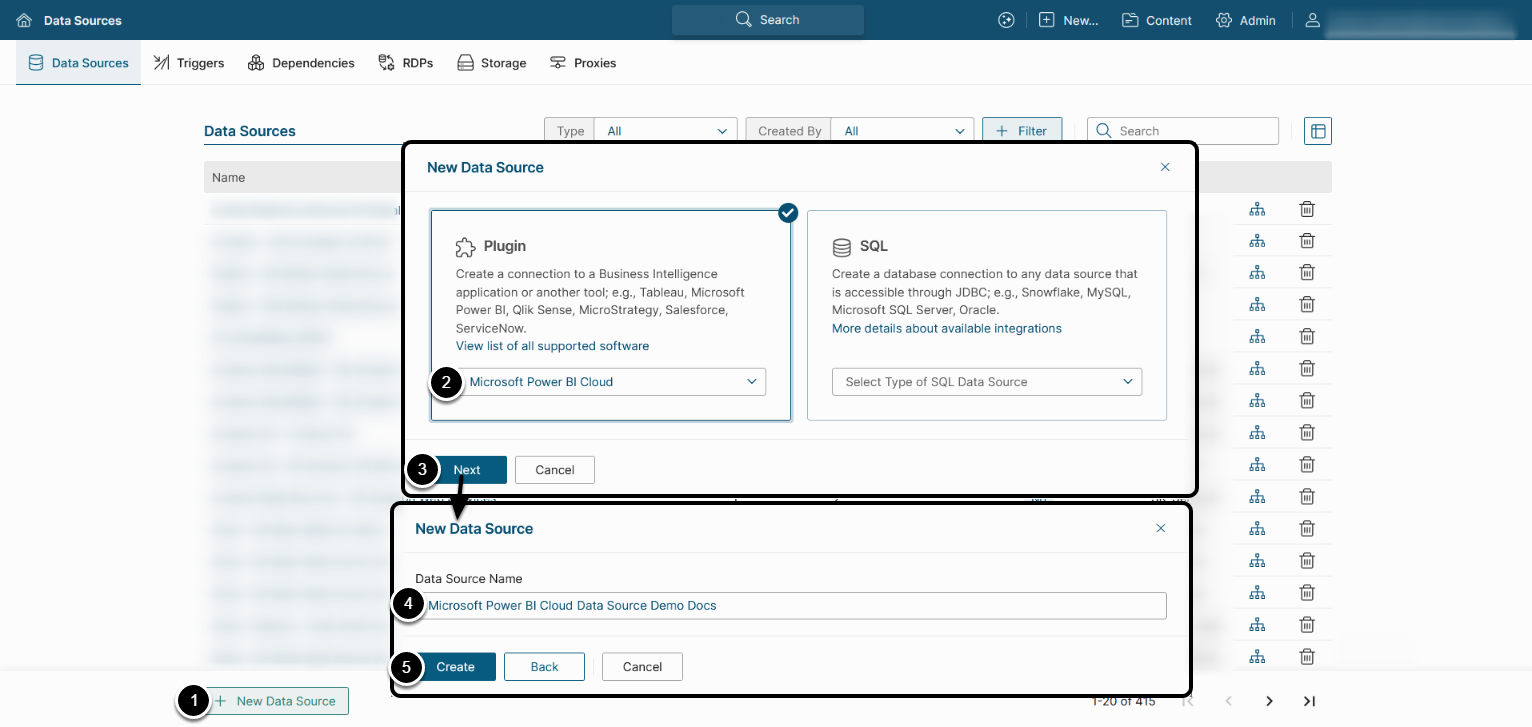
- [+New Data Source]
- Choose "Microsoft Power BI Cloud" from Plugin drop-down list.
- [Next]
- Enter a descriptive Data Source Name.
- [Create]
2. Provide Required Parameters
NOTE: Enabling OAuth has the following benefits compared with the Username/Password authentication model:
- Ability to view content in iframes based on user account permissions rather than service account permissions;
- Row-level security (RLS) without the need to use User Maps on MI side (you only have to enable RLS in Power BI).
See Configure Microsoft Power BI OAuth in Azure AD for details.
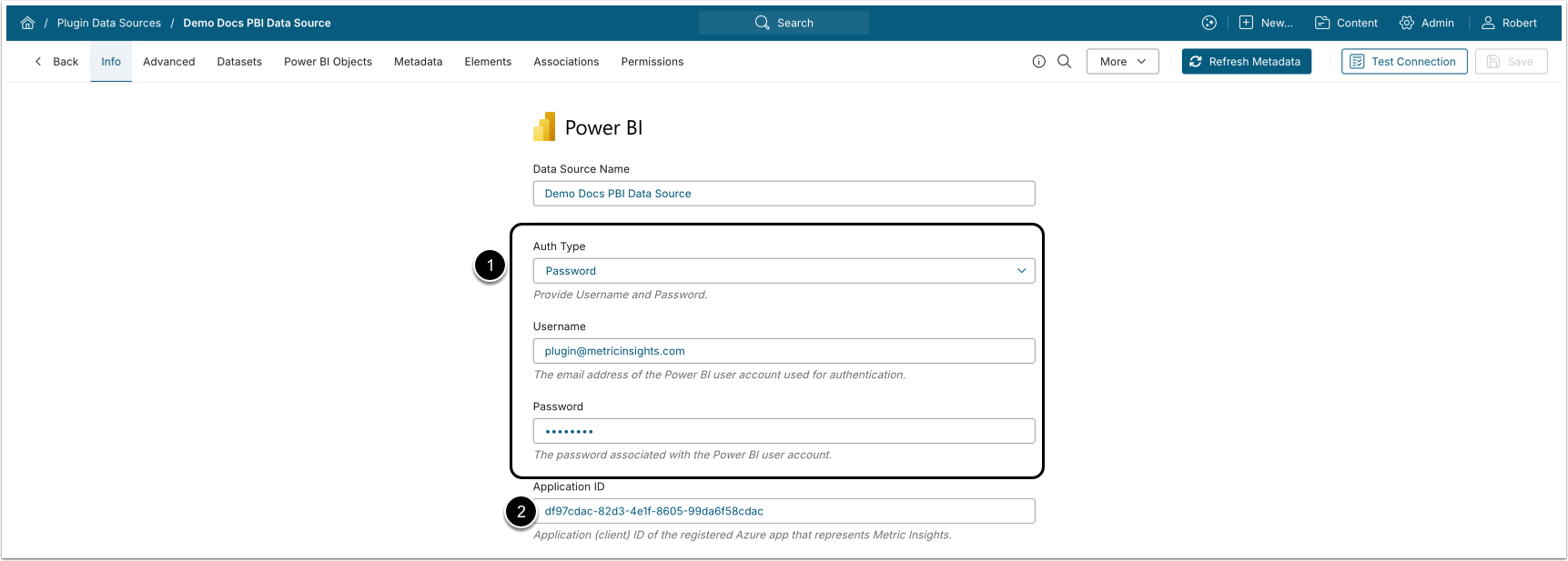
- Select the Auth Type:
- OAuth: Enter Client Secret and click [Get Token] (after entering Application ID) to grant permission to Office 365 API.
- You can enable Client Secret authorization for your Azure app. After the Client Secret has been generated, the Username/Password authorization will no longer work.
- Optionally, for Client Secret expiration tracking, provide Directory (tenant) Id which can be found on the Overview tab of the Azure app.
- Service Principal: Provide Client Secret value and Directory (tenant) Id.
- See Configure Service Principal Auth for Power BI for instructions on this auth type configuration.
- NOTE: Enable Power BI Premium: Collect media using API on the Advanced tab to be able to collect Power BI Objects for a Data Source.
- Password: Provide Username and Password.
- The username must be a cloud-only Microsoft Power BI user or, if an AD user, the AD user must exist/be synced in Azure AD for Power BI authentication.
- Embedding and image generation rely on service account embed token.
- RLS-like filtering can be configured using User Maps, but the embed token remains tied to the service account. If full RLS support is required, consider using OAuth.
- Identity Profile: Choose an Identity Profile.
- OAuth: Enter Client Secret and click [Get Token] (after entering Application ID) to grant permission to Office 365 API.
- Enter Application ID of the registered Azure app that represents Metric Insights to connect to Power BI.
3. Provide Optional Parameters
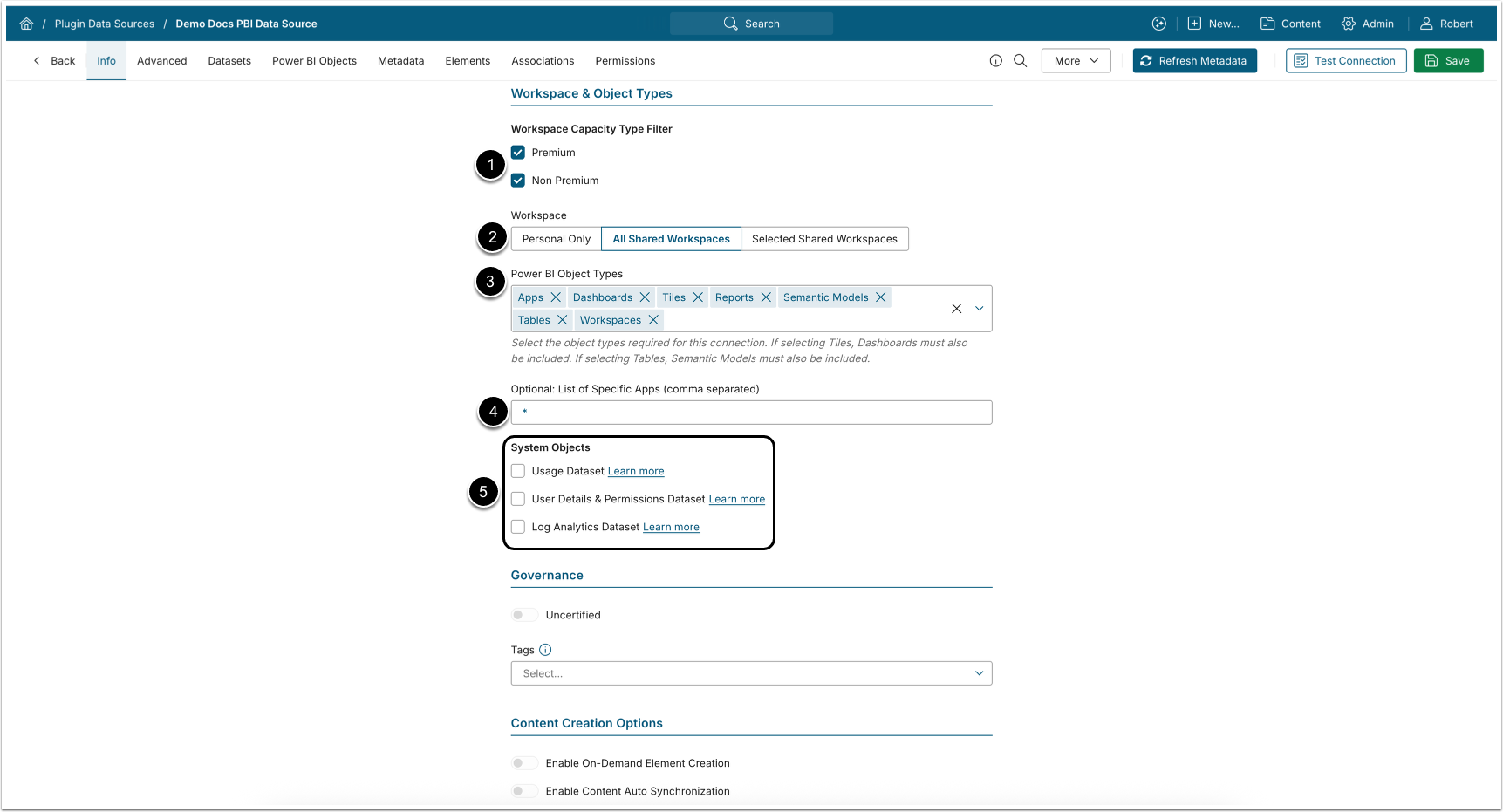
- Workspace Capacity Type Filter: Specify whether to fetch objects from Premium, Non-Premium, or all Workspaces.
- Workspace: Select whether to collect objects from Personal Workspace Only, All Shared Workspaces, or Selected Shared Workspaces.
- Power BI Object Types:
- By default, the plugin is configured to collect Dashboards, Tiles, Reports, Semantic Models, Tables, and Workspaces.
- Remove any object types you do not need to fetch.
- Select Apps to be able to collect objects from Apps.
- Selecting Reports returns both Reports and Paginated Reports.
- See Object Filters Cheat Sheet for details.
- Optional: List of Specific Apps (comma separated): Optionally provide a comma-separated list of App names to retrieve. Use * to fetch all Apps.
- NOTE: Apps must be selected under Power BI Object Types for this filter to take effect.
- System Objects: Select which objects to fetch.
- Log Analytics Dataset requires entering Log Analytics Workspace ID.
- For OAuth also provide Directory (tenant) Id.
- See Configure System Objects for Microsoft Power BI Cloud for details.
- NOTE: Usage Dataset and User Details & Permissions Dataset data can be filtered using the Workspace filter.
- Log Analytics Dataset requires entering Log Analytics Workspace ID.
Optionally, toggle on:
Object Types available for selection:
- Dashboards
- Tiles
- Reports
- Semantic Models
- Tables
- Workspaces
- Apps
*Content objects = Dashboards, Tiles, Reports, Semantic Models, Tables
| Selected Object Types | Result |
|---|---|
| Content objects | Retrieves all selected object types from workspaces matching the Workspace filter.
|
| Workspaces,content objects | Retrieves all selected object types from workspaces matching the Workspace filter.
|
| Apps, Workspaces, content objects | Retrieves all selected object types from workspaces matching the Workspace filter, plus Apps and App content filtered by the List of Specific Apps (or * for all Apps). |
| Apps, content objects | Retrieves Apps and App content filtered by the List of Specific Apps (or
|
4. Advanced Configuration
NOTE: If you have selected OleDB: Collect Data from OleDB and want to be able to get Data from Power BI Semantic Models (to create Metrics, Reports, and Datasets in Metric Insights), you must utilize the Metric Insights Remote Agent to connect to Power BI directly.
- For more information on how to install and use the RDP, consult Configuring a Remote Agent (v7.1.2).
If you are using AD, you may want to run the Remote Agent service as an AD service account:
- Access Services > Metric Insights Data Processor Daemon > Properties > Log On, select AD service account.
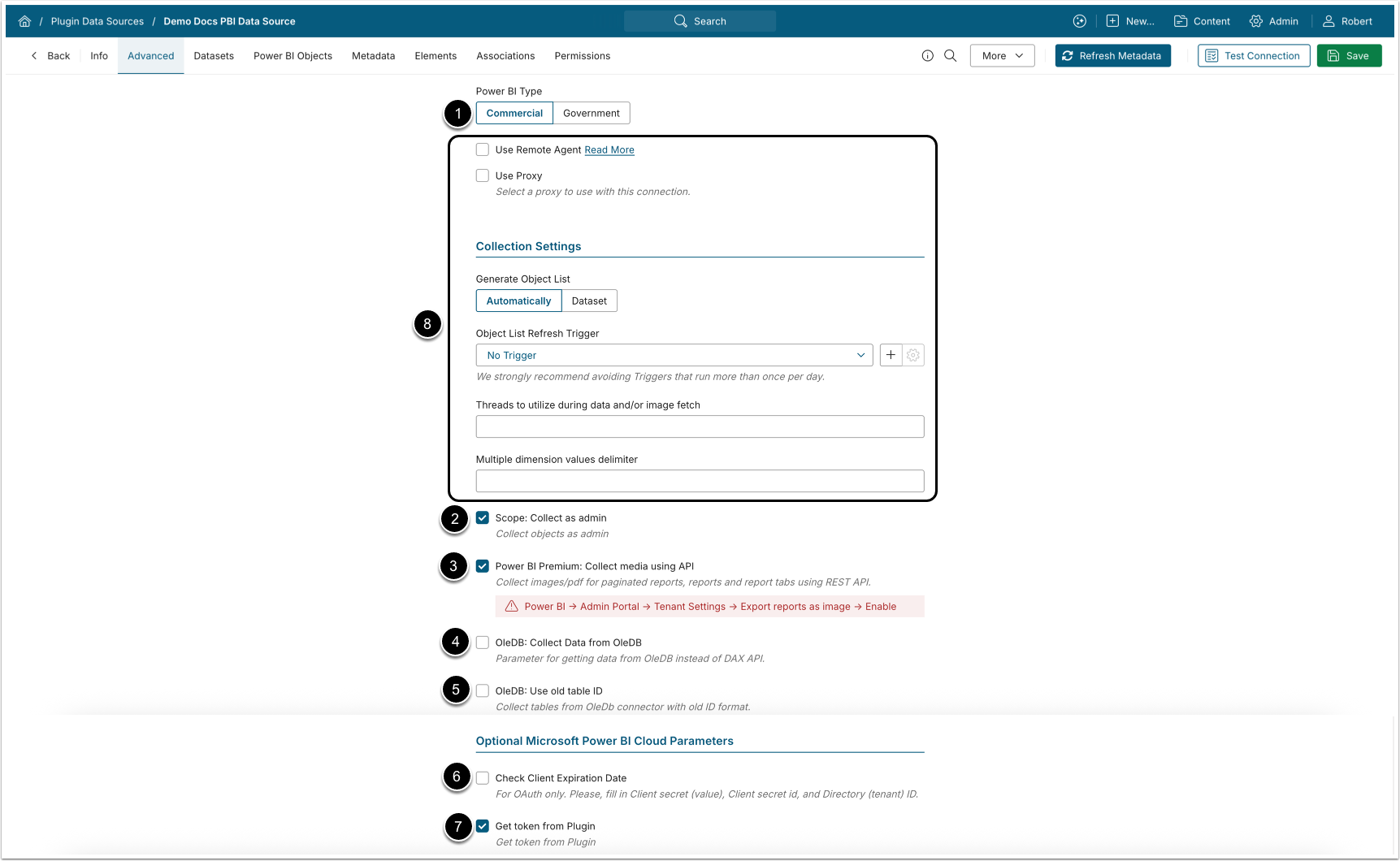
| Parameter | Description | |
|---|---|---|
| 1 | Power BI Type | Select the Power BI environment your organization uses. This determines which Power BI service URL is used for connections.
|
| 2 | Scope: Collect as admin | Select this option to allow the User who
created the Data Source with the Power BI admin account to pull all
Workspaces and their objects into Metric Insights without having to grant Admin access to each workspace explicitly. NOTES:
|
| 3 | Power BI Premium: Collect media using API |
REQUIREMENTS FOR THE REST API CAPTURE:
|
| 4 | OleDB: Collect Data from OleDB |
NOTES: If data is fetched using DAX API (OleDB: Collect Data from OleDB is disabled):
If data is fetched from OleDB:
|
| 5 | OleDB: Use old table ID | Select this parameter whether or not to collect tables
from OleDB connector with the old ID format. |
| 6 | Check: Client Expiration Date, Client Secret ID | These parameters work only with OAuth and configure the display of Client Secret expiration date. Note that these parameters must be configured and the value of Directory (tenant) Id must be provided in order to display Client Secret expiration date:
|
| 7 | Get token from Plugin | Specify whether the token used to display
External Report images in iframes is fetched from the plugin ("Y"),
or in the UI ("N"). NOTES:
|
| 8 | Other Advanced Data Source Configuration parameters | See Advanced Data Source Configuration for more details. |
5. Microsoft Power BI Cloud Elements and User Tokens
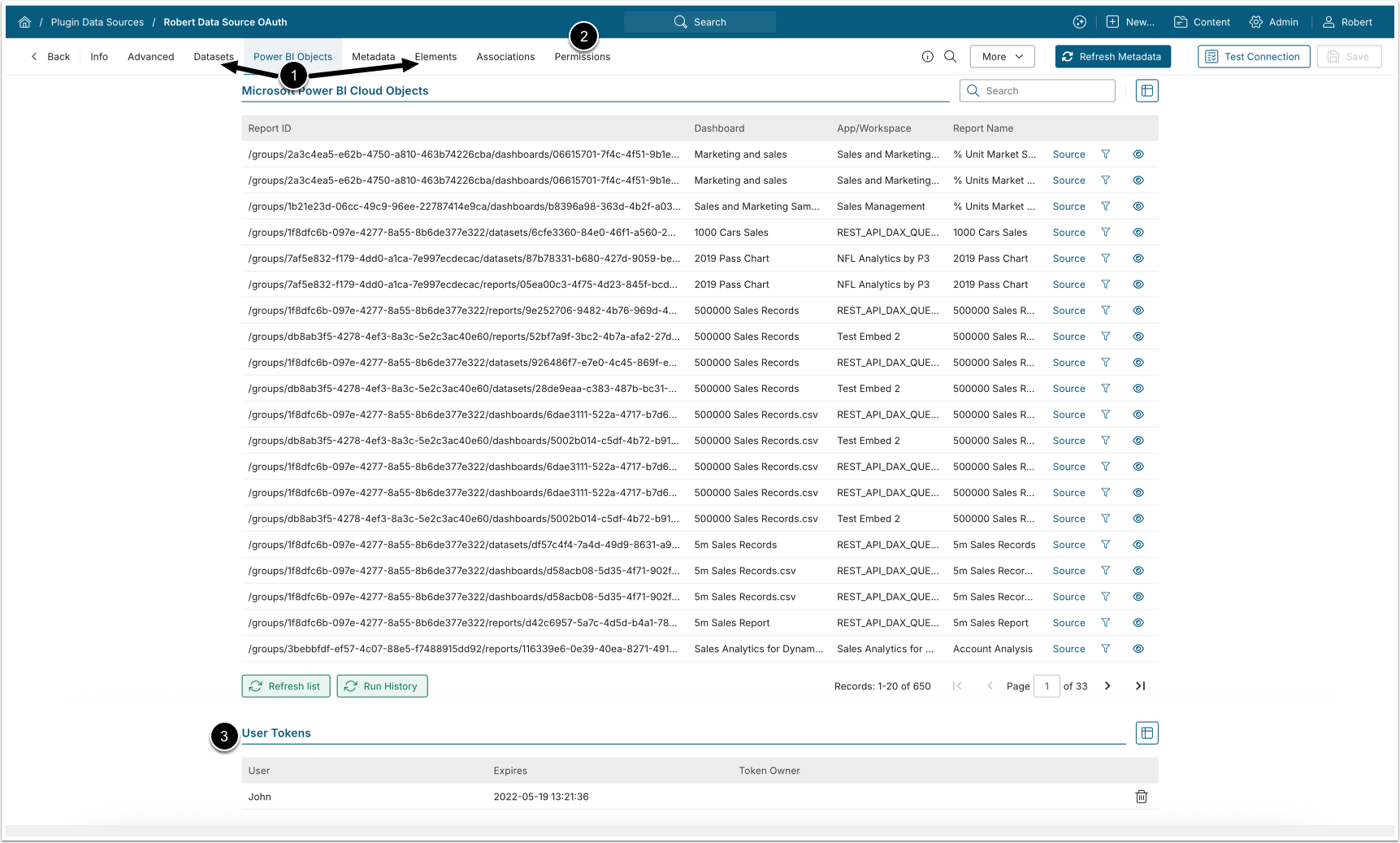
- You can create Datasets and view all the elements or Datasets using this Data Source from the respective tabs.
- Navigate to the Permissions tab to assign Data Source access to Groups or Power Users.
- User Tokens are displayed in the corresponding menu and can be deleted by clicking the trashcan icon. The lifetime of each token is 45 minutes.