Custom PowerPoint Templates for Bursts and Favorites attachments can be configured to include specific Element images based on Element IDs. This article details how to configure a Template and Burst to receive PowerPoint attachments with specific Element images.
1. Find Element's ID
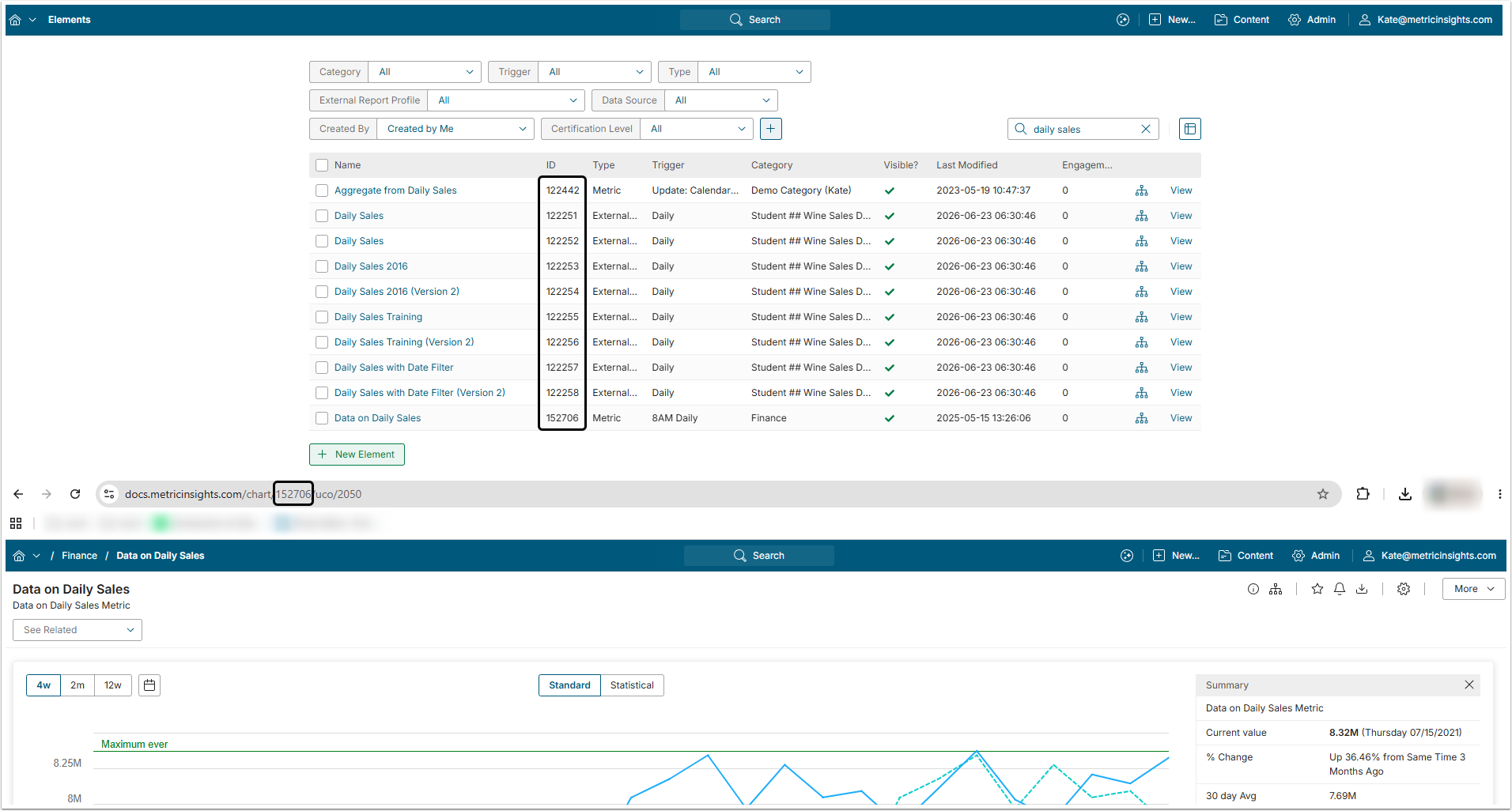
Copy Element's ID from the ID column in the Element list or from the URL when the Editor or Viewer is opened.
2. Configure PowerPoint File to Be Used as Template
To insert specific Element images in PowerPoint attachments, Element IDs must be manually specified for images in a presentation.
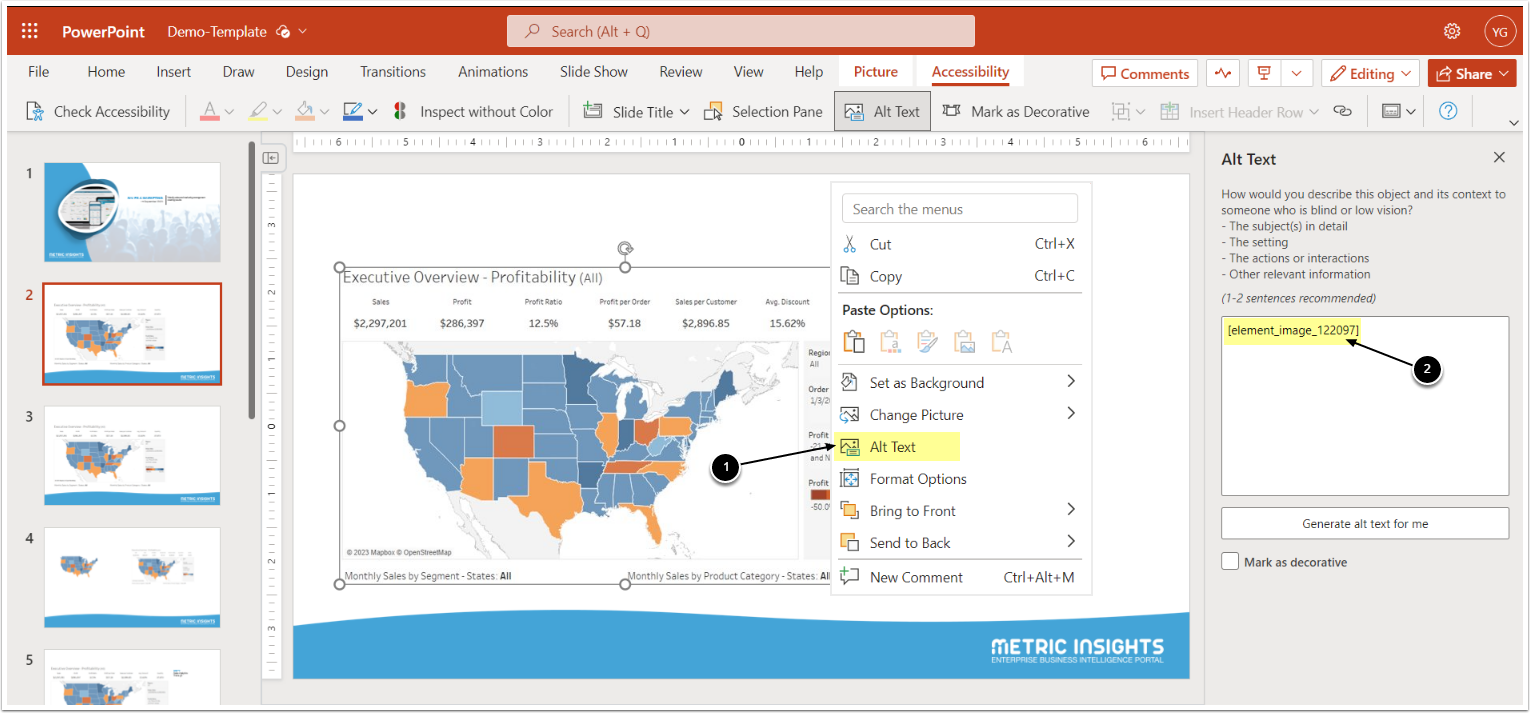
- For PowerPoint Online, right-click an image to access its Alt Text.
- For the desktop version of PowerPoint, right-click an image > Size and Position > Alt Text.
- Specify IDs of Elements that will be included in the Burst. Follow the standard format:
- [element_image_ElementID]
3. Configure Template
Access Admin > System > PowerPoint Templates > [+Add new] or access the existing Template Name Link
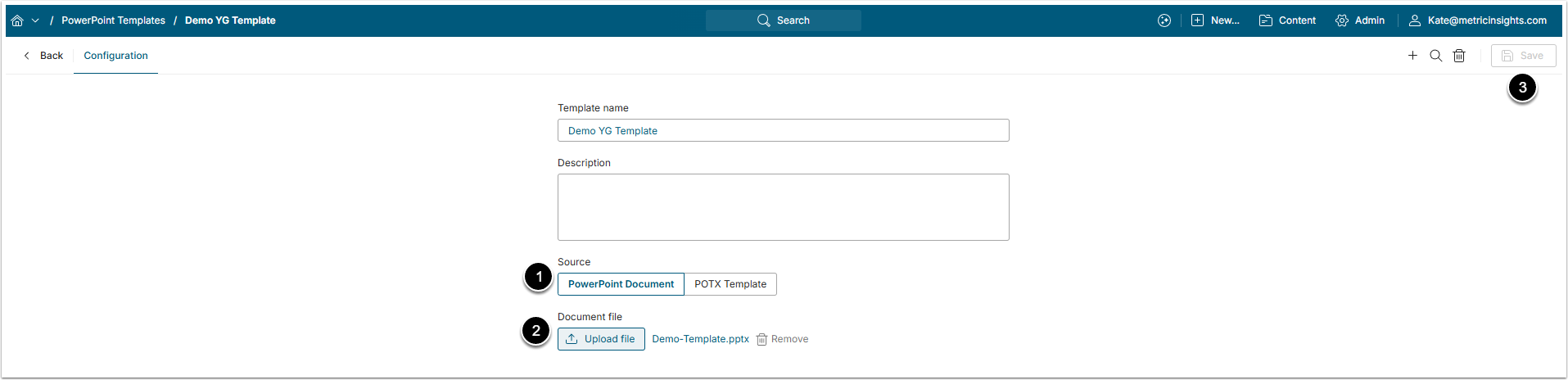
- Set Source to PowerPoint Document.
- Upload the PowerPoint file from the previous step.
- [Save]
For more details, check the Utilize Custom PowerPoint Template for Bursts and Favorites article.
4. Configure Content for Burst
Access Content > Bursts > [+New Burst] or access the existing Burst Name Link
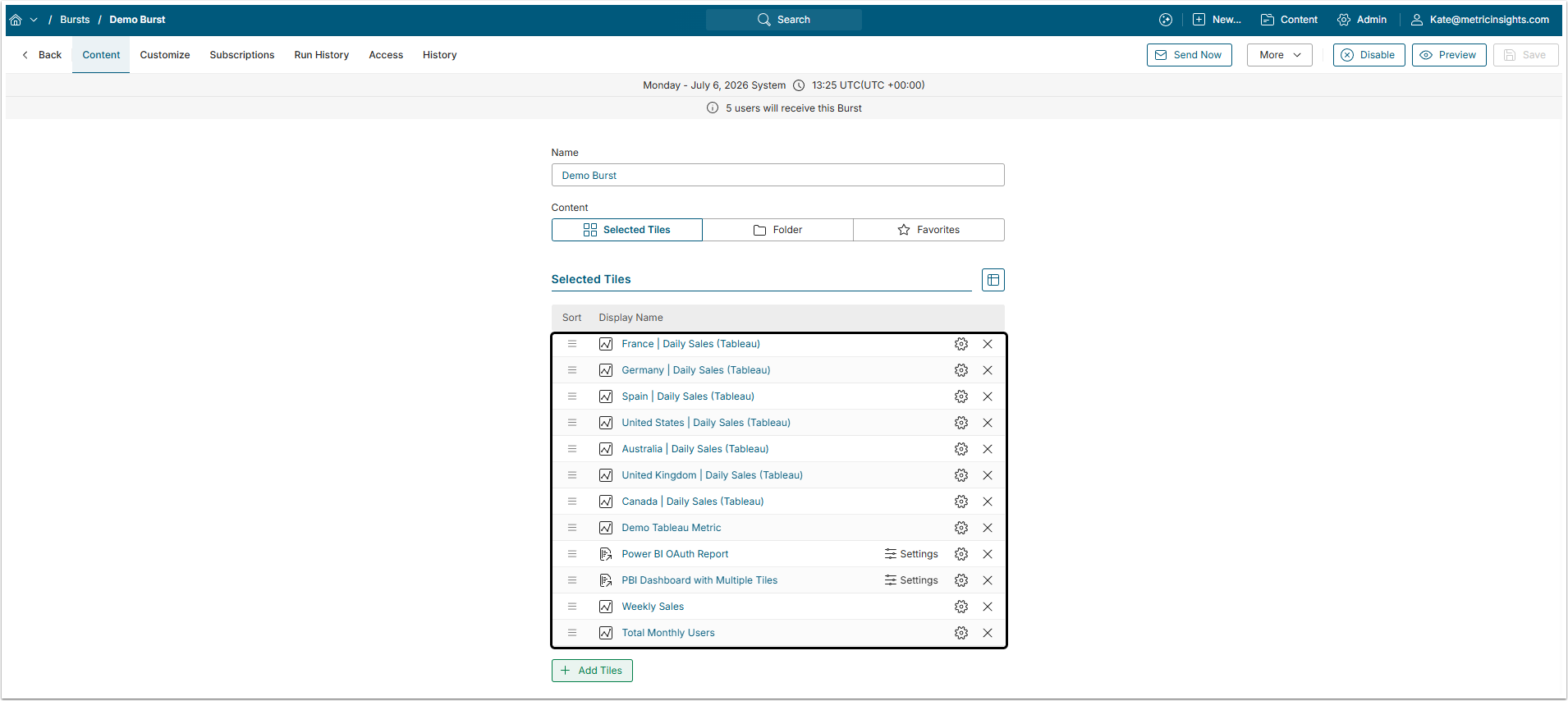
Add Elements that you want to receive in a Burst.
NOTE: You can add as many Elements as needed; however, a PowerPoint attachment will only include images of the Elements whose IDs have been specified in the Template.
5. Configure Burst to Include PPT Documents
Access the Customize tab
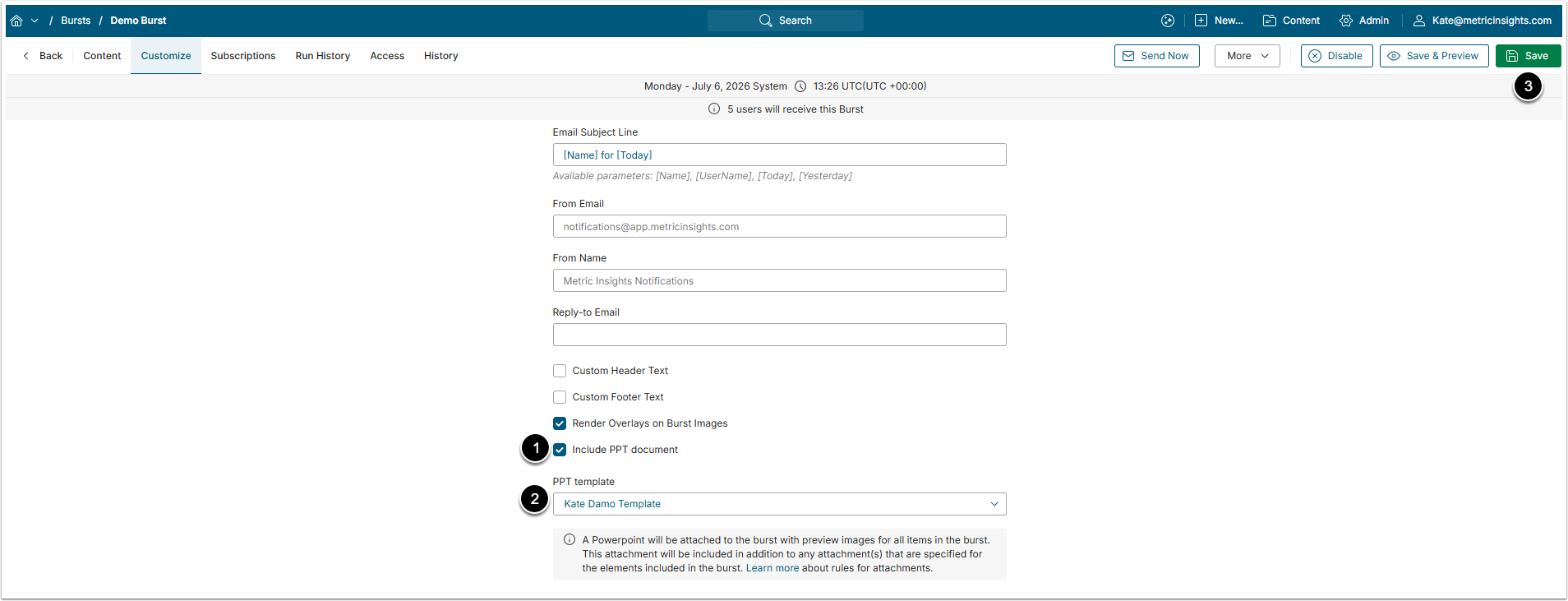
- Select Include PPT document.
- PPT Template: Choose the Template you have configured at Step 2.
- [Save]
- If the Burst is enabled, you will receive it according to the configured schedule. See the step below.
6. Verify Result
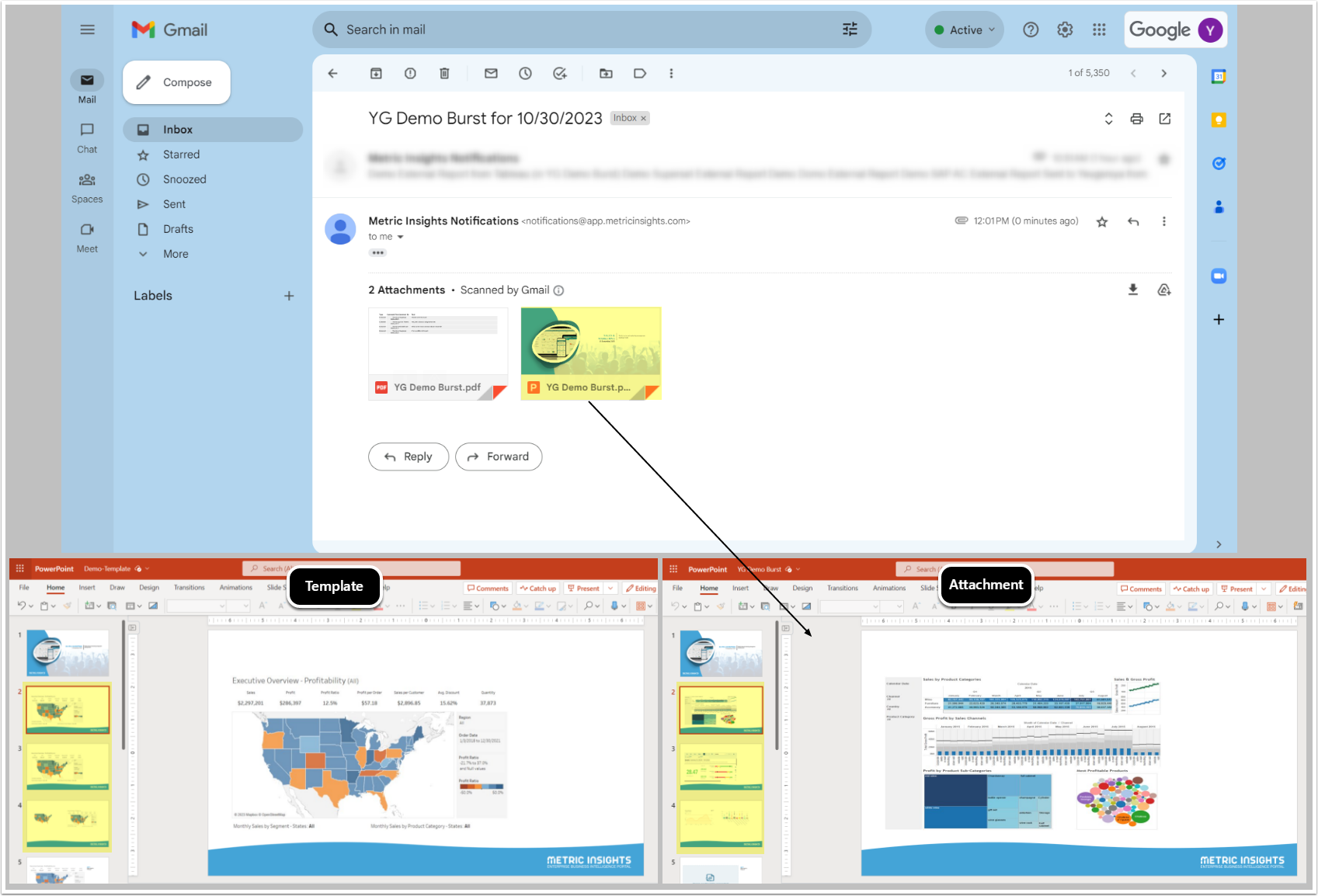
Images of the four External Reports that have been specified in the Template and configured for the Burst appear in the attachment.
NOTE: The "Image could not be generated" message will appear in a presentation instead of an Element image if:
- an Element ID hasn't been specified for a Template picture;
- a wrong/non-existing Element ID has been specified for a Template picture;
- a User does not have access to the Element.