Using the Tableau API that is not distributed with the system while embedding content can display an error indicating that this API version is not supported. Metric Insights allows you to specify the required API version manually in the code of an Intermediate Page. This article provides short instructions on how to proceed.
- NOTE: An Intermediate Page is only implemented for embedding with the Connected Apps (JWT) Auth; otherwise, iframe is used by default.
Option 1
1. Access Tableau Intermediate Page
Access <hostname>/admin/intermediatepage
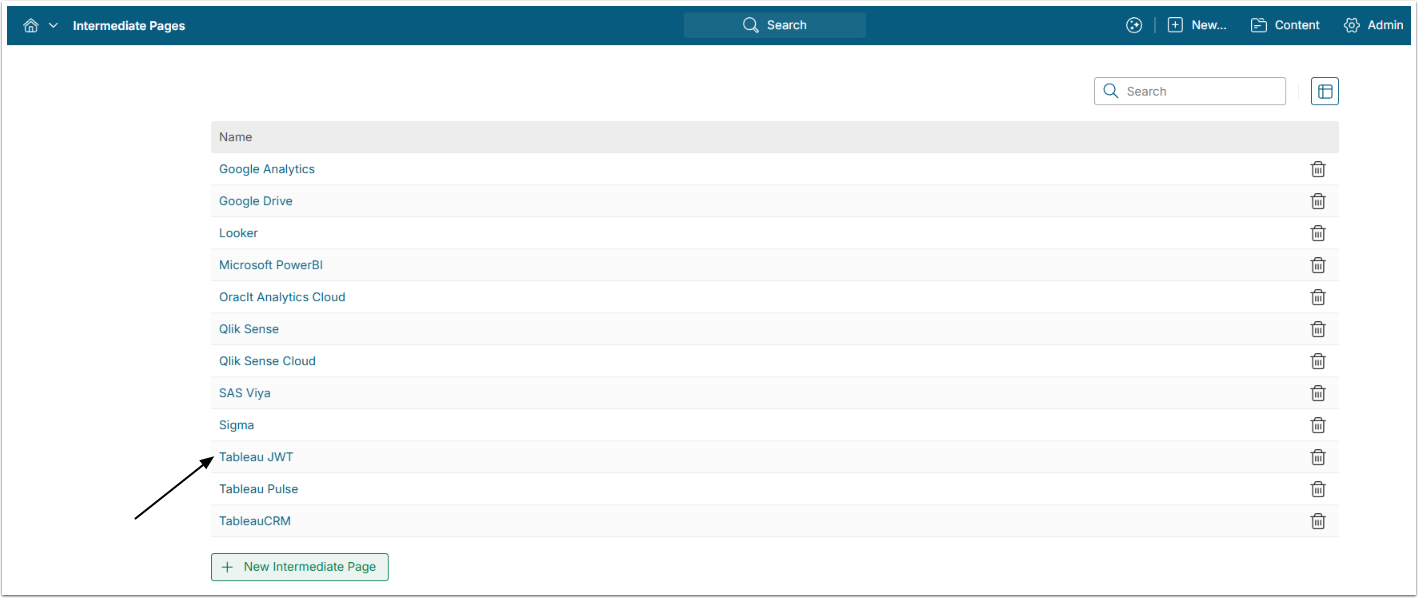
Access the Tableau JWT Intermediate Page
2. Modify Code
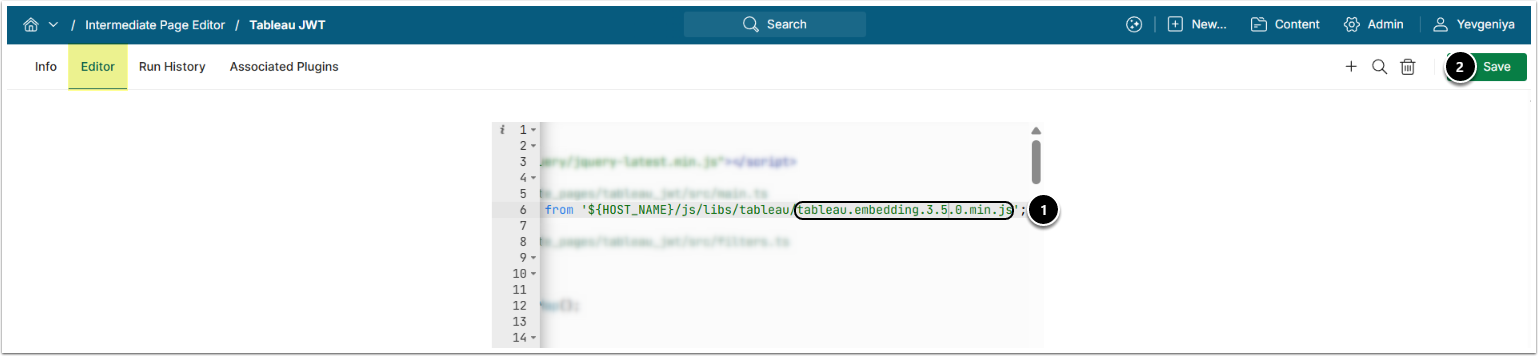
- Under the Editor tab, change the version of the tableau.embedding.X.Y.Z.min.js file to the required one.
- You can get the current list of existing Tableau versions at Tableau embedding API. All versions from the list are already added to Metric Insights.
- [Save]
Option 2
You can upload a new Tableau embedding file and update the Intermediate page with it. Use this option only when using default drivers is impossible.
1. Upload Tableau Embedding File to Global Assets
Access Content > Apps > Global Assets
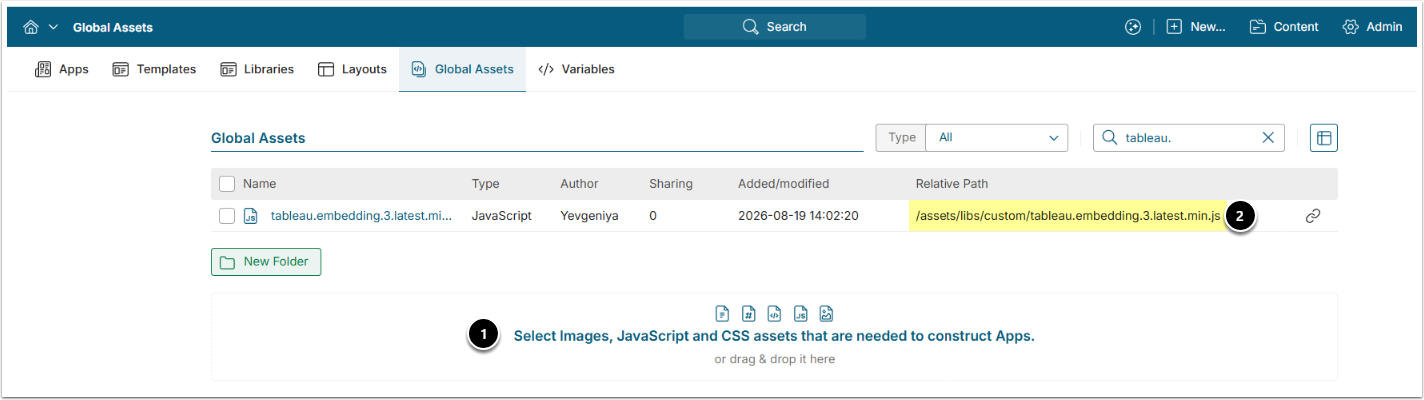
- Upload the required file. The files are specific to your Tableau environment. For the latest ones:
- Tableau Server: https://your-server/javascripts/api/tableau.embedding.3.latest.min.js
- Tableau Cloud: https://your-server.online.tableau.com/javascripts/api/tableau.embedding.3.latest.min.js
- Tableau Public: https://public.tableau.com/javascripts/api/tableau.embedding.3.latest.min.js
- Contact support@metricinsights.com for assassinate.
- Save the relative path of the file as you will need it in the next step.
2. Access Tableau Intermediate Page
Access <hostname>/admin/intermediatepage
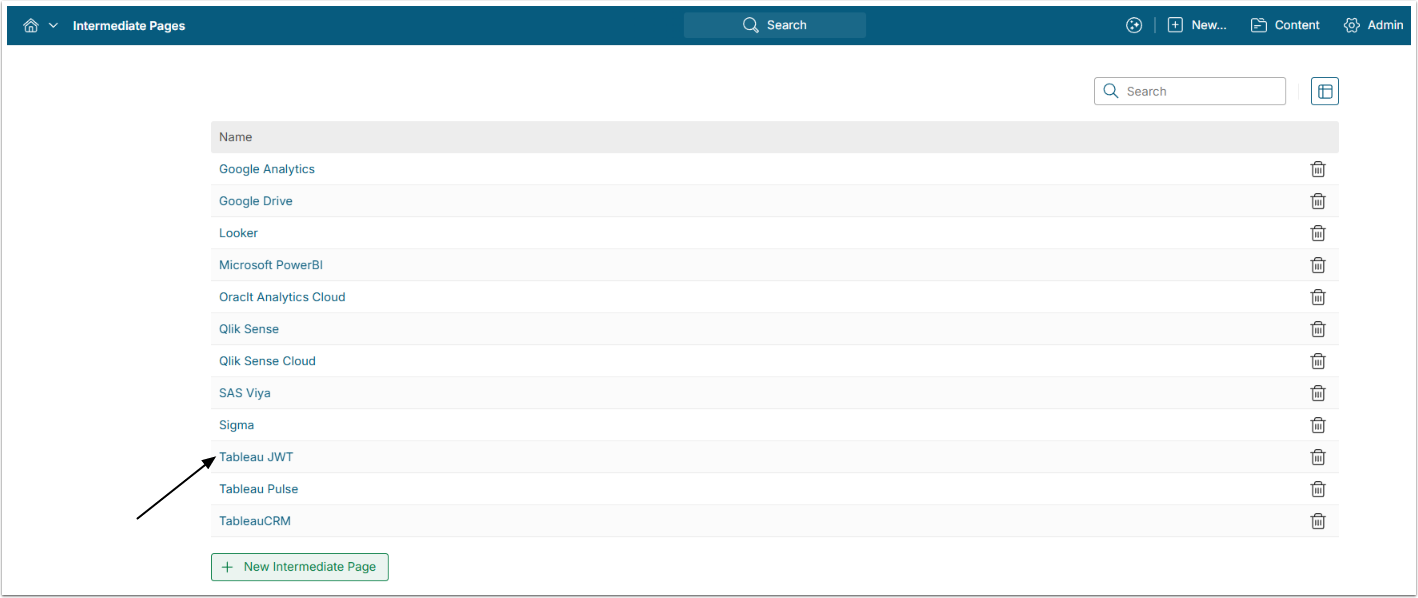
3. Modify Code

- Specify the relative path to the file saved in the previous step.
- [Save]
How to Check Available Library Versions in Metric Insights
Run the following command from web container:
mi-web
ls -lat /opt/mi/web/frontend/build/js/libs/tableau
Click to copy