Tableau Plugin performs three basic operations:
- gets Object Hierarchy (OH) and Metadata (MD);
- gets content (data and images);
- embeds.
Getting OH and MD as well as getting content is controlled via Plugin Connection Profiles. Embedding is controlled via Report Profiles.
In the Plugin Connection Profile, the selected Auth Method determines the authentication mechanism used to connect to Tableau. It is configured via Auth Method Optional Parameters. There are three main Auth Methods for Tableau Plugin:
- Token = Personal Access Token (PAT) (recommended)
- Default = Password or Identity Profile
- Trusted
1. For each of the Auth Methods, one or a combination of APIs is available. Depending on the chosen Auth Method, you can select which API to use to fetch data and images via the Content Loading Strategy Optional Parameter. NOTE: OH and MD are always collected via REST API – even if "WEB" is specified.
The recommended Auth Type is Token, which works with REST API. NOTE: REST API must be enabled on the Tableau side. Tableau Metadata API is recommended to be enabled to collect a more complete set of Tableau metadata (like freshness policy and workbook owner name).
2. Regardless of the Plugin Connection Profile configuration, embedding is configured individually through the Tableau External Report Profile. Depending on your use-case, there are multiple options. See Embedding.
| User Scenario | Plugin Auth Method | Embedding Configuration |
|---|---|---|
| I want to embed dashboards with Tableau SSO | - Token (PAT) – recommended - Default (Username/Password or Identity Profile) - Trusted (if Connected App is not available) | Intermediate Page: JWT (Connected App) Drill-Down Authentication: None |
| I want to embed dashboards with MI authentication | - Token (PAT) – recommended - Default (Username/Password or Identity Profile) - Trusted (if Connected App is not available) | Intermediate Page: None Drill-Down Authentication: Tableau Single-Sign (Trusted Authentication) |
| I want to embed dashboards where users log into Tableau manually | - Token (PAT) – recommended - Default (Username/Password or Identity Profile) - Trusted (if Connected App is not available) | Intermediate Page: None Drill-Down Authentication: None |
| I want to embed and I have the same SSO on MI and Tableau | - Token (PAT) – recommended - Default (Username/Password or Identity Profile) - Trusted (if Connected App is not available) | Intermediate Page: None Drill-Down Authentication: None |
| I need to pass different credentials to Tableau than to SSO | - Token (PAT) – recommended - Default (Username/Password or Identity Profile) - Trusted (if Connected App is not available) | Not required* |
| I want to collect user-specific images from Tableau | - Token (PAT) – recommended - Trusted | Not required* |
| I need to send multiple Bursts and REST API is slow | Requires WEB API via: - Default (with WEB) - Trusted | Not required* |
*No specific embedding configuration is required unless embedding is also used.
Auth Methods
1. Token (recommended) – The easiest to manage, most secure, no password storage
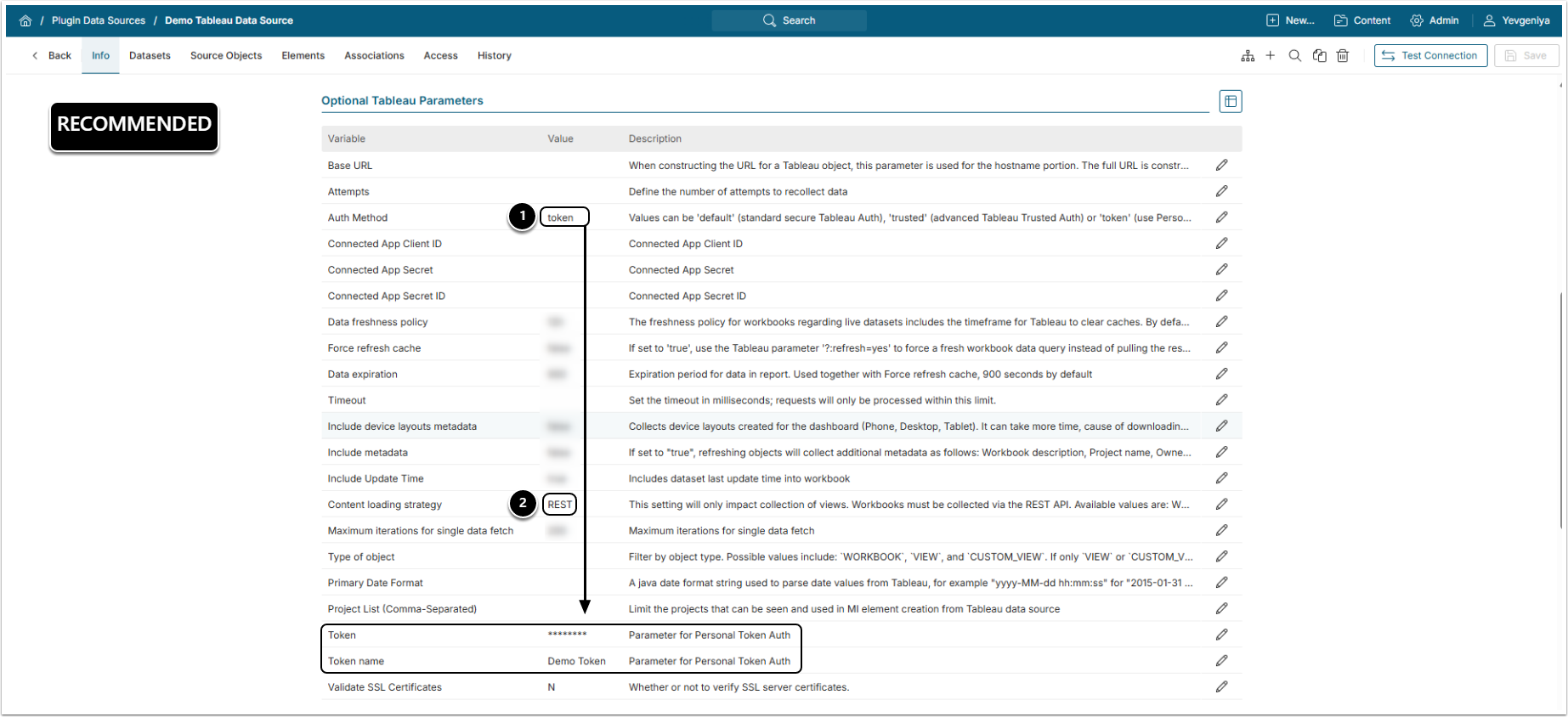
- API BEHAVIOR: Works with REST API:
- gets Object Hierarchy (OH) and Metadata (MD);
- gets content (data and images).
- SETUP:
- Fill out Token and Token name fields.
- NOTE: This Auth Method does not require choosing a specific Auth Type and providing Username+Password or Identity Profile.
- Set Content loading strategy to "REST". "WEB" will generate an error.
- Fill out Token and Token name fields.
2. Default – For non-SAML environments only
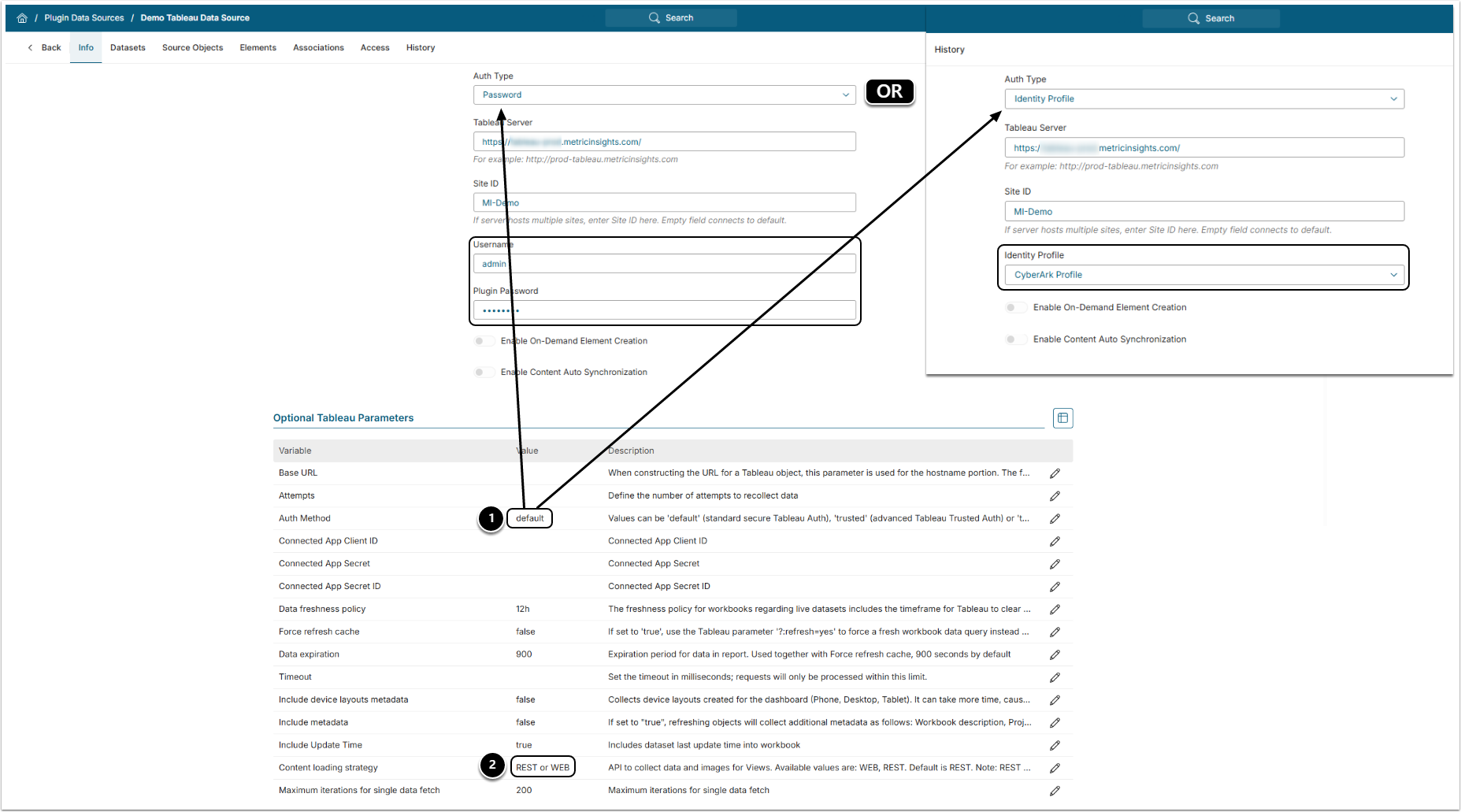
- API BEHAVIOR: Works with REST and WEB API.
- gets Object Hierarchy (OH) and Metadata (MD) – only via REST;
- gets content (data and images) – either via REST (recommended) or WEB.
- SETUP:
- Fill out Username+Password fields or select the configured Identity Profile.
- NOTE: Auth Method can be left blank because it's a default method.
- Set Content loading strategy to the desired API type: "REST"(recommended) or "WEB".
- Fill out Username+Password fields or select the configured Identity Profile.
3. Trusted – Fallback to Connected App for seamless embedding
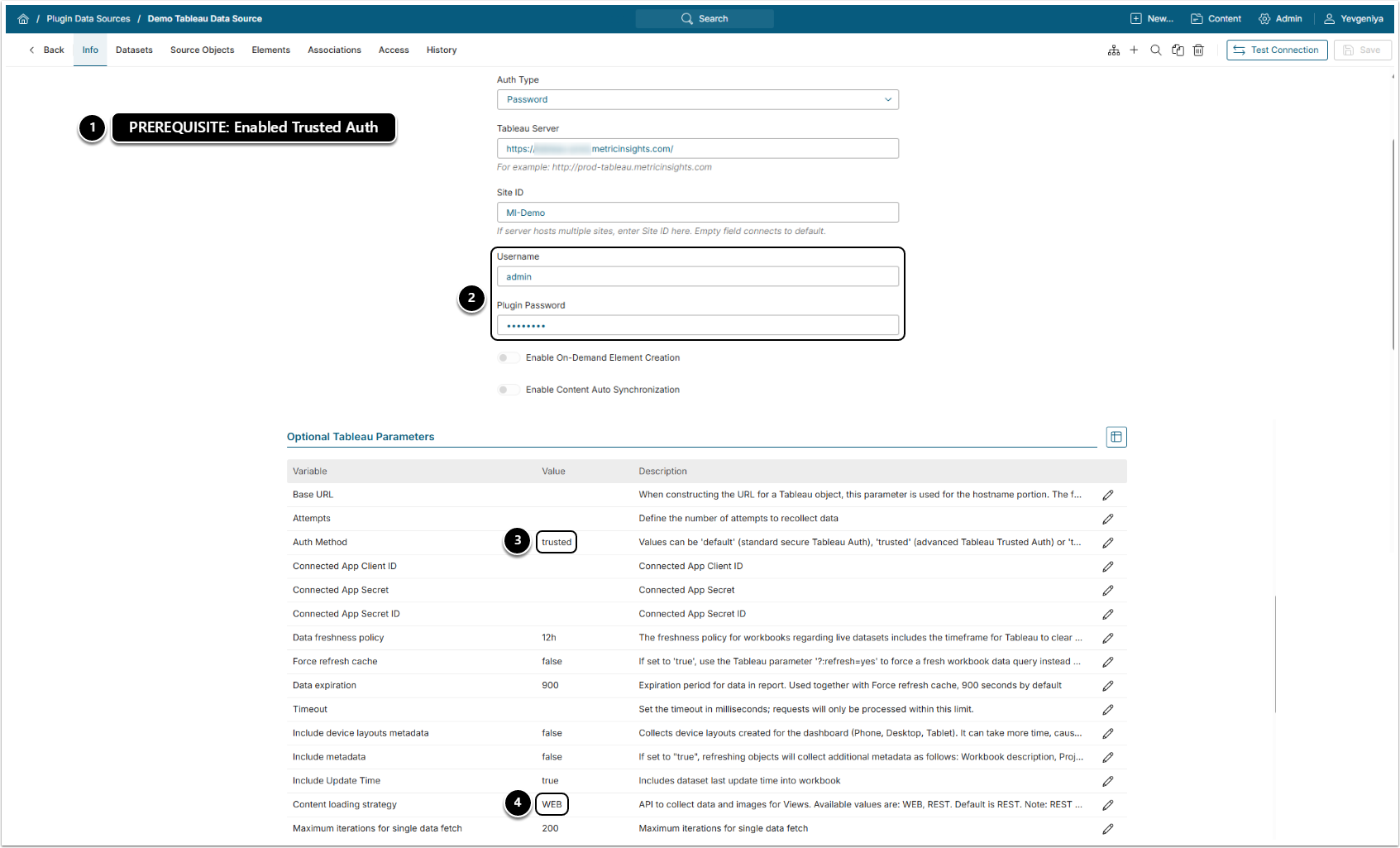
- API BEHAVIOR: Works with WEB API:
- gets Object Hierarchy (OH) and Metadata (MD) – only via REST (runs in the background);
- gets content (data and images) – only via WEB.
- SETUP:
- Enable Trusted Authentication between Tableau and MI.
- Specify Username+Password or Identity Profile for REST API to collect OH and MD.
- Set Auth Method to "trusted".
- Set Content Loading Strategy to "WEB". "REST" will generate an error.
Embedding
Embedding is configured via External Report Profiles using Intermediate Page and Drill-Down Authentication and is not tied to your Plugin Connection Profile configuration. The combination of values for these Parameters depends on your embedding use-case.
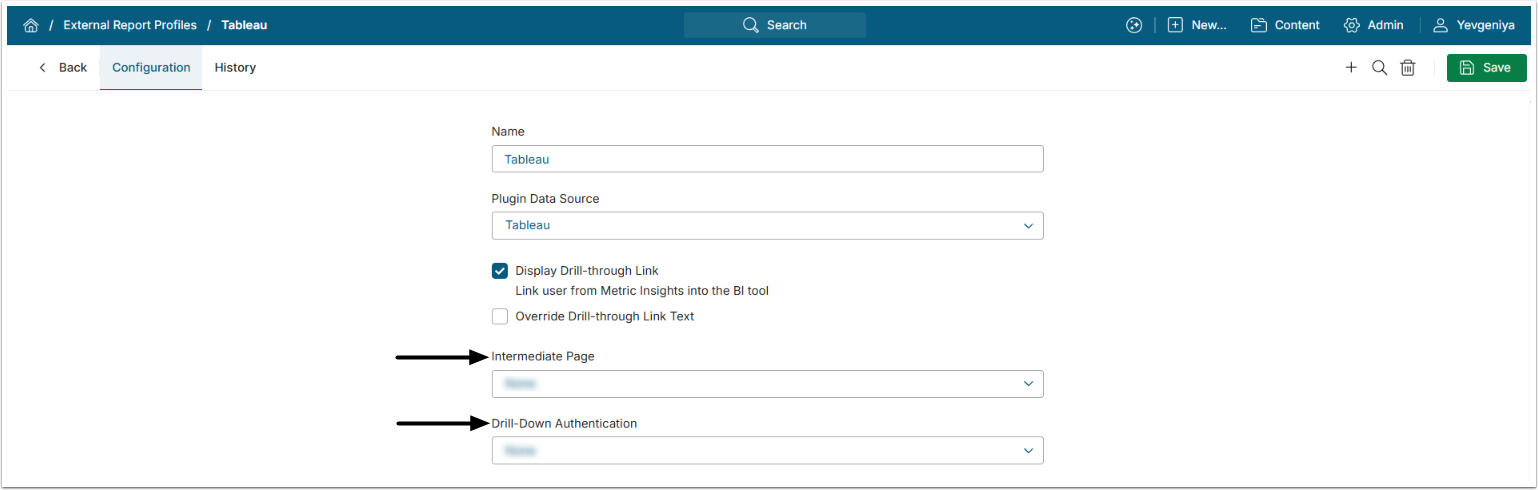
1. I want to embed dashboards with Tableau SSO
Recommended Solution – Intermediate Page: JWT + Drill-Down Authentication: None
PREREQUISITES:
- JWT auth must be configured.
- Connected App Optional Parameters must be filled out with corresponding values.
- The username in MI must exactly match the one on the Tableau side OR the Tableau username must be specified in User Editor under Username for Trusted Server Sign-on.
2. I want to embed dashboards with MI authentication
Alternative Solution – Intermediate Page: None + Drill-Down Authentication: Tableau Single-Sign
PREREQUISITES:
- Trusted Auth must be enabled on the Tableau side.
3. I want to embed dashboards where users log in to Tableau manually
Solution – Intermediate Page: None + Drill-Down Authentication: None
Unless logged in to Tableau, the user will see the Tableau login screen in iframe.
4. I want to embed and I have the same SSO on MI and Tableau
Solution – Intermediate Page: None + Drill-Down Authentication: None
User will be logged in to Tableau automatically.
Miscellaneous
1. I need to pass different credentials to Tableau than to SSO
Solution – Use any of the available Auth Methods:
- Token (PAT) – recommended
- Default
- Trusted
2. I want to collect user-specific images
PREREQUISITES for BOTH SOLUTIONS:
- Enable the following settings for External Report under Configuration tab > Report Image:
- Report Image On Demand: only when needed for distribution;
- Image Type Collect with user's credentials (1 image per user, per view).