With the introduction of Analytics Marketplace in v7.1.0, discovery and search capabilities across multiple data catalog platforms has been significantly expanded.
You can search for third-party tools' assets without leaving the Metric Insights UI and without recreating them as objects in Metric Insights. Global Search will return the assets with the list of the available metadata and links to proceed to either the asset in the data catalog tool, such as Atlan, Collibra, Databricks Unity Catalog, etc. or the actual object in the associated BI tool like Tableau, Power BI, etc.
The process consists of the following steps:
- Create a Dataset to retrieve all Reporting Assets metadata into Metric Insights.
- Create a Derived Dataset from the All Reporting Assets Dataset to generate JSON objects for metadata fields available in the data catalog tool and include any additional custom fields specific to your environment.
- NOTE: The Tags field is a comma separated list, which the expected format for the Tags Column drop-down on the setup page.
- Add the Derived Dataset to Search and map the Dataset Columns.
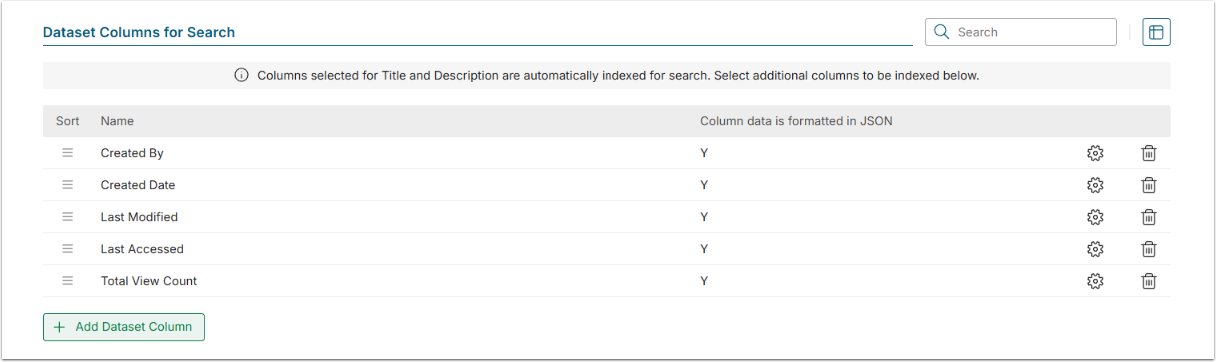
- Add Dataset Columns for Search — include the fields from Step 2 so they are indexed and displayed in the search results for each object, as shown in the final screen.
PREREQUISITES:
- Established connectivity with Tableau.
1. Create a Dataset from the All Reporting Assets Worksheet
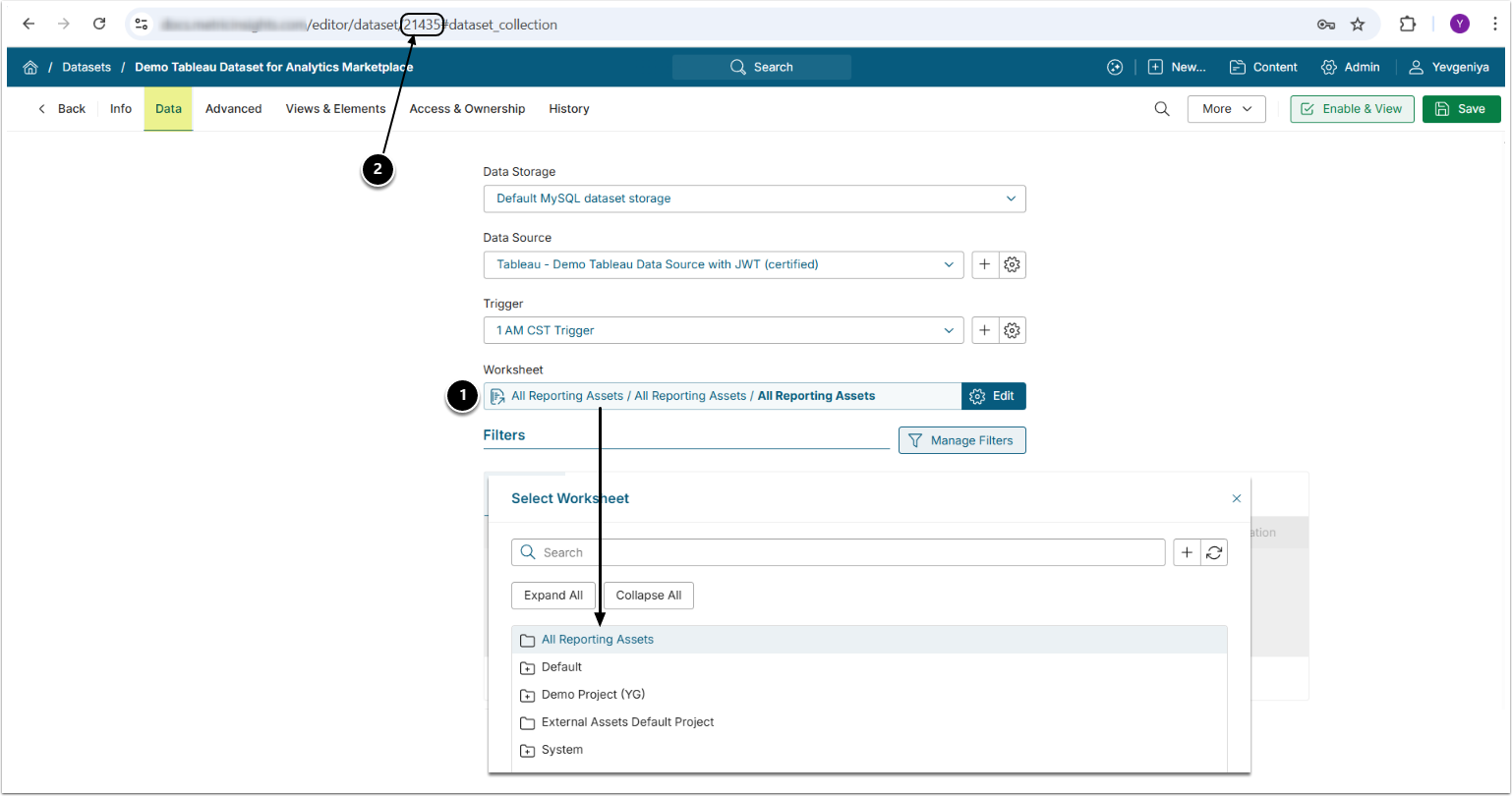
For more details on how to create Datasets, refer to Understanding Datasets.
For more details on how to create a Dataset from Tableau, refer to Create Dataset from Tableau.
- Create a Dataset from the All Reporting Assets object.
- Note the Dataset ID to be used in Step 2.
2. Create a Derived Dataset from the All Reporting Assets Dataset
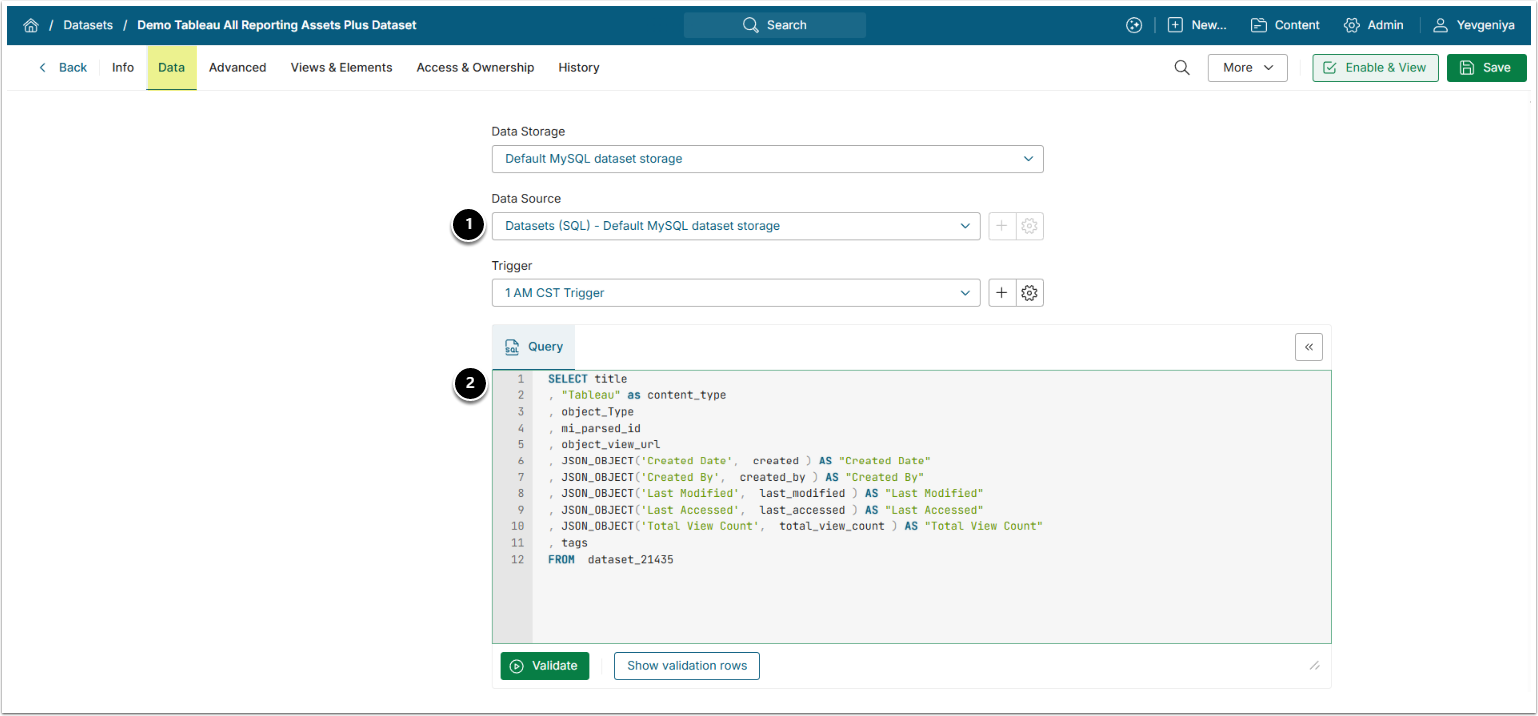
- Data Source: select the Data Source used as Data Storage when creating the Dataset from the Tableau All Reporting Assets object in Step 1;
- Query: the query is intended to transform standard Tableau fields, such as Created Date, and user-added fields into JSON objects. It must include the ID of the Dataset [
datasetID] created from the Tableau All Reporting Assets object in "FROM dataset_datasetID".- This will ensure that metadata is searchable and appears in search properly formatted.
- NOTE: Tableau Tags are handled via the Dataset setup and do not require to be transformed into JSON objects.
SELECT title
, "Tableau" as content_type
, object_Type
, mi_parsed_id
, object_view_url
, JSON_OBJECT('Created Date',  created ) AS "Created Date"
, JSON_OBJECT('Created By',  created_by ) AS "Created By"
, JSON_OBJECT('Last Modified',  last_modified ) AS "Last Modified"
, JSON_OBJECT('Last Accessed',  last_accessed ) AS "Last Accessed"
, JSON_OBJECT('Total View Count',  total_view_count ) AS "Total View Count"
, tags
FROM  dataset_XXX
Acceptable JSON Formats:
{"Pii Data": ""}
{"Data Steward": "Clyde, Curt", "Business Owner": "Clint", "Technical Owner": "Kyle"}
[{"label":"Catalog","value":"Gifts"}]
[{"name":"Product Type","description":"High level grouping of our products."}]4. Add the Derived Dataset to Search
Access Admin > System > Search Setup
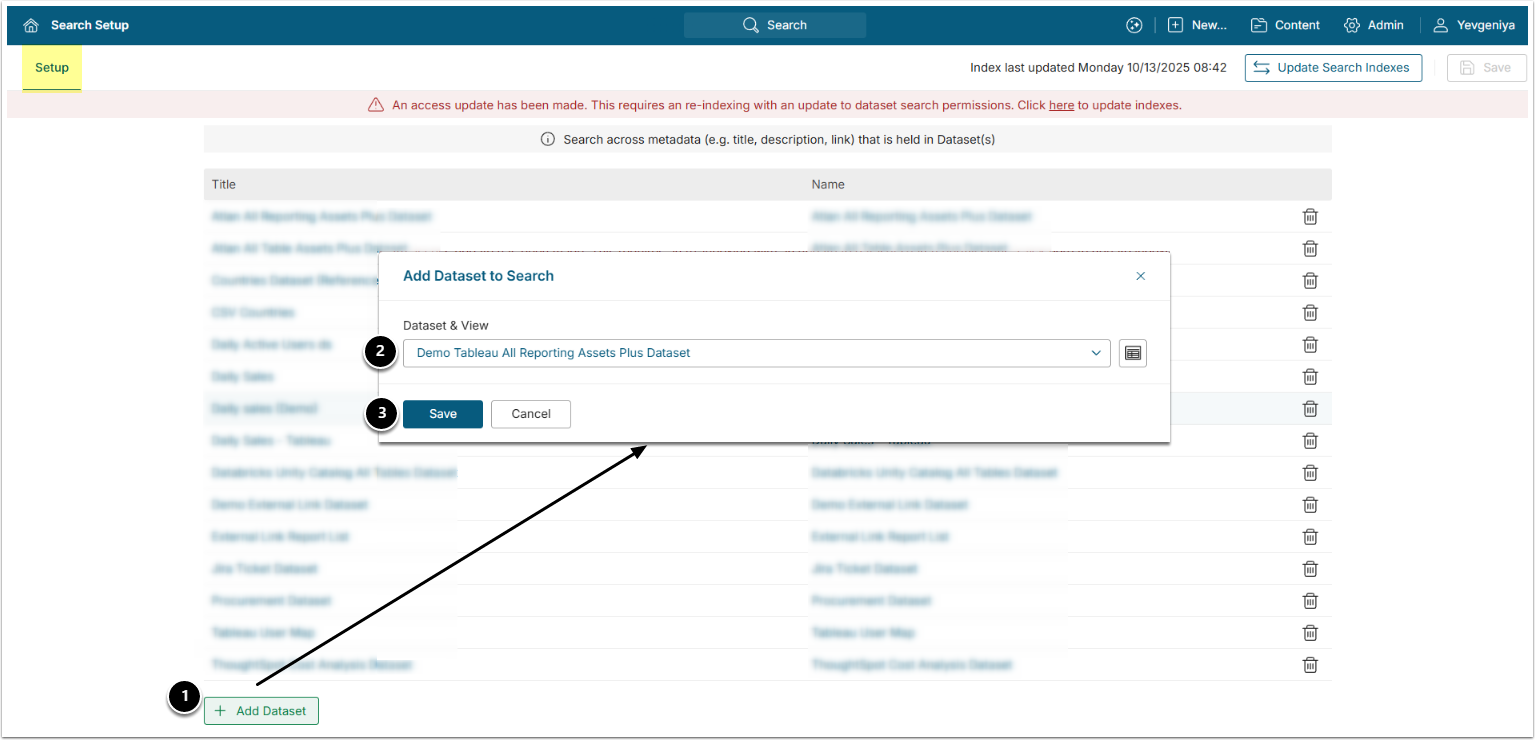
- Under Datasets to include in Search, [+Add Dataset].
- Dataset & View: choose the Dataset created in the Step: Create a Derived Dataset from the All Reporting Assets Dataset.
- [Save]
5. Map Dataset Columns
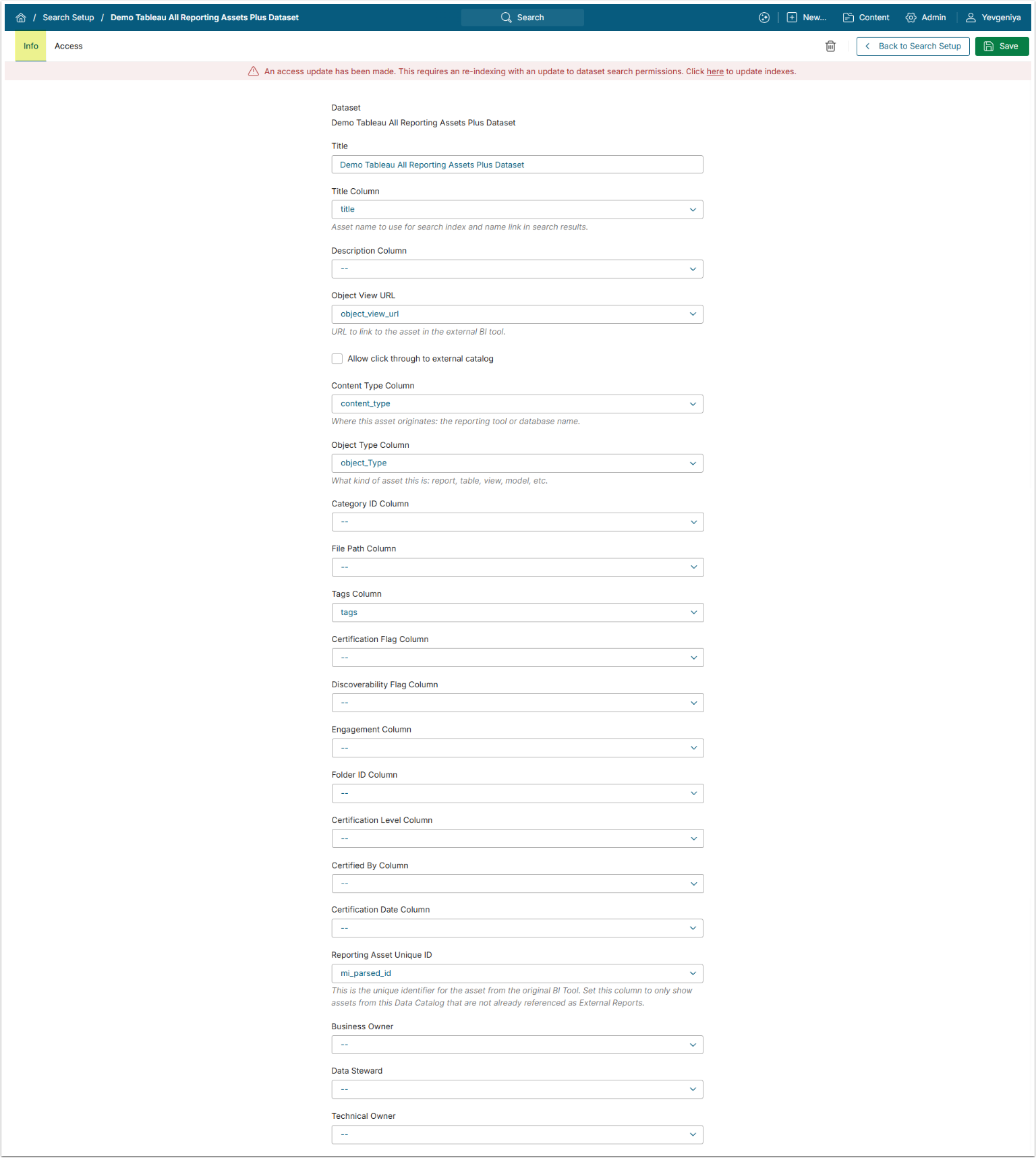
Use the following mapping example with Allow click through to external tool enabled.
| Field | Dataset Column |
|---|---|
| Title Column | title |
| Object View URL | object_view_url |
| Content Type Column | content_type |
| Object Type Column | object_Type |
| Tags Column | tags |
| Reporting Asset Unique ID | mi_parsed_id |
For more details on configuring search across Datasets and Access, refer to Configure Search Across Specific Dataset (v7.1.0+).
6. Add Dataset Columns for Search
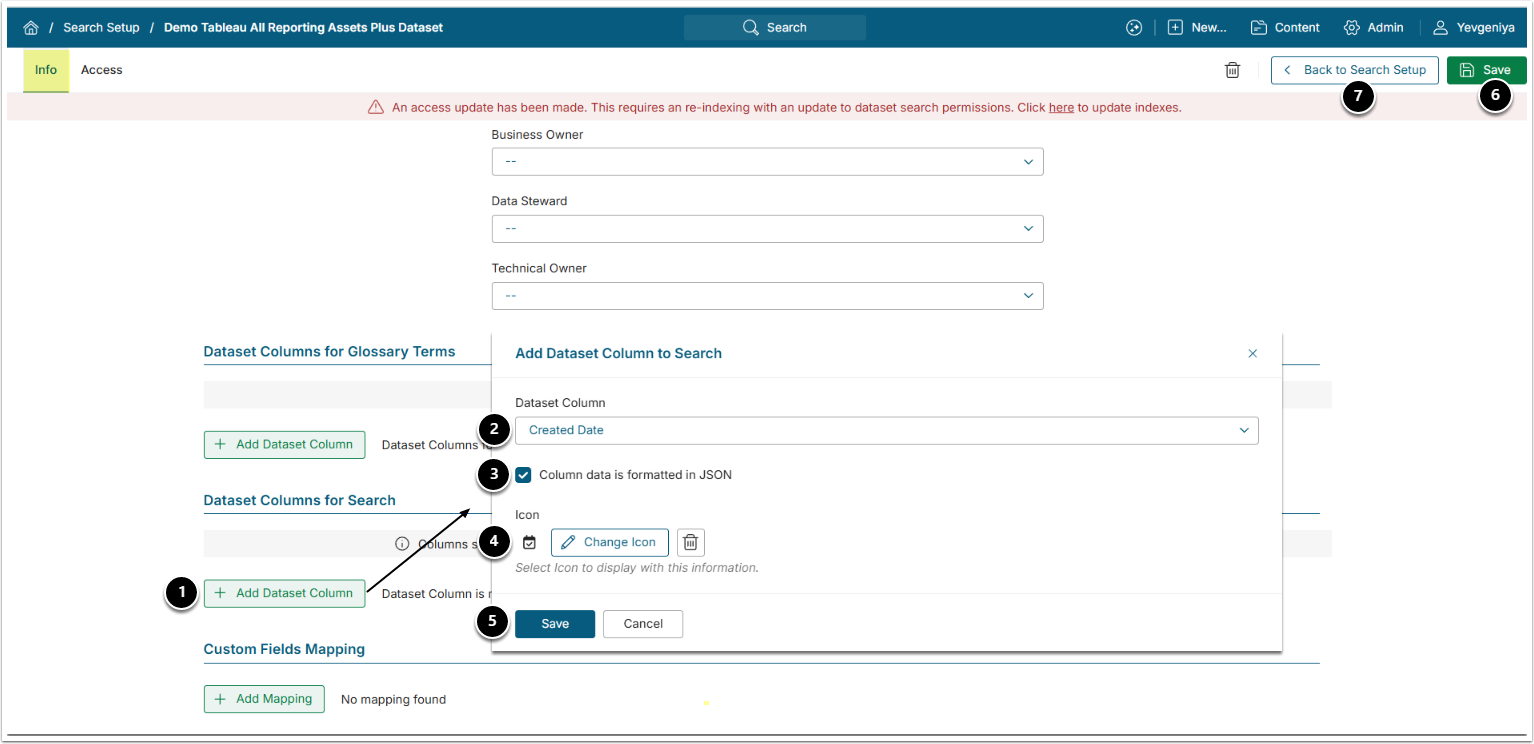
- Under Dataset Columns for Search, [+Add Dataset Columns].
- Dataset Column: choose a custom field column from the Dataset.
- Column data is formatted in JSON: enable.
- Icon: add optionally.
- [Save] and add as many additional Columns for Search as needed.
- [Save]
- See the final result on the screen below. These fields will then appear in search results.
- [Back to Search Setup] and [Update All Search Indexes] at the upper right.
7. Verify Result
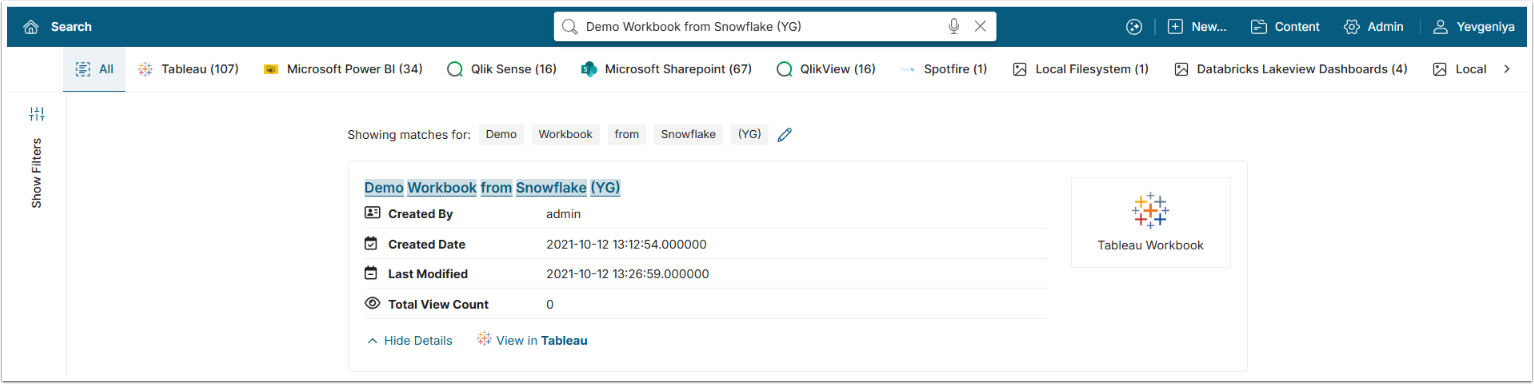
Once all search indexes have been updated, you can use Global Search and Concierge (if enabled) to find content from Tableau.