BETA FEATURE: "Talk to Your Data" for Tableau JWT External Reports is a beta feature introduced in v7.2.1. Functionality, configuration steps, and supported options are subject to change as the feature evolves.
NOTE: Be aware that using Concierge as a Data Source involves sending data to the Concierge and, consequently, to the LLM. Exercise caution when handling sensitive information.
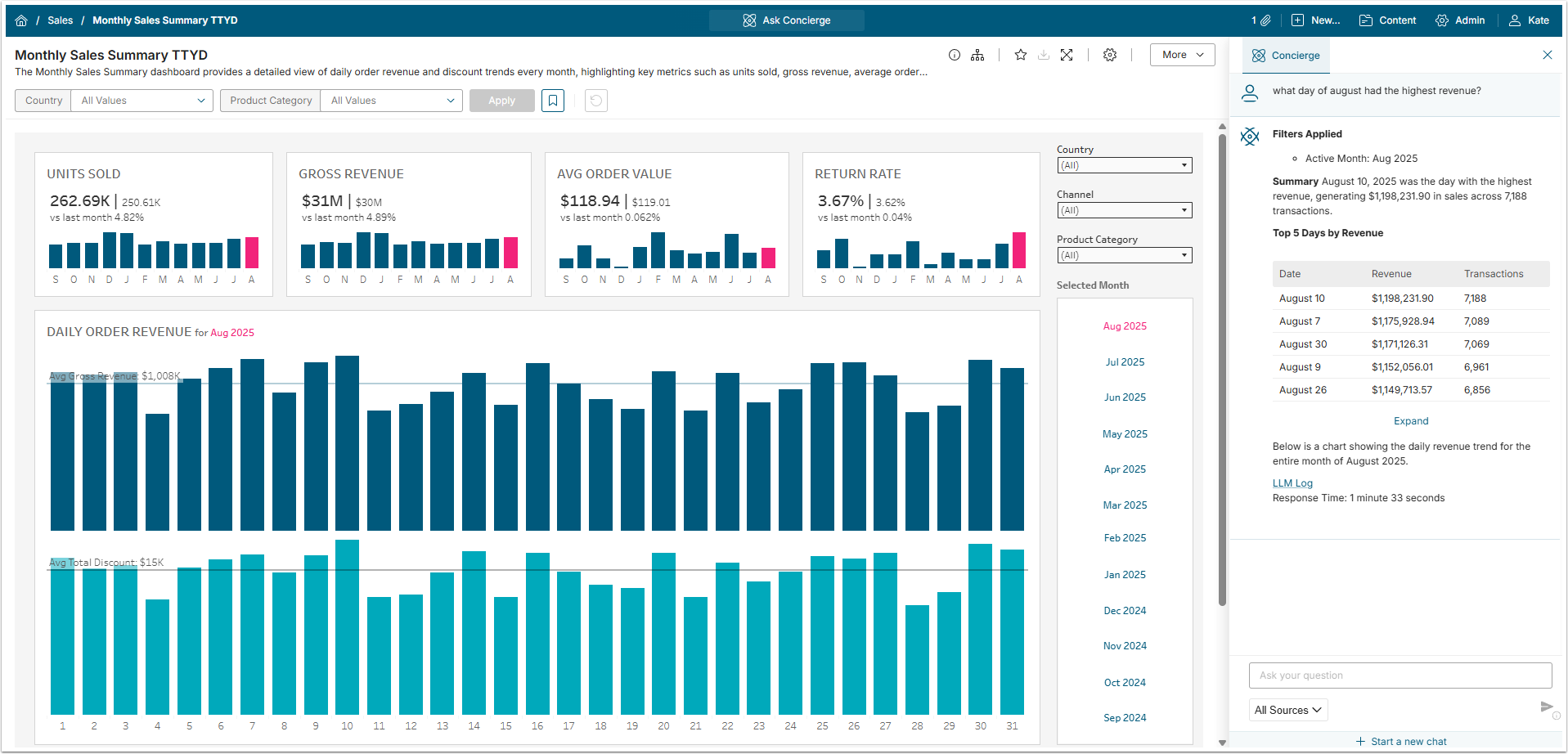
Metric Insights Talk to Your Data feature unlocks Conversational Analytic for Tableau data. Beginning in v7.2.1, Concierge can answer questions about Tableau External Reports and provide analysis based on Tableau metadata. Users can ask questions within the context of any filters applied to a Report. Concierge can answer questions about comparisons, anomalies, and metric breakdowns across Dimensions—insights that traditional filters and slicers cannot provide on their own.
This experience is powered by Concierge. It first attempts to answer questions directly from the Tableau Semantic Model. If additional information is needed, Concierge can route queries to third-party agents registered as Domains, including any MCP-compatible tool such as Snowflake Cortex or Databricks Genie.
Concierge can also be embedded into Custom Apps. Implementing this feature requires modifications to the App code. For assistance in updating an existing Custom App to include Concierge, please contact Metric Insights Support.
When the Use User Token option is enabled for a Report (see Step 5: Verify Learning Configuration), all queries are executed using the user's Tableau identity. This ensures that users can access only the data they are already authorized to view in Tableau.
Table of contents:
1. Prerequisites
The Talk to Your Data feature works only for Tableau with VizQL enabled. Here are the steps you have to go through to make data accessible via VizQL Data Service (VDS):
- Upgrade Tableau Server to 2025.1 or later. The VDS is included automatically, no separate installation is needed. After upgrading, confirm the VizQL Data Service process is running from the server Status Page.
- Publish your data sources (if they aren't already). This is the most critical step. VDS only works with published data sources. If your pre-2025.1 Dashboards use embedded data sources (i.e., the data connection lives inside the Workbook), you'll need to extract those into standalone published data sources. Afterwards, re-point your Workbook to use the newly published data source.
- Set the API Access permission on each data source. This is a new permission capability introduced with VDS. Grant the API Access capability to the relevant users or groups. Tableau recommends managing this at the project level rather than per-data-source, and setting the "All Users" group to None by default for tighter control. You can also set this via the REST API.
Other prerequisites:
- Configure Connected Apps authentication on your Tableau server. It is required to perform a safe authentication method through the User Account Token, instead of using Service Account Tokens.
- Concierge must be installed and configured. See Installing and Configuring Concierge v7.1.2.
2. Enable ENABLE_TALK_TO_YOUR_DATA System Variable
Access Admin > System > System Variables

- Enter
ENABLE_TALK_TO_YOUR_DATAin the search box. - Locate the ENABLE_TALK_TO_YOUR_DATA System Variable, select the gear icon, set the value to Y, then [Save].
- [Commit Changes]
3. Check External Report
Find the External Report that you want to apply Talk to Your Data feature and open its Editor.
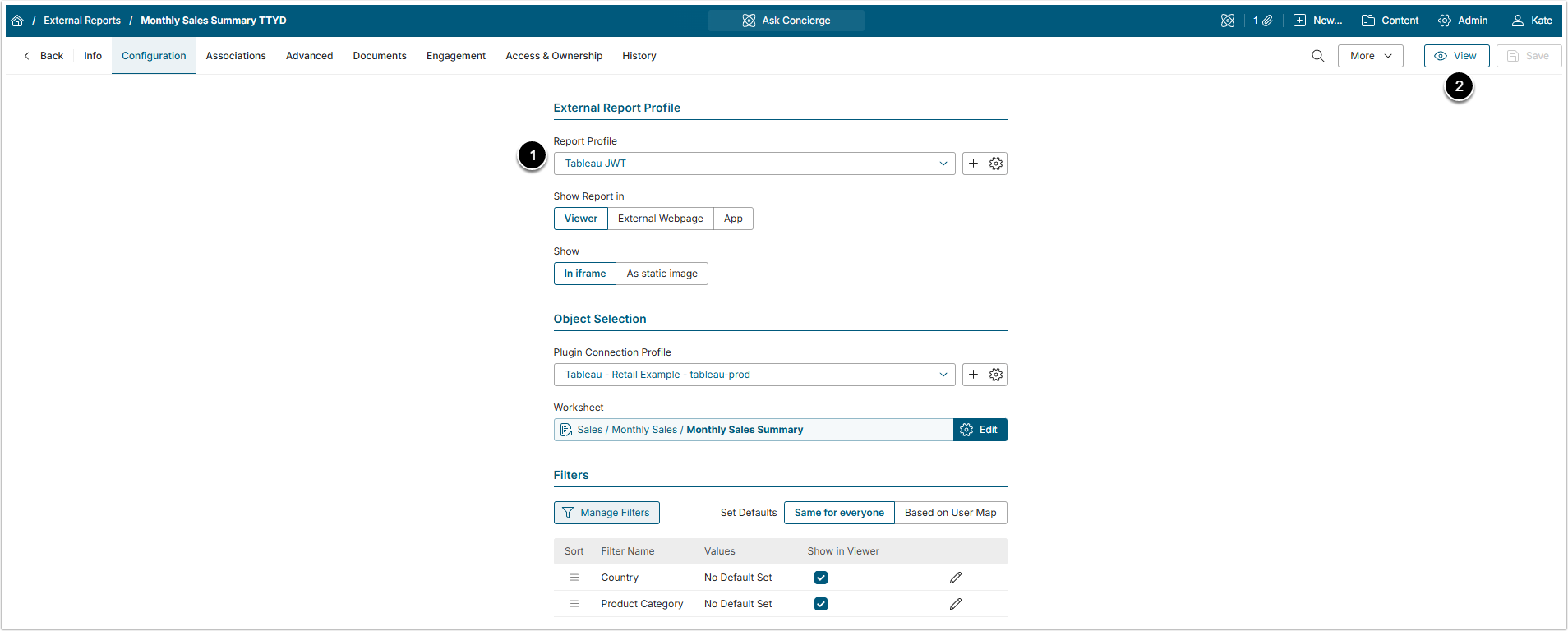
- Make sure that Tableau JWT is selected in the Report Profile field.
- If necessary, create a Tableau JWT Plugin Profile.
- [View]
4. Enable Talk to Your Data for the External Report
While in the Viewer, open Concierge.
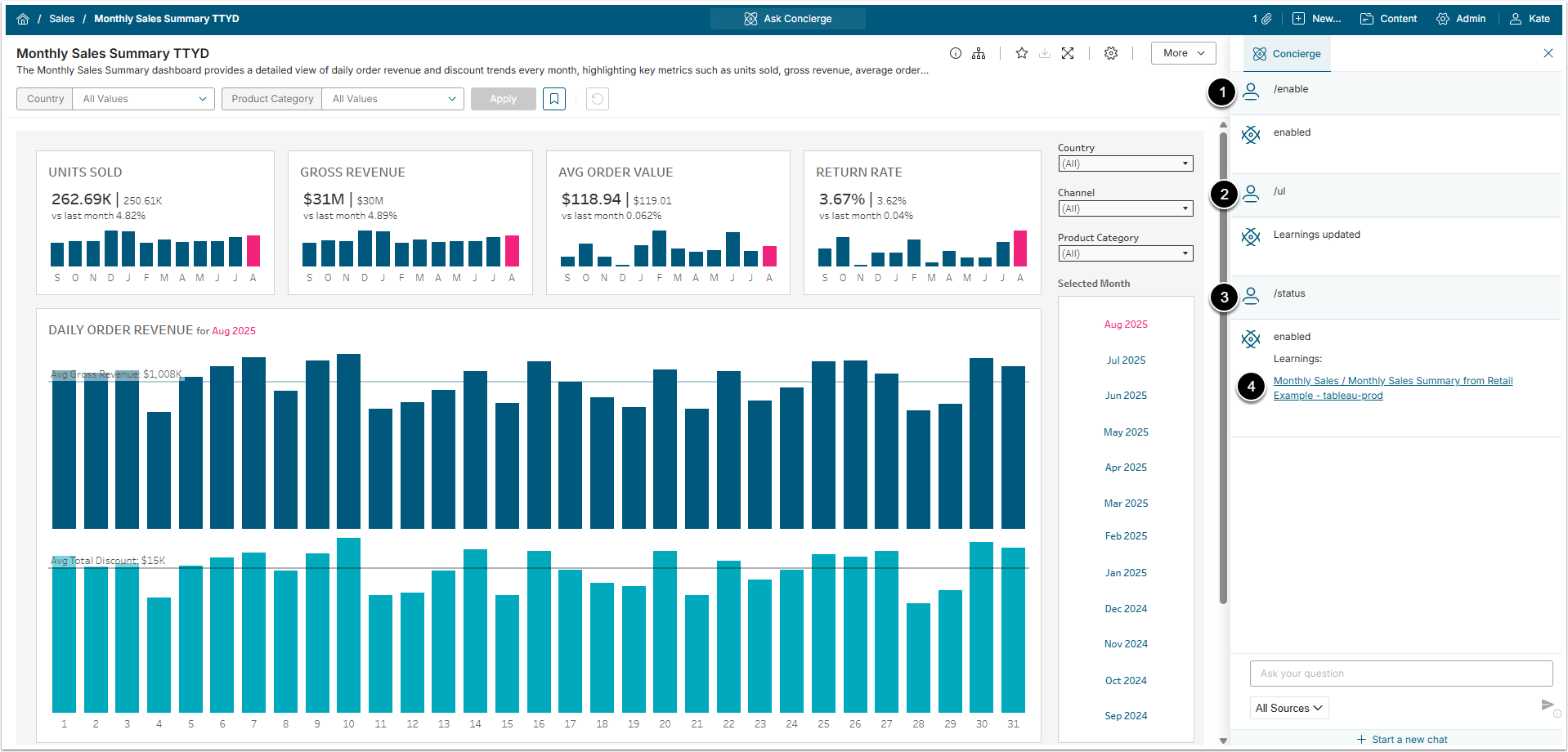
- Enable "Talk to your data" for the External Report by typing
/enable.- NOTE: On first use, several popups appear prompting authorization of Talk to Your Data for different Domains. Complete the authorization or click [Proceed] to proceed with available Domains.
- Update learnings by typing
/ul. - Verify the status of learnings by typing
/status. - Access the generated learnings by clicking the link.
Talk to Your Data commands:
- /status: Shows whether Talk to Your Data feature is enabled or disabled and shows a link for learnings that have been collected.
- /enable: Enables Talk to Your Data feature in the External Report.
- /disable: Disables Talk to Your Data feature and lets the user to query regular Concierge.
- /ul or /updatelearning: Updates learnings.
- /llm_log: Shows a detailed log of the current session.
5. Verify Learning Configuration
Learning is a short summary of the Tableau metadata used in the Workbook. It is built by LLM by fetching data from the Tableau Workbook and is used to query data about the Workbook. By using learnings, all the basic queries can be answered without redirecting them to the Tableau database, which makes the analyzing and answering period much shorter.
NOTE: To access the Element's Learnings configuration directly, navigate to: https://<MI_hostname>/editor/llm/element/<Element_id>#info
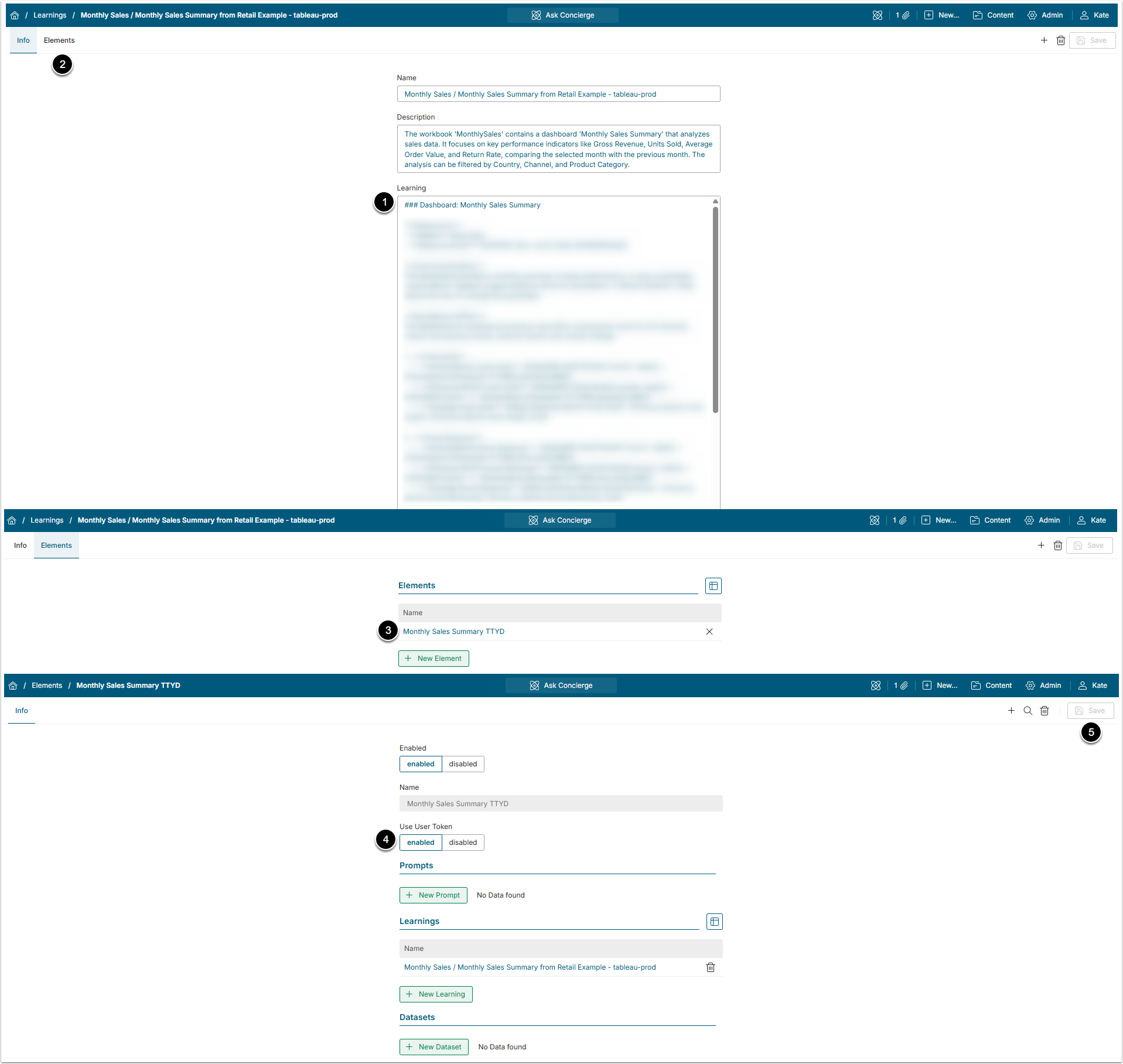
- Optionally, check the Learning.
- Access Elements tab.
- Click the External Report Active Name Link.
- Use User Token: Make sure this option is enabled. When this option is enabled, Concierge uses User Account Token instead of Service Account Token.
- [Save] if the configuration has been changed.
NOTE: Although the Talk to Your Data feature can operate using a Service Account Token, it is strongly recommended to configure Connected Apps and use Tableau JWT for authentication. A Service Account Token may expose data to broader access risks, whereas a User Account Token ensures that Concierge can access only the data permitted for the querying User. This approach provides a significantly more secure option.
6. Talk to Your Data
After verifying the learning configuration, setup is complete. Navigate back to the External Report Viewer and enter questions about the External Report in the Concierge panel.