This article describes a second step of Connecting to Snowflake MCP Server. Log into the Snowflake account and gather the necessary data.
Prerequisites:
- Snowflake account with ACCOUNTADMIN privileges.
In this article:
- Data for MCP Server Setup
- Creating and Assigning a User Role
- Credentials for Auth Type
Data for MCP Server Setup
During the MCP Server setup the following data is required. To get that data login into the Snowflake account.
1. "account" Value
Go to Admin > Accounts

- In the row of the account that has ACCOUNTADMIN privileges hover over the link icon to show the account's locator.
- Copy the
xxxxxxx.us-east-2.awspart, this is theaccountvalue.
2. "database" and "schema" Values
Access Catalog

Copy the titles of database and schema used for the connection with MCP server.
3. "token" Value
Access User menu > Settings > Authentication

- [Generate new token]
- Name: Give the token a descriptive name.
- Expires in: Select the expiration period.
- Grant access: Select the account to which the access is given.
- [Generate]
- Copy the
tokenand save it somewhere. Its impossible to see it ever again after you close this window.
4. Check Credentials
As a result, for MCP Server setup you need to have the following credentials copied:
account;database;schema;token.
Creating and Assigning a User Role
If you select User OAuth as the Authentication Type, create a Role that will give Snowflake users a set of permissions to access necessary information.
The Role has to be granted following permissions:
- USAGE: agent, database, schema, warehouse;
- SELECT on the tables and semantic views (if applicable);
- READ on stages (if applicable).
1. Crate a Role
Access Governance & security > Users & roles > Roles tab and click the [+ Role]
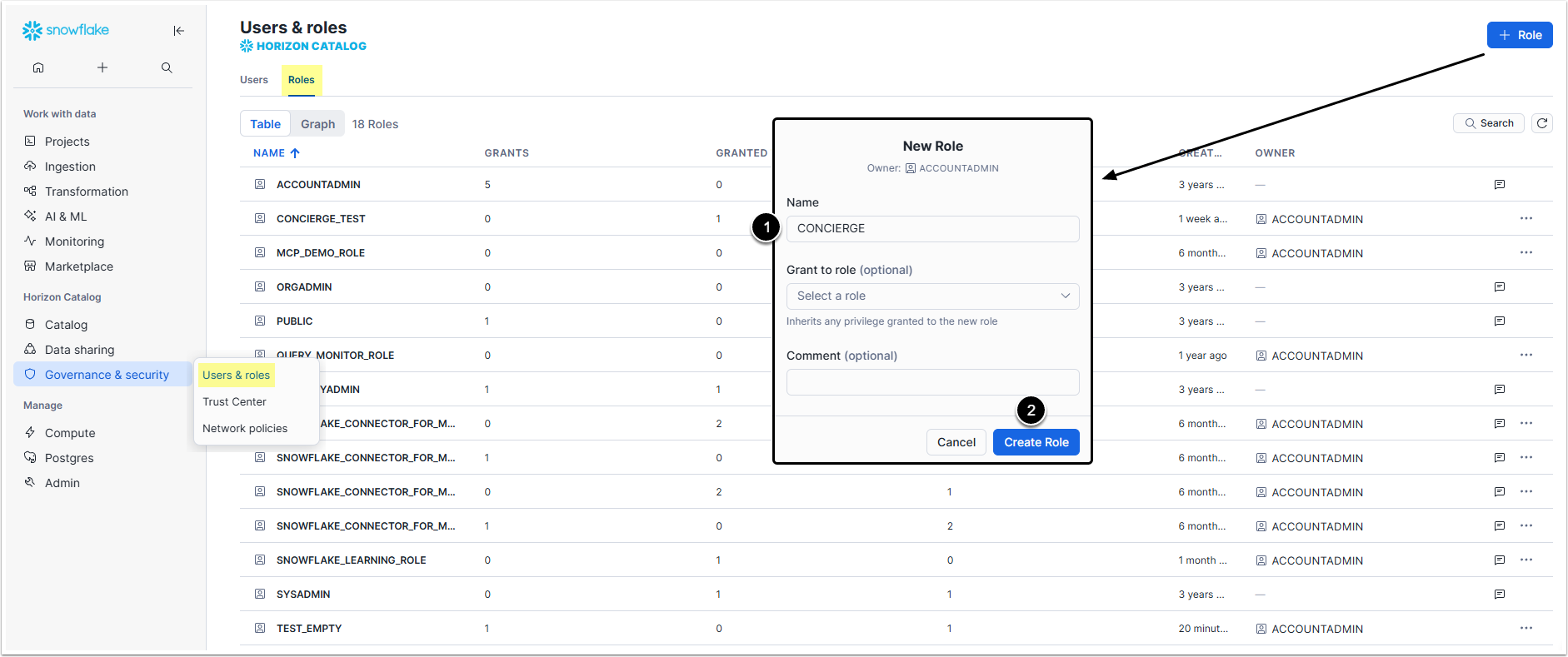
- Name: Give the Role an informative name.
- [Create Role]
2. Give Permissions to the Role
Access Projects > Workspaces, click [+ Add new] and select SQL File
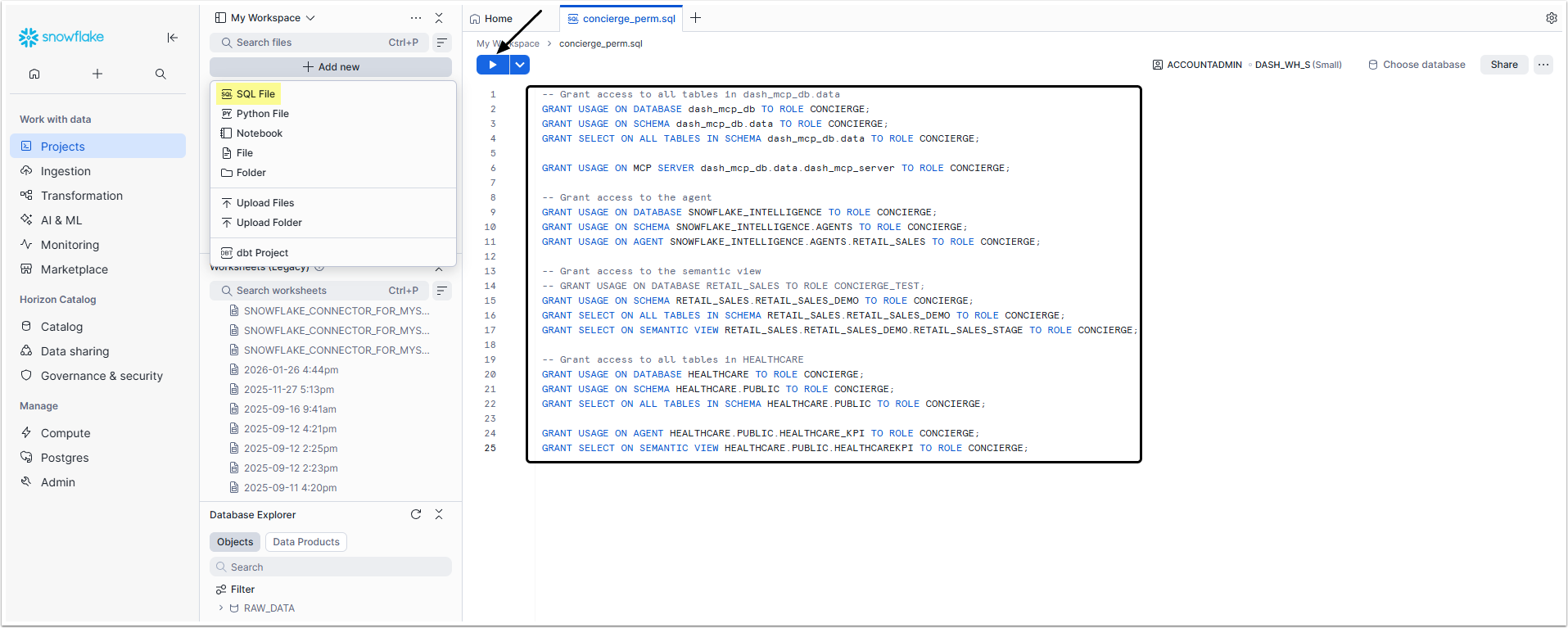
After naming the file, copy the following code into the text field:
-- Grant access to all tables in dash_mcp_db.data
GRANT USAGE ON DATABASE dash_mcp_db TO ROLE CONCIERGE;
GRANT USAGE ON SCHEMA dash_mcp_db.data TO ROLE CONCIERGE;
GRANT SELECT ON ALL TABLES IN SCHEMA dash_mcp_db.data TO ROLE CONCIERGE;
GRANT USAGE ON MCP SERVER dash_mcp_db.data.dash_mcp_server TO ROLE CONCIERGE;
-- Grant access to the agent
GRANT USAGE ON DATABASE SNOWFLAKE_INTELLIGENCE TO ROLE CONCIERGE;
GRANT USAGE ON SCHEMA SNOWFLAKE_INTELLIGENCE.AGENTS TO ROLE CONCIERGE;
GRANT USAGE ON AGENT SNOWFLAKE_INTELLIGENCE.AGENTS.RETAIL_SALES TO ROLE CONCIERGE;
-- Grant access to the semantic view
-- GRANT USAGE ON DATABASE RETAIL_SALES TO ROLE CONCIERGE;
GRANT USAGE ON SCHEMA RETAIL_SALES.RETAIL_SALES_DEMO TO ROLE CONCIERGE;
GRANT SELECT ON ALL TABLES IN SCHEMA RETAIL_SALES.RETAIL_SALES_DEMO TO ROLE CONCIERGE;
GRANT SELECT ON SEMANTIC VIEW RETAIL_SALES.RETAIL_SALES_DEMO.RETAIL_SALES_STAGE TO ROLE CONCIERGE;
-- Grant access to all tables in HEALTHCARE
GRANT USAGE ON DATABASE HEALTHCARE TO ROLE CONCIERGE;
GRANT USAGE ON SCHEMA HEALTHCARE.PUBLIC TO ROLE CONCIERGE;
GRANT SELECT ON ALL TABLES IN SCHEMA HEALTHCARE.PUBLIC TO ROLE CONCIERGE;
GRANT USAGE ON AGENT HEALTHCARE.PUBLIC.HEALTHCARE_KPI TO ROLE CONCIERGE;
GRANT SELECT ON SEMANTIC VIEW HEALTHCARE.PUBLIC.HEALTHCAREKPI TO ROLE CONCIERGE;
Replace CONCIERGE with the name of the Role you created and the names of database, tables, agents and schema with the names of your corresponding objects. Afterwards, click the run button.
3. Assign the Role
Return to Governance & security > Users & roles and click on the user that will be using Concierge
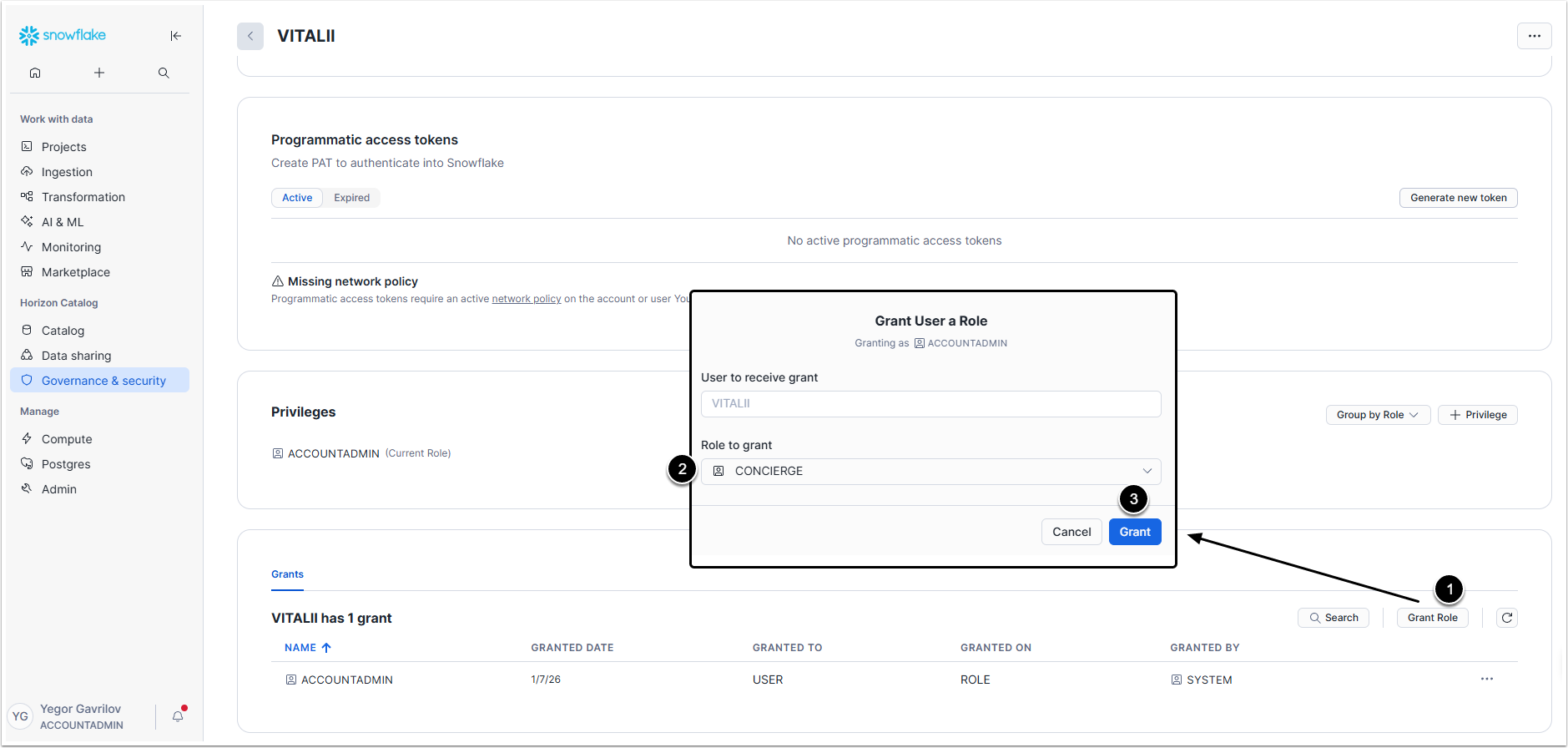
- [Grant Role]
- Role to grant: Select the Role you created.
- [Grant]
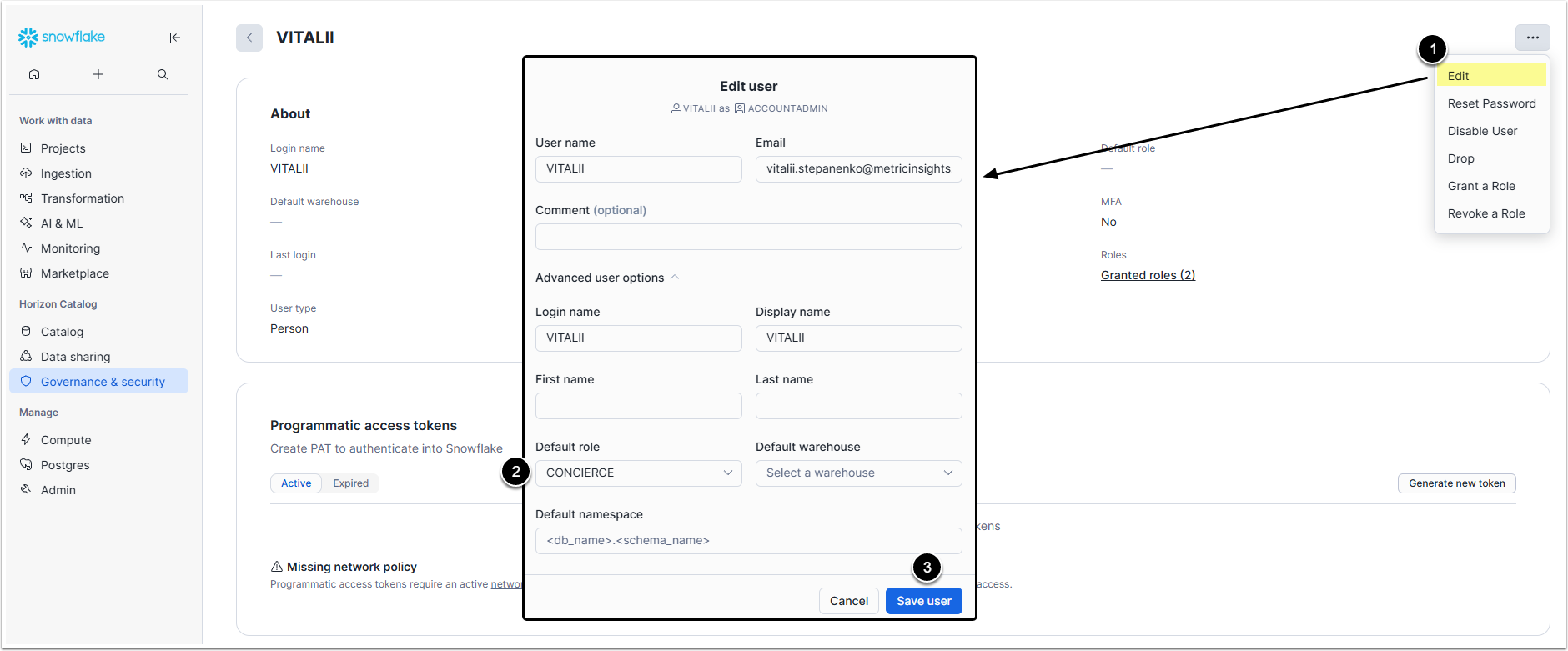
- In the upper menu select Edit.
- Default role: Select the Role you created.
- [Save user]
Scroll the user account page down, find the Default Role in the list of granted Roles and click its name.
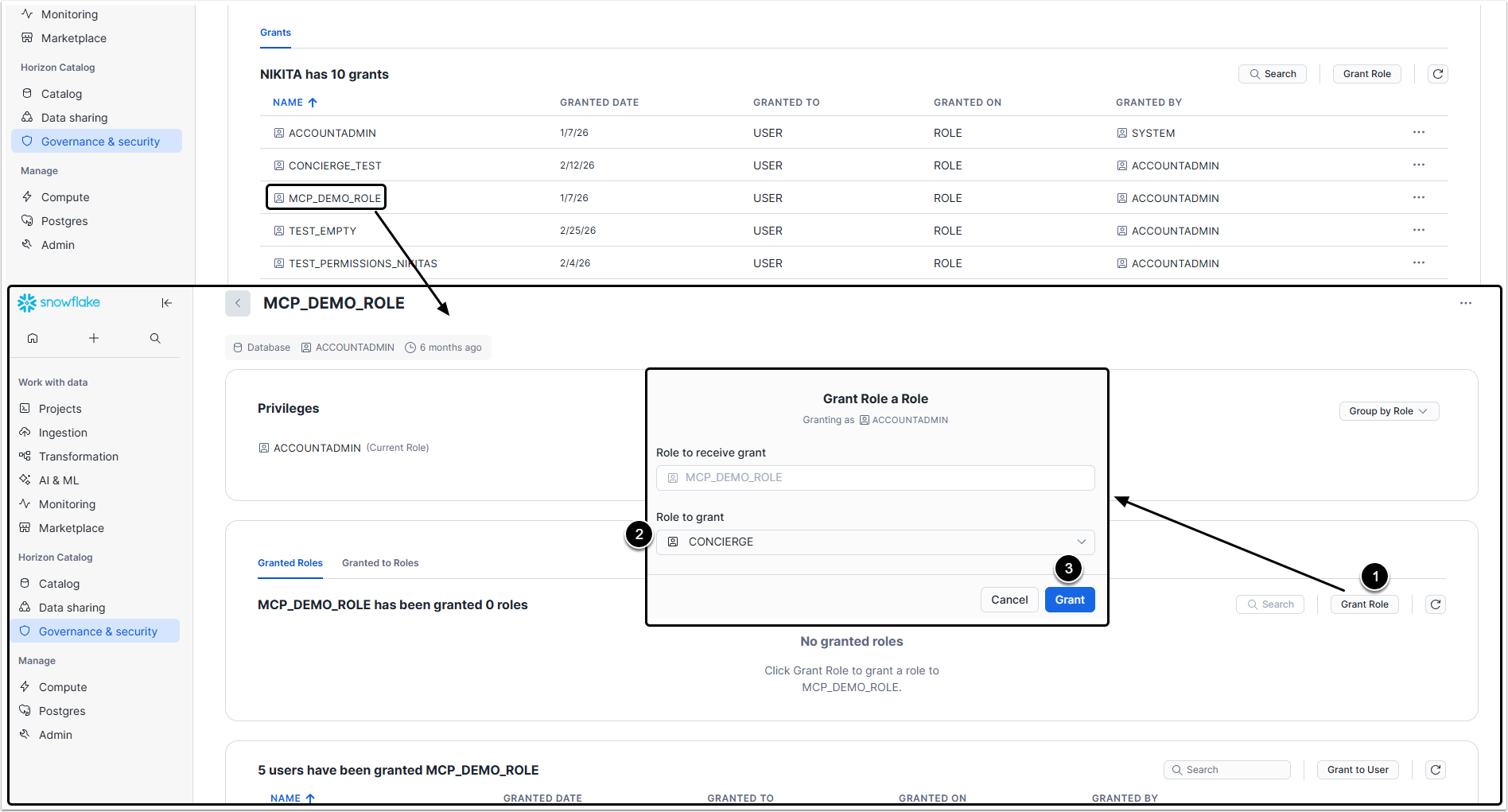
In the Role editor, grant the Role you created to User's Default Role:
- [Grant Role]
- Role to grant: Select the Role you created.
- [Grant]
Credentials for Auth Type
To create a Snowflake External Resource Configuration with "Service Account Token" or "User OAuth" Auth Type, you will have to perform additional configurations in Snowflake account.
1. Access My Workspace
Return to Snowflake account and access Projects

Click [+ Add New] in My Workspace section and select "SQL File" from the dropdown menu to add a Security Integration.
2. Configure Security Integration
Add the following query into the text field:
CREATE SECURITY INTEGRATION [integration_name]_oauth
TYPE = OAUTH
ENABLED = TRUE
OAUTH_CLIENT = CUSTOM
OAUTH_CLIENT_TYPE = 'CONFIDENTIAL'
OAUTH_REDIRECT_URI = 'https://[instance].metricinsights.com/data/editor/service/validate-data-source-oauth'
OAUTH_ISSUE_REFRESH_TOKENS = TRUE
OAUTH_REFRESH_TOKEN_VALIDITY = 7776000;
Replace [integration_name] with the name of Security Inegration and the [instance] with the name of Metric Insights instance where the Concierge you are connecting Snowflake with is configured.

3. Get OAUTH Client and Secret
Add the following query to the code:
SELECT SYSTEM$SHOW_OAUTH_CLIENT_SECRETS('[INTEGRATION_NAME]_OAUTH');NOTE: The Security Integration name must be capitalized.

After adding a query, click the run button.
In the Results tab, you’ll see the JSON with OAUTH_CLIENT_SECRET_2, OAUTH_CLIENT_ID and OAUTH_CLIENT_SECRET. Download the results file and copy OAUTH_CLIENT_ID and OAUTH_CLIENT_SECRET values from the table.

4. Get Server Value
Go to Admin > Accounts

- In the row of the account that has ACCOUNTADMIN privileges hover over the link icon to show the account's locator.
- Copy the
xxxxxxx.us-east-2.aws.snowflakecomputing.compart, this is the Server address.
5. Check Credentials
As a result, you need to have the following credentials copied:
- OAUTH_CLIENT_ID;
- OAUTH_CLIENT_SECRET;
- Server address.
- NOTE: Server value must be inserted without "https://" at the beginning and without ‘/’ at the end.