This article describes the final step of Connecting to Fabric Data Agent MCP Server (v7.2.0, v7.2.1). Configure Concierge External Resource in Metric Insights account.
Prerequisites:
- Information from Microsoft Power BI account;
- For "User OAuth" and "Service Account Token" Auth Types: Credentials from Azure account.
1. Open Metric Insights Account
Go to Metric Insights, access Admin > Concierge Setup and open the Content Sources tab
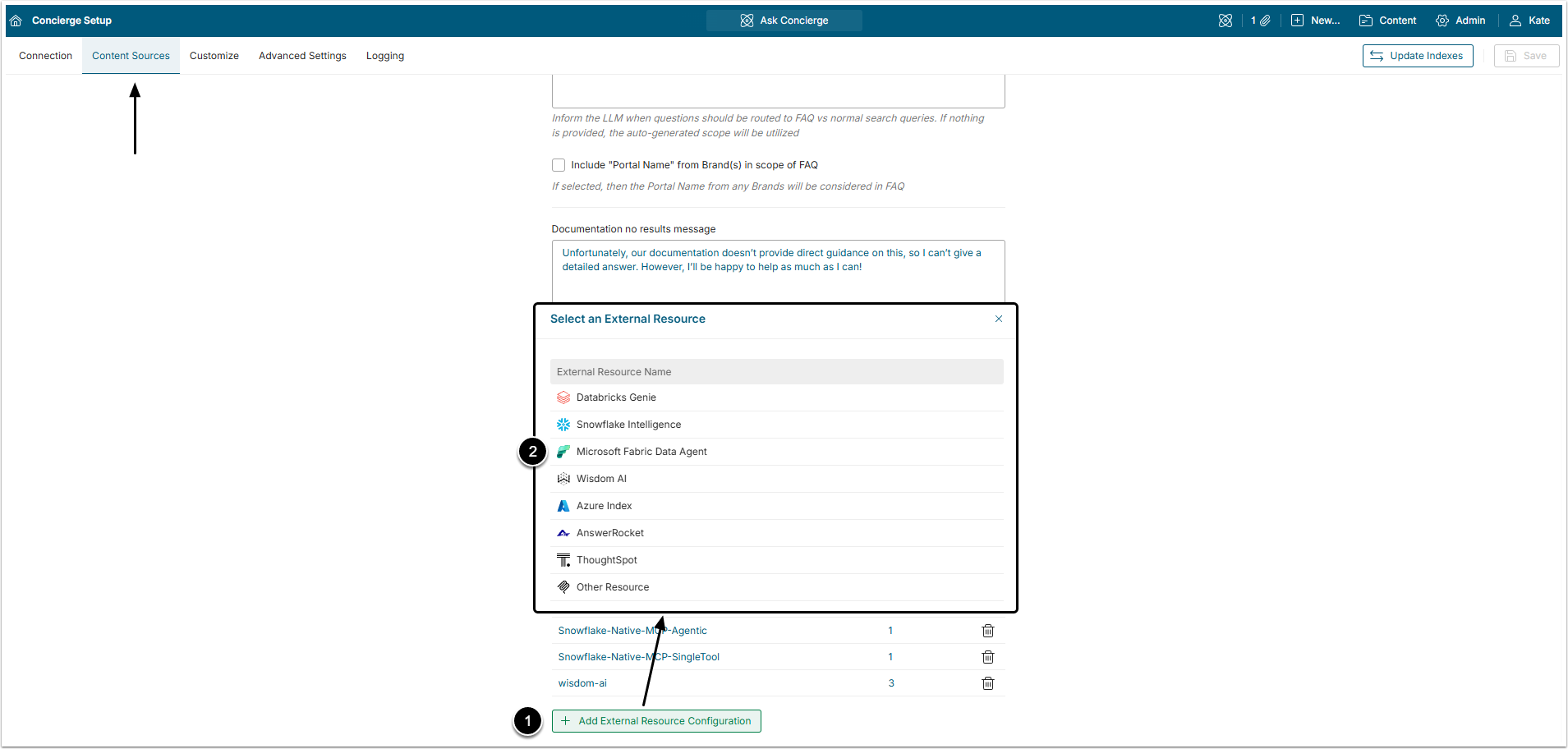
- [+ Add External Resource Configuration]
- Select Microsoft Fabric Data Agent – Fabric MCP or Microsoft Fabric Data Agent – MI Custom MCP option.
2. Authentication Tab
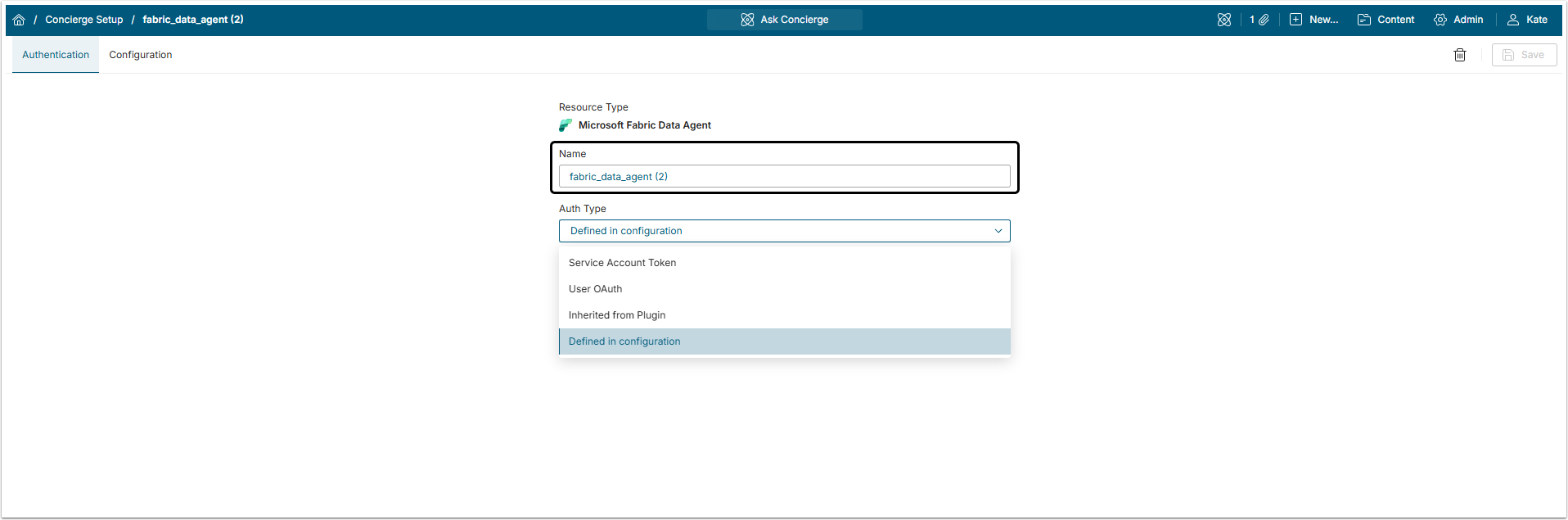
The Name is generated automatically, but it can be changed if necessary.
2.1. Auth Type: User OAuth and Service Account Token
Choosing Service Account Token or User OAuth type of authentication means that the Token will be requested and then automatically inserted to the configuration code by Metric Insights. Concierge checks what accesses the User that makes query has and provides answers according to them. Those authentication types are used when the Fabric has a security model configured which gives users different access rights.
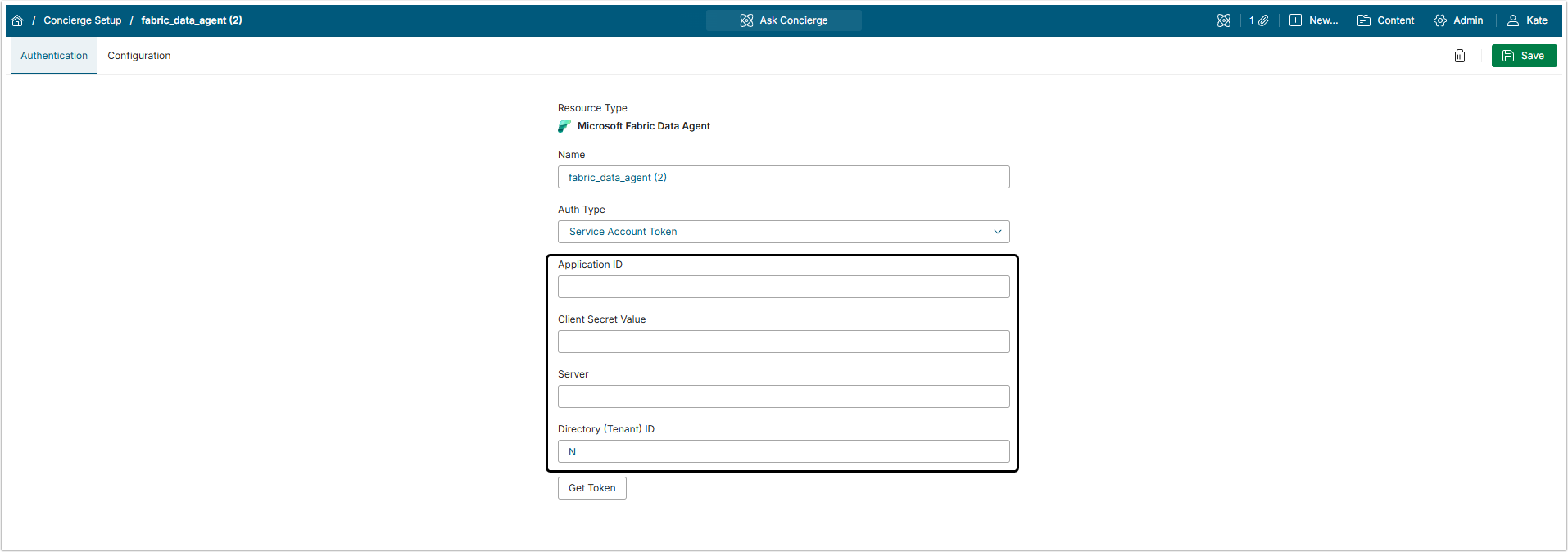
The credentials are obtained in Azure Account.
2.2. Auth Type: Inherited from Plugin
Choosing "Inherited from Plugin" type of authentication means that the Token will be requested using credentials from the Power BI plugin and then automatically inserted to the configuration code by Metric Insights.
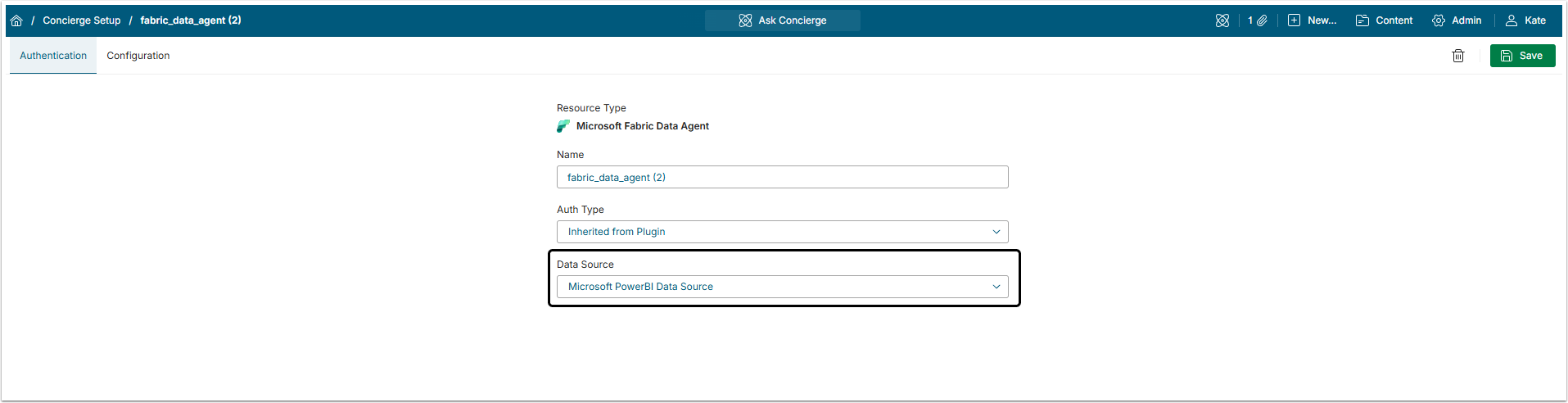
Select the Data Source from which to inherit authentication. The dropdown menu contains only Data Sources that use OAuth authentication for connection. Data Sources set up with Service Principal, Password or Identity profile authentication method can not be used for External Resource.
NOTE: For the "Inherited from Plugin" authentication type to work correctly, make sure the corresponding Application in Azure account has all the necessary permissions.
3. Configuration Tab
Proceed to Configuration tab
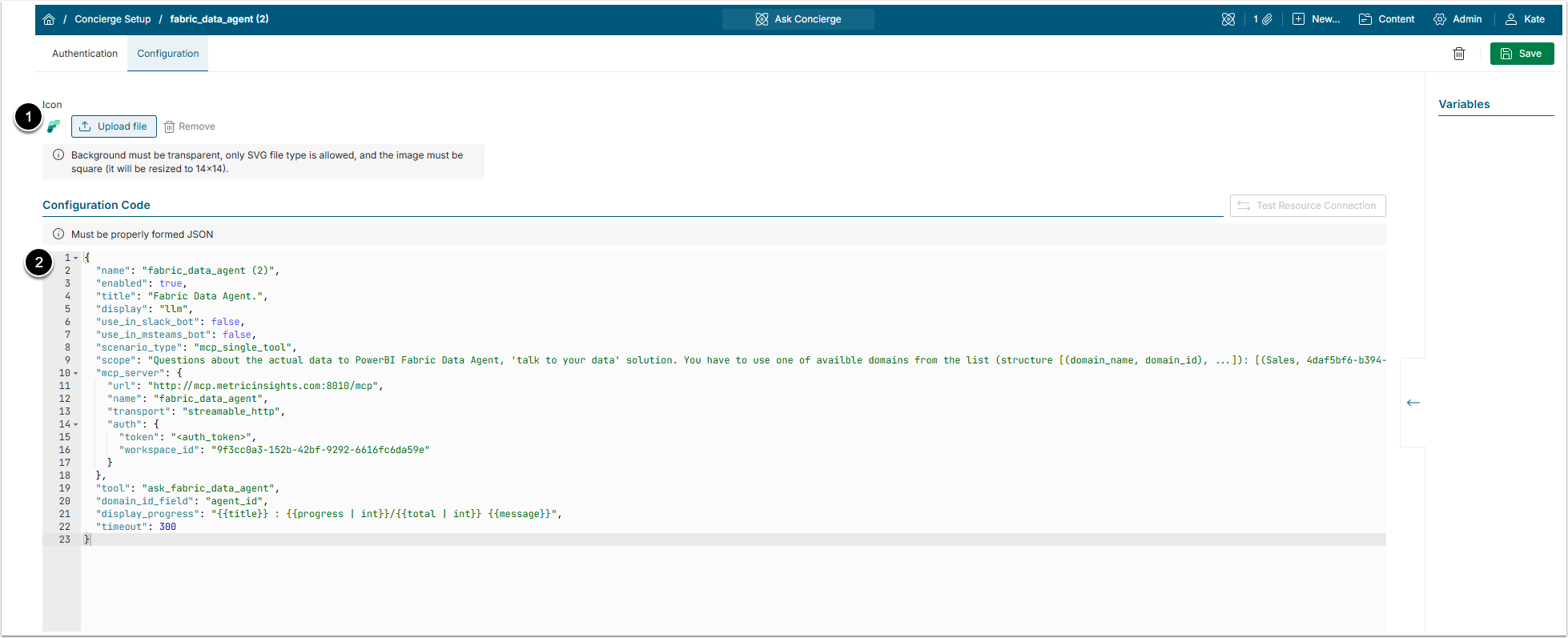
- Icon: To add a custom icon, upload an SVG image on a transparent background.
- A block of example JSON code is added to the field automatically. The parts in double curvy brackets ("{{}}") has to be filled with information specific to your instance, except to the ones in the
display_progressfield. Double curvy brackets in thedisplay_progressfield are the part of the coding.- For more details about how to build the configuration, check the Connecting External Agents to Concierge via MCP Server article.
- [Test Resource Connection] to check if it is possible to establish connection to the external tool.
Check the JSON code usage example for Fabric External Resource configuration.
Code Example
{
  "name": "fabric_data_agent_managed",
  "enabled": true,
  "title": "{{ display title }}",
  "scenario_type": "mcp_single_tool",
  "display": "raw_or_llm_for_charting",
  "use_in_slack_bot": false,
  "use_in_msteams_bot": false,
  "mcp_server": {
    "url": "https://api.fabric.microsoft.com/v1/mcp/workspaces/{{workspace_id}}/dataagents/{{dataagent_id}}/agent",
    "name": "{{ unique mcp server name }}",
    "transport": "http",
    "auth": {
      "Authorization": "Bearer <auth_token>",
      "Content-Type": "application/json"
    }
  },
  "tool": "{{ data agent toll name as defined in Fabric}}",
  "timeout": 300
}Fabric Code Specifics
| Field | Description | |
|---|---|---|
name | The value of this variable should be unique and exactly match the Name field in the UI above the editor. It is allowed to use A-Z/a-z alphabetic symbols, digits, and underscore (_) when setting a name. | |
enabled | This field allows to disable External Resource instead of deleting it. If it is true, the External Resource is enabled. If it is false, the External Resource is disables.NOTE: After disabling the External Resource make sure to disconnect or disable all Domains connected to it. | |
title | The display name. This name is shown in the All Sources button and in Concierge responses. | |
scenario_type | The mcp_single_tool option is mandatory for this variable. | |
display | Defines how data from the external agent is shown. The raw_or_llm_for_charting is the required option for this variable. It means that data is received from the MCP tool as is and is processed by the LLM on Concierge side if there is a need to create a chart. | |
use_in_slack_bot | If this field is true, it allows external tool to be used for requests from Slack bot. | |
use_in_msteams_bot | If this field is true, it allows external tool to be used for requests from MS Teams bot. | |
mcp_server | url | Insert the MSP server URL copied from the PowerBI account. |
name | Name of MCP Server. It should be unique, but is an optional variable. | |
transport | The http option is mandatory for this field. | |
auth | The token field has to contain <auth_token> value. | |
tool | scenario_type variable is set to mcp_single_tool, so this field is required. Insert the MCP server tool value, copied from the PowerBI account. | |
timeout | Recommended value is from 300 to 600 seconds. | |
{
  "name": "{{ unique resource name }}",
  "enabled": true,
  "title": "{{ display title }}",
  "scenario_type": "mcp_single_tool",
  "display": "llm",
  "use_in_slack_bot": false,
  "use_in_msteams_bot": false,
  "mcp_server": {
    "url": "http://mcp.metricinsights.com:8010/mcp",
    "name": "{{ unique mcp server name }}",
    "transport": "streamable_http",
    "auth": {
      "token": "<auth_token>",
      "workspace_id": "{{paste workspace_id here}}"
    }
  },
  "tool": "ask_fabric_data_agent",
  "domain_id_field": "domain_id",
  "display_progress": "{{title}} : {{progress | int}}/{{total | int}} {{message}}",
  "timeout": 300
}Fabric Code Specifics
| Field | Description | |
|---|---|---|
name | The value of this variable should be unique and exactly match the Name field in the UI above the editor. It is allowed to use A-Z/a-z alphabetic symbols, digits, and underscore (_) when setting a name. | |
enabled | This field allows to disable External Resource instead of deleting it. If it is true, the External Resource is enabled. If it is false, the External Resource is disables.NOTE: After disabling the External Resource make sure to disconnect or disable all Domains connected to it. | |
title | The display name. This name is shown in the All Sources button and in Concierge responses. | |
display | Defines how data from the external agent is shown. The llm is the required option for this variable. It means that Concierge uses an LLM to reformat the external agent’s data for display. | |
use_in_slack_bot | If this field is true, it allows external tool to be used for requests from Slack bot. | |
use_in_msteams_bot | If this field is true, it allows external tool to be used for requests from MS Teams bot. | |
scenario_type | The mcp_single_tool option is mandatory for this variable. | |
scope | A prompt that instructs the LLM when to use this external resource. List all the domains here, using the structure [(domain_name, domain_id), ...]. | |
mcp_server | url | Use the "http://mcp.metricinsights.com:8010/mcp" URL for Fabric Data Agent. |
name | Name of MCP Server. It should be unique, but is an optional variable. | |
auth | The token field has to contain <auth_token> value. Also, insert the workspace_id value copied in PowerBI account. | |
transport | This variable is required. Databricks MCP server supports only the streamable_http transport mode. | |
tool | scenario_type variable is set to mcp_single_tool, so this field is required. Use ask_fabric_data_agent value. | |
domain_id_field | If an MCP server supports features like agents/spaces/catalogs as tool parameters, where user requests may be processed using different data catalogs, you may want to treat those entities as separate domains in MI terminology instead of having multiple MCP servers serving different domains. For this purpose, you may use assigned domain IDs to pass corresponding values to the MCP server as values of the tool argument specified by this field. Insert here the domain_id value copied in the Step 1.3. | |
display_progress | The template for displaying MCP execution progress status messages from the MCP server if available. | |
timeout | Recommended value is from 300 to 600 seconds. | |
4. Get Token
Go back to the Authentication tab
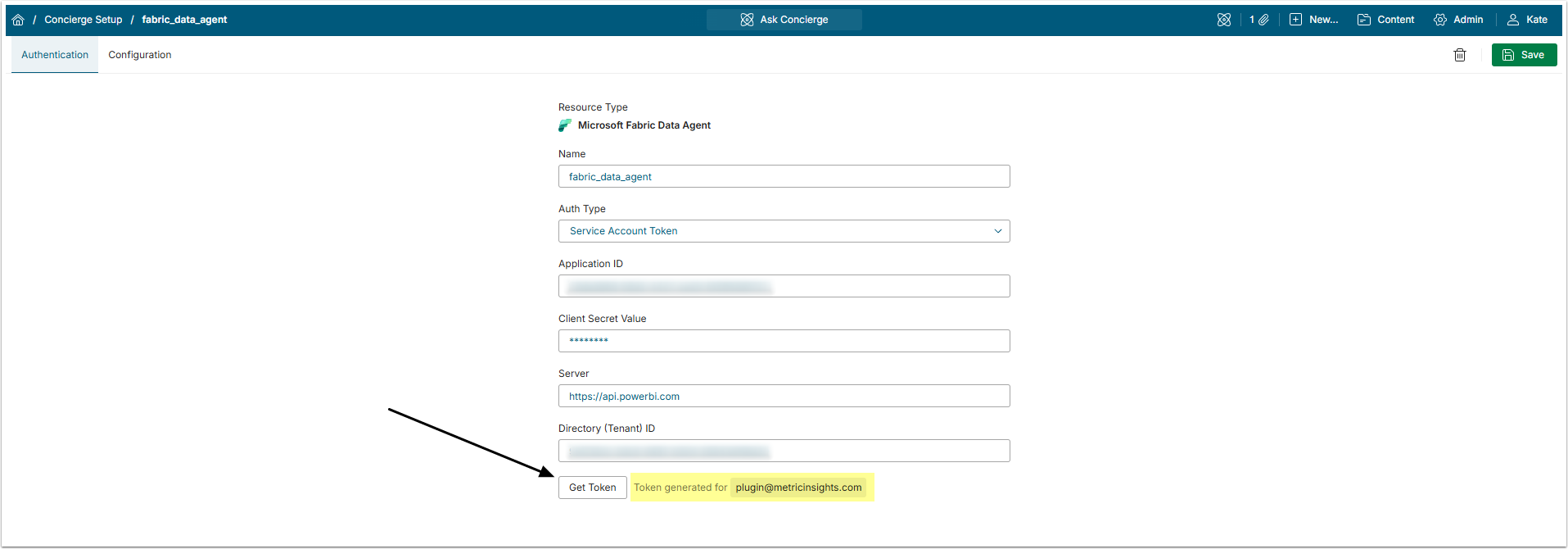
Click [Get Token], so Metric Insights will obtain the Token from Fabric. If Token was generated successfully, the confirmation message "Token generated for <...>" will appear.
Don't forget to [Save] the External Resource.
Fabric Data Agent will not appear in the All Sources menu. Add a Domain to it and that Domain will be visible in All Sources menu.