This article describes a step of Connecting to Fabric Data Agent MCP Server (v7.2.0, v7.2.1). Log into the Microsoft Power BI account to gather authentication data and give users access to the Workspace.
Prerequisites:
You will need a Power BI Admin account.
In this article:
- Collect Information for Fabric Authentication
- Collect Information for Fabric Managed MCP Server
- Give Users Access to Workspace
1. Collect Information for Fabric Authentication
1.1. Access Power BI Account
Log into the Power BI account and open Workspaces tab.
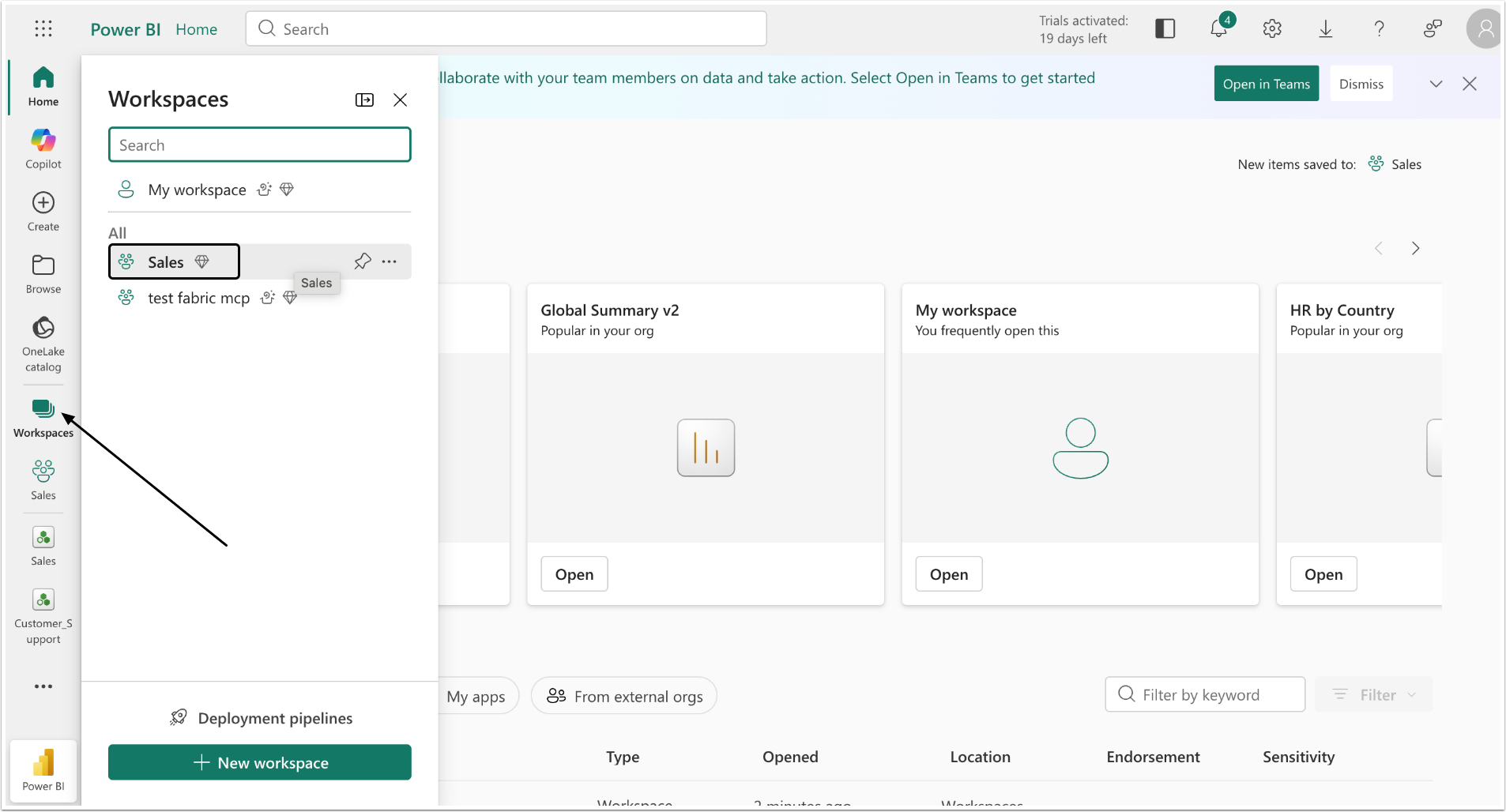
Select the Workspace that will be used with Concierge.
1.2. Locate the Data Agent
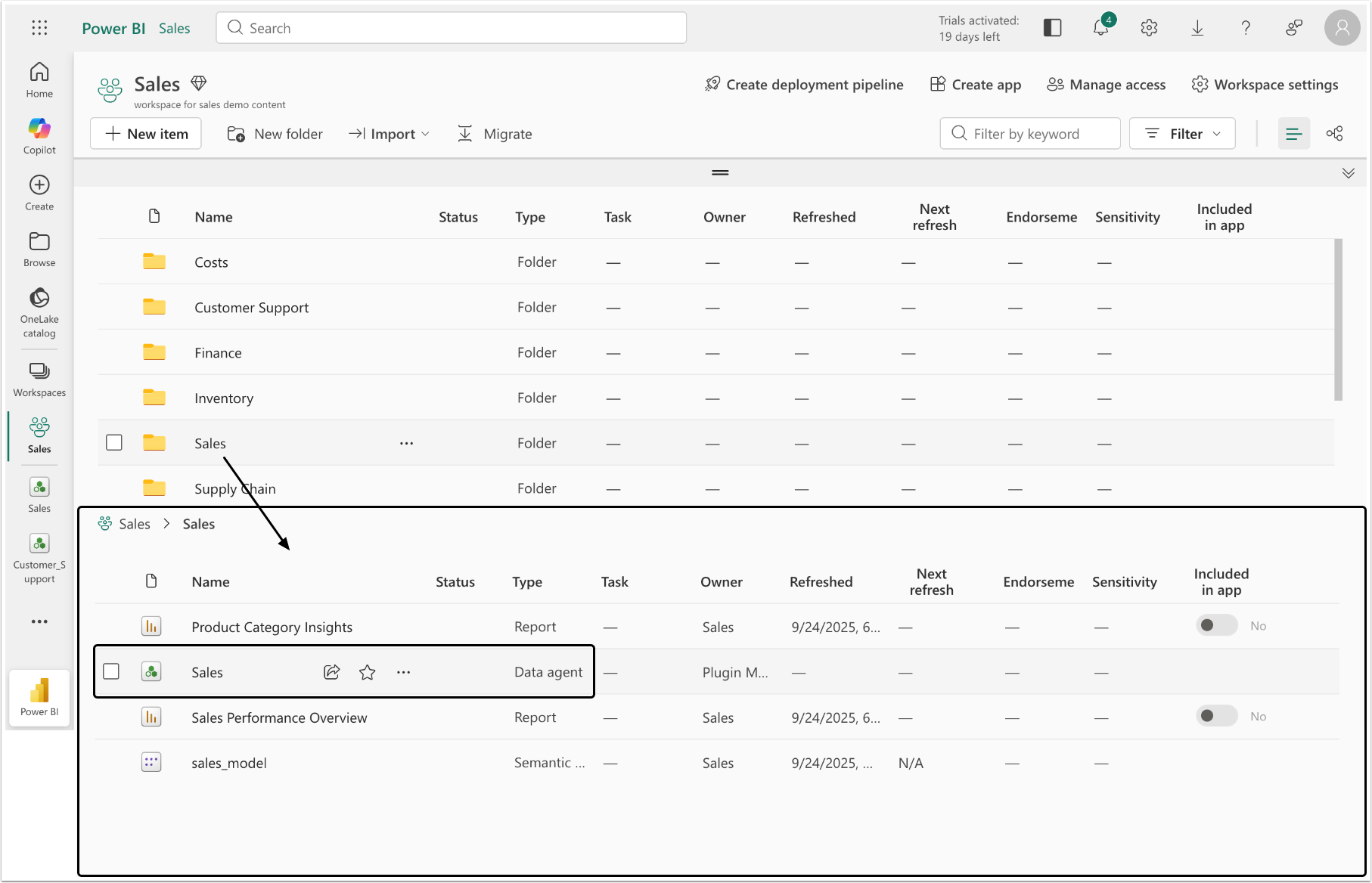
Select the Folder in this directory, find the Data Agent and open it.
1.3. Copy the Data
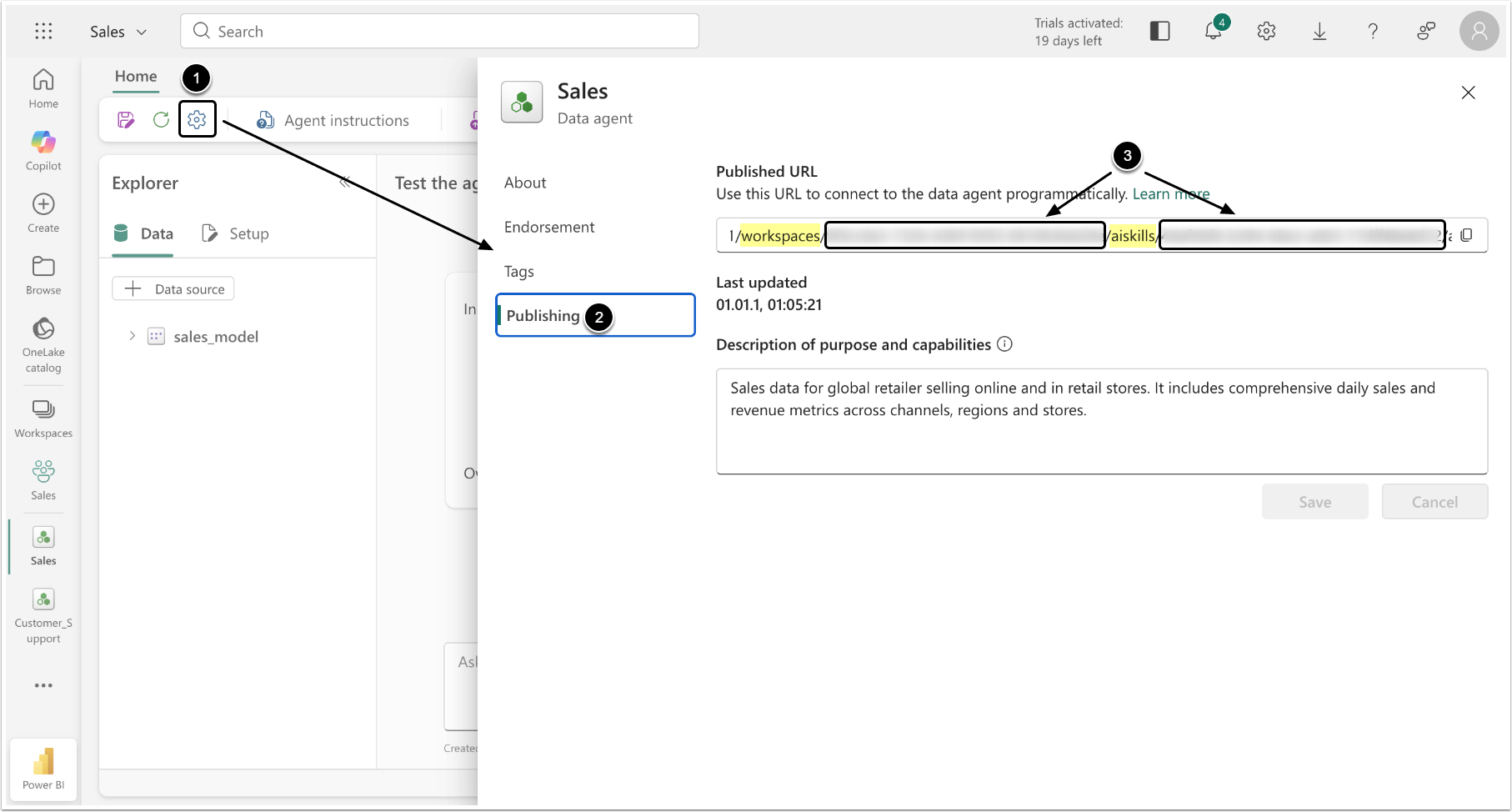
- Click the gear icon to open the settings window.
- Access the Publishing tab.
- Scroll the link in the Published URL field to copy the following data:
workspace_id: The piece of URL mentioned after the "workspaces".domain_id: The piece of URL mentioned after the "aiskills" or "aiassistant". This value has to be collected for every Data Agent in the Workspace.
2. Collect Information for Fabric Managed MCP Server
If you are using Microsoft Fabric Managed MCP Server, you will need to find and copy these credentials.
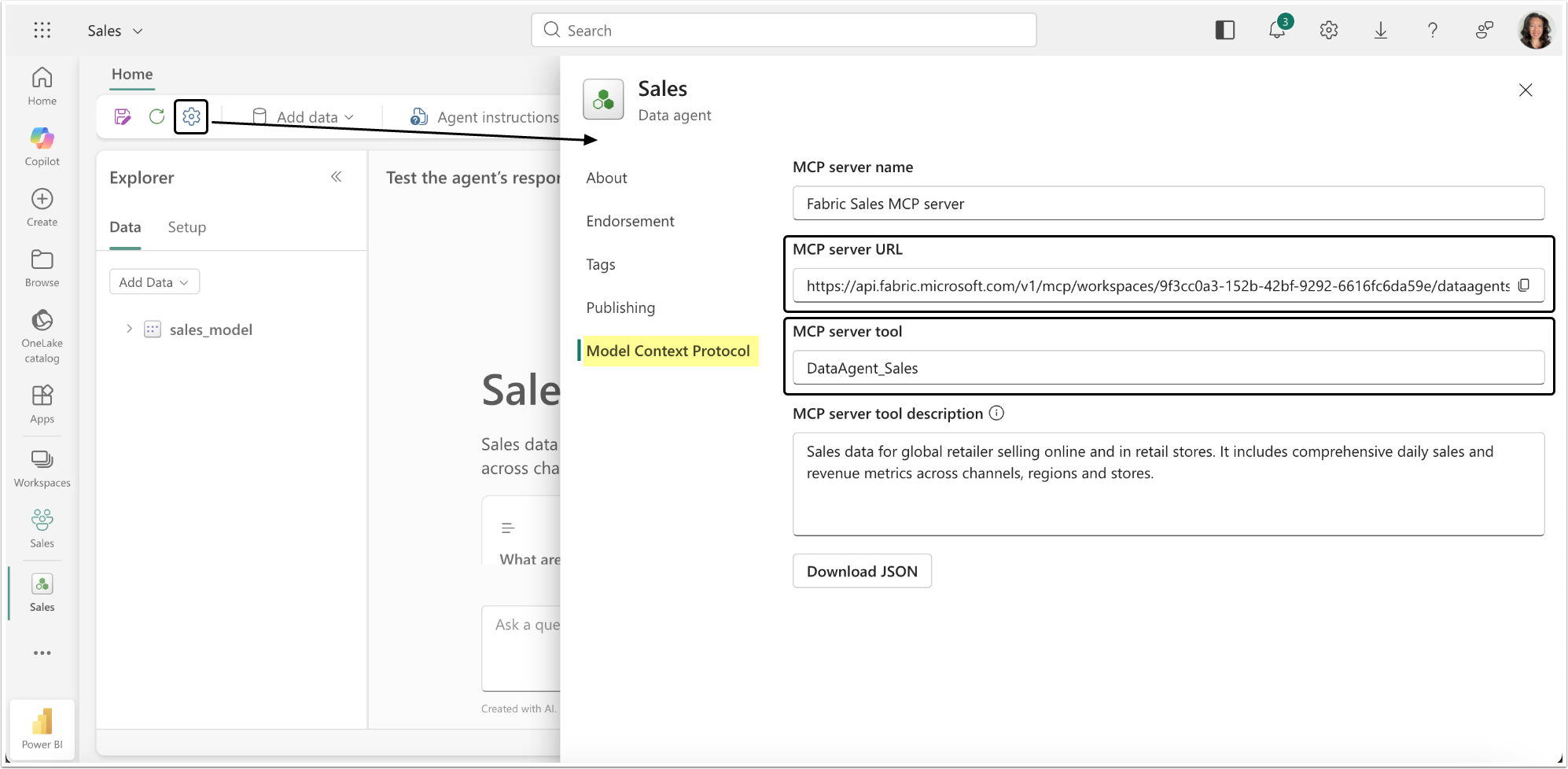
- Click the gear icon to open the settings window.
- Access the Model Context Protocol tab.
- Copy the MCP server URL and MCP server tool values. You will need it during the MI External Resource configuration.
3. Give Users Access to Workspace
3.1. Open Workspace Page
Return to the Workspace page
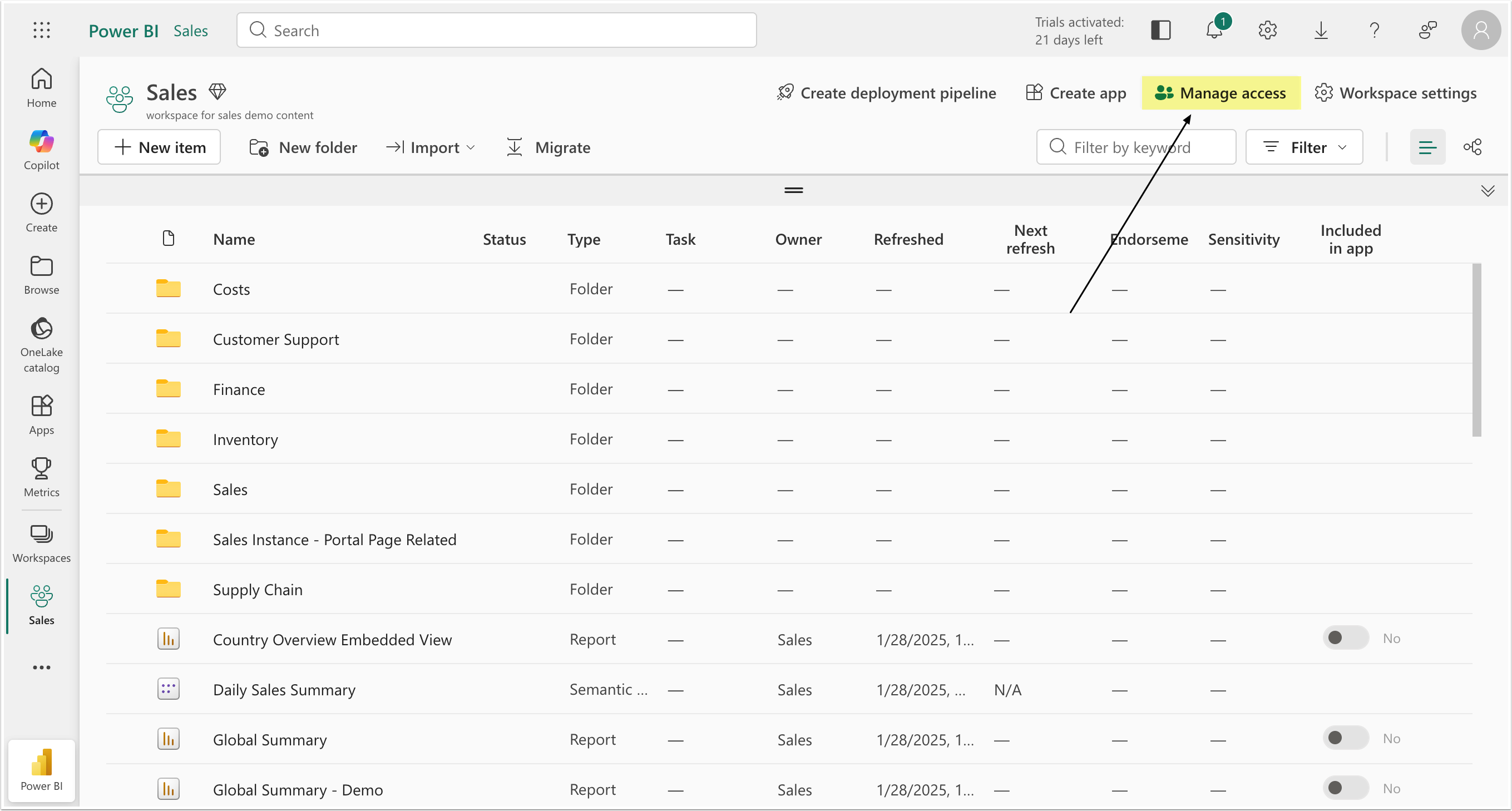
Click [Manage Access].
3.2. Add Users or Group
You can add every User separately or in a bulk, if you created a user group in Azure.
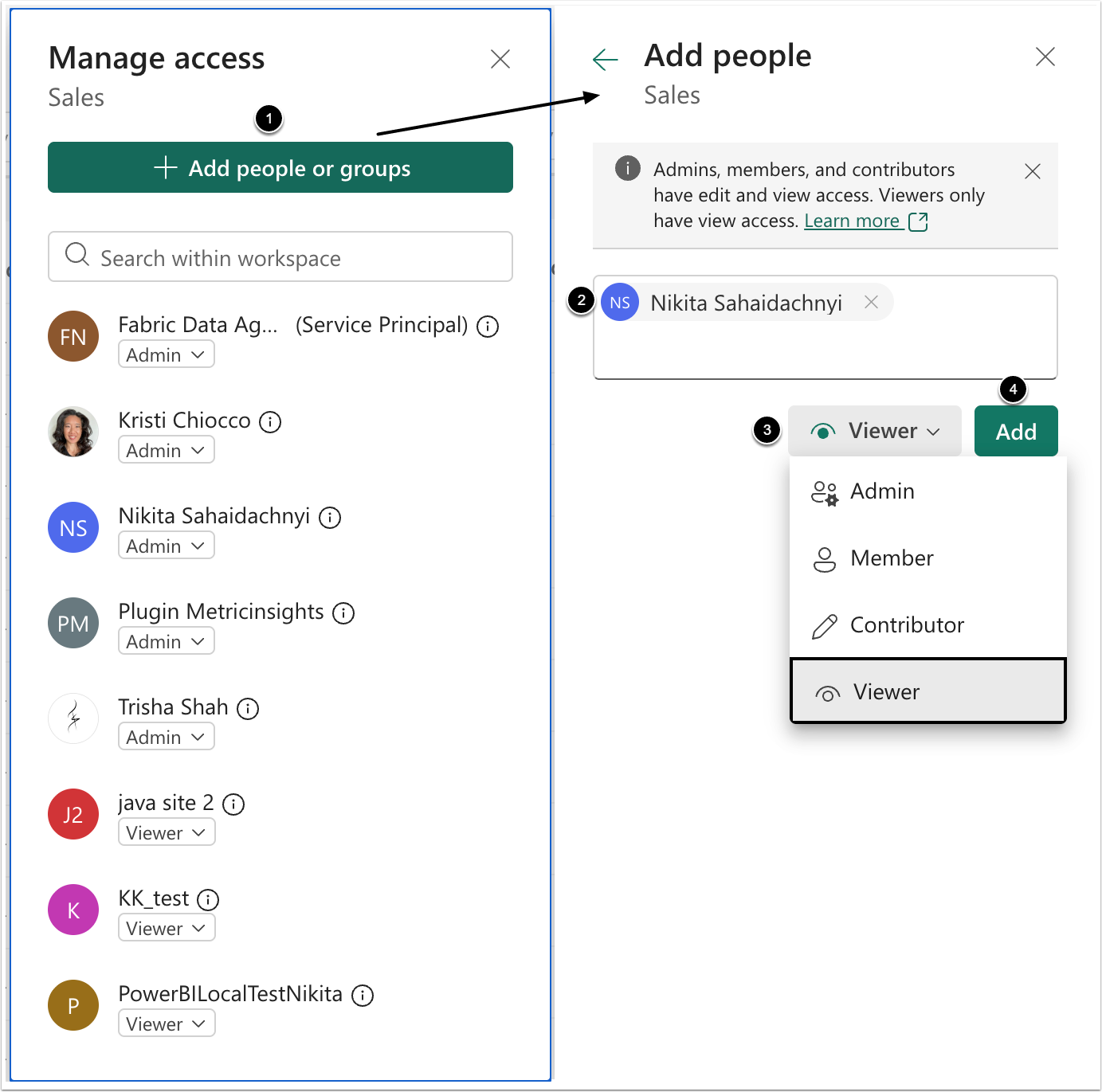
- [+ Add people or groups]
- Insert user's email or the title of the group, created in Azure.
- Select the role. The Viewer will be enough to be able to query Fabric from Concierge.
- [Add]