This article describes the second step of Connecting to Databricks MCP Server. Proceed to creating and configuring a Concierge External Resource and finish establishing connection between Concierge and Databricks Genie.
Prerequisites:
- Metric Insights Admin account;
- Values collected from Databricks account:
- Genie Space ID
- Server URL
- For "Defined in configuration Auth Type:
- Token
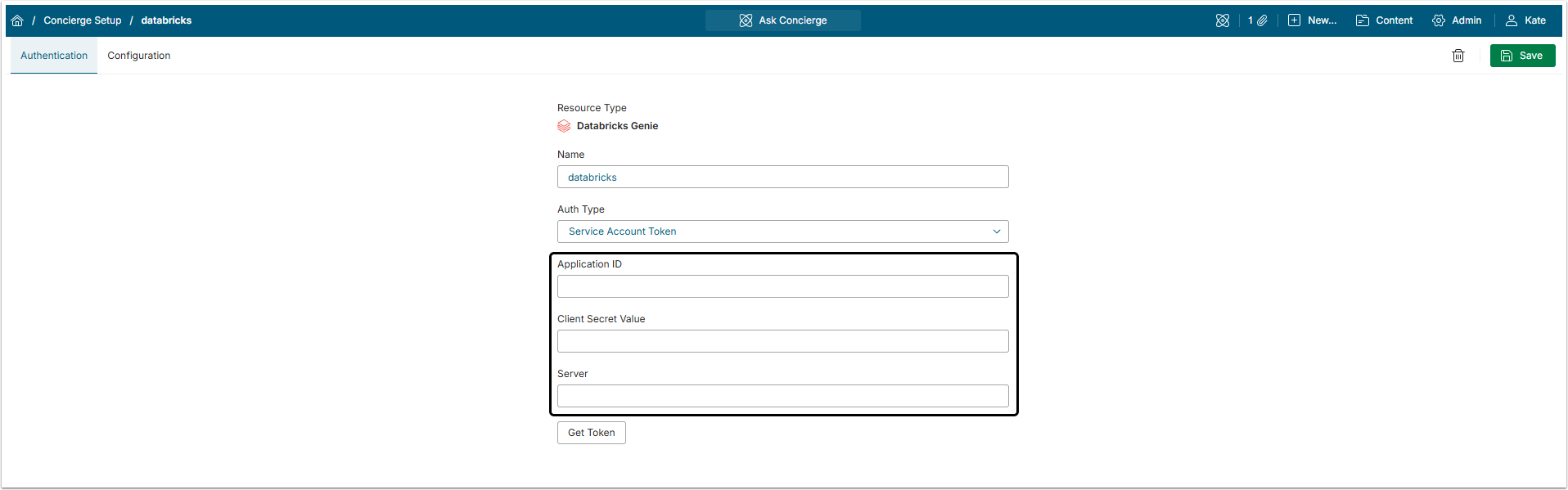
- For "Service Account Token" Auth Type:
- Application ID
- Client Secret Value
In this article:
- Create an External Resource
- Authentication Tab
- Configuration Tab
- Add Variables (Optional)
- Save Changes
- Create Domain
1. Create an External Resource
Go to Metric Insights, access Admin > Concierge Setup and open the Content Sources tab
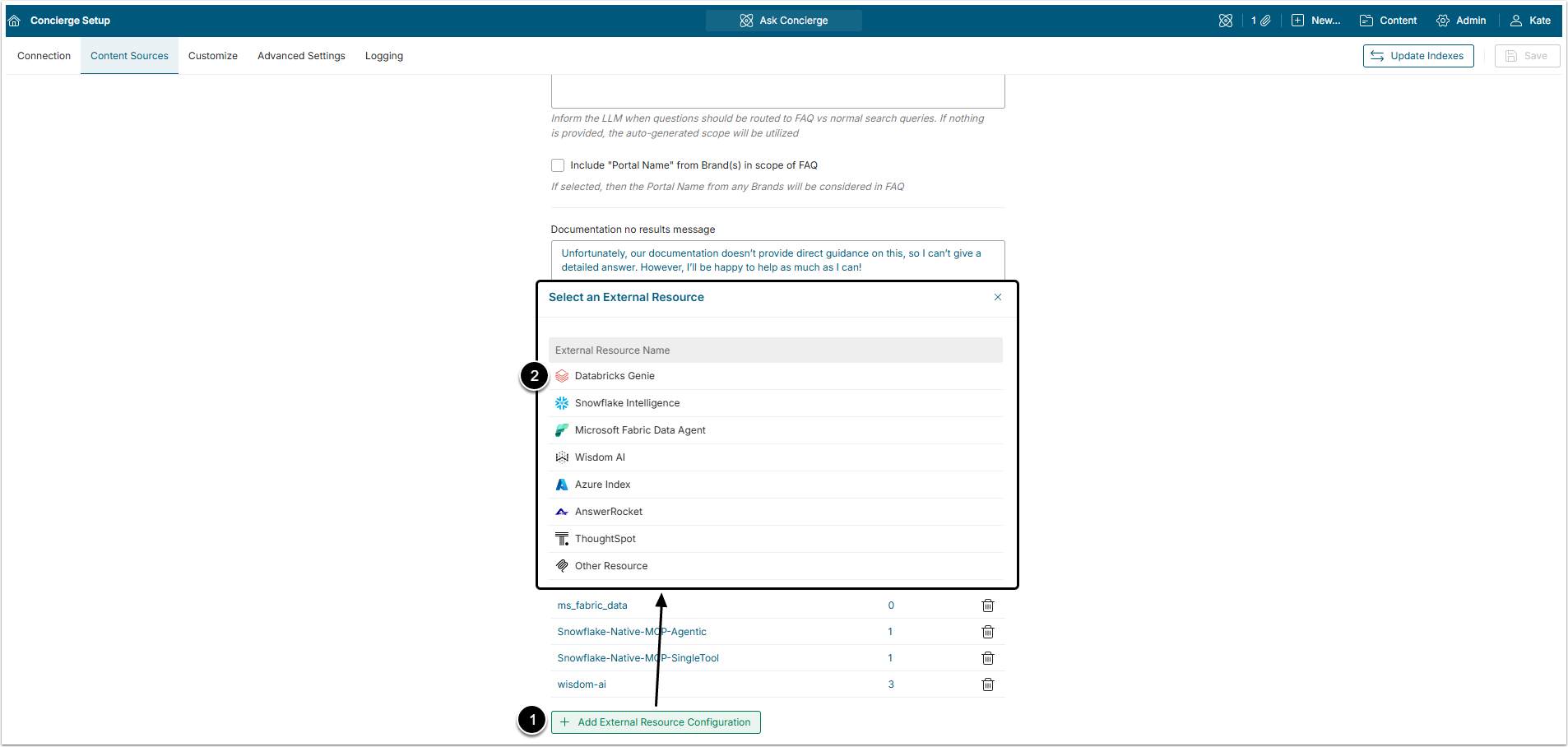
- Click [+ Add External Resource Configuration].
- Select Databricks Genie from the list.
After that, the User will be redirected to the External Resource Editor.
2. Authentication Tab
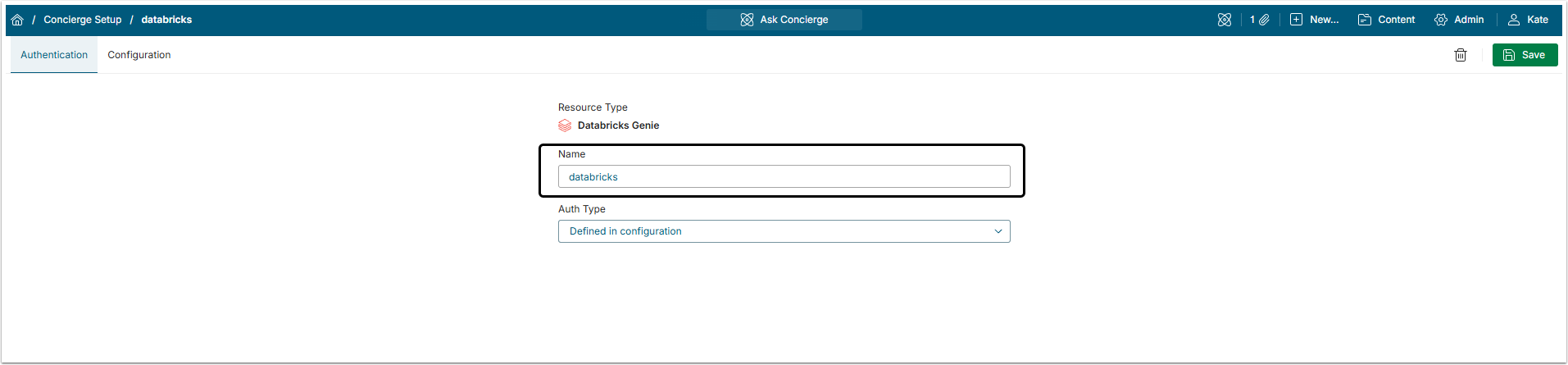
The Name is generated automatically, but it can be changed. This name will be used to identify this external resource when assigning domains and if using Service Account Token, when user are asked to Authenticate.
2.1. Auth Type: Defined in Configuration
Choosing "Defined in configuration" type of authentication means that the Token, copied in the Databricks account will be inserted into the configuration code as is.
This type of authentication is the most flexible and should be used when the long-lasting Token can be generated within the external tool. Be aware, that when the Token expires, it has to be re-entered into the code on Configuration tab manually.
2.2. Auth Type: Service Account Token
Choosing "Service Account Token" type of authentication means that the Token will be requested and then automatically inserted to the configuration code by Metric Insights. The User has to provide access credentials to the Databricks account.
This type of authentication is used when the external tool supports OAuth authorization. If the Token requires regular refreshing, it will be re-inserted into the configuration code automatically.
2.2.1. Get Token
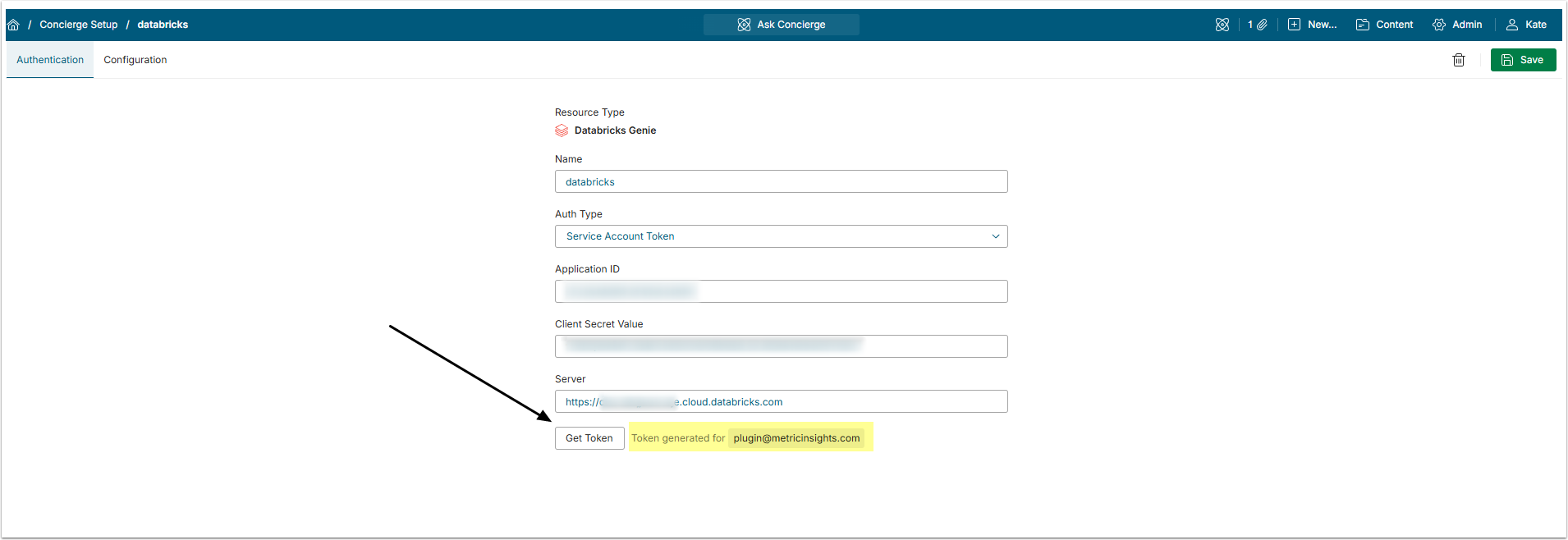
Click [Get Token], so Metric Insights will obtain the Token from Databricks. If Token was generated successfully, the confirmation message "Token generated for <...>" will appear.
3. Configuration Tab
Proceed to Configuration tab
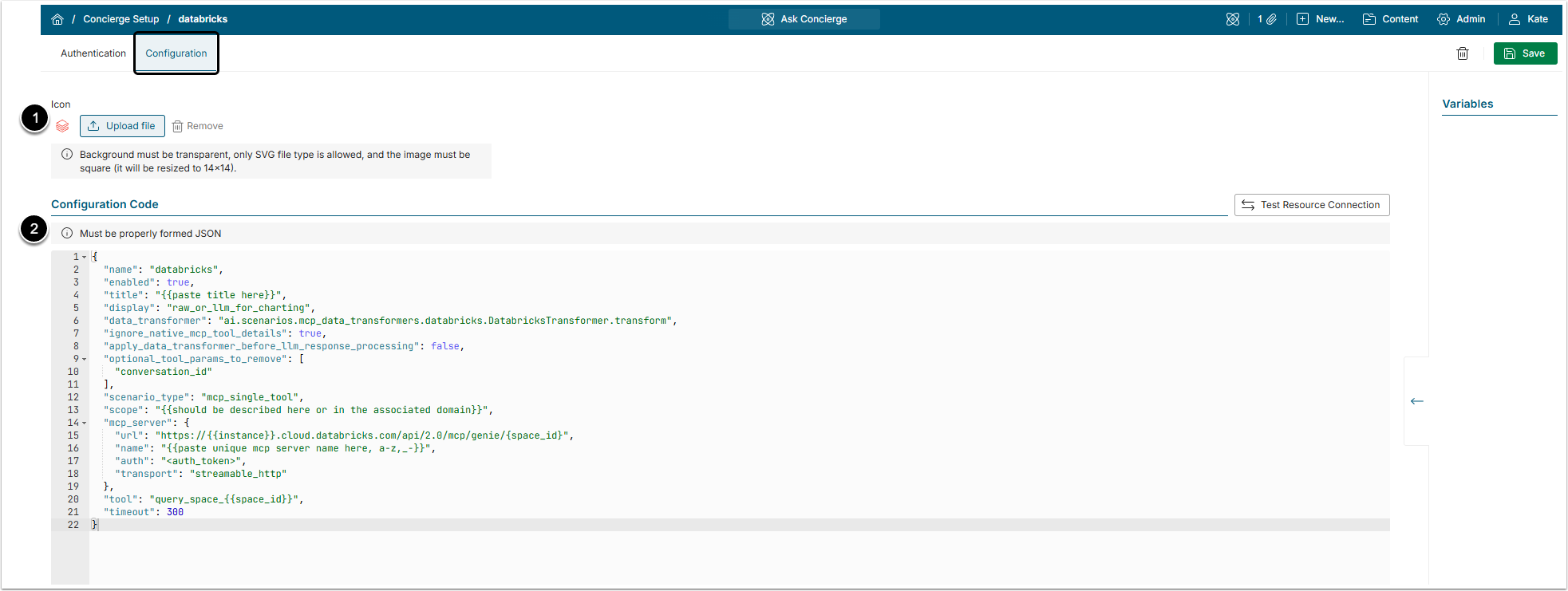
- Icon: To add a custom icon, upload an SVG image on a transparent background.
- A block of example JSON code is added to the field automatically. The parts in double curly braces ("{{}}") has to be filled with information specific to your environment.
- For more details about how to build the configuration, check the Connecting External Agents to Concierge via MCP Server article.
- [Test Resource Connection] to check if it is possible to establish connection to the external tool.
Check the JSON code usage example for Databricks External Resource configuration:
Code Usage Example
{
  "name": "databricks",
  "enabled": true,
  "title": "Databricks",
  "display": "raw_or_llm_for_charting",
  "data_transformer": "ai.scenarios.mcp_data_transformers.databricks.DatabricksTransformer.transform",
  "ignore_native_mcp_tool_details": true,
  "apply_data_transformer_before_llm_response_processing": true,
  "optional_tool_params_to_remove": [
    "conversation_id"
  ],
  "scenario_type": "mcp_single_tool",
  "scope": "Databricks talk to your data solution, questions about support tickets.",
  "mcp_server": {
    "url": "https://{{instance}}.cloud.databricks.com/api/2.0/mcp/genie/{{space_id}}",
    "name": "databricks",
    "auth": "{{databricks token}} or <auth_token>",
    "transport": "streamable_http"
  },
  "tool": "<domain_id>",
  "timeout": 300
}Databricks Code Specifics
| Field | Description | |
|---|---|---|
name | The value of this field should be unique and exactly match the Name field on the Authentication tab. It may contain A-Z/a-z letters, numeric digits, and underscore (_). | |
enabled | This field allows for the External Resource to be disable instead of having to delete it. If it is true, the External Resource is enabled. If it is false, the External Resource is disabled.NOTE: After disabling the External Resource make sure to disconnect or disable all Domains connected to it or the user will see an error message in Concierge. | |
title | The display name for this external resource. This name is shown when associating Domains and sometimes in error messages in the Concierge panel if there is a problem with the External Resource. | |
display | Defines how data from the external agent is processed and shown. The raw_or_llm_for_charting is the recommended option for this field. It means that responses are only sent to be processed by the LLM on the Concierge side if there is a chart to be created. Responses without charting are processed for display in the Concierge panel by the data_transformer. | |
data_transformer | Custom response processor for this MCP server. Metric Insights provides the following transformer for processing raw responses. This is quicker than using the LLM for processing:
| |
ignore_native_mcp_tool_details | Determines whether to pass the description provided by the MCP server into the LLM request context. Can be true or false. Set this to true. | |
apply_data_transformer_before_llm_response_processing | Determines whether to use the custom data transformer defined in data_transformer before LLM processing of the MCP response. This should be set to true. | |
optional_tool_params_to_remove | This field defines optional parameters for the MCP tool to be removed from the request. For Databricks to work properly, the conversation_id has to be removed. | |
scenario_type | The mcp_single_tool option is mandatory for this field. | |
use_in_slack_bot | If this field is true, it allows this external resource to be used for requests from the Slack bot. | |
use_in_msteams_bot | If this field is true, it allows this external resource to be used for requests from the MS Teams bot. | |
scope | This optional field may be included to provide a general description for this external resource to the Concierge LLM. This is useful for providing instructions that are shared across all Domains that use this external resource. | |
mcp_server | This field defines the connectivity and authentication to the MCP server. | |
url | URL for the MCP Server is a required value. The URL for Databricks is constructed like this:
where {{instance}} is the server URL and {{space_id}} is the Space ID value that were obtained in Databricks account. Space ID can be included directly in the JSON block or through the | |
name | A unique name for this MCP server that identifies this specific connection. This can be the same as the name field above. | |
auth |
| |
transport | This field is required. Databricks MCP server supports only the streamable_http transport mode. | |
tool | Since the scenario_type field should be set to mcp_single_tool, this field is required. The <domain_id> reserved variable allows for several Domains to be connected to this Databricks External Resource. This should match what is used in the mcp_server: url field above. | |
timeout | How many seconds Concierge will wait for a response from the external resource. The recommended value is 300. | |
4. Add Variables (Optional)
It is possible to use Variables to replace values in the JSON code block, especially sensitive information since it can be encrypted.
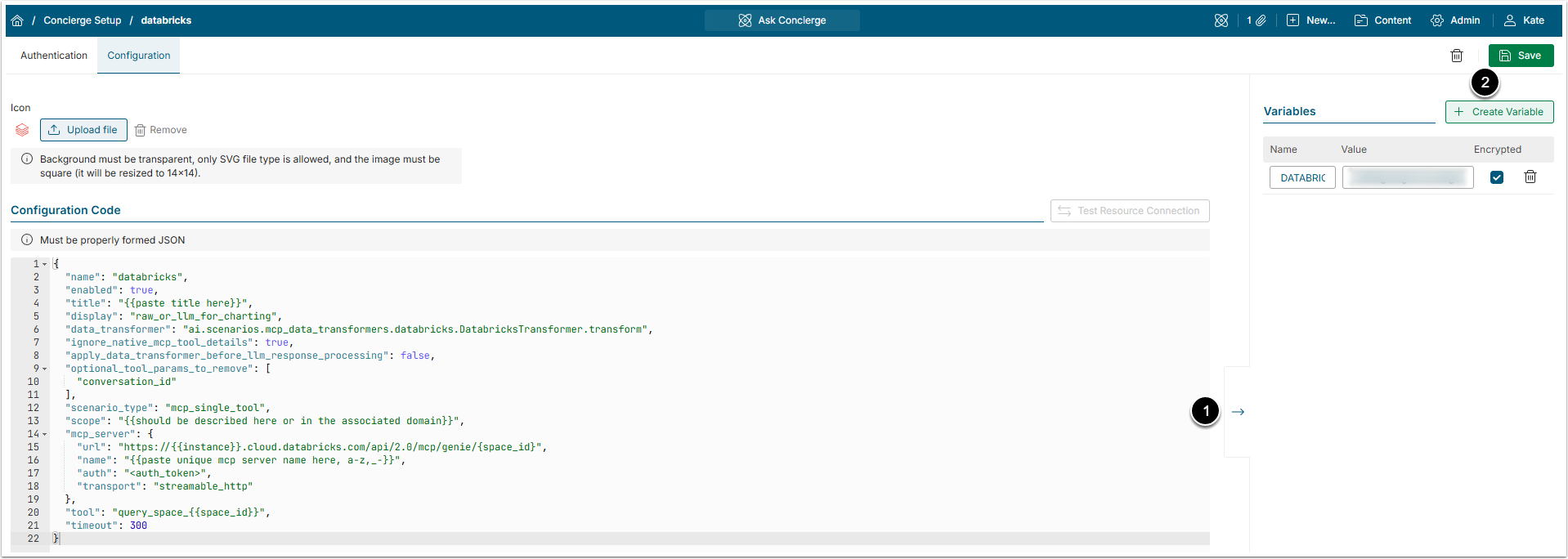
- Click the arrow icon to open the Variables side menu.
- Click [+ Create Variable] and add the Name and Value. Select Encrypted to encrypt the contents in the Value field. This will be hidden upon refresh of the page. No need to to save anything.
- If using Defined in configuration for authentication
- Name the variable
- Enter the collected Databricks token into the Value field
- Click Encrypted to encrypt the Value field and hide the actual value on refresh
- If using Defined in configuration for authentication
- The Variable Name can now be used in the adjacent JSON code block surrounded by square brackets (for example,
[DATABRICKS_TOKEN]) in the code instead of the actual Token itself.
5. Save Changes
Don't forget to [Save] the External Resource.

6. Create Domain
The Databricks External Resource does not appear in the All Sources menu. It must be associated with a Domain and that Domain Name is what shows in the All Sources menu.
