There's a possibility to synchronize content access in Tableau with Tableau content that exists in Metric Insights by running a Custom Script. This way, users/groups who have access to content in Tableau will be given access to the same content in Metric Insights, provided that content is recreated in the system.
The high-level procedure is comprised of the following steps:
- Import the Tableau permissions Workbook
- Update Data Source connection
- Publish Workbook
- Build the permissions Dataset
- Build the derived Dataset
- Build a Custom Script and validate it
- Build a Notification Schedule
PREREQUISITES:
- Established connectivity with the required Tableau Data Source
- Custom Script file requested from support@metricinsigts.com
NOTE: Currently, it is not possible to extract Security Sync details from the internal Tableau database for Tableau Online (Tableau Cloud).
NOTE: It is also possible to use the same Custom Script to:
- Create Groups that don't exist in Metric Insights
- Synchronize Users and Groups (which Users belong to which Groups)
- Map Elements to users Favorites folder
1. Import Tableau Permissions Workbook
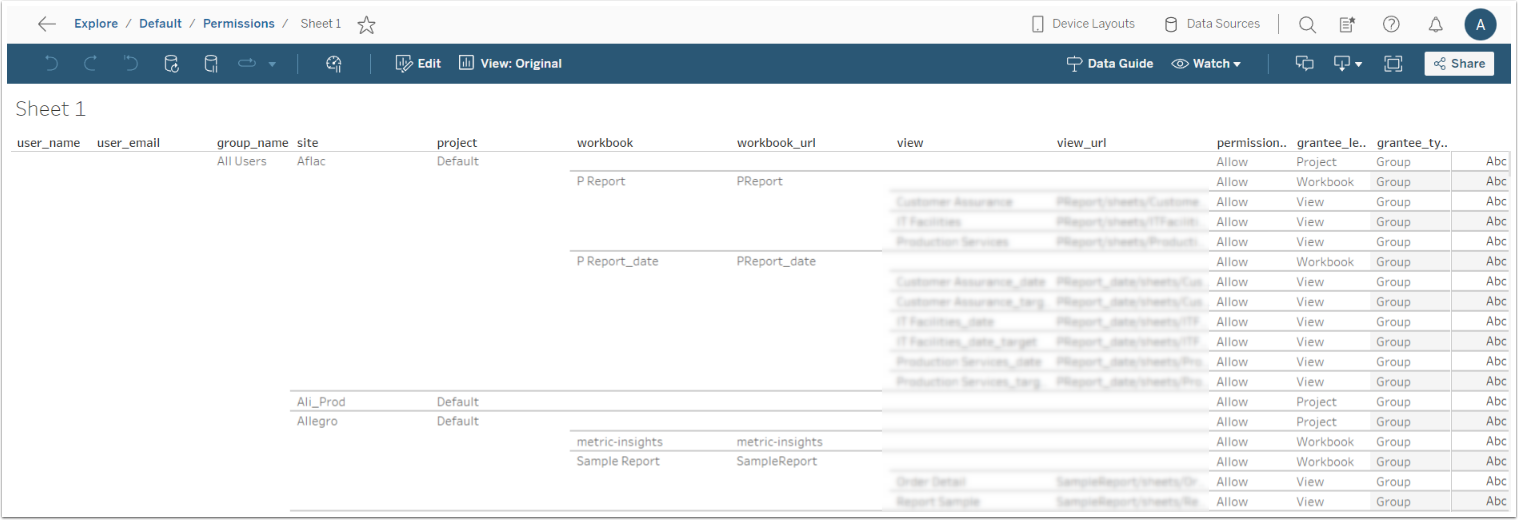
From Tableau, import the pre-configured Permissions.twbx file.
Find the file attached below:
2. Update Internal Data Source Connection
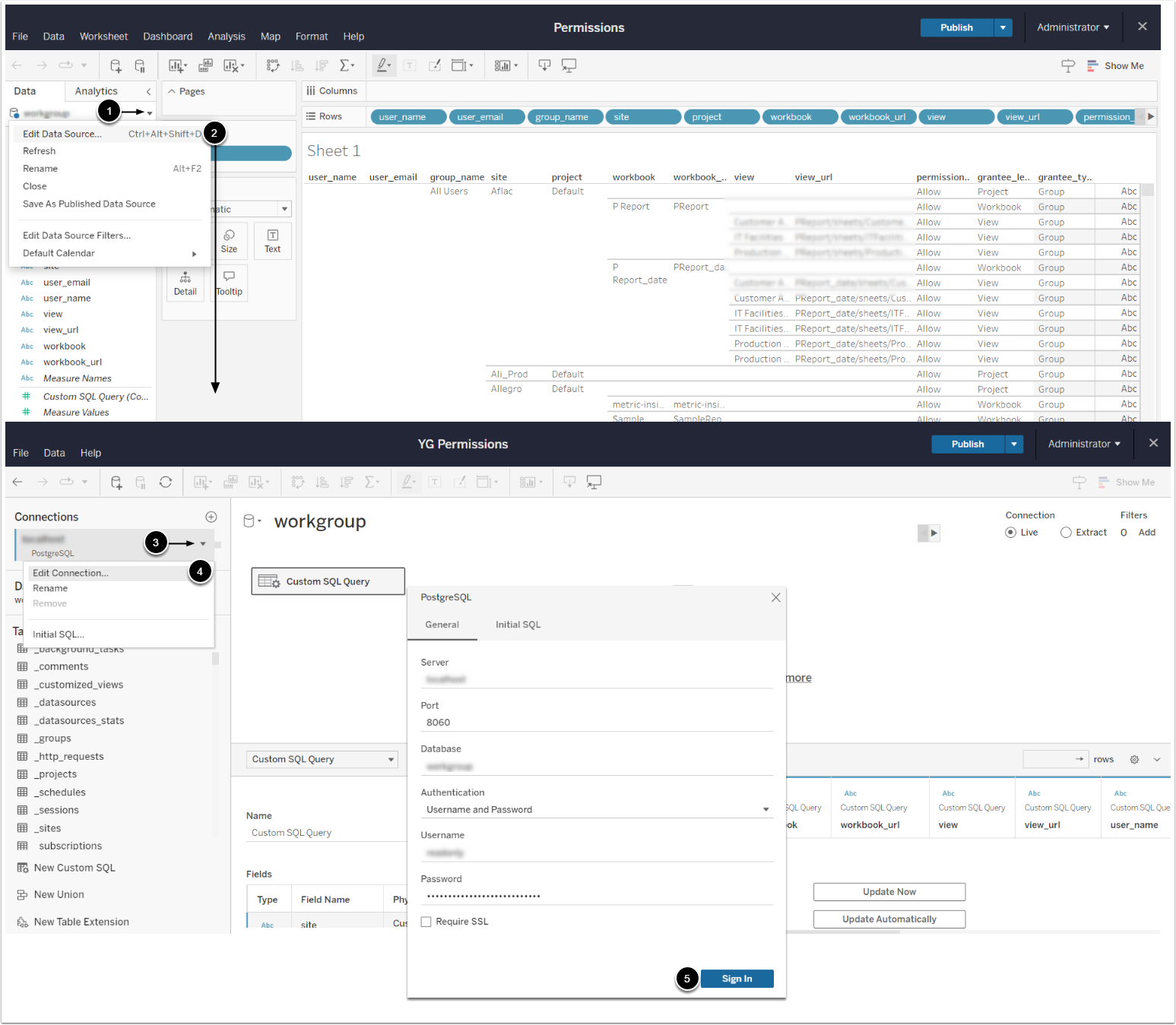
- In the Edit mode, access a drop-down next to the database name
- Click Edit Data Source
- This will open a new window.
- Access a drop-down next to the connection name
- Select Edit Connection
- Sign in to the internal database by providing the required credentials
3. Publish Workbook
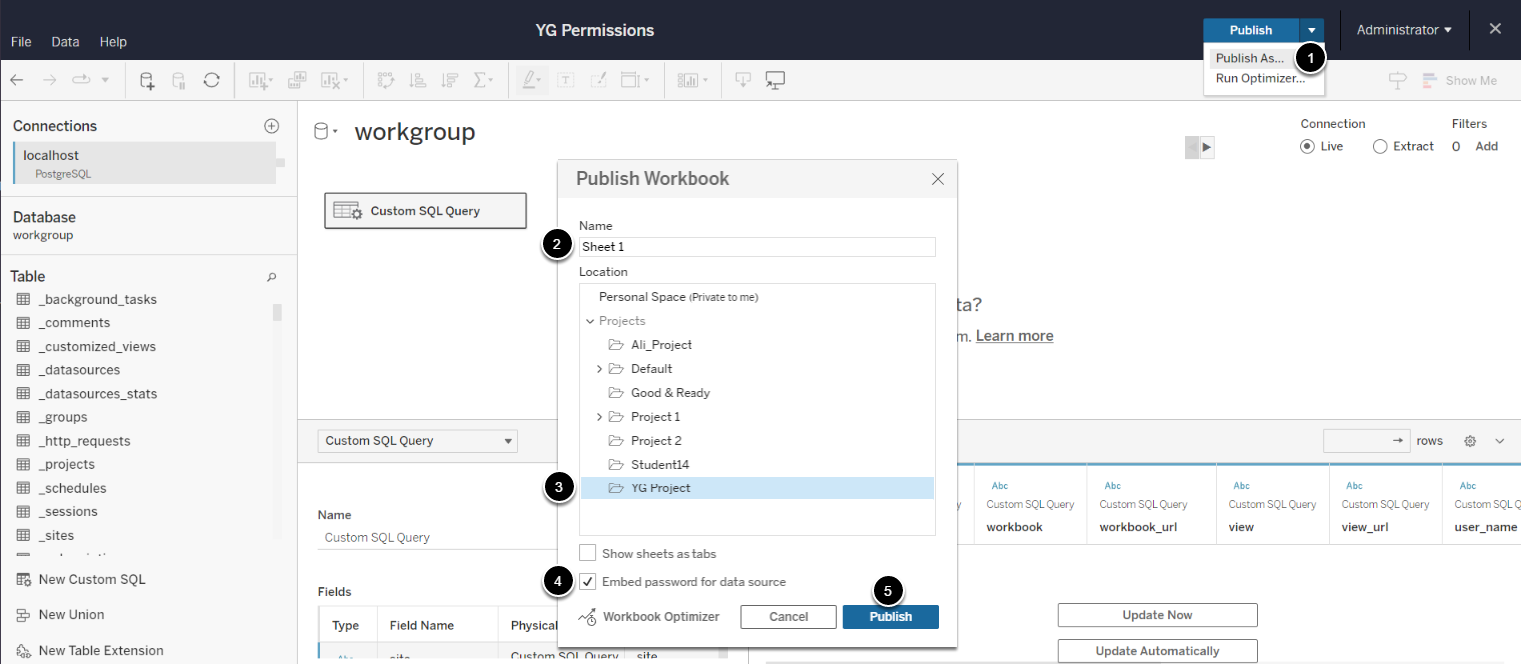
- Select Publish > Publish As...
- Give the Workbook a Name
- Select Location to publish
- IMPORTANT: Enable Embed password for data source
- [Publish]
4. Create Permissions Dataset
Access +New > Dataset > Create Dataset
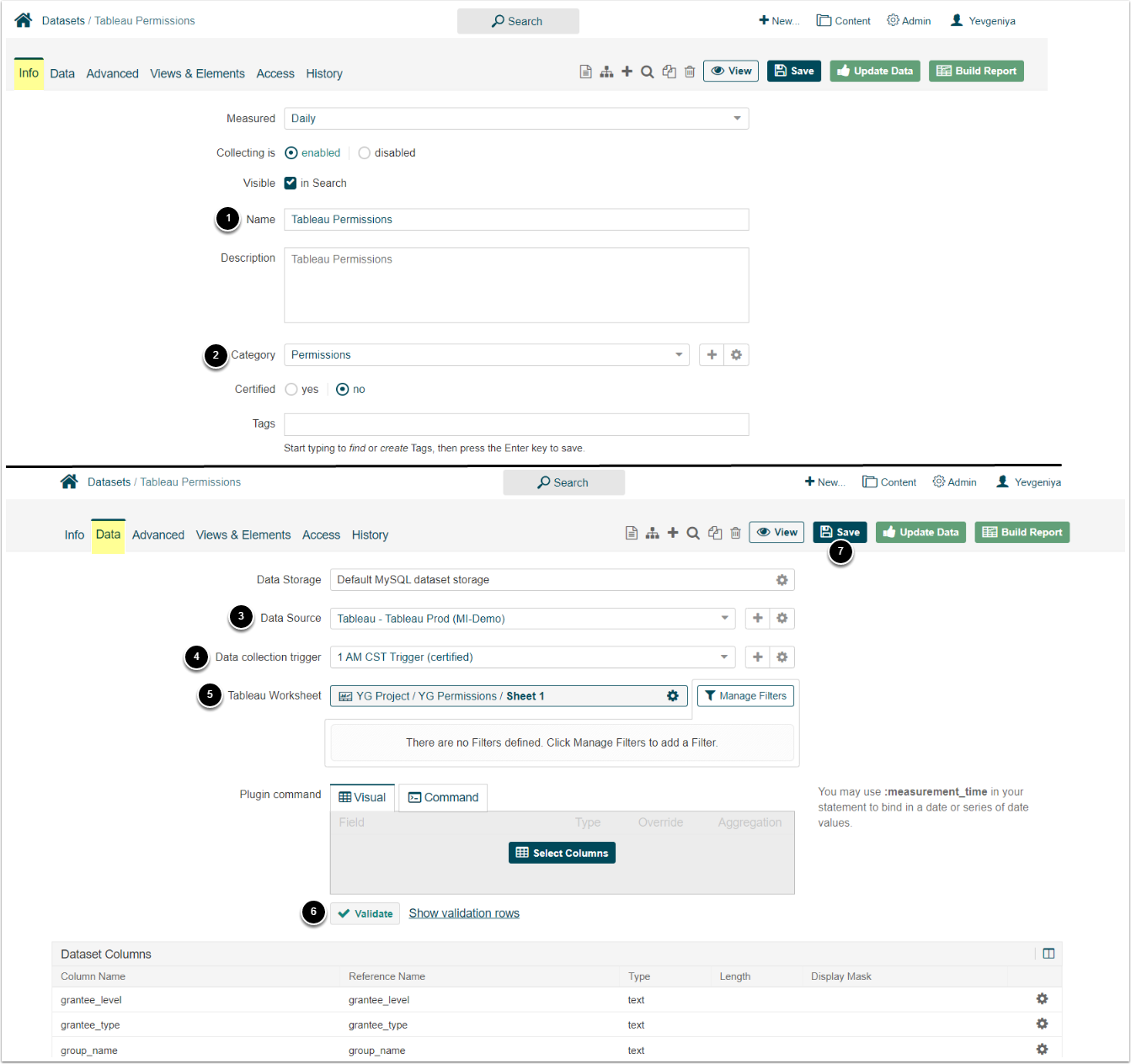
- Input a descriptive phrase in Name
- Specify Category to place the Dataset
- Select the Tableau Data Source for which you want to sync Permissions
- Specify Data collection trigger that will be used to collect data for Dataset
- Select the Tableau Worksheet that that you have previously imported to Tableau
- [Validate]
Note the Dataset ID to be used at Step 5.

5. Build Derived Dataset
Access +New > Dataset > Create Dataset
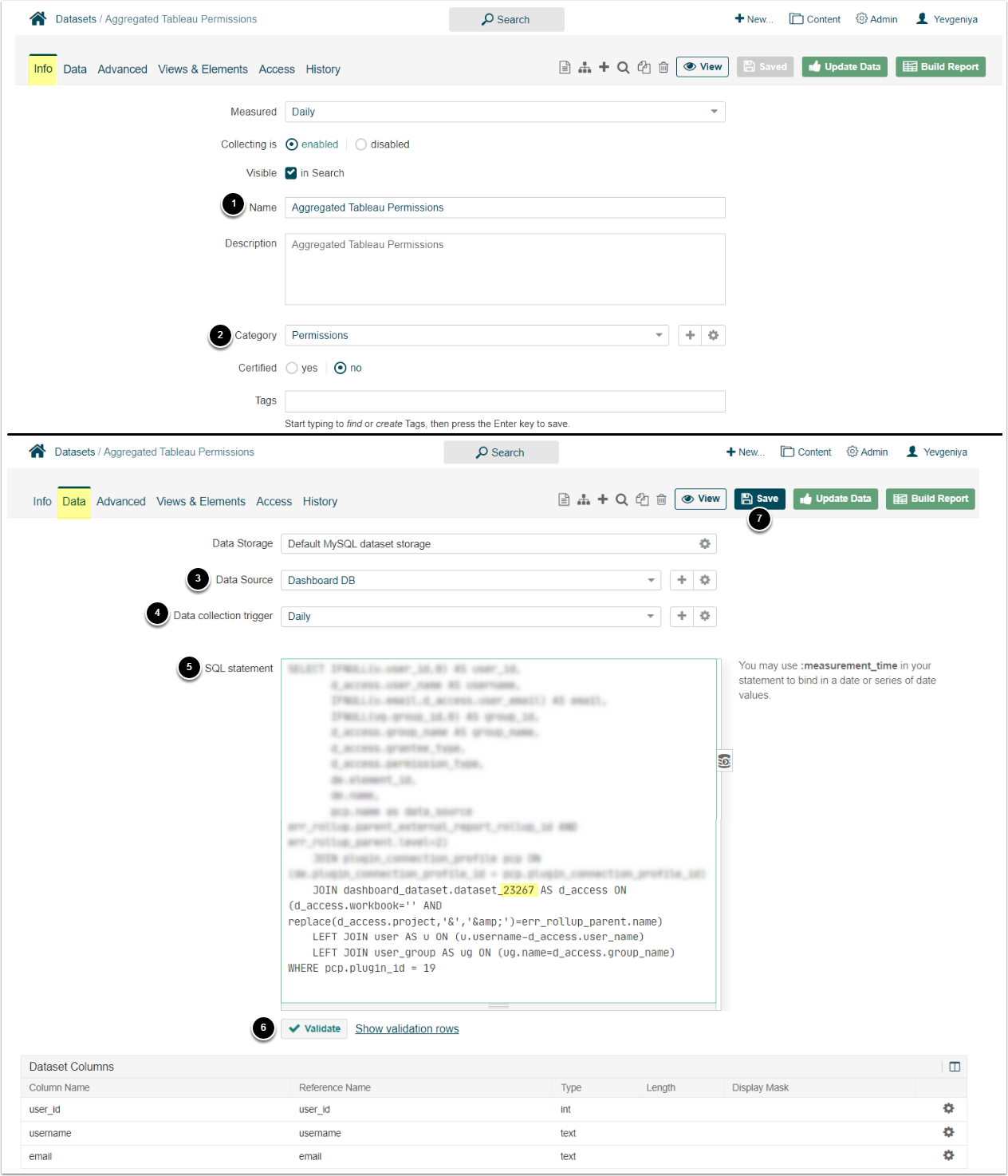
- Input a descriptive phrase in Name
- Specify Category to place the Dataset
- Select "Dashboard DB" as Data Source
- Specify Data collection trigger that will be used to collect data for Dataset
- Input the custom SQL statement from the attachment below, where:
dashboard_dataset.dataset= Dataset ID from Step 4
- [Validate]
Note the Dataset ID to be used at Step 6.2.
6. Configure Custom Script
NOTE: The Custom Script file must be requested at support@metricinsights.com.
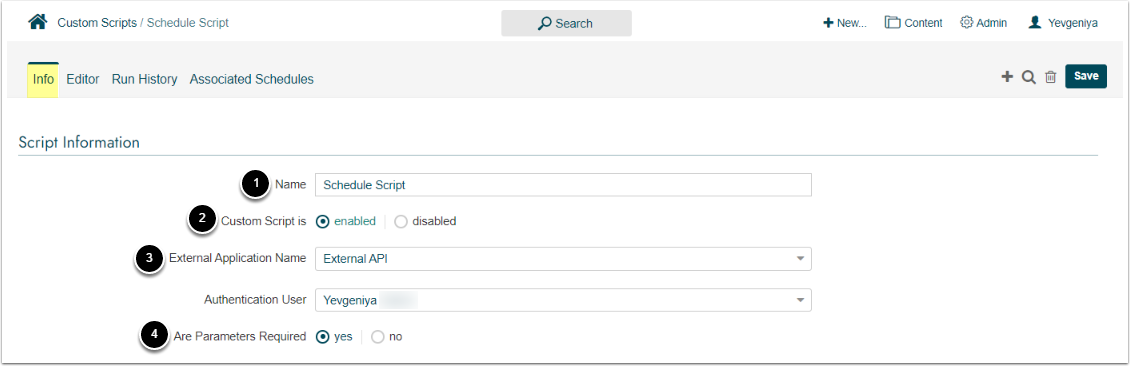
- Enable the Custom Script
- Set Custom Script is to "enabled"
- Choose External Application
- For more information on External Applications, refer to Set up API Access.
- Set Are Parameters Required to "Yes"
6.1. Add Parameters
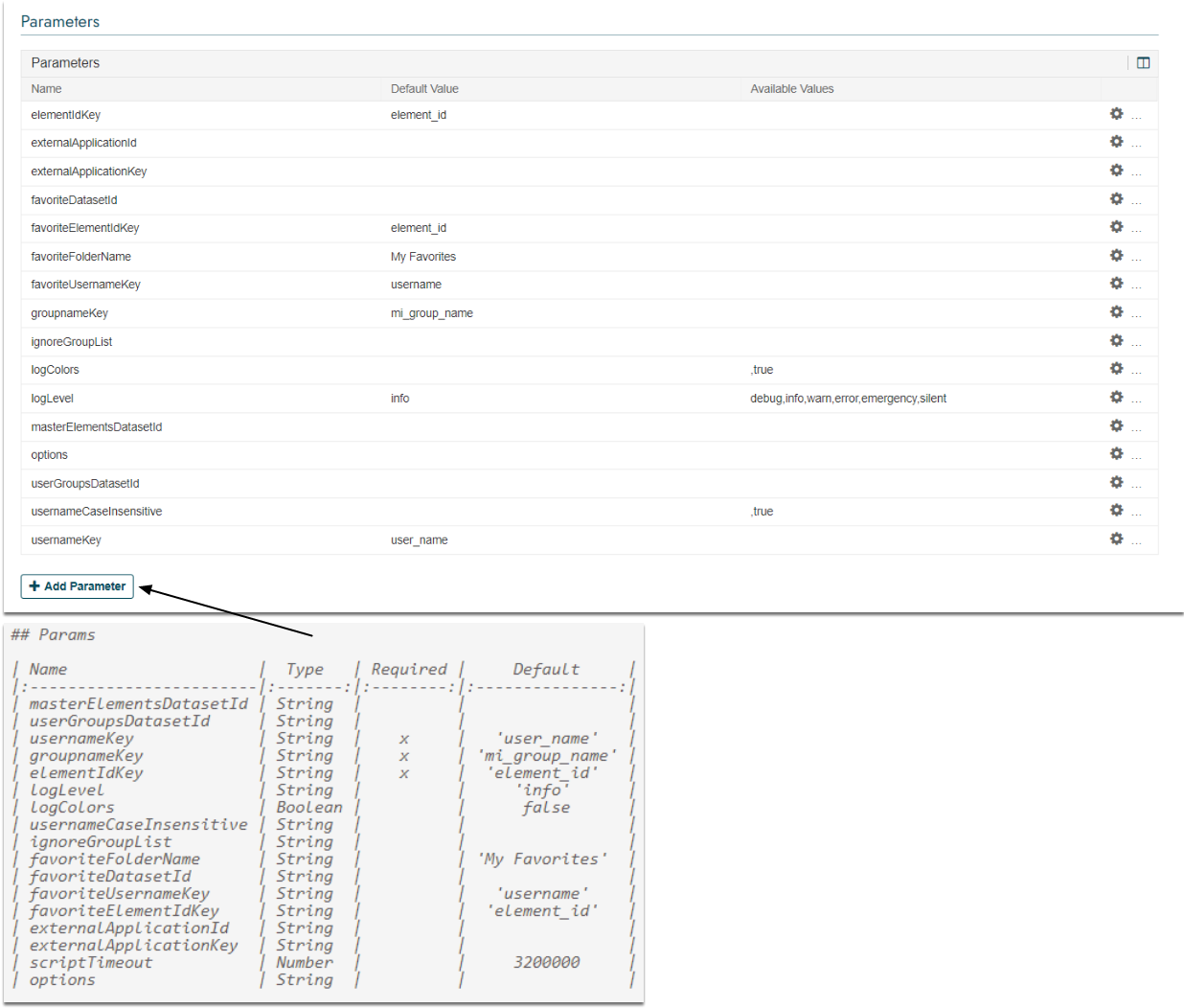
Add Parameters according to the list specified in the Custom Script file (requested from our support).
6.2. Add Parameter Set
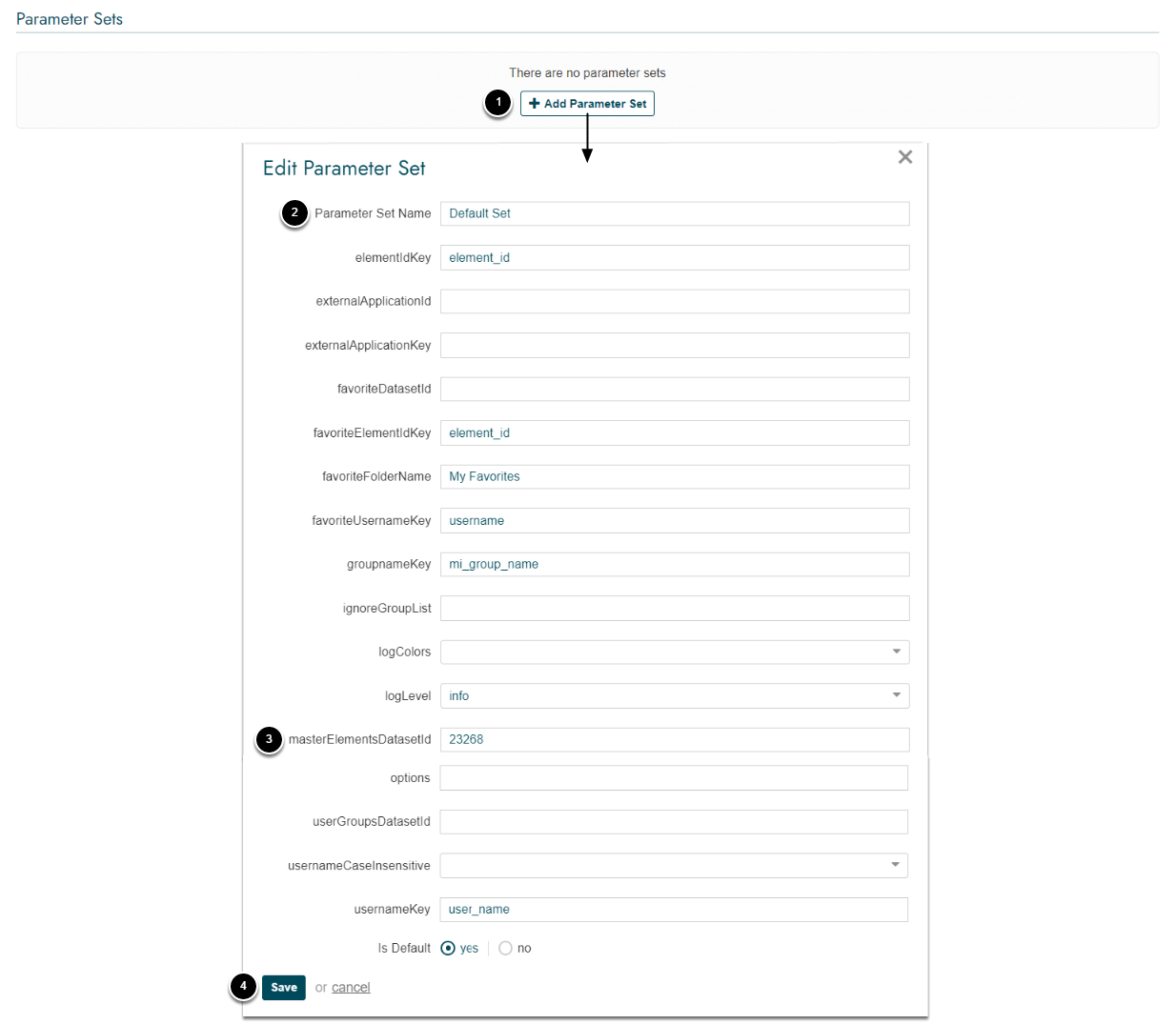
- [+Add Parameter Set]
- Input a descriptive phrase in Parameter Set Name
- Enter the Dataset ID from Step 5 in masterElementsDatasetID
- [Save]
6.3. Insert Script
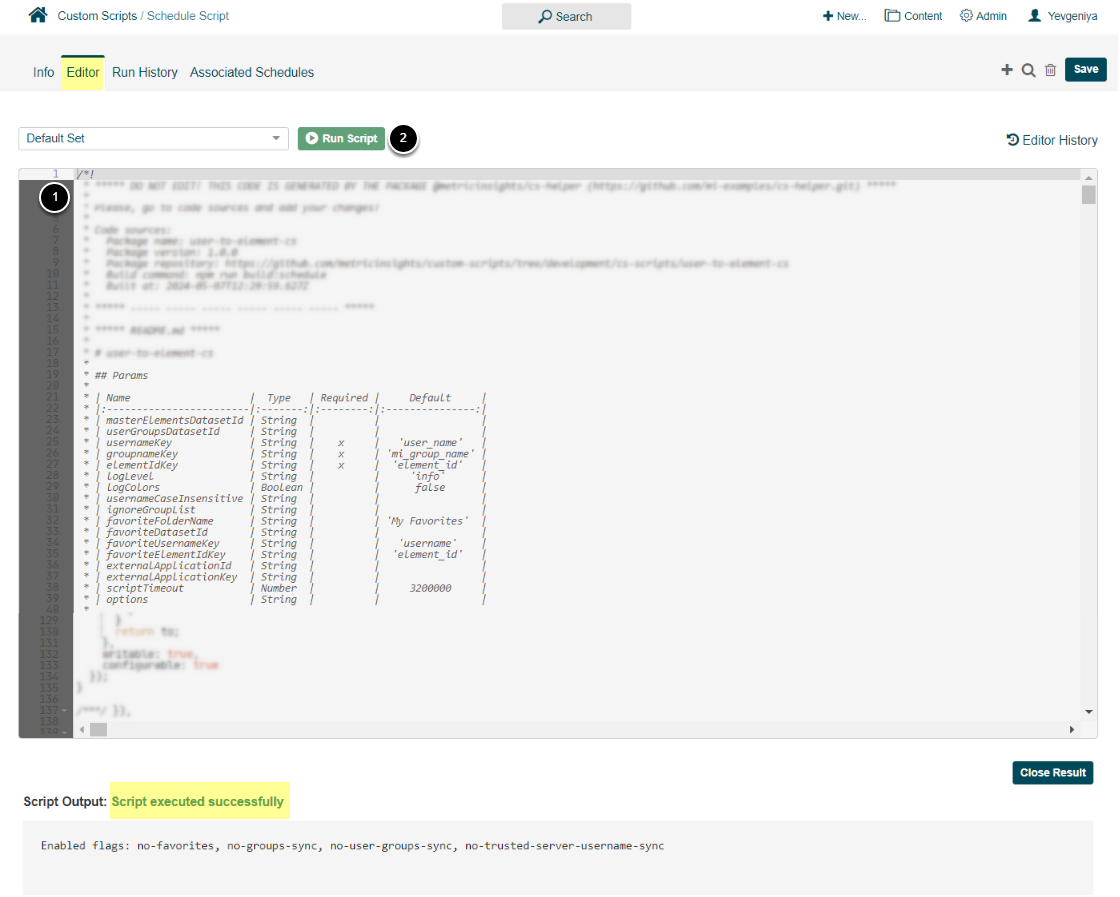
- Insert the Custom Script from the file (requested from our support) under the Editor Tab
- [Run Script] to verify it executes successfully. This will also save your changes.
7. Create Notification Schedule for Custom Script
Access Admin > Distribution > Notification Schedules > [+New Notification Schedule]
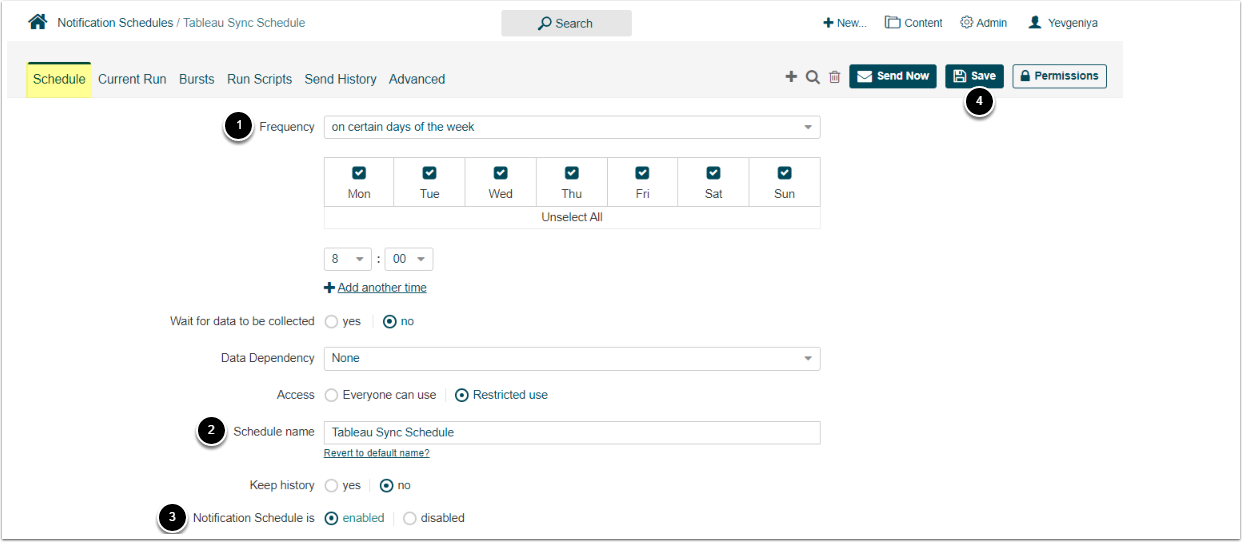
- Set Frequency to "on certain days of the week".
- It is recommended to set the Schedule to be executed daily, but you can choose your own frequency.
- Provide a descriptive Schedule name
- Set Notification Schedule is to "enabled"
7.1. Associate Script with Notification Schedule
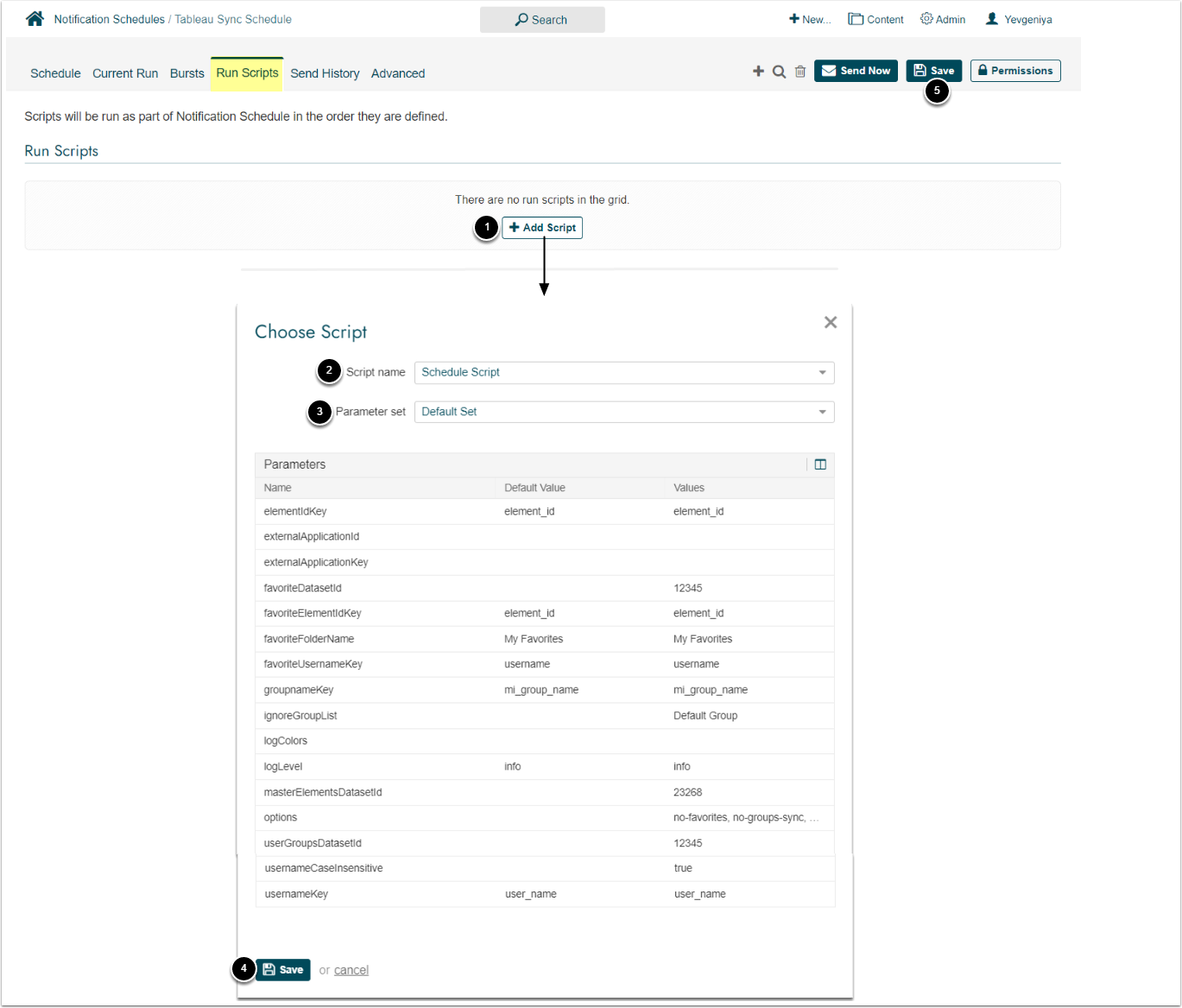
- Under Run Scripts, click [+Add Script]
- Choose Script name
- Specify Parameter set
- [Save]
- [Save] all changes