This article describes how to connect to Tableau server in order to load data into Datasets and create Elements in Metric Insights.
PREREQUISITES:
- Connectivity to Tableau server. Follow instructions in Prerequisites for connecting to Tableau server.
- For embedding, verify that Clickjack protection is disabled on the Tableau side.
- To collect all metadata available in Tableau, enable Tableau Metadata API on the Tableau side.
ALTERNATIVE APPROACHES:
- If Tableau is inaccessible because it is behind a firewall or for other reasons, then you will need to Establish Connectivity to Tableau via a Remote Data Processor
- For information on using Trusted Auth on Tableau server, refer to this Using Trusted Auth on Tableau Server.
- For more information on Tableau Auth Types and Methods, refer to Choosing Authentication Method and Embedding Option for Tableau.
- For general information on creating a Plugin-based Data Source, refer to this Create New Plugin Data Source.
1. Create New Data Source
Access Admin > Collection & Storage > Data Sources
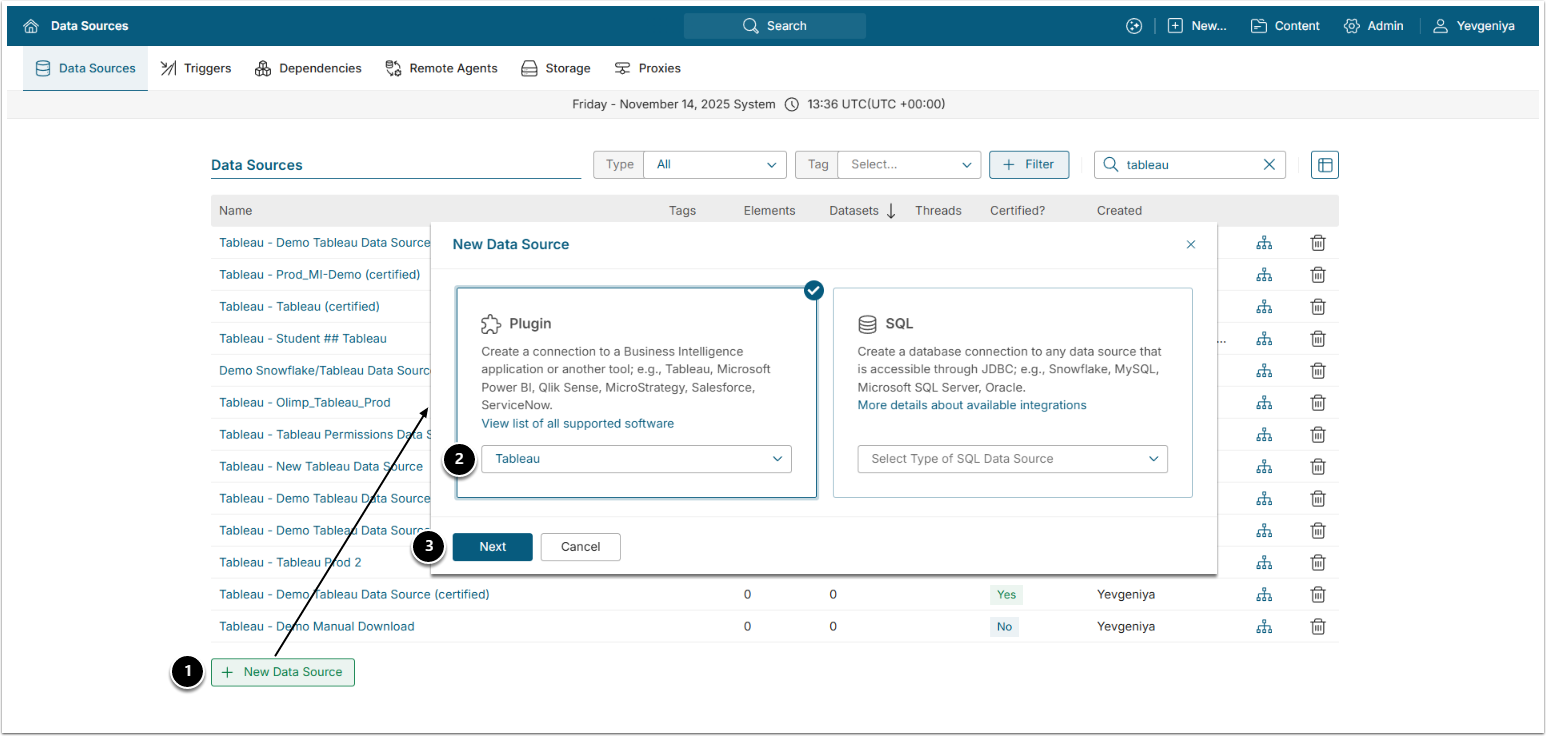
- [+New Data Source]
- Choose Tableau from the Plugin drop-down list.
- [Next]
2. Complete the Required Parameters
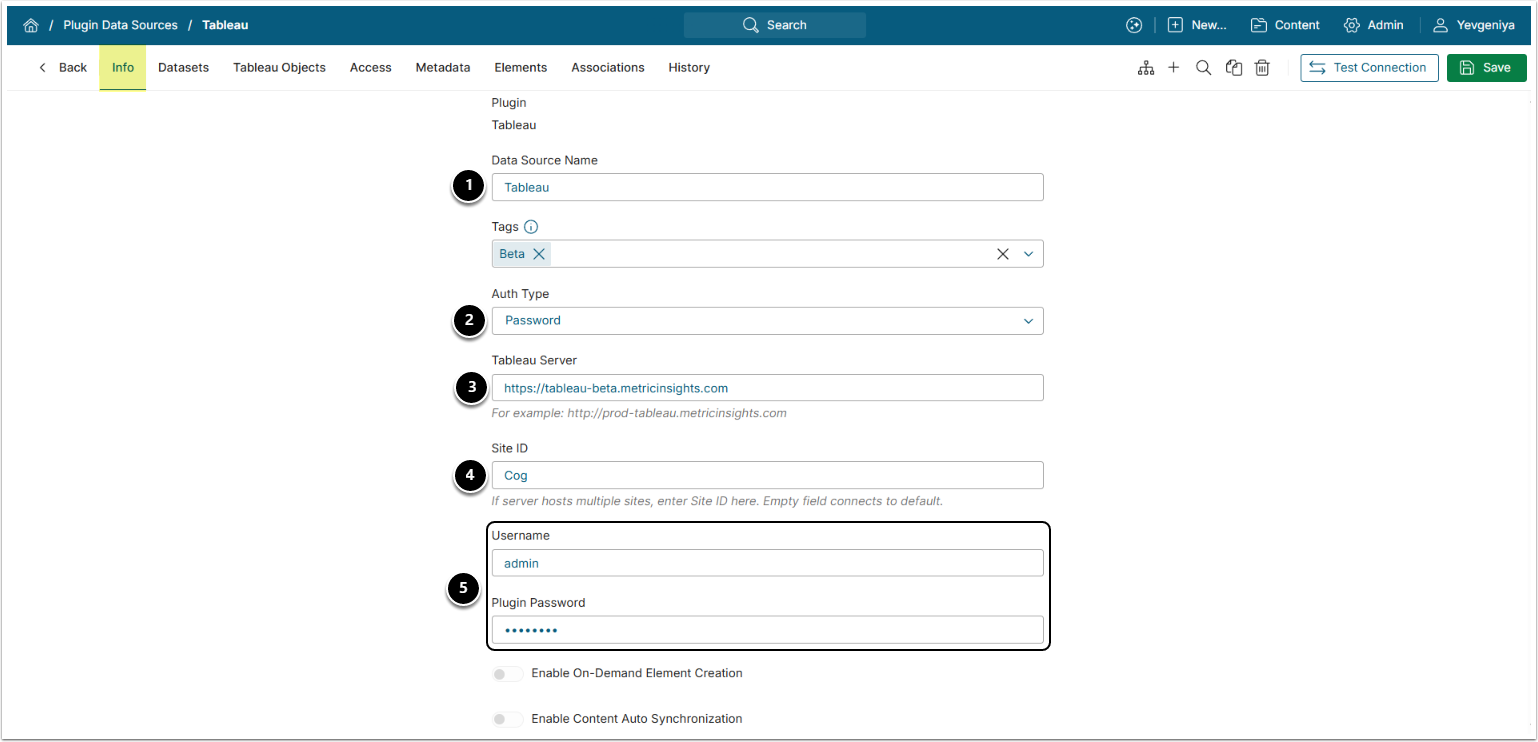
- Data Source Name: input a descriptive phrase.
- Auth Type: select the required:
- Password: use the Tableau credentials as shown on the screen.
- Identity Profile: select the existing Identity Profile in the Identity Profile field that will appear instead of Username and Plugin Password.
- Tableau Server: specify the URL to the Tableau server.
- Site ID: provide the Tableau Site ID. Leaving the field blank will retrieve the default Tableau site.
- Username and Plugin Password: input the credentials that you use to log in to the Tableau server (this must be a Local account).
Optionally, toggle on:
3. Define Optional Tableau Parameters
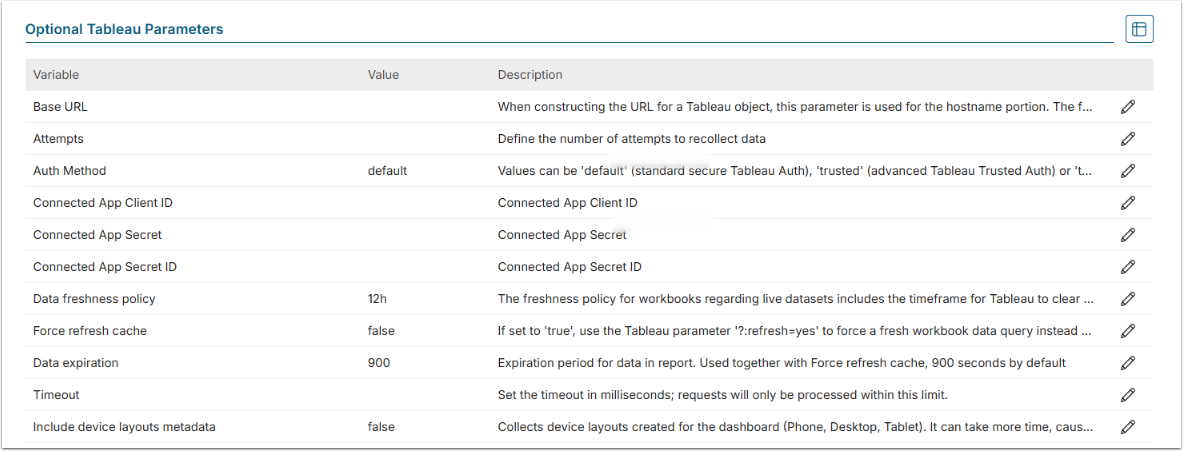
To get the full list and detailed description for each Parameter, see Tableau Parameters (Mandatory and Optional).
[7.1.0] The error_limit Plugin Config parameter can be used to specify the maximum number of errors before the system fails the entire collection for Tableau Plugin.
4. Configure Advanced Settings
Advanced Configuration settings can be set to default values unless Data Source requires more precise tuning. For more details on how to proceed, refer to Advanced Data Source Configuration.
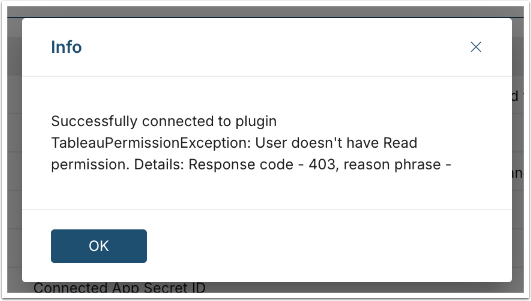
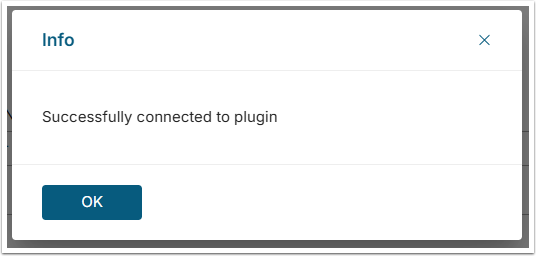
Click [Test Connection] in the upper right corner. You should see the message as shown below:
Troubleshooting
If you see the following message, that means that Tableau Metadata API is not enabled and the Plugin cannot collect some metadata.
Follow these instructions to enable Tableau Metadata API.