Starting in Version 7.2.0., Metric Insights allows Users to add images into Dataset Report tables. This article describes how to populate the Table with images that will be visible in the Viewer, as well as Bursts.
Prerequisites: To add images to the table, the Dataset from which the Report is created, has to have a column containing links to the images that will be used in the table.
1. Add Table
Access the Dataset Report Editor and proceed to Content tab
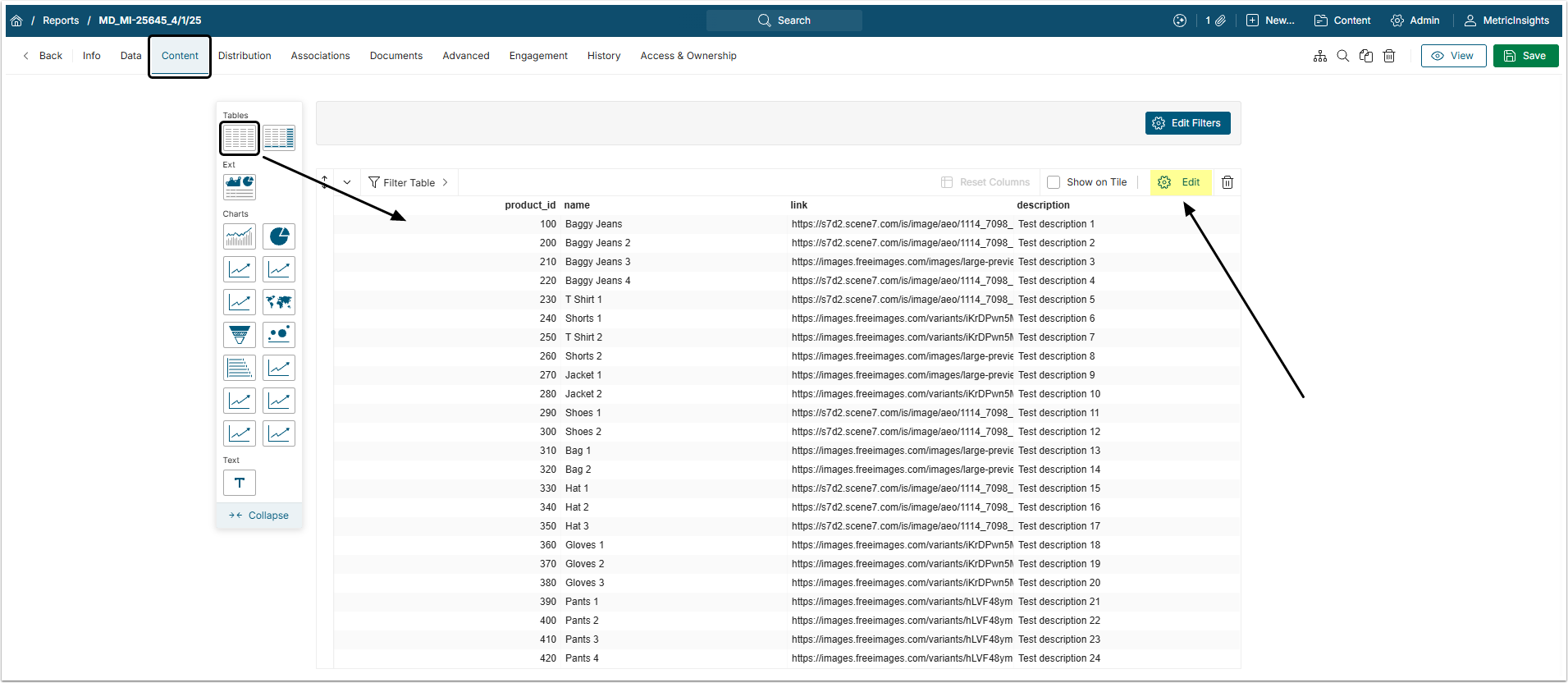
Click [Edit] to open the Table Editor window.
2. Configure Column with Links
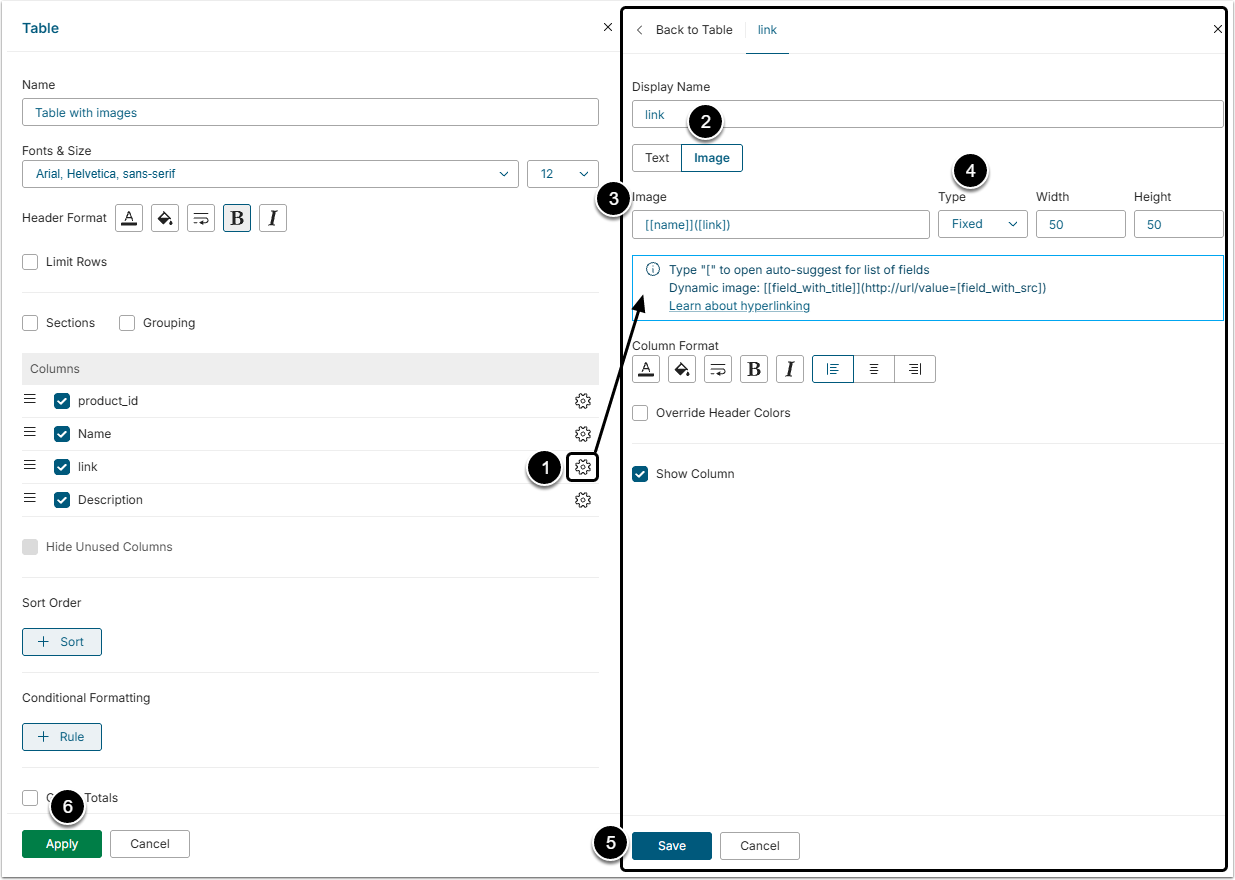
- Click the gear icon of the column that contain links.
- Select the Image type.
- Image: Fill this field with titles of the columns that contain names and links for the images.
- Type "[" to open auto-suggestion list.
- Type: The images can be shown in "Full" or "Fixed". After selecting "Fixed" the user can also choose Width and Height of the image.
- [Save]
- [Apply]
3. Check Result
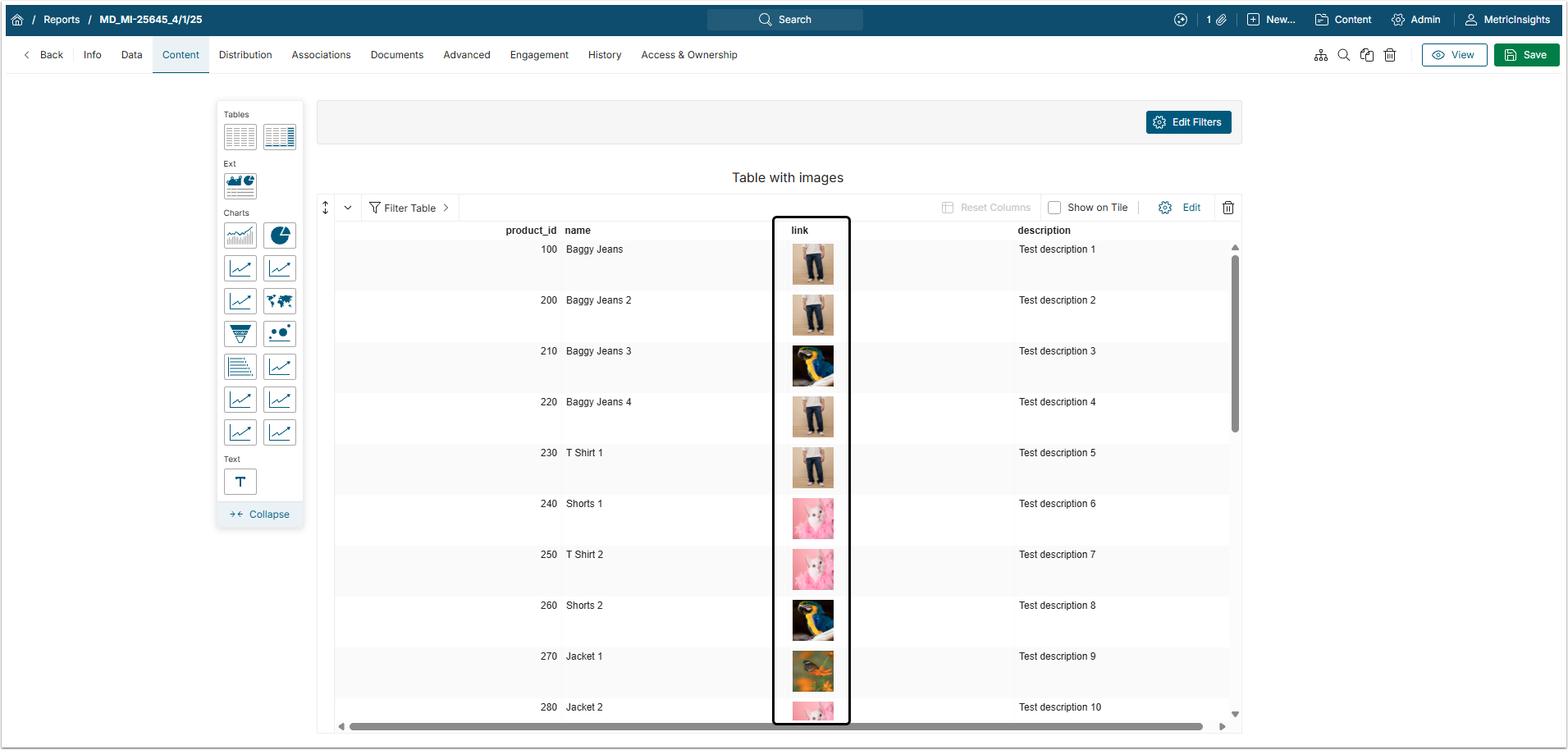
The Table will show images with the chosen Height and Width.