BETA FEATURE: This is a beta feature introduced in v7.2.1. It can change as the feature evolves.
Metric Insights allows Users to add an AI-powered component to a Dataset Report that analyzes Report data and generates a summary based on a prompt. It can also collect information from other data sources and display it conveniently side by side with the Report data. This functionality is particularly useful for Bursts because it can add a Report description that helps Users save time and decide whether they want to check the Report’s details.
Use this step-by-step guide to learn how to add and configure the AI Insights component in a Dataset Report.
1. Add AI Insights to Report
Open the Report Editor and go to Content tab.
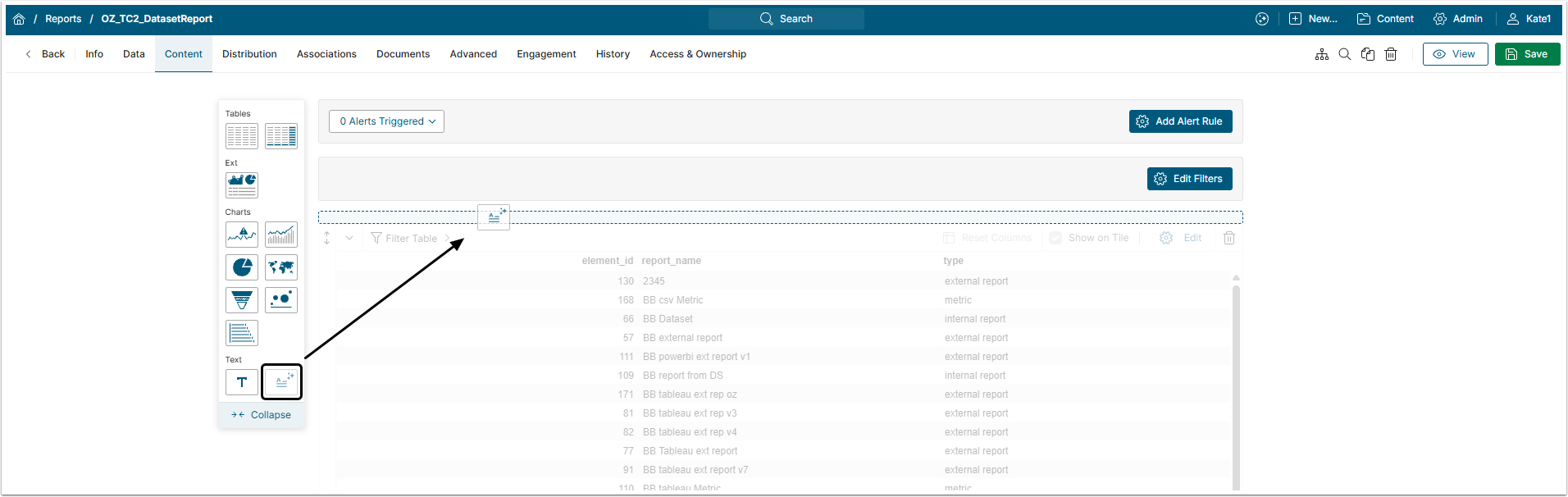
Drag the AI Insights icon and drop it on the page. The AI Analysis Editor will open automatically to the right.
2. Set AI Insights
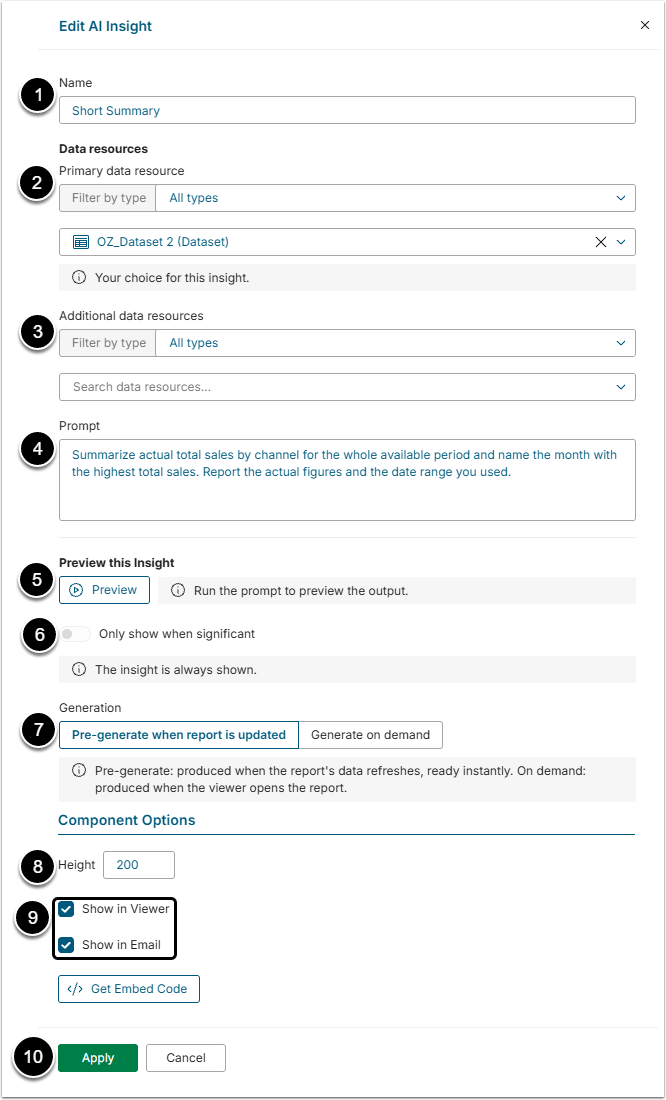
- Name: Give the component a descriptive name.
- Primary data resource: Select the main source of information that the Prompt (added below) will use.
- NOTE: Only resources added to the Knowledge Graph can be used in AI Insights.
- Additional data resources: Optionally, select additional sources of information that the Prompt will use after the Primary data resource.
- NOTE: Only resources added to the Knowledge Graph can be used in AI Insights.
- Prompt: Describe what you want the AI Insight to do with the data from the Primary and Additional data resources.
- Preview this Insight: Click [Preview] to check how the Insight will look in the Report.
- Only show when significant: If you turn on this toggle, you can define what information counts as significant in a separate text field. The Insight will then be shown in the Report only if its information matches these instructions.
- Generation: Select how the Insight is generated:
- Pre-generate when report is updated: The Insight is regenerated every time the Report is updated.
- Generate on demand: The Insight is generated when a User opens the Report.
- Height: Select the height of the component’s frame in the Report.
- Define where to show the component.
- [Apply]
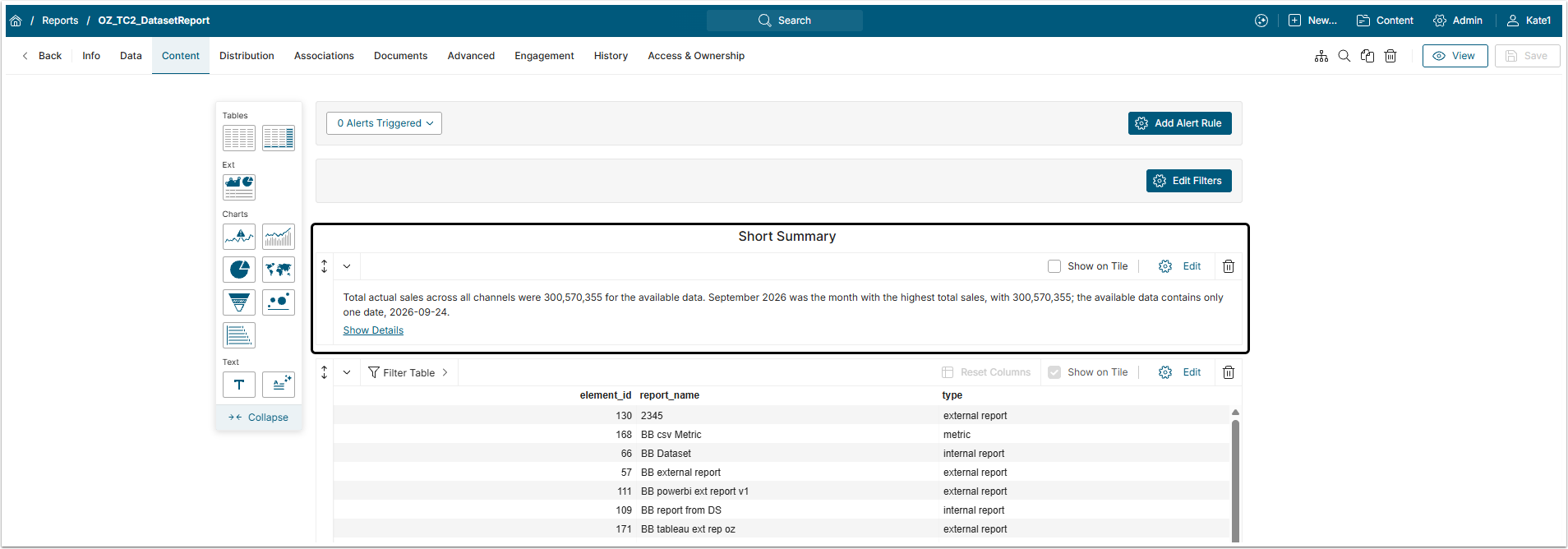
The AI Insight component will be shown in the Report once generation is finished.