BETA FEATURE: This is a beta feature introduced in v7.2.1. It can change as the feature evolves.
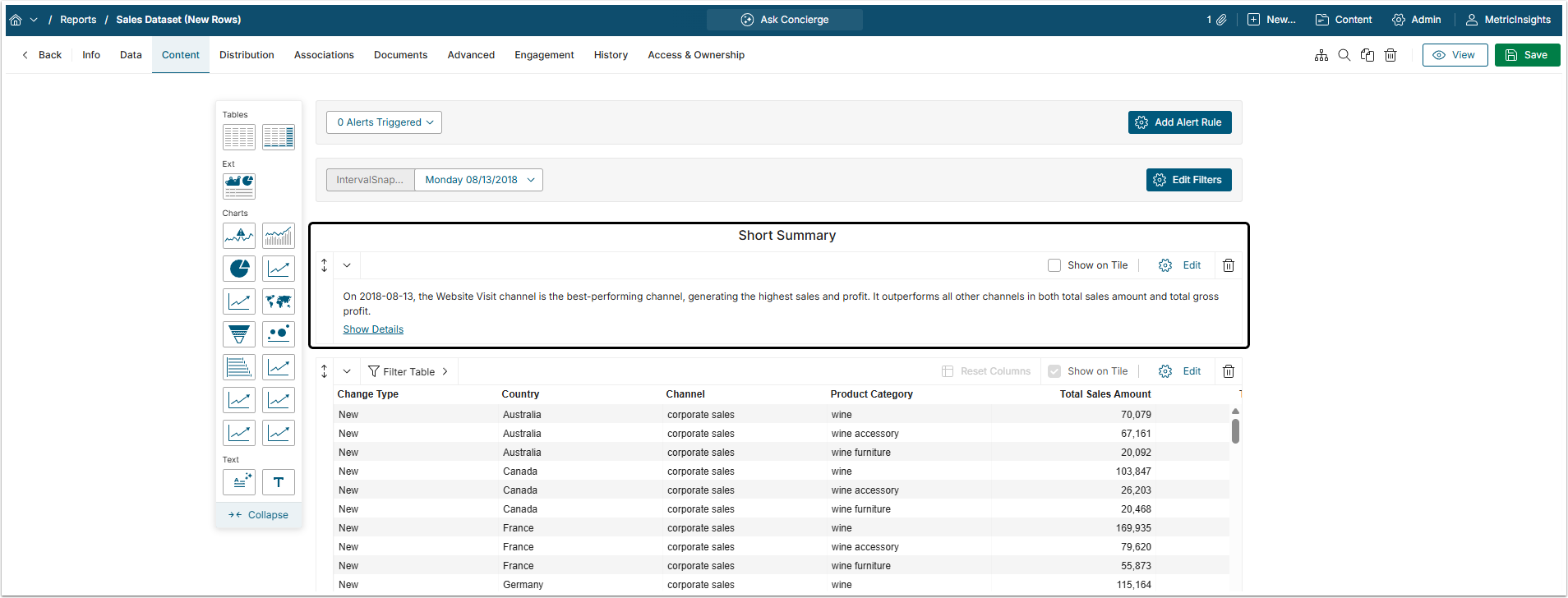
Metric Insights allows Users to add an AI-powered component to a Dataset Report, which analyzes Report data and generates a summary based on a prompt. This functionality is particularly useful for Bursts.
This article describes how to add and set the AI Analysis component to the Dataset Report.
1. Configure the LLM
If you have Concierge installed and set up, you can skip this step.
If not, note that Concierge itself is not required for the AI Analysis component to function properly, but configuring the LLM model settings is still necessary.
1.1. Enable System Variable
Access Admin > System > System Variables
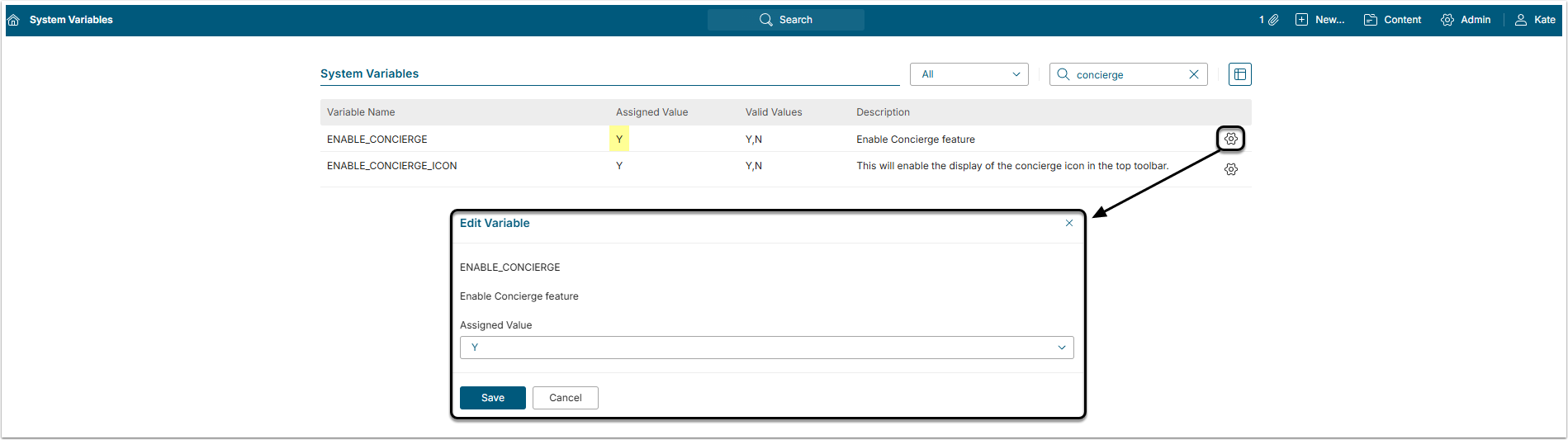
- Find ENABLE_CONCIERGE Variable and click the gear icon to open the Edit Variable window.
- Assigned value: Set to "Y" to enable the Concierge tab under Search Setup.
- [Save]
For more information on how to work with System Variables, refer to Setting System Variables.
1.2. Configure Connection
Access Admin > System > Concierge Setup > Connection Tab
NOTE: Required fields can differ according to the model used.
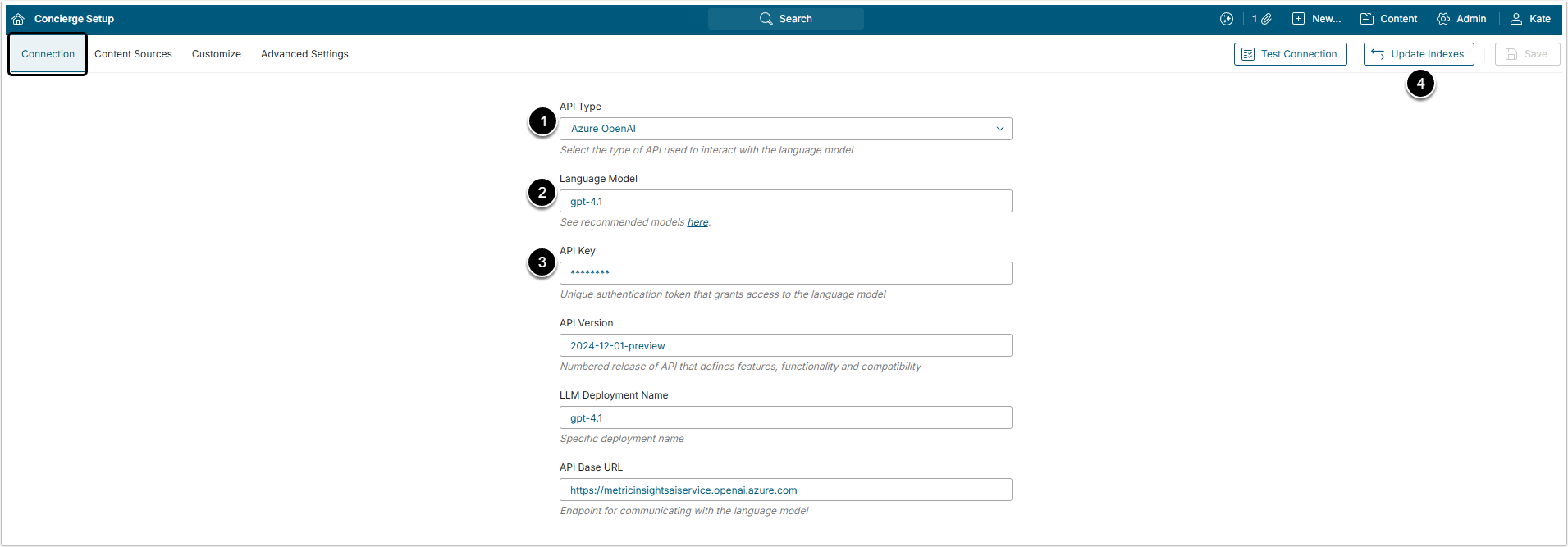
- API Type: (required) Define the type of the LLM, that can be "OpenAI", "Azure OpenAI", "Anthropic" or "Google AI Studio".
- Language Model: (required) Specify the language model.
- API Key: (required) Input the key, obtained in LLM service provider account.
- [Update Indexes]
NOTE: The search index update is a required step and must be finished before the configuration will work correctly. Perform index update every time after changing any of these settings.
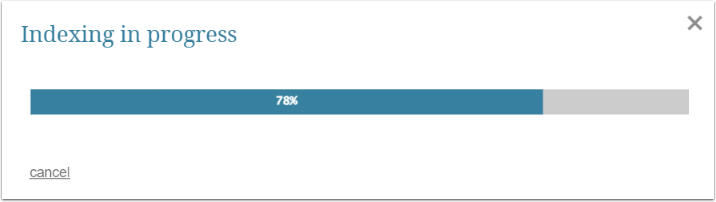
This step may take some time to complete, depending on how many objects you have in your Metric Insights instance. Indexing progress is shown in the Indexing in progress bar.
2. Add AI Analysis to Report
It is as simple as drag-and-dropping the necessary chart icon to the page.
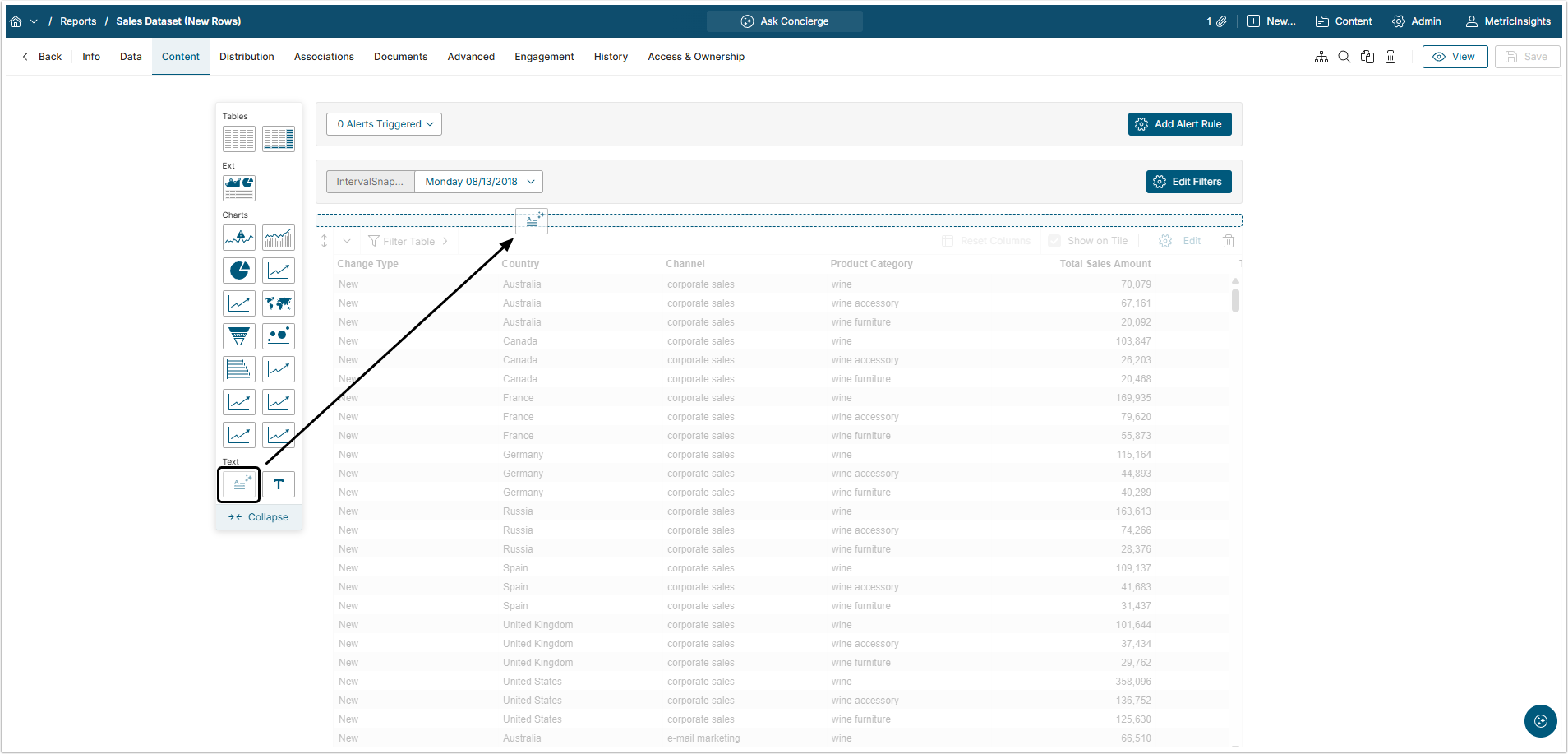
The AI Analysis Editor will open automatically to the right.
3. Set AI Analysis
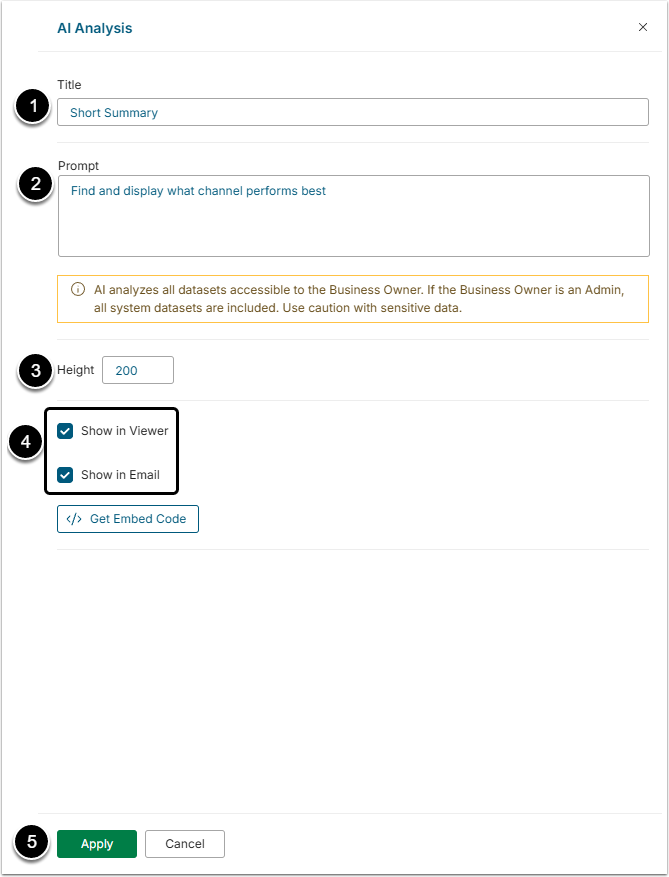
- Title: Give the component a descriptive name.
- Prompt: Describe what you want the AI Analysis to do with the Report's data.
- If you want the AI Analysis to refer to other Datasets, mention them in a
dataset_id=#####format. Be aware, that AI analyzes all Datasets accessible to the Business Owner. If the Business Owner is an Admin, all system Datasets are included. Use caution with sensitive data.
- If you want the AI Analysis to refer to other Datasets, mention them in a
- Height: Select the height of the component in the Report.
- Define where to show the component.
- [Apply]
The result of AI Analysis will be shown after the analysis is finished.