In Metric Insights, the Security Model comprises a set of features that define the capabilities and content access available to different Users. Access to system components is controlled through the application of Permissions and Privileges.
Please refer to this article for recommended best practices on securing your MI instance.
In this article:
General Instance Configuration Workflow
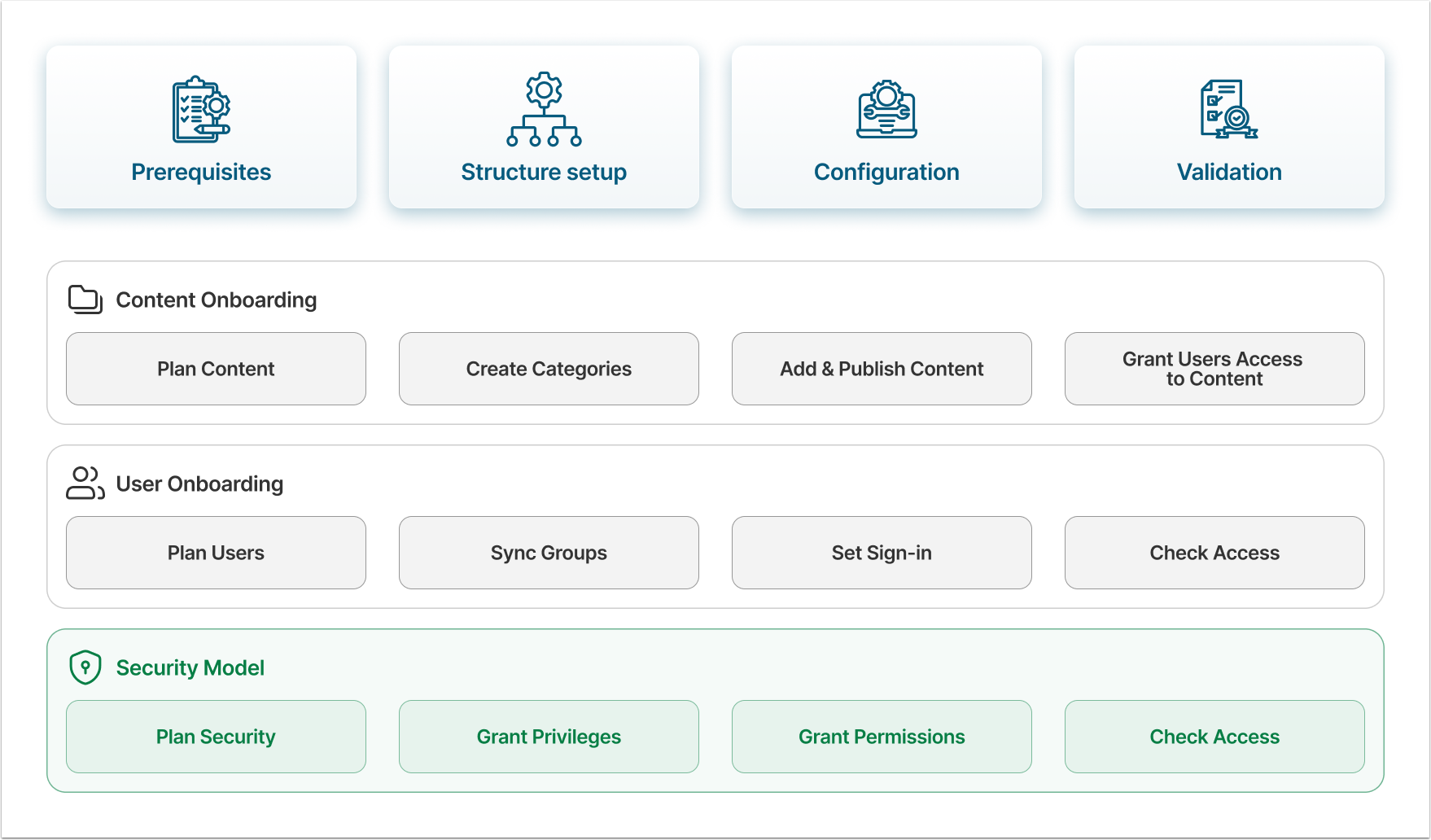
There are three essential steps in the Metric Insights instance configuration process: bringing in content and users, as well as building a security model. The recommended sequence is as follows:
- Onboard the content from external BI tools;
- Bring in Users;
- Give Users access to content.
Assign Privileges and Permissions to Groups
There are two key concepts when it comes to Metric Insights security:
- Privileges, or functional access, define what a User can do in the system. For example, Privileges define the right to create Elements or Objects, manage other Users, or add comments to Elements.
- Permissions, or content access, define what content a User can view or edit. These are applied to specific Objects, Categories, or Folders, allowing for granular control over content.
Administrators can view and operate everything in the Metric Insights instance. However, when there's a need to allow Power Users or Regular Users to access something, they must receive a corresponding Privilege and Permission.
Privileges
Privileges assigned to a Group are inherited by all Group members. We recommend granting access to Groups rather than individual Users to ensure more efficient control over the security model.
Additionally, rather than assigning every Privilege individually, assign Privilege Sets to Groups. A Privilege Set is a combination of Privileges that corresponds to a specific User Type. Using Privilege Sets ensures greater consistency across your security measures.
Permissions
In Metric Insights, every individual User can be granted Permission to view or edit any given Element. Once again, we recommend assigning Permissions to Groups rather than to individual Users.
Permissions regulate content access, so it's best practice to apply them at the Category level rather than to individual Elements or Objects within that Category. This approach simplifies access management and improves overall efficiency.
Permissions can be granted either from the Category Editor or from the Group Editor.
Sync Permissions from Tableau
If your organization uses Tableau, Metric Insights supports the synchronization of user access rights for Tableau content through the use of a custom script. Groups or Users with access to content in Tableau will be granted equivalent access to that content in Metric Insights, provided the content has been recreated within the system.
Refer to the Sync Tableau User/Group Permissions with Metric Insights by Using Custom Script article for more details.
Sync Permissions from Power BI
Metric Insights can import user permissions configured in Microsoft Power BI through a dedicated System Object. System Objects are Power BI datasets that Metric Insights collects to support usage tracking, governance, and lineage analysis. The User Permissions Dataset is sourced from the Power BI Get Workspace Info API and serves as a key component of BI Optimizer’s governance and content cleanup capabilities.
Refer to the Configure System Objects for Microsoft Power BI Cloud article for more details.
Decision 1: How Access Requests Are Managed
By default, only the tiles for Elements that a User has permission to view or edit are displayed on the Catalog page. However, Administrators can make specific Elements discoverable to Users who don't yet have access, in which case those Users will be able to request access directly.
Metric Insights supports three Access Request Processing options. You'll need to determine which one best suits your organization's requirements:
- Via external tool. This is the recommended option. The Access Request is processed by the external tool that your organization uses for access management (e.g., SAP's GRC) via API request.
- Within Metric Insights. The Access Request is processed entirely within Metric Insights. In this case, Access Request Security is applied to it.
- From webpage. The Access Request is sent to a webpage.
For more details on Access Request management, refer to the Access Request Overview article.
Decision 2: What Type of Content Security Based On User Maps to Apply
A User Map is a Dataset that defines what access each User in a list has. Depending on the Element to which it's applied, it sets a default Value to a specific User.
There are two types of security based on the User Map, and you'll need to decide which is best suited to your needs:
- Dimension-Level Security: By applying a User Map to a Dimension, you can control which specific Dimension Values each User or Group is allowed to see. Once configured, the User Map automatically enforces these restrictions across all related Elements—Metrics, Reports, and External Reports—so each User only sees their permitted Dimension Values. For more information, refer to this article.
- Row-Level Security: Implemented via User Maps, this approach restricts data at the row level in the underlying Dataset, granting Users/Groups access only to the rows that match their assigned values. For setup details, refer to this article.
Required Administrator Roles
The only role required for the security model configuration is the Metric Insights Administrator. They will have to assign Privileges and Permissions to Groups, manage access requests, and decide whether or not to apply User Maps.
Pitfalls to Avoid
- Granting Privileges and Permissions to individual Users rather than Groups. While it may seem like a way to make access rights more flexible, it will actually require more effort and attention from the Administrator.
- Assigning Privileges to Users one by one instead of creating Privilege Sets. It’s better to take some time during the initial instance setup to create Privilege Sets suited to your User Types and roles, which helps maintain consistent security.
- Granting Permissions for Elements rather than Categories. It’s much more efficient to organize Elements into appropriate Categories and grant Groups access to those.
Recommendations Before Start
Before technical implementation, it's recommended that you:
- Make sure that Elements are assigned to appropriate Categories.
- Check if all the Users are added to the right Groups.