This article describes how to create a User Map in Metric Insights.
To understand what a User Map is and how to create a CSV file for it, check the User Map Overview article.
1. Complete the Info Tab
Access Content > User Maps and [+ New User Map]
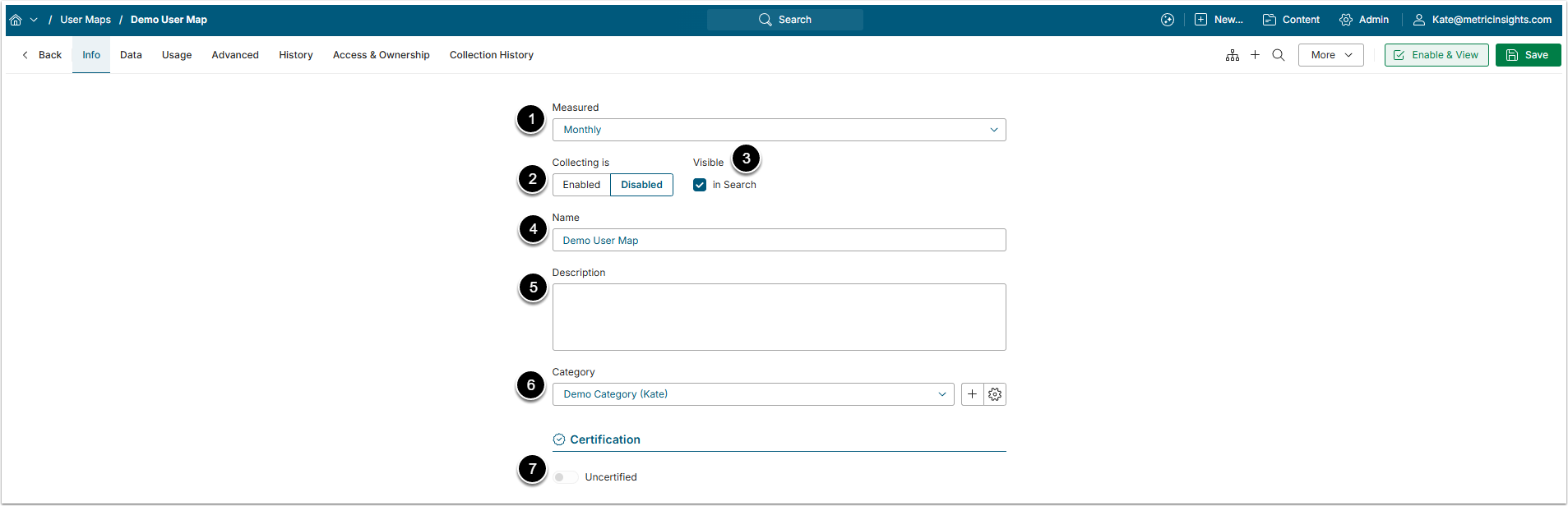
- Measured: The period chosen here refers to how often the data is collected.
- Collecting is: New Elements are "disabled" until the User Map is published.
- Visible: By default, Users can find newly created elements via Search.
- Disabling this check-box makes the Element visible to the Admin and its creator only.
- Name: Enter a unique name.
- Description: Optionally, add a short description that is visible in Viewer.
- Category: Choose the Category ti place the User Map in
- Certified: Certification allows Admins and Power Users to identify Elements that have been validated and deemed accurate. For details, refer to Certifying Objects Other Than Elements.
2. Define Settings in the Data Tab
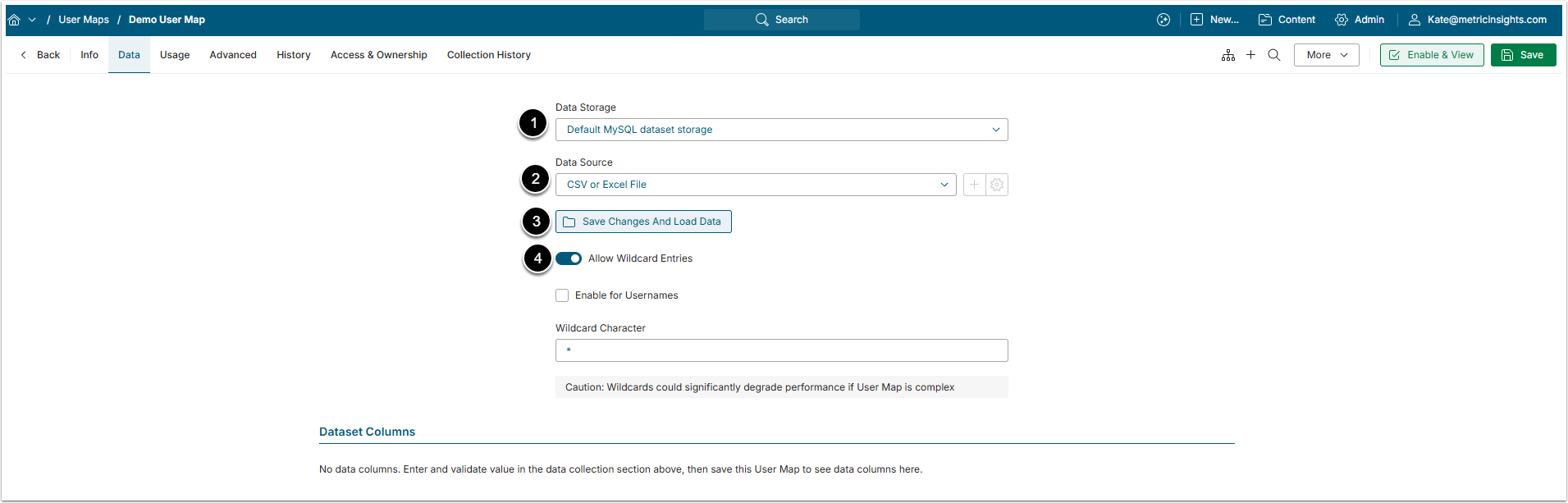
- Data Storage: Select the Data Storage where the User Map will be stored. For more details check the Configure a Data Storage article.
- Data Source: Choose the type of Data Source from which the User Map is fetched.
- If you have chosen CSV or Excel File, [Save Changes And Load Data] to upload the User Map CSV file.
- User Map can be collected from SQL or Plugin Data Source. If you selected one of those, the process of collecting data will be the same as for ordinary Dataset.
- Allow Wildcard Entries: Activate this toggle switch in order for a selected User to receive all the Filter Values.
- Choose a character in the Wildcard Character field.
- The selected character entered in the Filter Value column gives the User in the row the right to receive all Filter Values.
- Activating the Enable for Usernames checkbox allows to apply the Wildcard Character to the "usernames" column.
3. Complete Data Tab Settings
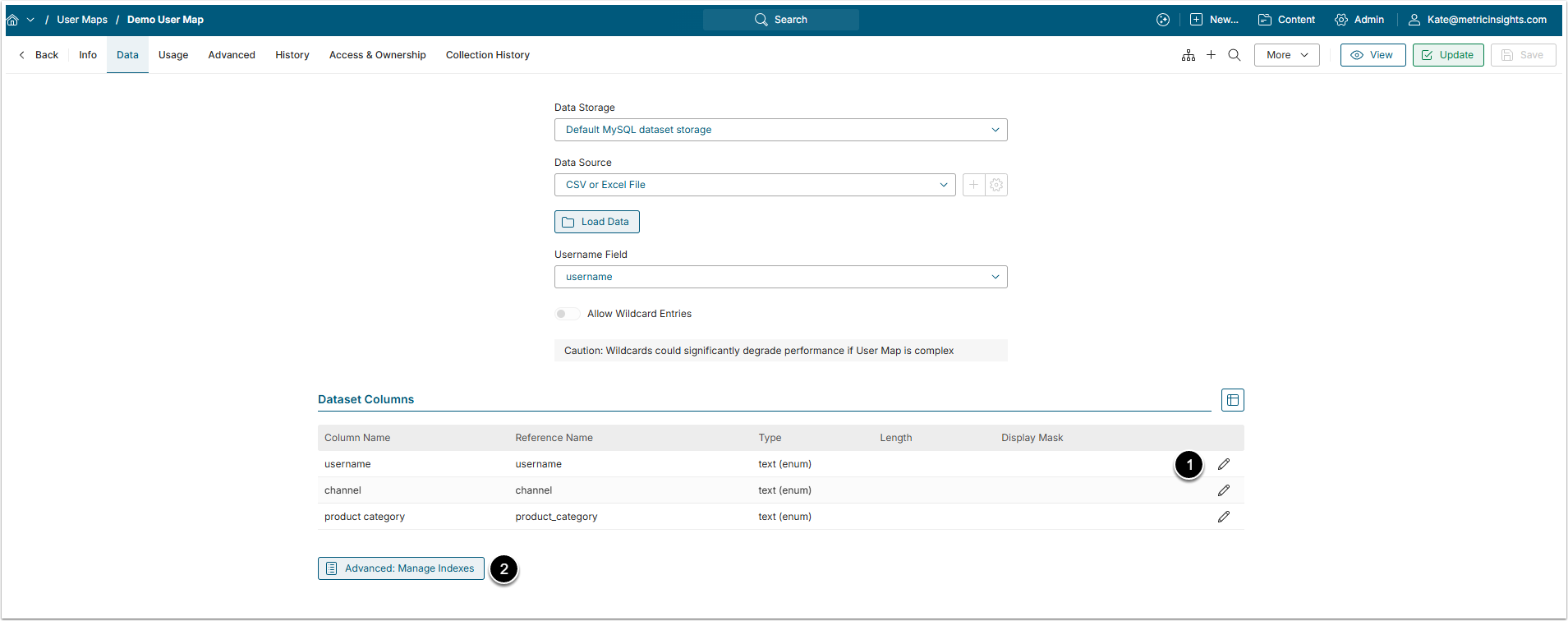
- Click the pen icon to change the columns name and length.
- [Advanced: Manage Indexes] to open the Indexes window.
NOTE: It is highly recommended not to make any changes in the Indexes for ... window that is opened by [Advanced: Manage Indexes] unless you have the basic level of knowledge in the SQL and need to index some data.