To set up Personal Access Token (PAT) authentication, create a token in Tableau, then enter the token name and secret in the Tableau Data Source in Metric Insights. Optionally, set up the Plugin to collect user-specific images and data from Tableau Server.
This article describes how to configure PAT authentication for the Tableau Plugin. PAT is the recommended authentication method: the Plugin signs in to Tableau with a token instead of a username and password.
PREREQUISITES:
- Tableau Server 2021.1 or later, or Tableau Cloud. The Tableau Plugin does not support PAT authentication with earlier versions of Tableau Server.
- Connectivity between Metric Insights and Tableau. See Prerequisites for Connecting to Tableau Server.
Table of contents :
NOTES:
- PAT authentication works only with the REST API. Beginning in v7.1.1, REST API is the default content loading strategy, so data, images, and PDFs are collected via the REST API with no additional setup.
- PAT cannot be used together with Trusted Authentication.
1. Create Personal Access Token in Tableau
Sign in to the Tableau site that Metric Insights connects to and open the account menu
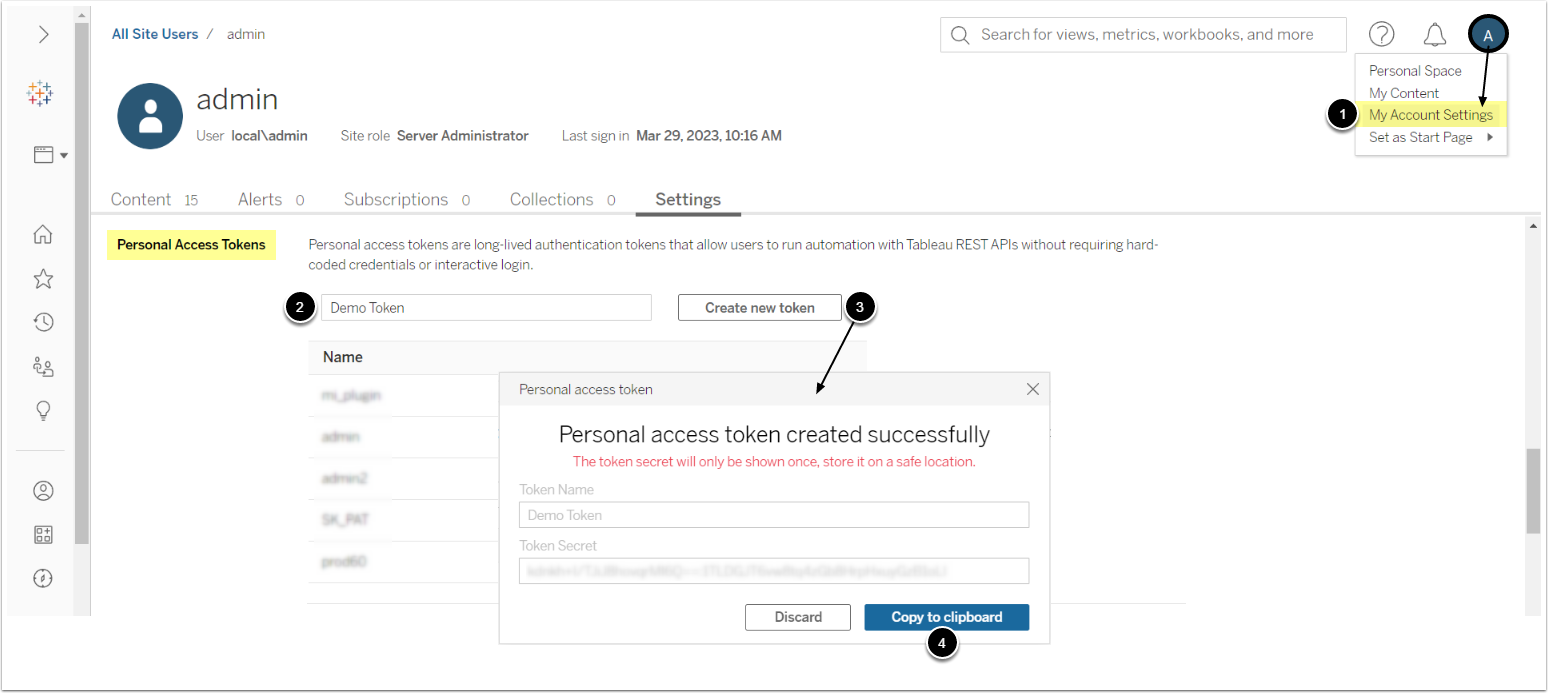
- My Account Settings: access the settings from the account menu.
- Token Name: provide a descriptive name.
- This value is the Token Name in Metric Insights.
- [Create new token]
- [Copy to clipboard]
- Save the Token Secret in a safe location. Tableau shows it only once.
- This value is the Token in Metric Insights.
NOTES:
- In Tableau Cloud, a personal access token (PAT) works only on the site where it was created. A PAT created on Site A is not listed on Site B and cannot be used to access it. Site A and Site B may also be hosted on different pods, each with its own server URL. Always use the site returned in the sign-in response, as it is the only site the PAT can reach.
- Tableau expires a personal access token that is not used for 15 consecutive days. On Tableau Server, tokens also expire after one year by default; on Tableau Cloud, expiration depends on the site settings. After a token expires, create a new one in Tableau and enter it in the Tableau Data Source.
2. Configure PAT Authentication in Tableau Data Source
2.1. [7.2.1+]
Access Admin > Collection & Storage > Data Sources and open the Tableau Data Source.
- To create a new Tableau Data Source, see Establish Connectivity to Tableau (v7.2.1+).

- Data Source Name: provide a descriptive name.
- Auth Type: Set to PAT.
- To use a token stored in an Identity Profile, select PAT Identity Profile instead and select the Identity Profile. The Token Name and Token fields are not shown for this option. Identity Profiles are managed under Admin > System > Identity Profiles.
- Token Name and Token: enter the token name and token secret from Tableau.
- Tableau Server: enter the Tableau server URL.
- For Tableau Cloud, enter the URL of the pod that hosts the site where the token was created.
- Site: select or enter the Tableau site.
- For Tableau Cloud, enter the site where the token was created.
- Content loading strategy: set to REST API.
- [Save]
- [Test Connection]
IMPORTANT: PAT works only with the "REST API" Content loading strategy. With "Web API" or "Web API + Trusted", the connection fails.
2.2. [Before 7.2.1]
- To create a new Tableau Data Source, see Establish Connectivity to Tableau (prior to v7.2.1).
- To configure PAT Auth:
- Under Plugin Connection Profile Parameters, use the gear icon to set each value:
- Auth Method: "token".
- Token: the Token secret from Tableau.
- Token name: the Token name from Tableau.
- Content loading strategy: "REST".
- Under Plugin Connection Profile Parameters, use the gear icon to set each value:
NOTE: When Metric Insights is upgraded to v7.2.1 or later, Tableau Data Sources configured with Auth Method "token" switch to Auth Type "PAT" automatically. No reconfiguration is required.
3. Collect User-Specific Images and Data (Optional)
Beginning in v6.4.4, the Tableau Plugin can collect images and data from Tableau Server on behalf of each Metric Insights user. The Plugin signs in with the token, then impersonates the Tableau user whose username matches the Metric Insights user, so each user gets images based on their own Tableau permissions.
PREREQUISITES:
- PAT impersonation is enabled on Tableau Server 2021.1 or later. To enable it, run
tsm authentication pat-impersonation enableon Tableau Server. See Personal Access Tokens in the Tableau documentation. - The token is created by a Tableau Server administrator.
- The Tableau Data Source uses the REST API content loading strategy.
- Each Metric Insights username exactly matches the Tableau username, including letter case. If the usernames differ, a System Admin can set the ALLOW_TRUSTED_SERVER_USERNAME_OVERRIDE System Variable to "Y" and then enter the Tableau username in the User Editor under Username for Trusted Server Sign-on. See Setting System Variables.
- In each External Report that needs user-specific images, open the Access & Ownership tab and under Public Access set This Report is to Internal.
- In each External Report that needs user-specific images, open the Configuration tab and set the following:

- Image: set to Automatically Collected.
- Report Image: set to On Demand: only when needed for distribution.
- Image type: set to Collect with user's credentials (1 image per user, per view).
- [Save]
NOTE: Tableau Cloud does not support user impersonation, so user-specific images and data cannot be collected from Tableau Cloud.