The Metric Insights system provides a series of parameters that can be set to govern the major Catalog and Notifications functions in a manner that best suits the way you use Metric Insights to do your job.
Open User Profile
Access User menu > My Settings
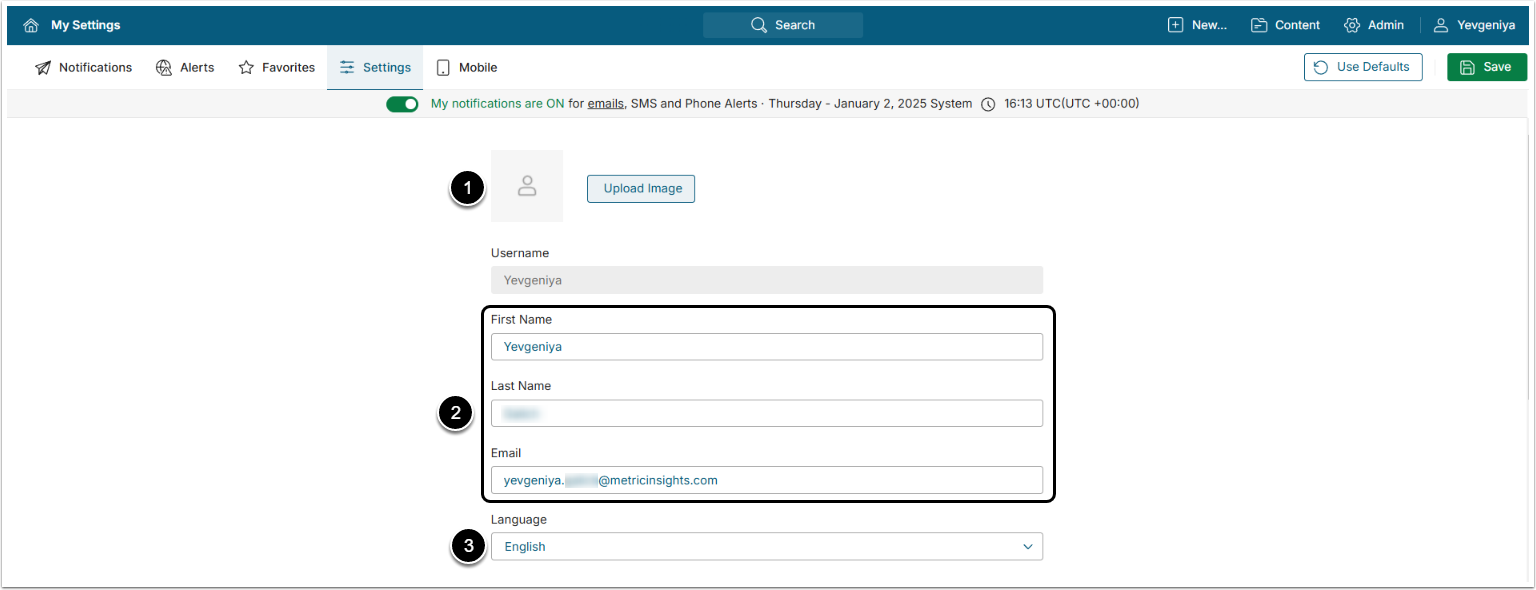
- Upload profile picture.
- Update personal information:
- First Name;
- Last Name;
- Email address.
- NOTE: If the User is created from LDAP/SAML/SSO, the above three fields are not editable.
- Language: Change user language preferences.
- NOTE: The language functionality is disabled by default. If you do not find this option under My Settings, contact your MI Administrator to enable Language display.
- To set system Language Defaults for new Users, access:
- Admin > Users & Groups > Defaults > User Preference Templates > User Defaults > Info Tab
- To set system Language Defaults for new Groups, access:
- Admin > System > System Variables > SYSTEM_LANGUAGE_DEFAULT
Catalog Display
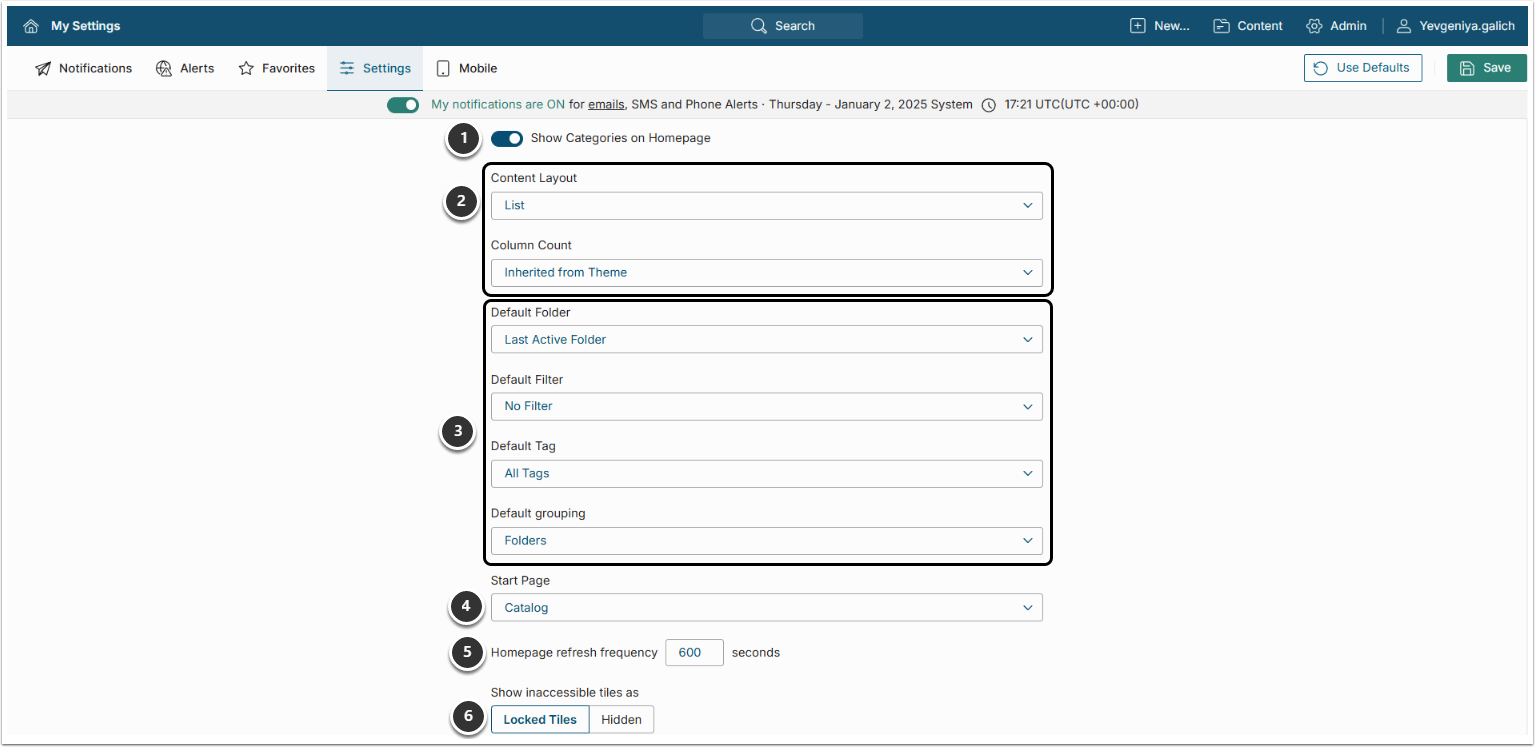
In Catalog Display, settings allow to:
- Show Categories on Homepage: Set to display or hide Categories listings.
- Content Layout: Select tile or list layout:
- If you select "List", you can additionally set the number of columns in Catalog List view manually or choose to inherit it from your Theme.
- NOTE: If you set the number of columns manually here, this setting will override the Catalog List view configuration set by your Theme.
- Default: Set Folder, Filter, Tag and Group that will be displayed by default every time you log in.
- Start Page: Select the page to be displayed when you log in. Drop-down contains Apps you are authorized to view.
- Homepage refresh frequency: Set automatic refresh frequency (set higher to reduce refresh frequency, if necessary).
- Show inaccessible tiles as: Set default display for inaccessible tiles:
- Locked Tiles: Contain locked indicators and/or blurred images;
- Hidden: Can be shown by selecting "Show them" on the banner on Catalog.
For External Report set as "internal" but "discoverable to users without access", the system allows to blur their image, set a request to grant access, upload custom review page, and customize access denied message.
Catalog Tile Display & Data Entry Preferences
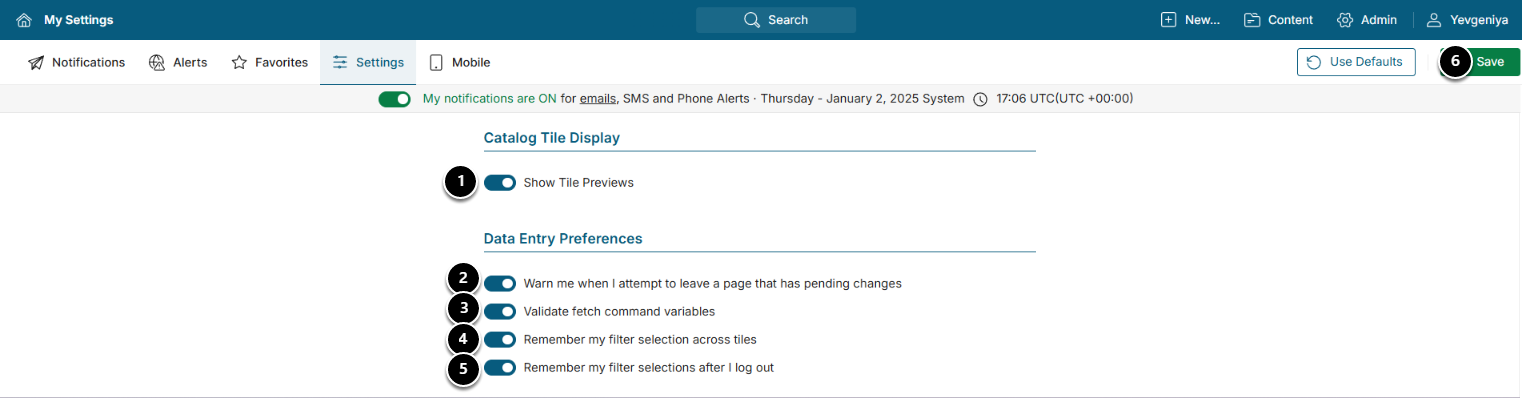
Here you can:
- Show Tile Previews: Enable Tile previews.
- Warn me when I attempt to leave a page that has pending changes: Enable warning about leaving a page.
- Validate fetch command variables: Validate fetch command variables when editing Datasets, Metrics, and Dimensions.
- Remember my filter selection across tiles: If it is enabled, the system remembers selected Filter Values when the User goes to other MI pages. When the User returns to the Homepage, the previous Filter selection will be applied to the content.
- This option must be toggled on in order for the second option to appear for input.
- Remember my filter selections after I log out: Enable for the system to remember any Filters set during the current session so that when you next sign on, these Filters will be reapplied.
Don't forget to [Save] the changes.
NOTE: If the Remember my filter selections after I log out toggle is activated but the content of the Homepage is still set to default view after re-logging in, check if the HOMEPAGE_CLEAR_ALL_FILTERS System Variable is set to "N". Be aware, that only System Administrators have access to System Variables.