Any tile on your Homepage, or any Element that you can view, may be included in one or more of your Favorite folders. This article describes how to add an Element to the Favorites folder.
Tiles can also be added to Favorites via your Favorites Editor, see Favorites Editor Overview.
1. Adding Tiles from Homepage
Any tile can be added to the Favorites folder by clicking the star icon on either the Homepage view or the tile Viewer.
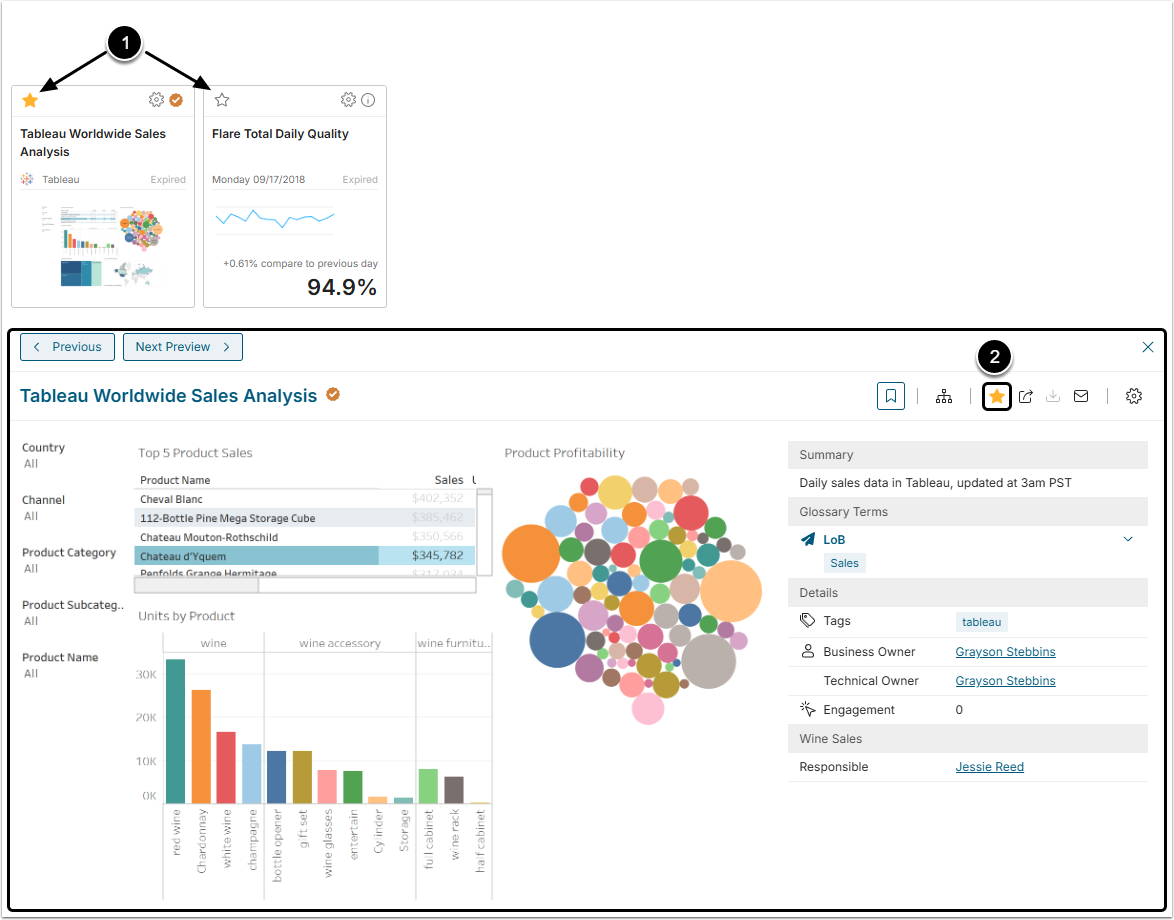
- Homepage view: Golden star icon means the tile is added to the Favorites folder. Clicking it adds/deletes the tile from Favorites.
- Tile Viewer: Golden star icon means the tile is added to the Favorites folder. Clicking it adds/deletes the tile from Favorites.
2. Adding Elements from My Favorites Window
2.1. Open My Favorites Folder
Access User menu > My Favorites
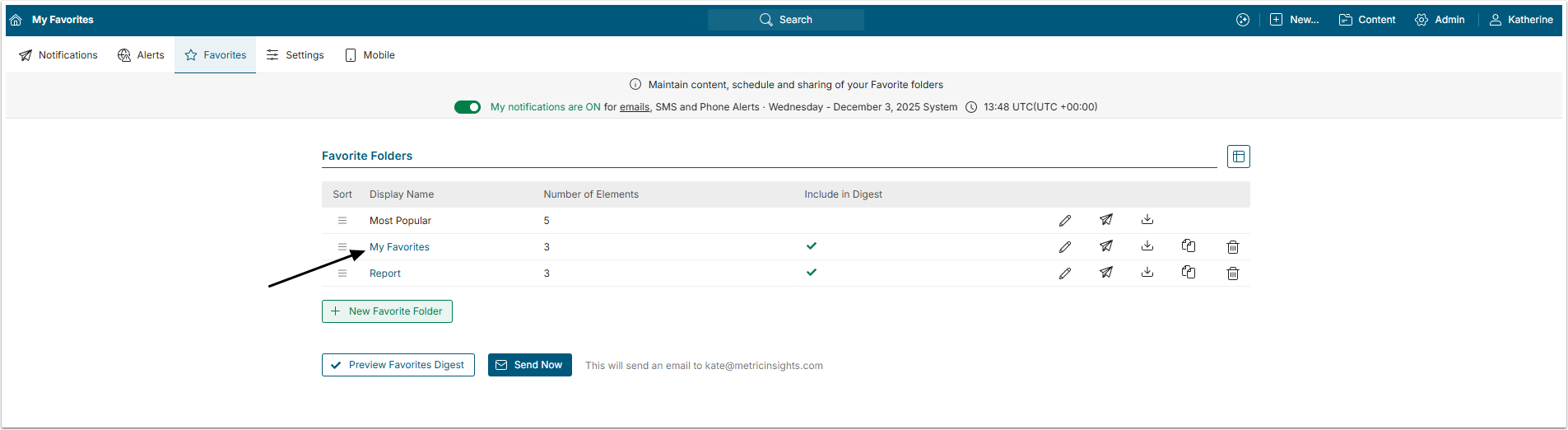
Click Favorites Folder Active Name link to open Manage Tiles window.
2.2. Add or Remove Elements from the Folder
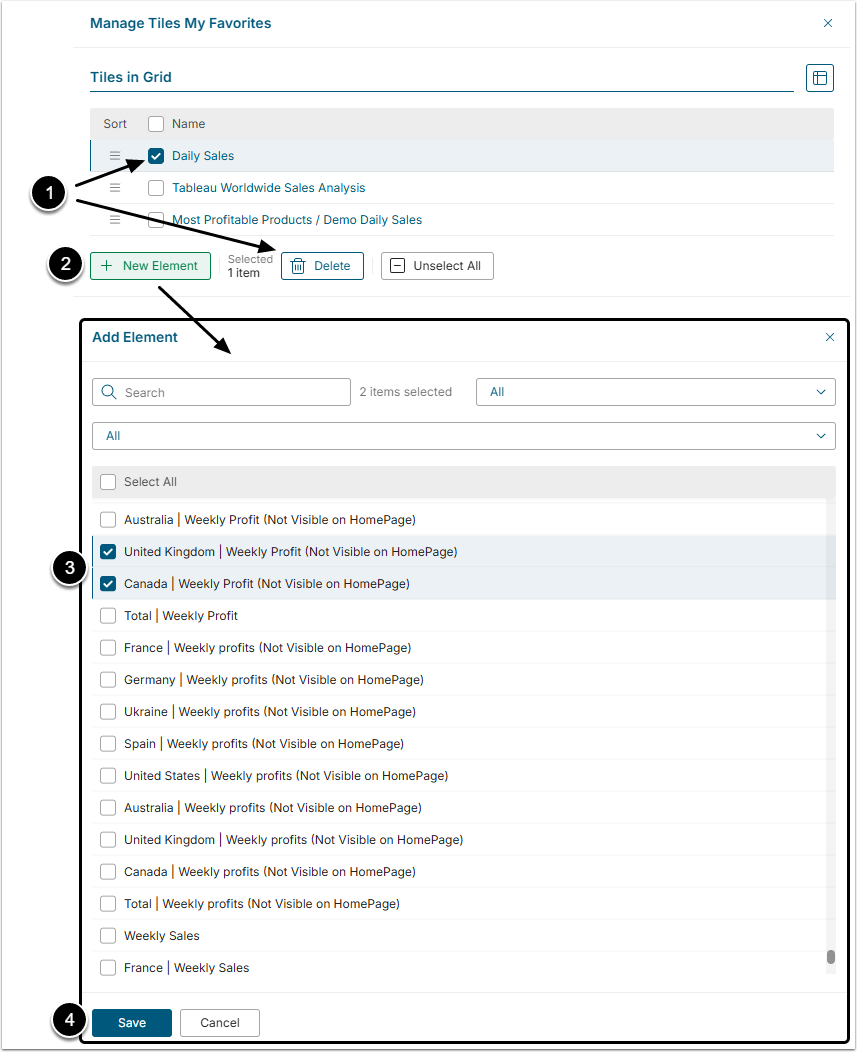
- To remove the tile from Favorites select checkboxes and click [Delete].
- [+New Element] to add new tiles to the folder.
- Select the checkboxes near the Elements that have to be added.
- [Save] to add the Elements to the folder.