To enable seamless interaction with the Microsoft Fabric Data Agent AI tool directly from Concierge, Metric Insights supports integration through a Model Context Protocol (MCP) Server. This connection provides Users with access to Fabric’s Conversational Analytics and other AI-powered capabilities, allowing them to ask natural-language questions about their data from within Concierge — without switching platforms.
Difference Between Fabric Data Agents and Copilot
Microsoft Copilot is an AI tool that is available within the Microsoft Power BI infrastructure. However, it can not be used outside of Power BI. That is why Fabric Data Agents are used for integration with Concierge. Connection via MCP Server allows interacting with your data through Fabric Data Agents from the Concierge service.
Architectural Diagram for Fabric MCP Server Integration with Concierge
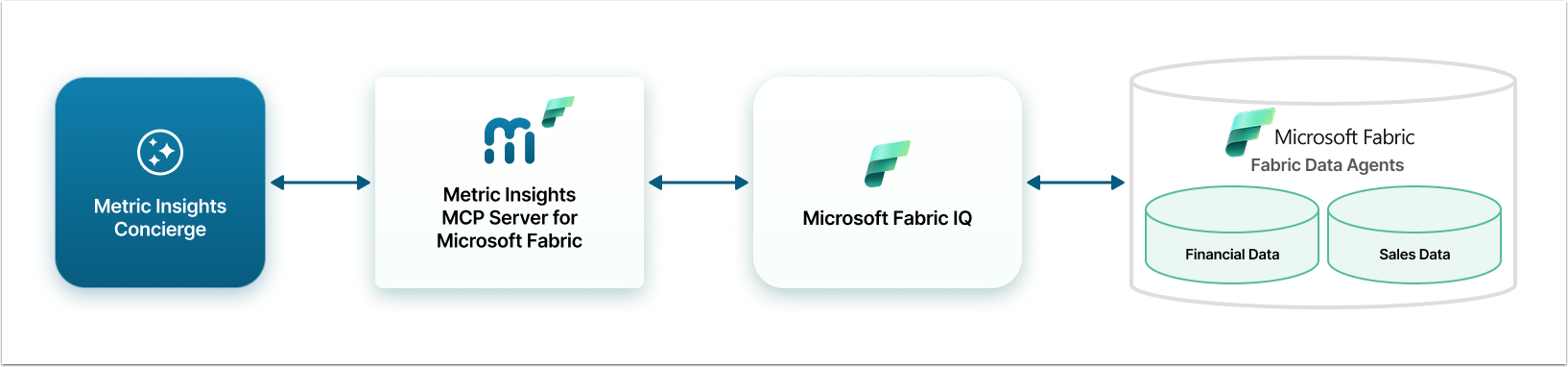
This diagram shows an example, where Microsoft Fabric was configured to have Financial Data and Sales Data as Data Agents. Each Agent is associated with a Domain in Metric Insights Concierge. When a user asks a financial question, Concierge uses domain metadata to route that question through the MCP Server to the relevant Fabric Data Agent.
Prerequisites
To perform all the steps necessary for connecting Concierge and Fabric, you need the following:
- Microsoft Power BI Administrator account;
- Azure Administrator account;
- The Item.Execute.All permission for the Azure Fabric App;
- Metric Insights Administrator account.
Also, you will need server space. The required specs:
- Python 3.12 or higher;
- 256MB RAM and 1 vCPU;
- Required Python packages (see requirements.txt in git repository).
Steps to Connect Concierge and Fabric Data Agent
- Decide how Concierge will perform authentication when connecting to Fabric. Metric Insights supports per user authentication to Microsoft Fabric. This preserves user level identity for enforcing row level security. This can be done one of two ways:
- Inherited from Plugin: If there is already a Metric Insights Data Source connecting to Power BI via OAuth, this data source can be reused for connecting Concierge to Microsoft Fabric. The Fabric Application used in that connection will need to have Power BI Service: Item.Execute.All delegated permission. More information about that can be found in this documentation.
- User OAuth: Use this method to create a new connection to the Fabric Application used for the Fabric Data Agent(s).
- If not already created, create one or more Data Agents. See Microsofts documentation here: Data Agents.
- Collect connection information and configure PowerBI account: Locate and copy connection information for the MCP Server setup.
- Add users to the Power BI Workspace with Member Access:
- Individual users can be added to the Power BI workspace where the Data Agents were created. Users must have at least Member access to use the Data Agent(s).
- An Azure Group can also be added to the Power BI Workspace to access the Data Agents. Again this group should have at least Member access.
- Add users to the Power BI Workspace with Member Access:
- Set up the Metric Insights MCP Server for Fabric: Install and run the MCP Server.
- Configure Azure Fabric App: Register an App, request the required Permission, and, if using "User OAuth" for authentication, gather the credentials.
- Configure an External Resource in Metric Insights: Set up Concierge to connect to the Fabric Data Agent(s).
- Create a Domain: Create a new Domain or use an existing one and associate it with External Resource. External Resources are not directly shown in the All Sources menu of the Concierge panel. Instead, they are associated with a Domain and the Domains are listed in the All Sources menu.