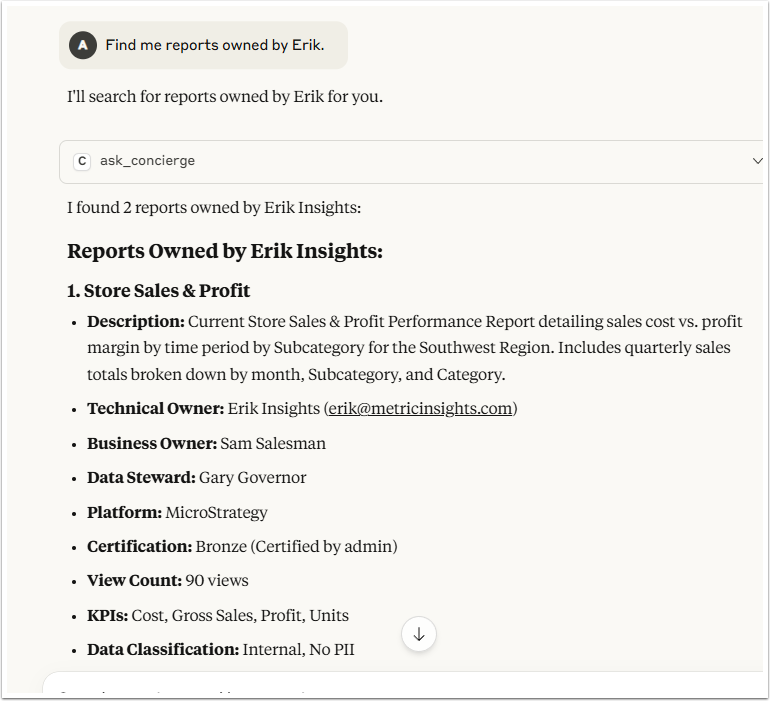
Just as Concierge service can connect to external BI tools to answer questions about corresponding data, other applications can also connect to Concierge to receive answers about different Elements and Objects. By integrating Concierge, Users can get answers about data stored on the MI instance from AI chatbots such as Claude or ChatGPT.
This article describes how to integrate Concierge into an application you are currently using.
PREREQUISITES:
The Concierge service has to be enabled and configured on the MI instance.
1. Collect Information from Metric Insights
To proceed with integration, you will need Application ID, Application Key and Token.
1.1. Collect Application ID and Application Key
In Metric Insights instance, access Admin > System > External Applications, find Concierge in the list and click it.
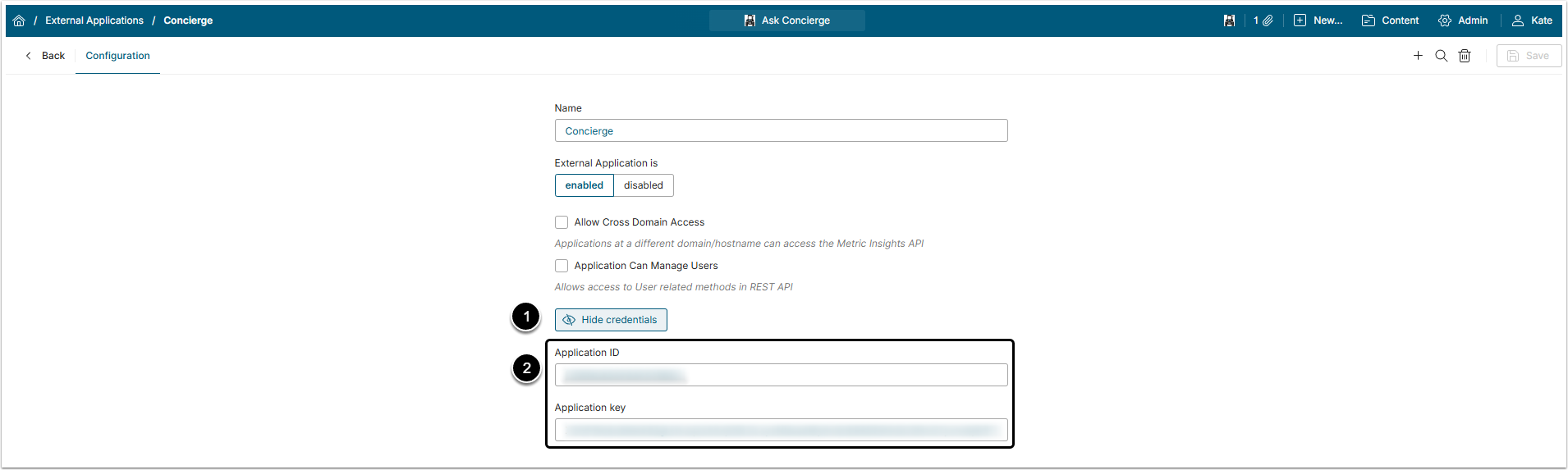
- Click [Show credentials].
- Copy Application ID and Application Key values.
1.2. Collect Token
Access Admin > System > API Toolkit
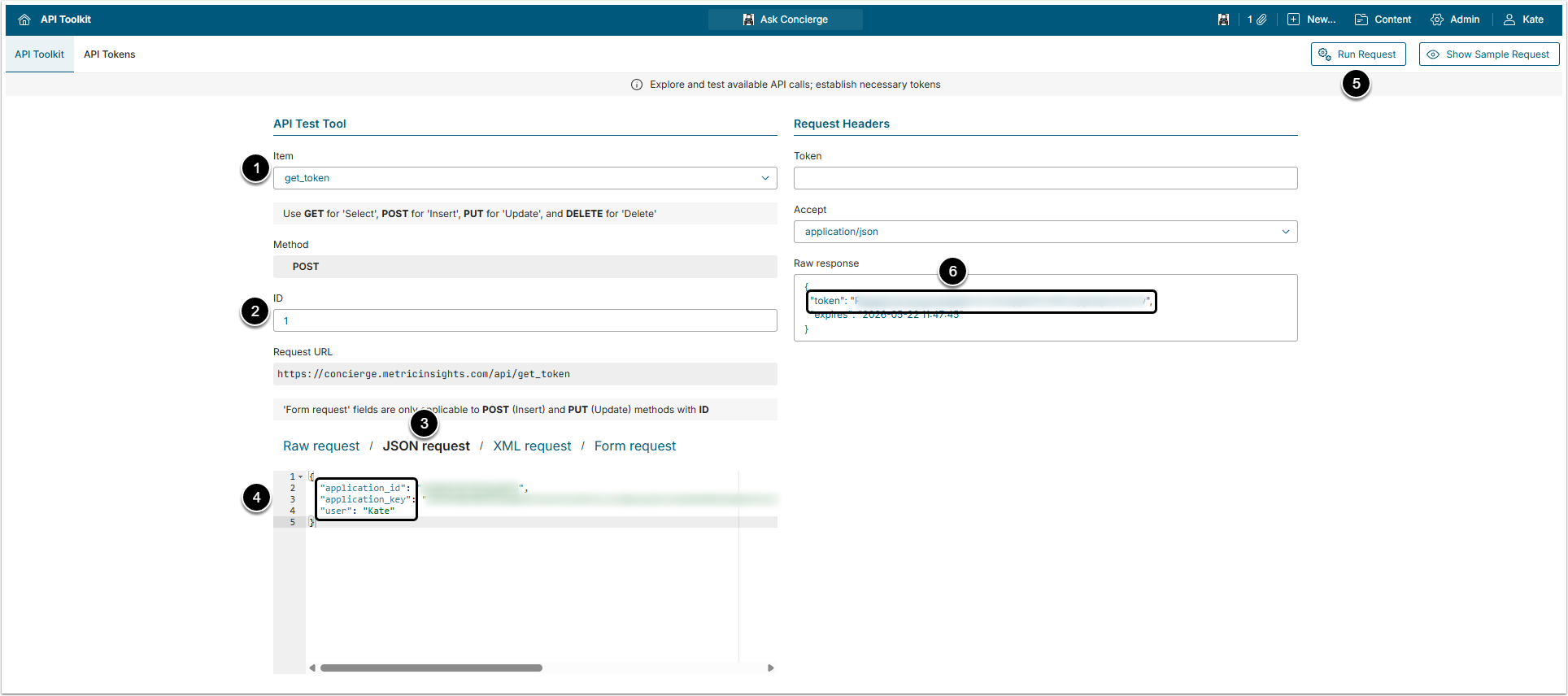
- Item: Select "get_token" option.
- ID: Type anything to open the Request text field.
- Select JSON request.
- Insert Application ID and Application Key in the corresponding fields and type your Username into the
userfield. - [Run Request]
- Collect the Token value from the Raw response field.
2. Integrate Concierge
In this case Claude integration is used as an example.
In Claude account access Settings > Developer click [Edit Config] and then [Edit json]
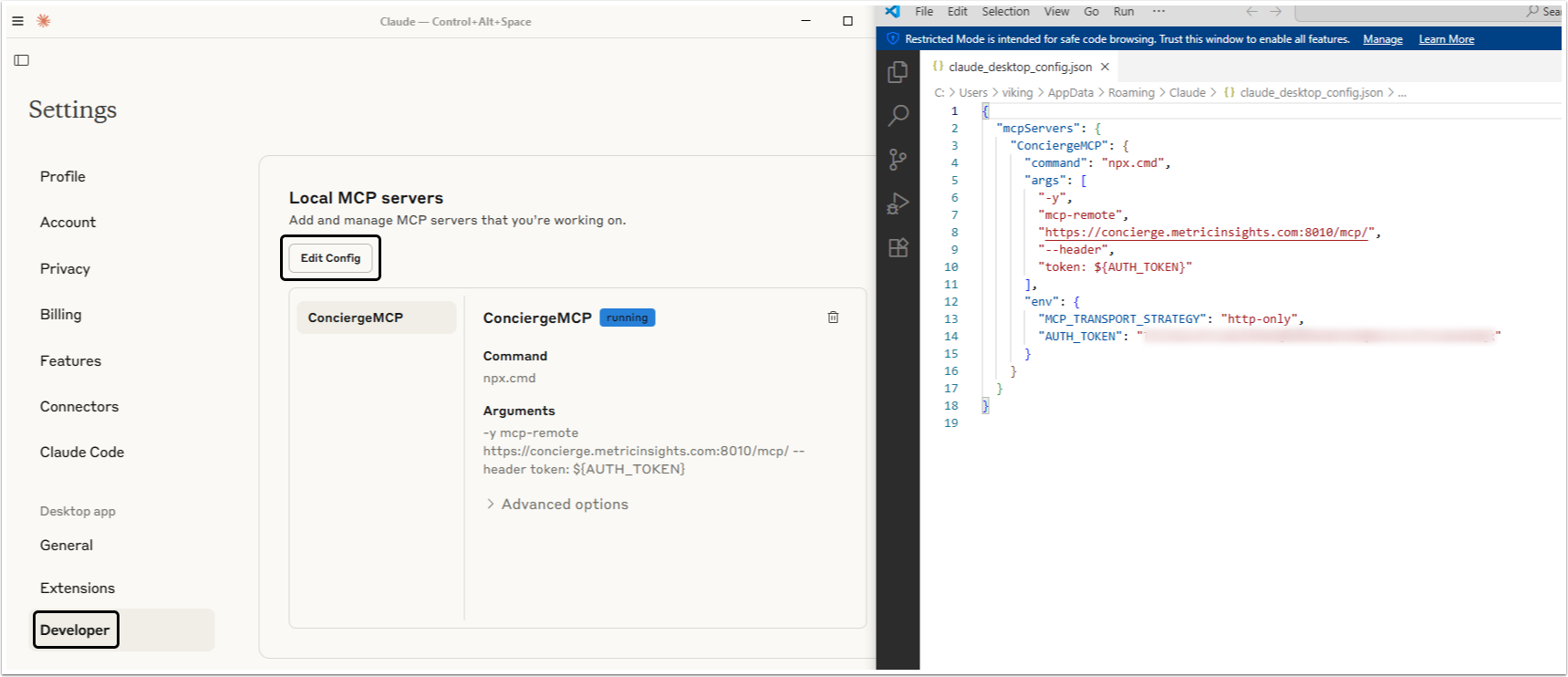
Insert the following code into the text field:
{
  "mcpServers": {
    "ConciergeMCP": {
      "command": "npx.cmd",
      "args": [
        "-y",
        "mcp-remote",
        "https://YOUR_INSTANCE.metricinsights.com:8010/mcp/",
        "--header",
        "token: ${AUTH_TOKEN}"
      ],
      "env": {
        "MCP_TRANSPORT_STRATEGY": "http-only",
        "AUTH_TOKEN": "YOUR_TOKEN_HERE"
      }
    }
  }
}
Insert your instance URL and the Token collected in the previous Step, and restart the Claude app.
3. Check the Result
Try asking Claude for information about information, stored in Metric Insights.