Non-LDAP Metric Insights Users can recover their password in case it's been forgotten/lost or requires to be changed for security reasons.
The procedure is simple and includes three steps:
- Sending an emails with a temporary password;
- Logging in with the temporary password;
- Resetting the temporary password.
To recover the Support User password, follow the steps under this section.
1. Send Email with Temporary Password
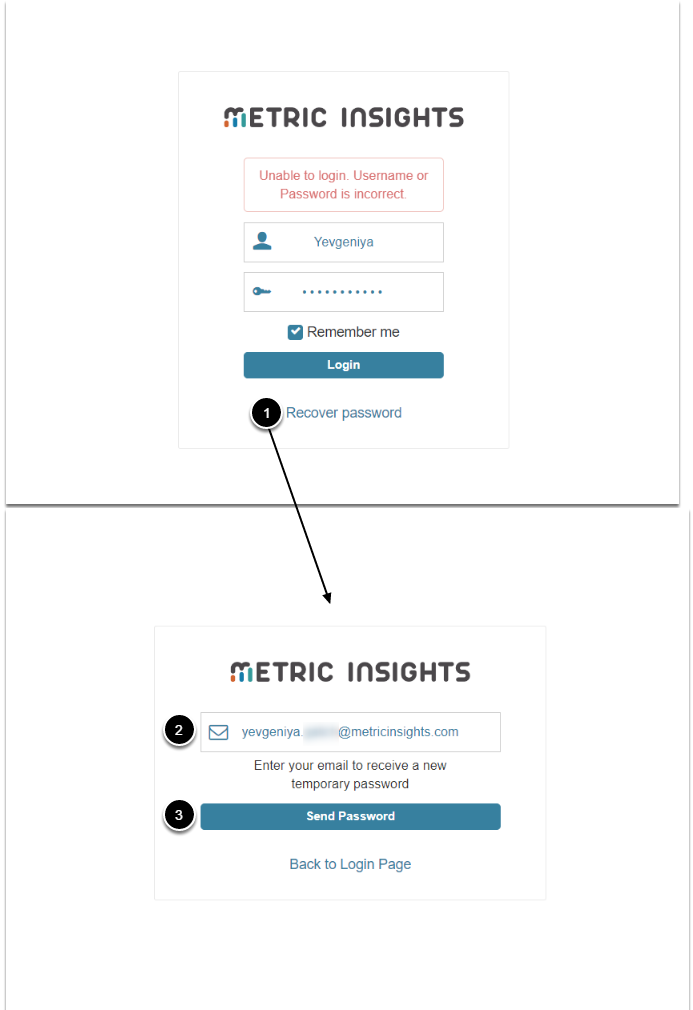
- [Recover password]
- Type in an email address to which you will receive a new temporary password.
- [Send Password]
2. Log In with Temporary Password
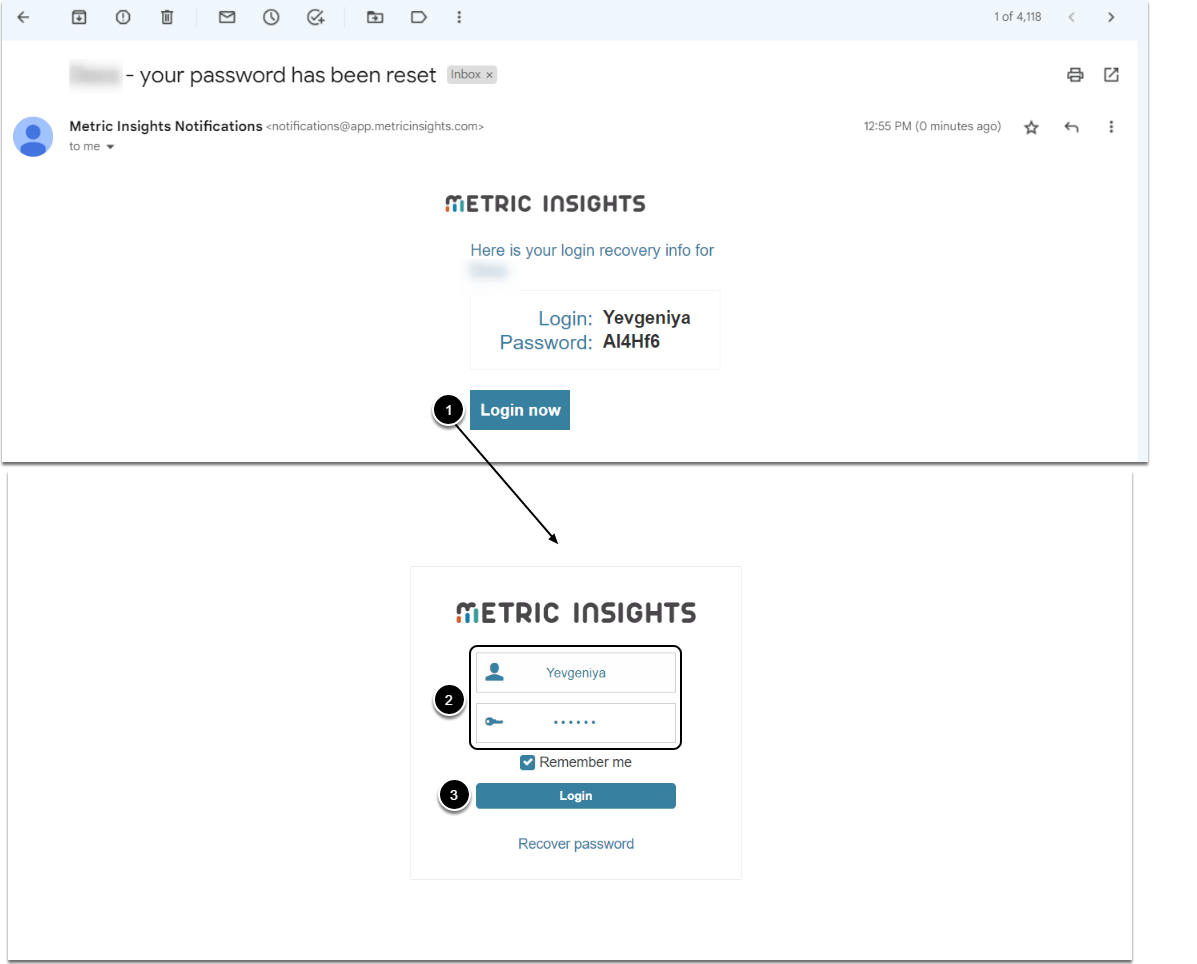
- Access the application either from the email or at <MIhostname>/login.
- Input the login name and temporary password.
- [Login]
3. Change Temporary Password
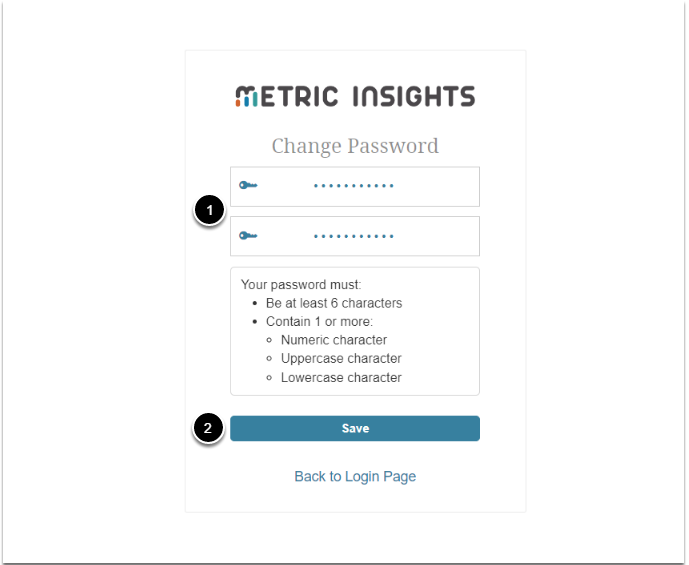
- Input and validate the new password.
- [Save]
- This will take you to the Homepage.
Recovering Support User Password
Upon a new installation, the Support User is created and a temporary password is written to /opt/mi/support.password. The file is deleted after 60 minutes. If the Support User credentials are not used within one hour and the file is no longer available, choose either of the following options to recover the password:
- As an Admin User under Users Groups;
- By using the support user email and Recover password link.
As Admin
Access Admin > Users & Groups, find the Support User and click its Active Name Link
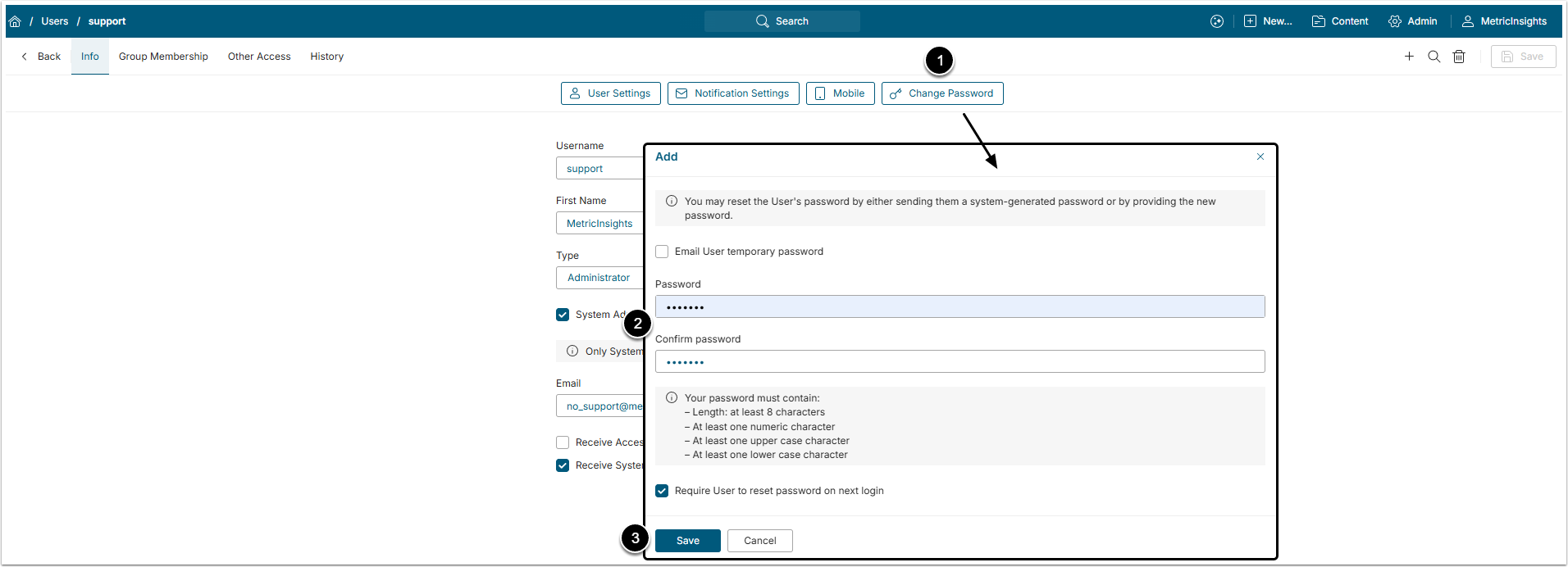
- [Change Password]
- Enter a new password and confirm it. Leave the rest set to default.
- [Save]
Through Recover Password Link
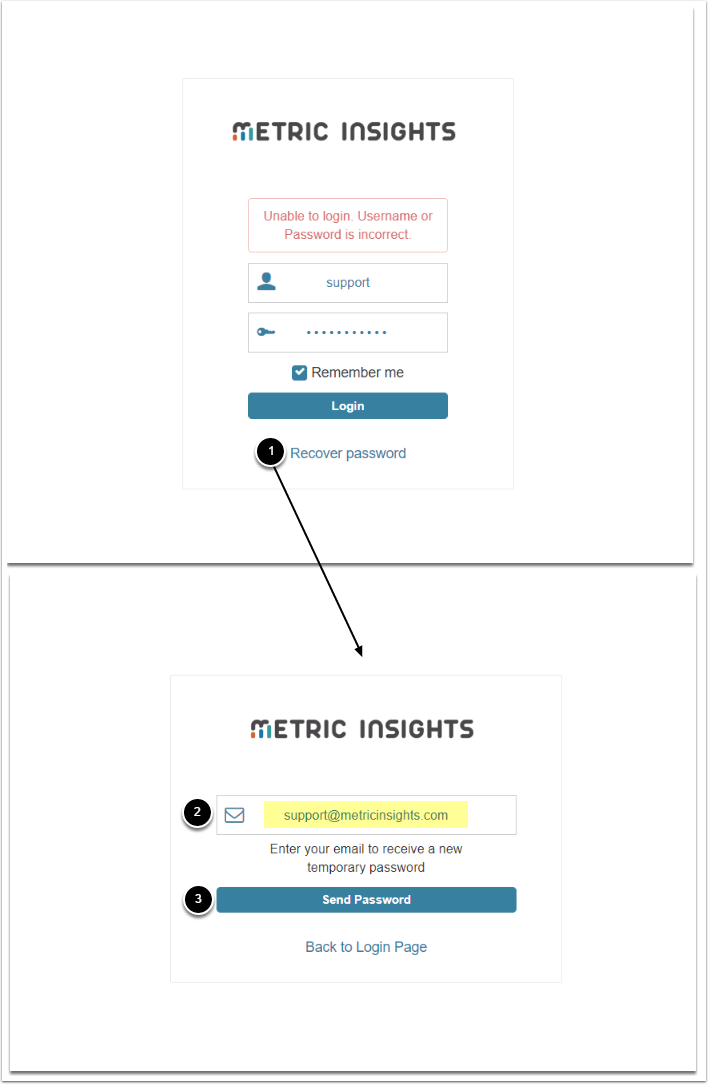
- [Recover password]
- Type in the email of support User.
- [Send Password]
- This will send a recovery password to the support channel if the email is associated with the Support account.