This article details how to upload Tableau Workbooks requested from Metric Insights to your Tableau environment. These Workbooks will then be used as sources for Datasets required for the Tableau BI Optimizer.
NOTE: We use Tableau Online as a demo environment. Instructions for Tableau Server may differ.
PREREQUISITES:
- Credentials for accessing the internal Tableau database;
- The latest Tableau Workbook files requested from support@metricinsights.com:
- Tableau usage for 6 month 2.5.2025;
- users-groups;
- Permissions.
You will need to complete the following instructions for each of the Workbook files.
1. Upload Workbooks to Tableau
Access your Tableau account
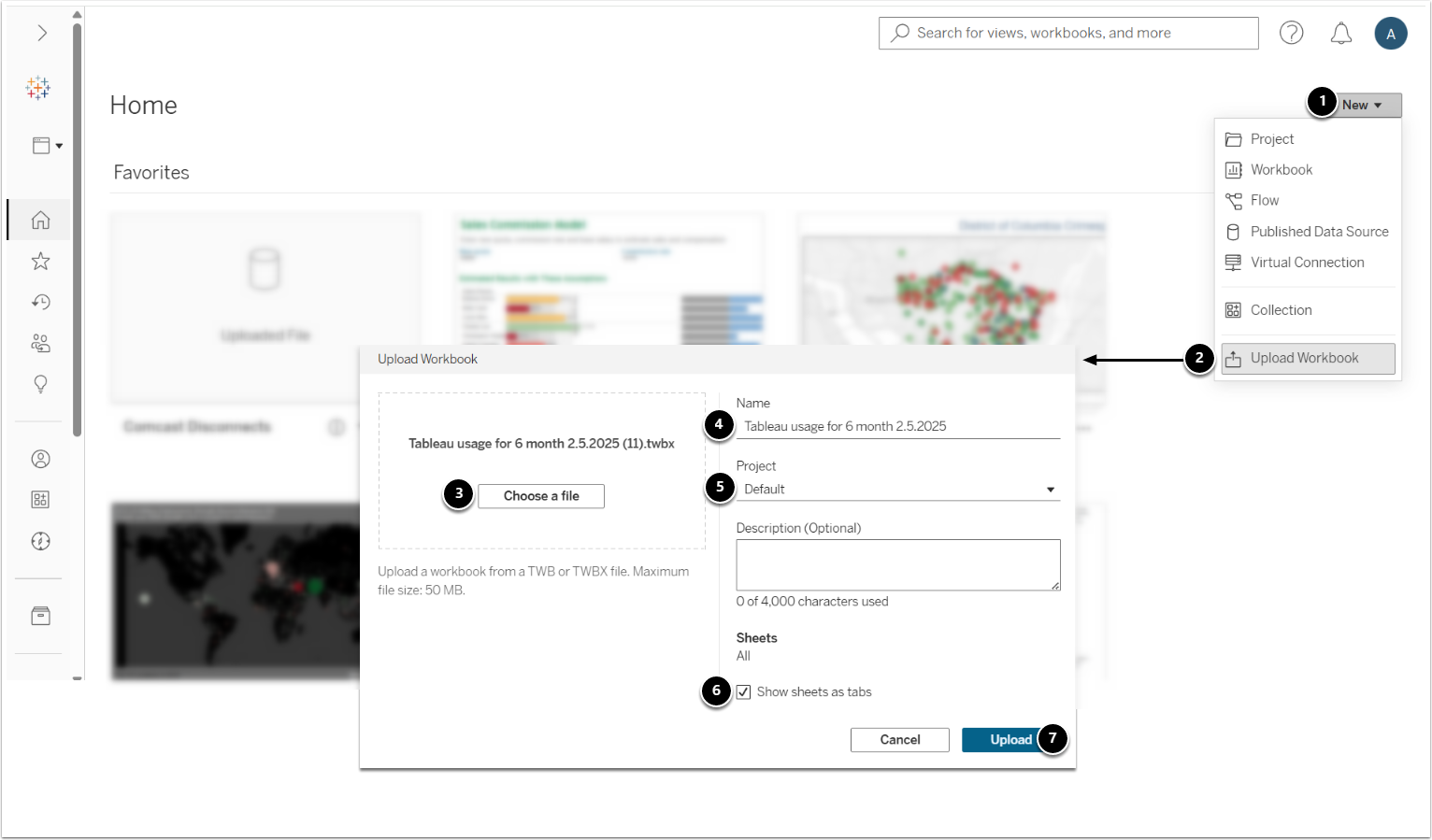
- [New]
- Select Upload Workbook.
- Locate the Workbook file provided by Metric Insights support.
- By default, the Workbook inherits the file name. You can change it if needed, but using the default will make following the instructions to add Tableau to BI Optimizer easier.
- Specify the Project to create the Workbook in.
- Enable Show sheets as tabs.
- [Upload]
2. Provide Credentials to the Internal Database
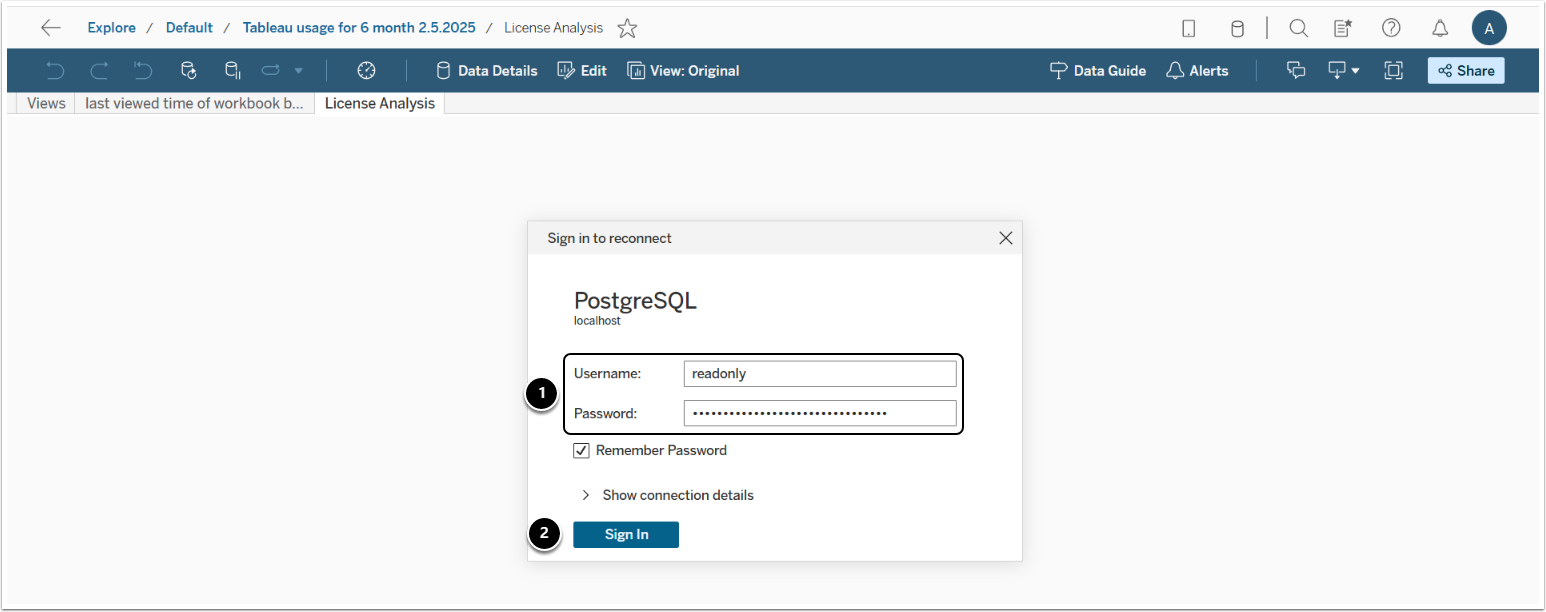
- You may be prompted to provide the internal database credentials. Input them.
- [Sign In]
3. Embed Credentials

- Once signed in, navigate back to the Workbook details page.
- Proceed to the Data Sources tab.
- Access the Actions menu.
- Select to Edit Connection.
- Enable Embedded password in connection.
- [Save]