BETA FEATURE: BI Optimizer is a beta feature. Functionality, configuration steps, and supported options are subject to change as the feature evolves.
IMPORTANT:
OPTIONAL FEATURE - Log Analytics
Log Analytics is not required to use Power BI Lineage Collection. Lineage works without it. Enabling Log Analytics improves metadata fidelity (reducing duplicate tables/columns in results), but skipping it is fully supported.
- For Azure configuration with Log Analytics:
- Configuring Log Analytics requires the following permissions:
- Data.Read (required for the Log Analytics configuration);
- Tenant.Read.All (Why BI Optimizer Requires Tenant.Read.All Permission?).
- Authentication user must be a Fabric Administrator, or Service Principal authentication must be used.
- To assign a role that grants access to the Log Analytics Workspace, the user must have at least the Application Administrator role.
- This is required to configure the Azure App.
- Configuring Log Analytics requires the following permissions:
- For Azure configuration without Log Analytics:
- Enabling Lineage requires the following permissions:
- Tenant.Read.All (Why BI Optimizer Requires Tenant.Read.All Permission?).
- Enabling Lineage requires the following permissions:
NOTE: We recommend configuring Log Analytics for Lineage to improve the precision of Lineage metadata collection. With Log Analytics enabled, Lineage returns more accurate data on columns and tables from which the Reports are derived. In case Log Analytics is disabled, the metadata returned from the Power BI available in Lineage may contain duplicates, such as extra tables and columns.
- See Configure Power BI Lineage Collection with Log Analytics for instructions.
This article is intended for Azure administrators who set up the corresponding resources in Azure Portal for Power BI Lineage collection. Additional authentication-specific Azure setup steps are described in the prerequisite articles referenced below.
The process includes the following steps:
- Configure the Azure resources based on whether Log Analytics will be used for Lineage collection.
- With Log Analytics: Enable Log Analytics integration in both Azure and the Power BI Admin Portal, configure Azure application, grant the Tenant.Read.All permission.
- Without Log Analytics: Grant Azure application the Tenant.Read.All permission.
- Share Azure application details required for the selected Power BI authentication method with your organization's Metric Insights administrator.
- Metric Insights administrator will use these details to configure Power BI Data Source in Metric Insights and complete Lineage collection.
NOTE: The easiest and cheapest way to get logs into a Workspace in Azure is to allow a Service Principal to have access to the Power BI Workspaces that must stream their logs into the Log Analytics Workspace. The other, more expensive way is to allow Power BI Workspaces to stream their logs into the Log Analytics Workspace in Azure.
PREREQUISITES:
- Ensure Prerequisites for Connecting to Microsoft Power BI Cloud are met for your selected Power BI authentication type.
- This includes the configuration referenced in the article above for the following auth types:
- Service Principal;
- OAuth (Create an App for Use in Azure AD and Grant Required Power BI Permissions to Service Account);
- NOTE: If Log Analytics is configured, Client Secret must not be generated for OAuth.
- Password (described in the Prerequisites for Connecting to Microsoft Power BI Cloud article).
- This includes the configuration referenced in the article above for the following auth types:
- The Azure application configured for the selected authentication type is the same Azure application used in this article.
TABLE OF CONTENTS:
After completing the setup described in the PREREQUISITES section, proceed with the configuration steps in this article based on whether Log Analytics will be used for Lineage collection:
1. Enable Log Analytics Integration in Azure and Power BI
NOTE: Log Analytics Workspace is not a Power BI workspace and needs to be created separately, as described in the Microsoft documentation referenced below.
Follow Microsoft’s official guidance to configure Log Analytics for use with Power BI.
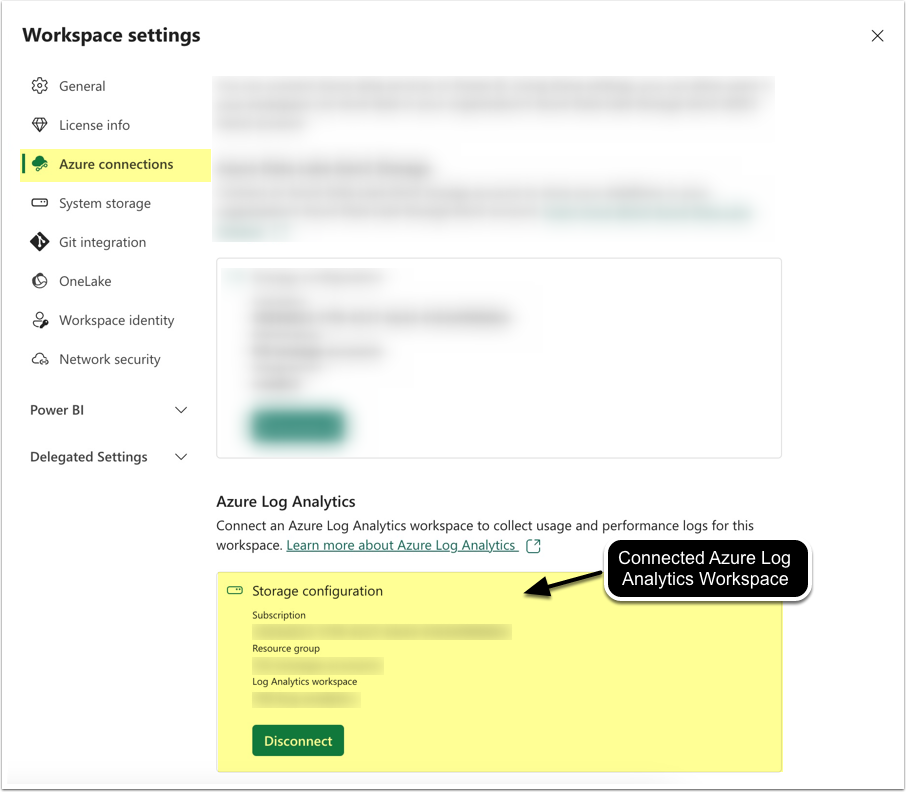
To complete the setup described in the Microsoft article, you will:
- Create a Log Analytics Workspace in your Azure subscription.
- Enable the
microsoft.insightsresource provider. - Assign the Log Analytics Contributor role to the user setting up the connection.
- In Power BI Admin portal, enable Azure Log Analytics connections under Tenant Settings.
- Connect to Azure Log Analytics Workspace (as displayed on the screenshot).
Once done, logs will begin streaming to Azure, and you can confirm this by querying tables such as PowerBIDatasetsWorkspace in the Azure portal.
1.1. Check Log Export
Access Azure portal > Log Analytics workspace > Logs
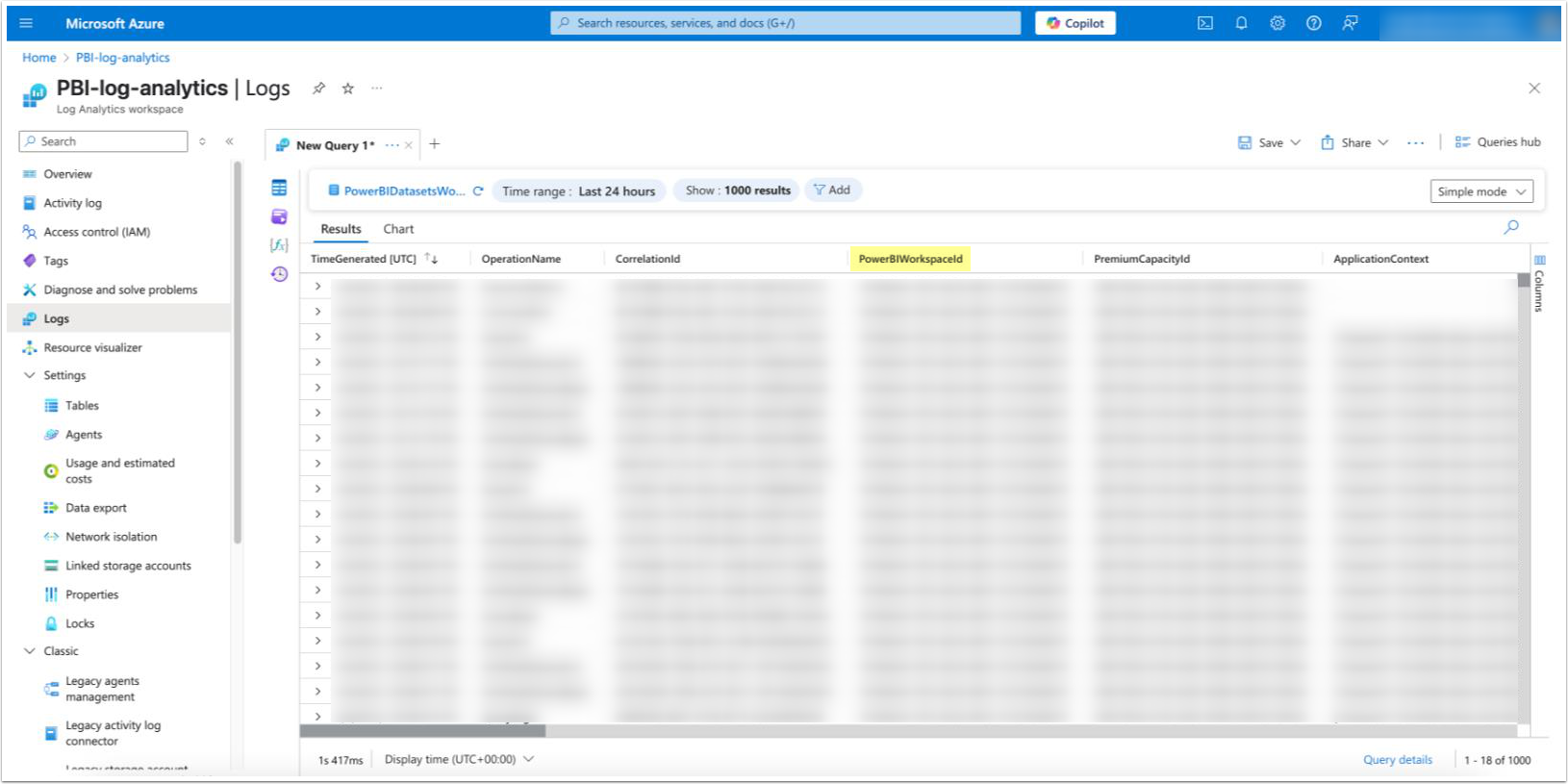
If configured correctly, Log Analytics from Power BI activity logs are displayed.
2. Copy Log Analytics Workspace ID from Azure
Access Log Analytics workspace > Overview tab
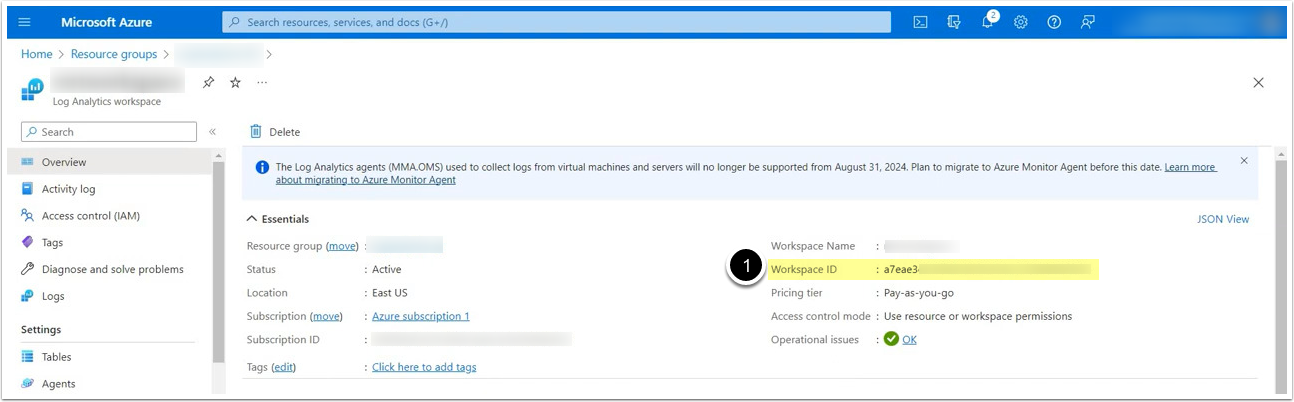
- Copy the Workspace ID value.
3. Configure Azure App
Set up authentication as described in the Microsoft documentation. The required steps are:
- Configure Azure app:
- Access the Azure application you have configured according to the PREREQUISITES section of this article.
- Access API permissions > [+ Add a permission] > APIs my organization uses > Log Analytics API > Delegated permissions > Data.Read
- [Add permissions]
- Grant app access to the Log Analytics workspace:
- Log Analytics Workspace > Access control (IAM) > [Add role assignment]
- Select the Reader role.
- Access Members > [+ Select members] > Enter the name of your app in the Select box > Select > [Review + assign]
NOTE: To assign a role that grants access to the Log Analytics Workspace, the user must have at least the Application Administrator role.
- Assign this role via Azure Portal > User > Select a User > Assigned roles > [+ Add assignments] > Application Administrator
4. Grant Tenant.Read.All Permission
- For Azure configuration with Log Analytics: Access the Azure application configured in the previous step.
- For Azure configuration without Log Analytics: Access the Azure application configured according to the PREREQUISITES section of this article.
NOTE: Credentials of this Azure application will be used for the Data Source connection in Metric Insights.
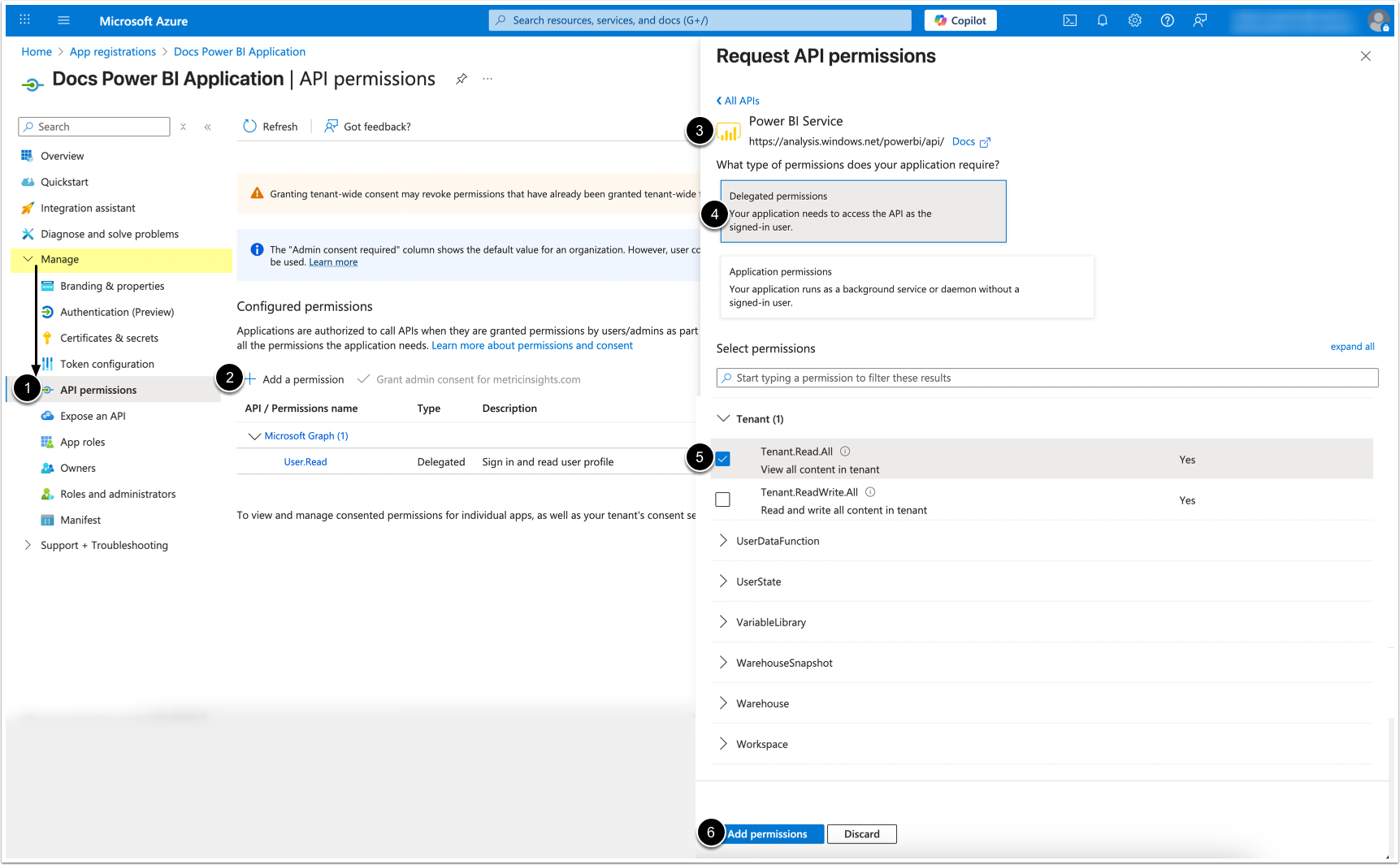
- Under Manage, click on API Permissions.
- [ + Add a permission]
- Scroll to and select Power BI Service.
- Click on Delegated permissions.
- Under "Tenant", find and check Tenant.Read.All
- [Add permissions]
5. Copy and Share Azure App Credentials with Metric Insights Administrator
Once you have finished the Azure app configuration, access this app's Overview tab.
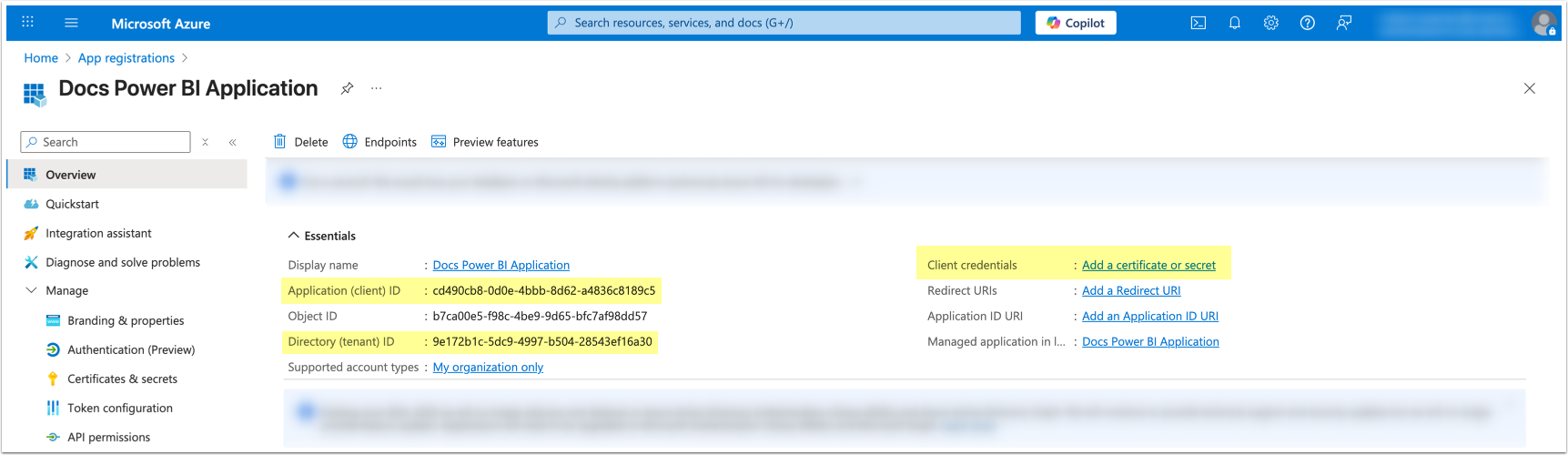
Depending on the selected Power BI authentication method for the MI Data Source, you may need to share the following credentials with your organization's MI admin:
- Service Principal:
- Application (client) ID: For Application ID of the MI Data Source.
- Directory (tenant) ID: For Directory (tenant) Id of the MI Data Source.
- Client Secret Value: For Client Secret of the MI Data Source.
- See Add Client Secret for details on creating a Client Secret and obtaining its value for Service Principal.
- OAuth:
- Application (client) ID: For Application ID of the MI Data Source.
- Directory (tenant) ID: For Directory (tenant) Id of the MI Data Source.
- If Log Analytics is not used:
- Client Secret Value: For Client Secret of the MI Data Source.
- See Add a Client Secret for details on creating a Client Secret and obtaining its value for OAuth.
- Password:
- Application (client) ID: For Application ID of the MI Data Source.
NOTE: For OAuth and Password authentication you also need to share Fabric Administrator credentials.