This article explains the steps needed to replace an old OVA with a new one.
High level summary:
- Get a new OVA (version x.y.z)
- Get an application backup (ie, db) of Metric Insights (version a.b.c)
- Give your VM management team the new OVA (version x.y.z)
- Your VM management team takes "Snapshot" of the existing VM
- Your VM management loads the new OVA (x.y.z) into VM
- Restore application backup to new VM (x.y.z) using -c (convert) flag
- Test login to MI
1. Obtain a Copy of New OVA
Contact support@metricinsights.com to request access to download new OVA.
2. Connect to Your Existing VM and Create Backup File
Run the command below from a shell prompt:
mi-app-backupThis will create backup file in the /opt/mi/backup directory.
More details on backing up your instance.
3. Copy This Backup File to Your New VM

You can do this with the scp command.
4. Connect to Your New VM and Restore Your Backed Up Data
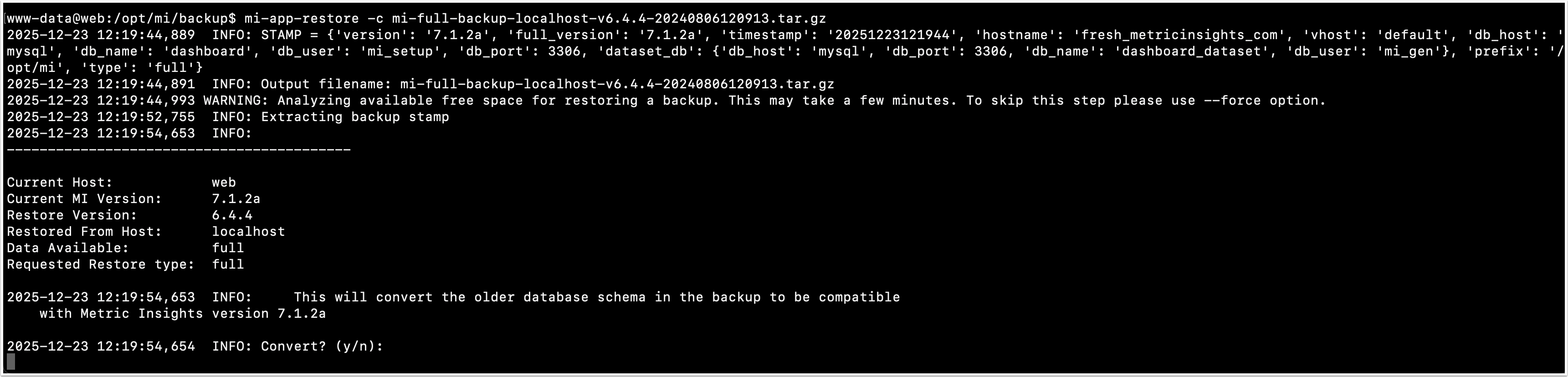
Run the this command from a shell prompt:
mi-app-restore -c /path/to/backup_fileThe '-c' flag will cause the backup file to be upgraded to the same version as the new VM.
When prompted, enter 'Y' to convert and upgrade.
Test Log in to Metric Insights
Access Admin > Status Monitor

Confirm that you see "Current version: X.Y.Z" in the System Stats section.