Just as the Concierge service can connect to external BI tools to answer questions about corresponding data, other applications can also connect to Concierge to receive answers about different Elements and Objects. Concierge MCP is a Model Context Protocol server that's built into the Metric Insights application. It exposes Concierge tools to external AI clients, including Claude, ChatGPT, Slack, Microsoft Teams / Copilot, and others.
Please use this guide to integrate Concierge into the AI application you're currently using.
PREREQUISITES:
The Concierge service has to be enabled and configured on the MI instance.
1. Collect Information from Metric Insights
To proceed with integration, you'll need the Concierge MCP endpoint, Client ID, and Client Secret.
1.1. Copy Concierge MCP Endpoint
The AI application can request an MCP Endpoint URL. Here's a list of Concierge MCP endpoints:
| Endpoint Purpose | Endpoint URL |
|---|---|
| OAuth Endpoint | https://<mi-host>/mcp |
| Authorize | https://<mi-host>/mcp/authorize |
| Token | https://<mi-host>/mcp/token |
| Callback (register on external App) | https://<mi-host>/mcp/auth/callback |
Instead of <mi-host>, insert your Metric Insights instance name.
1.2. Collect Client ID and Client Secret
In Metric Insights instance, access Admin > System > External Applications, create an External Application for Concierge or find an existing one in the list and click it.
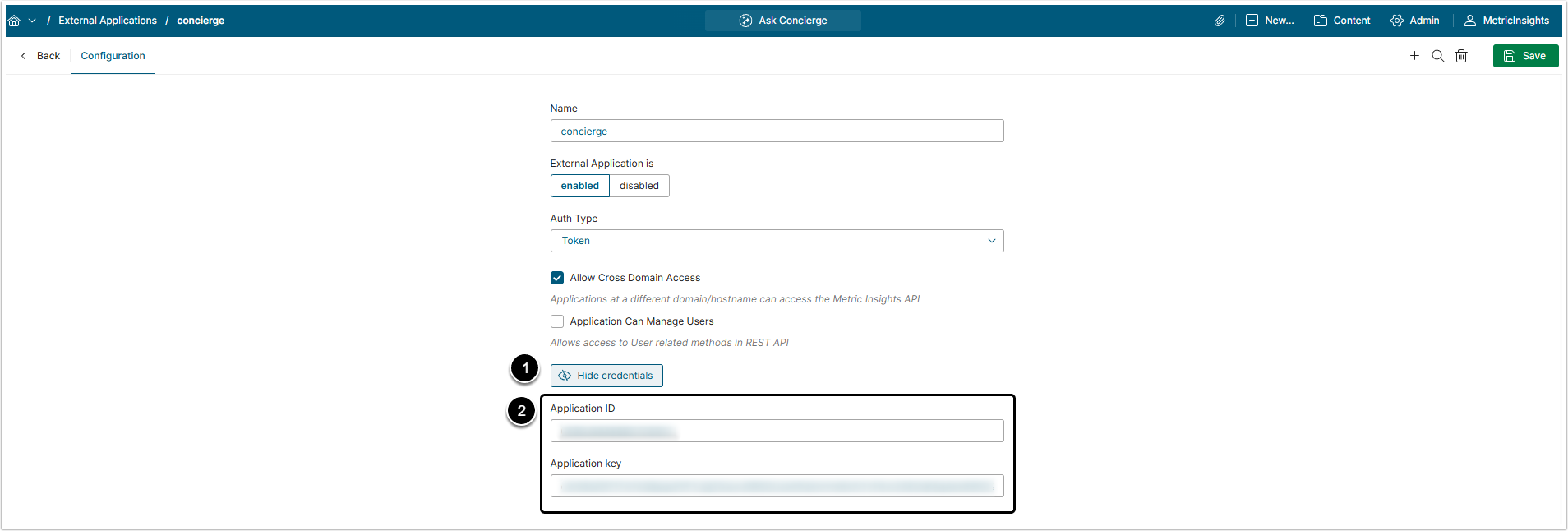
- Click [Show credentials].
- Copy Application ID (Client ID) and Application Key (Client Secret) values.
You'll need to collect a Token if you selected the "Token" option in the Auth Type field.
Access Admin > System > API Toolkit
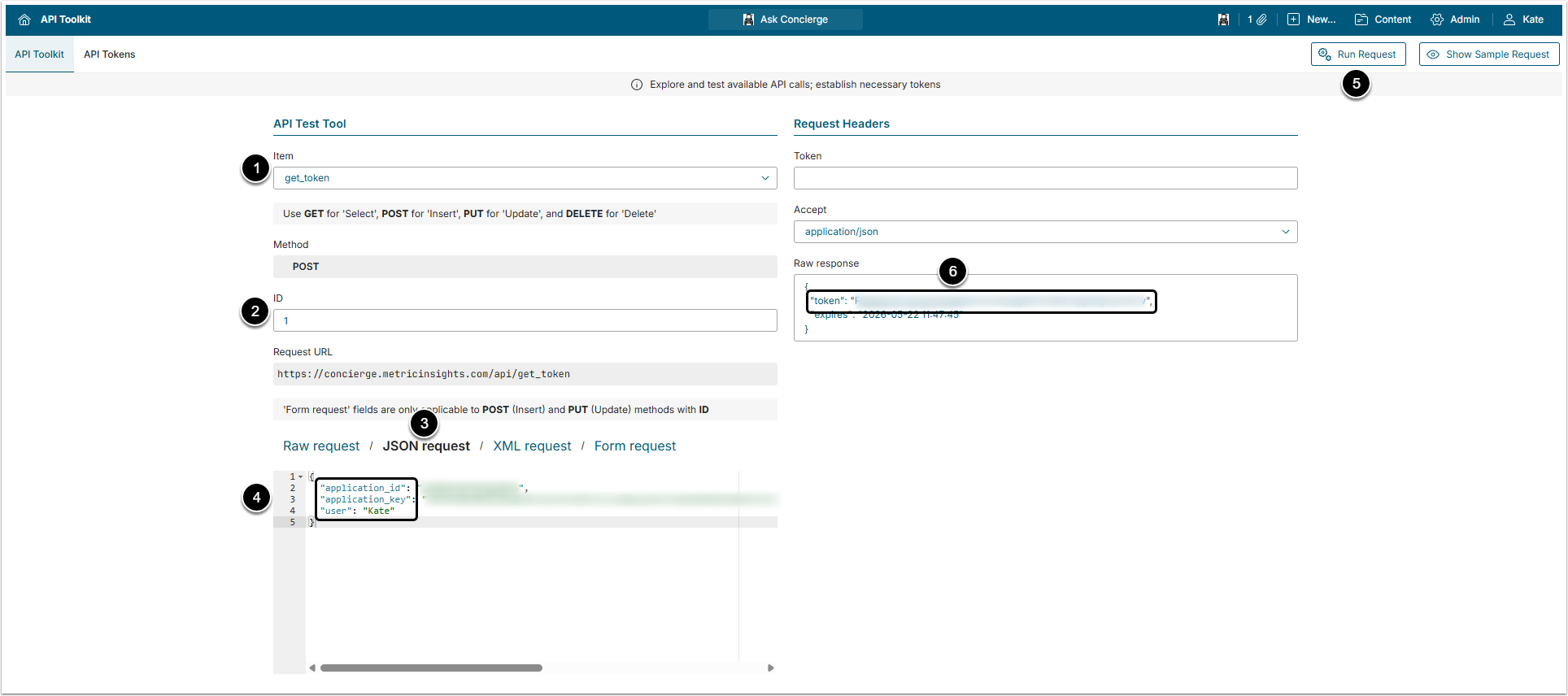
- Item: Select "get_token" option.
- ID: Type anything to open the Request text field.
- Select JSON request.
- Insert Application ID and Application Key in the corresponding fields and type your Username into the
userfield. - [Run Request]
- Collect the Token value from the Raw response field.
2. Configure Concierge External Application
Go back to concierge External Application Editor.
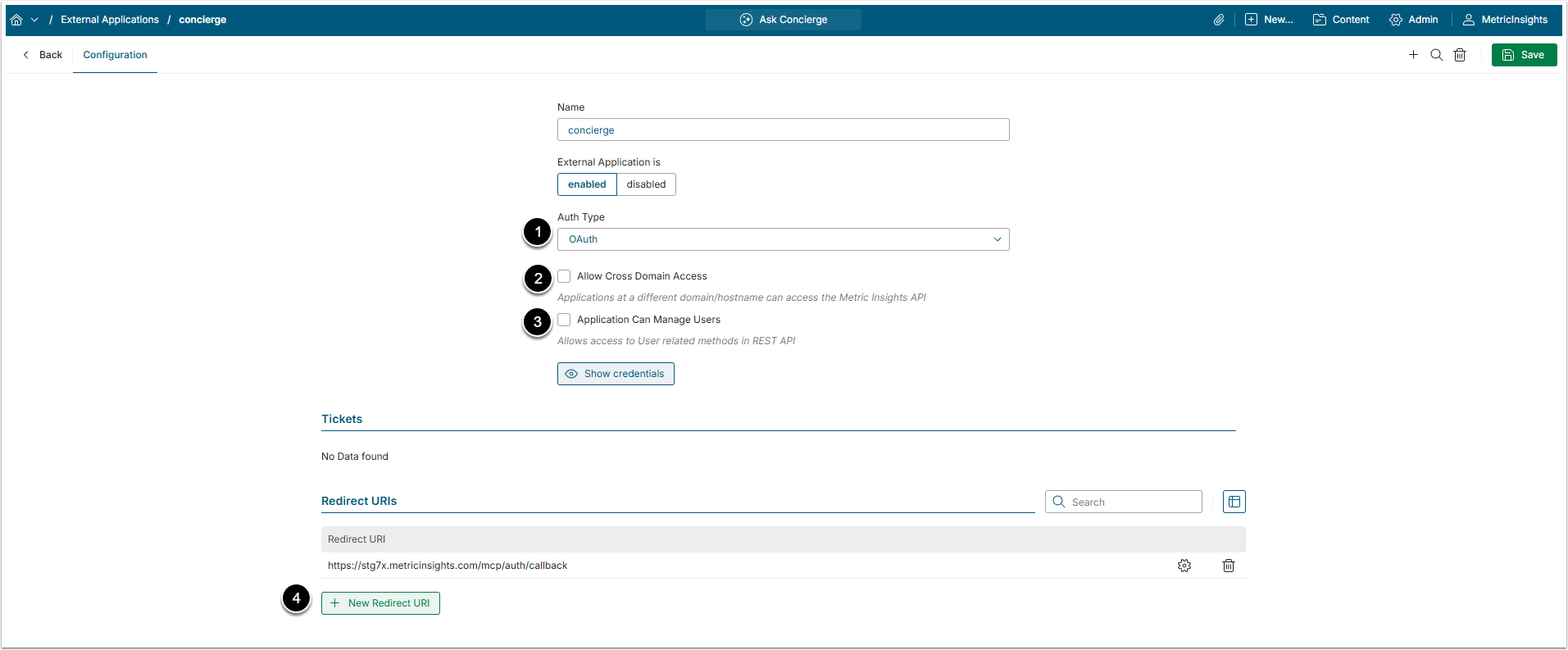
- Auth Type: Select the authentication method.
- "OAuth" is the recommended option. If you select it, the Token exchange will proceed automatically, which is faster and more efficient than manual collection.
- Allow Cross Domain Access (optional): Selecting this checkbox opens the Cross Domain Origin section, where you can add a list of trusted domains and hostnames that are permitted to call the Metric Insights API with the user's credentials. Disabling it restricts API calls to same-origin (the MI hostname itself).
- Application Can Manage Users: When this checkbox is enabled, the External Application's tokens can be used to create, view, update, and delete Metric Insights Users through the REST API.
- Redirect URIs section appears if you selected the "OAuth" option in the Auth Type field. Click [+ New Redirect URI] and add
https://<mi-host>/mcp/auth/callback, changing<mi-host>to your MI instance name.
3. Configure AI Application
After configuring Concierge MCP External Application and collecting all the necessary information, proceed with configuring the AI application your organization uses. For detailed guides, check the following articles:
- Microsoft Teams / M365 Copilot
- Claude
- ChatGPT
- Slack
- Copilot Studio