The Microsoft Power BI Cloud plugin allows storing plugin credentials in Identity Profiles, supporting all three available authentication methods: Password, OAuth, and Service Principal. Once defined, the same Identity Profile can be referenced from multiple plugin connection profiles, so credentials are configured and rotated in one place rather than copied across every connection that needs them.
Choosing an Identity Profile on a Power BI Cloud connection lets MI authenticate against Power BI on behalf of that identity across the commercial cloud, GCC, GCC High, or DoD endpoints, depending on the connection's license type without re-entering or persisting the underlying secrets in the Power BI plugin connection profile itself.
Prerequisites:
- Ensure that all Prerequisites for Connecting to Microsoft Power BI Cloud are met, and that additional configuration is completed, if using OAuth or Service Principal.
Table of Contents:
1. Create New Identity Profile
Access Admin > System > Identity Profiles > [+ Identity Profile]
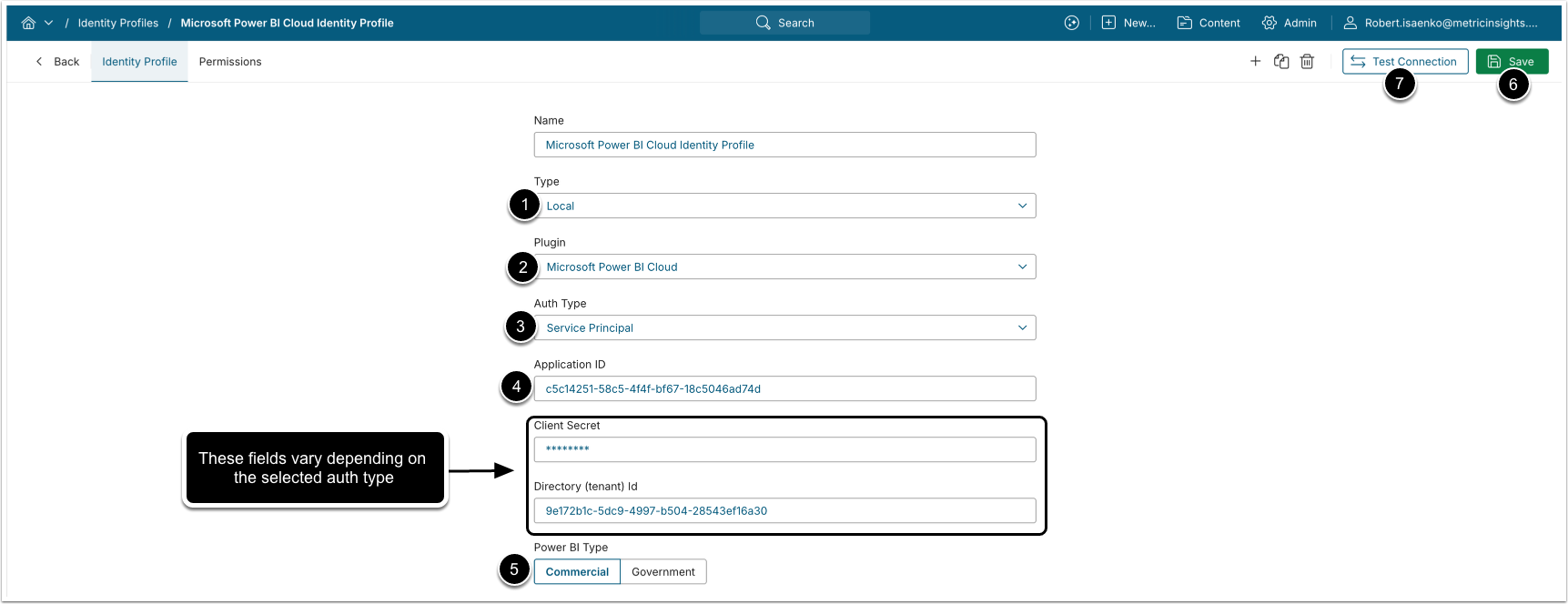
- Type: Local
- Plugin: Microsoft Power BI Cloud
- Auth Type: Select the authentication type to store the credentials for:
- Password: Provide Username and Password.
- The username must be a cloud-only Microsoft Power BI user or, if an AD user, the AD user must exist/be synced in Azure AD for Power BI authentication.
- Embedding and image generation rely on service account embed token.
- RLS-like filtering can be configured using User Maps, but the embed token remains tied to the service account. If full RLS support is required, consider using OAuth.
- OAuth: Enter Client Secret and click [Get Token] (after entering Application ID) to grant permission to Office 365 API.
- You can enable Client Secret authorization for your Azure app. After the Client Secret has been generated, the Username/Password authorization will no longer work.
- Optionally, for Client Secret expiration tracking, provide Directory (tenant) Id, which can be found on the Overview tab of the Azure app.
- Service Principal: Provide the Client Secret value and Directory (tenant) Id.
- Password: Provide Username and Password.
- Enter the Application ID of the registered Azure app that represents Metric Insights to connect to Power BI.
- Select the Power BI environment your organization uses. The selection determines which Power BI service URL is used for connections.
- Commercial (app.powerbi.com)
- Government:
- GCC (app.powerbigov.us);
- GCC High (app.high.powerbigov.us);
- DoD (app.mil.powerbigov.us).
- [Save]
- [Test Connection]
2. Create New Power BI Cloud Data Source
Access Admin > Collection & Storage > Data Sources
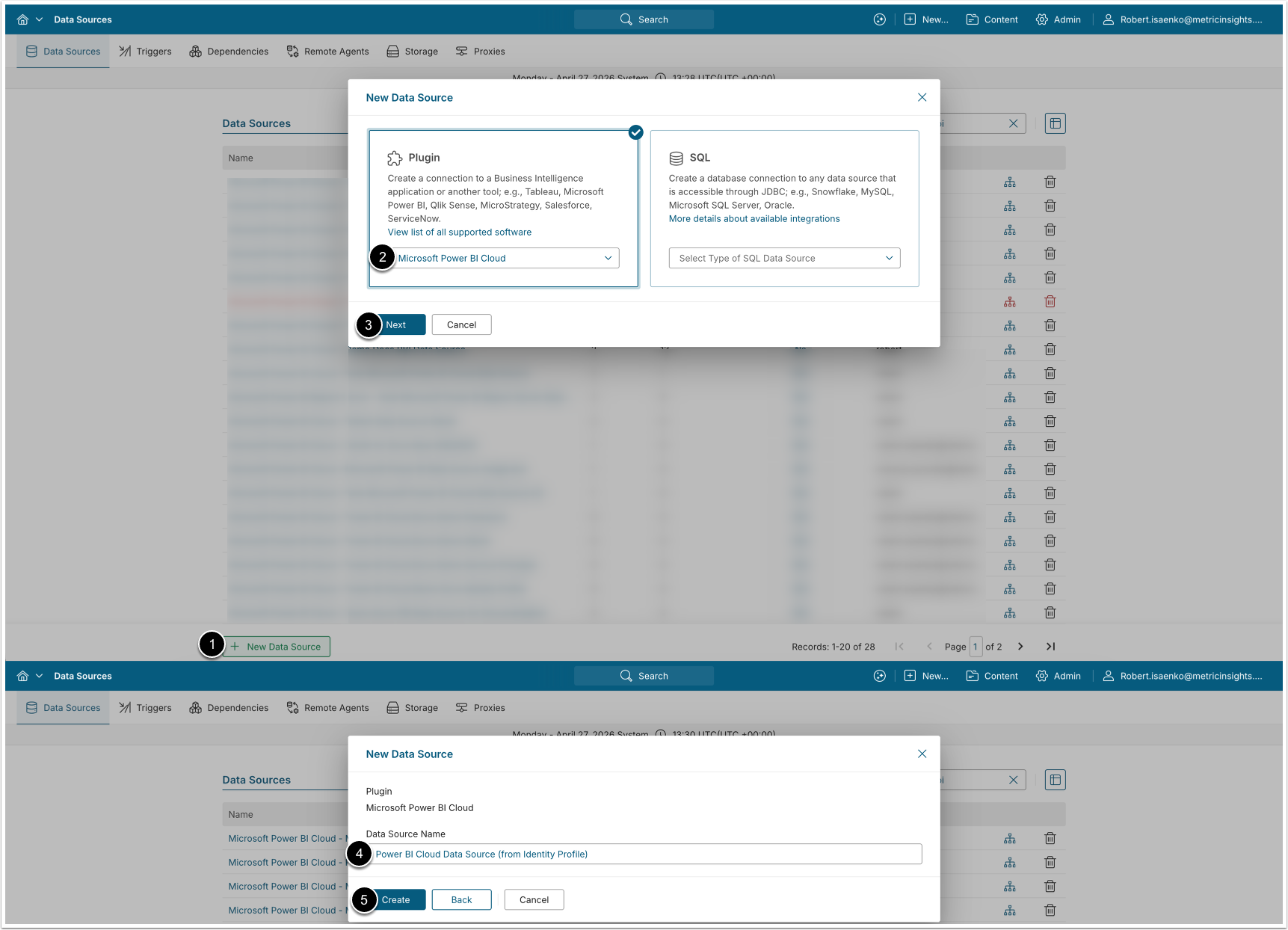
After creating an Identity Profile, multiple Data Sources that use the credentials stored in that Identity Profile can be configured.
- [+ New Data Source]
- Choose "Microsoft Power BI Cloud" from Plugin drop-down list.
- [Next]
- Enter a descriptive Data Source Name.
- [Create]
3. Configure Data Source Authentication Using Identity Profile
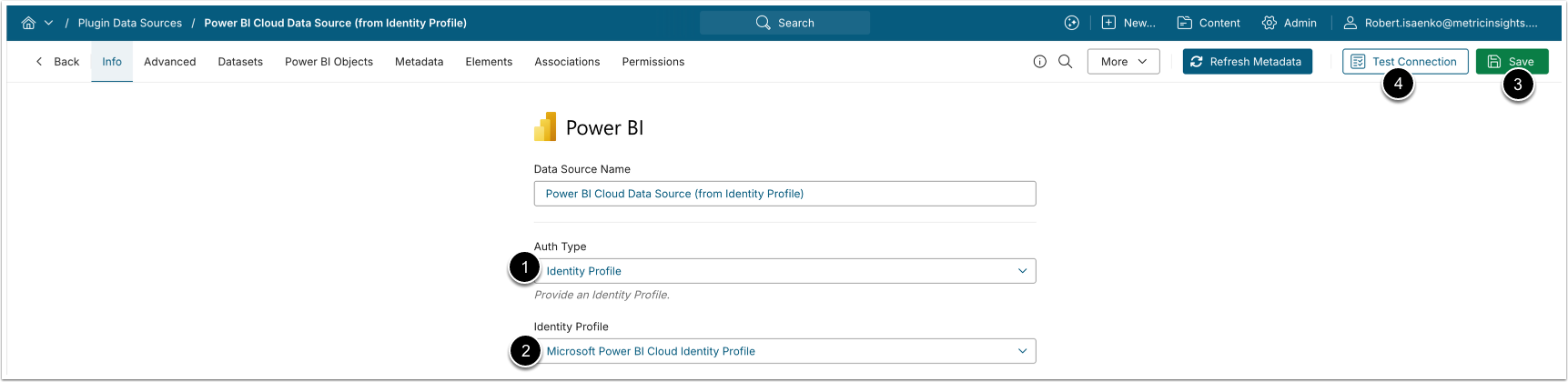
- Auth Type: Identity Profile.
- Identity Profile: Choose the previously created Identity Profile.
- [Save]
- [Test connection]
Upon successfully tested connection, proceed Data Source configuration as described in Establish Connectivity to Microsoft Power BI Cloud (v7.2.0+).