Microsoft Power BI Cloud Filter Name consists of the Power BI Report's table name and column name. This article describes where to find the table name and column name in Power BI to populate a valid Filter Name for your Microsoft Power BI Cloud External Report in Metric Insights.
- For information on creating Microsoft Power BI Cloud External Reports, see Create an External Report from Microsoft Power BI Cloud.
- For details on configuring filters in Microsoft Power BI Cloud External Reports, see:
- MI v7.2.1+: Filtering in Power BI Cloud External Reports (v7.2.1+);
- MI prior to v7.2.1: Filtering in Power BI Cloud External Reports.
Where to find TABLE NAME and COLUMN NAME:
- Power BI Filters are applied to specific fields in data tables.
- Table and column names (used as Filter Names in Metric Insights) can be found in the Data pane, accessible in Report Editing View.
- Filter names and values can be obtained from the Filters pane in Report Editing View or the Filters pane in Report Reading View.
Filters from Microsoft Power BI are passed to Metric Insights in the following format: table.column
1. Access Report Editing View
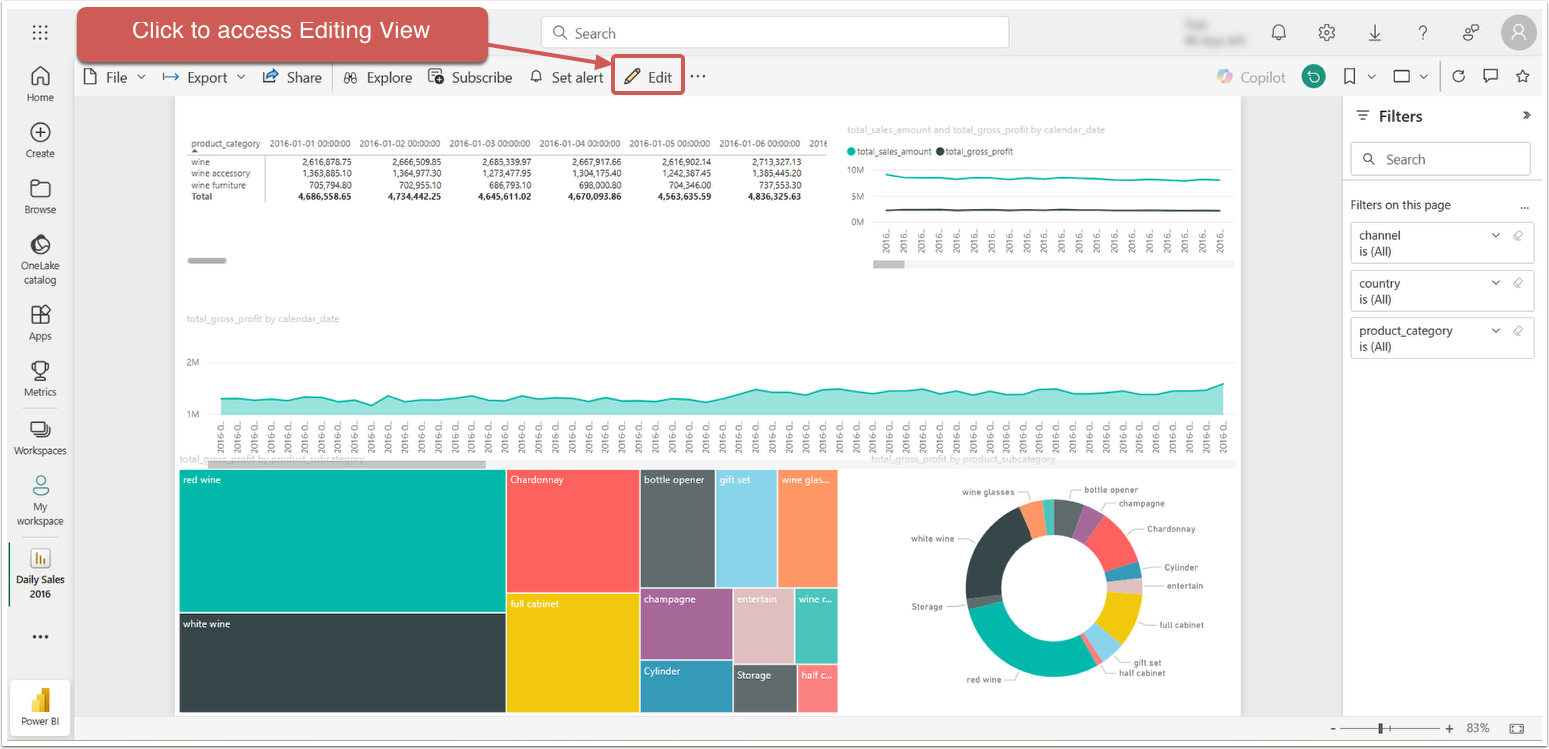
From the report, click [Edit Report].
2. Identify Table Names and Column Names in Power BI
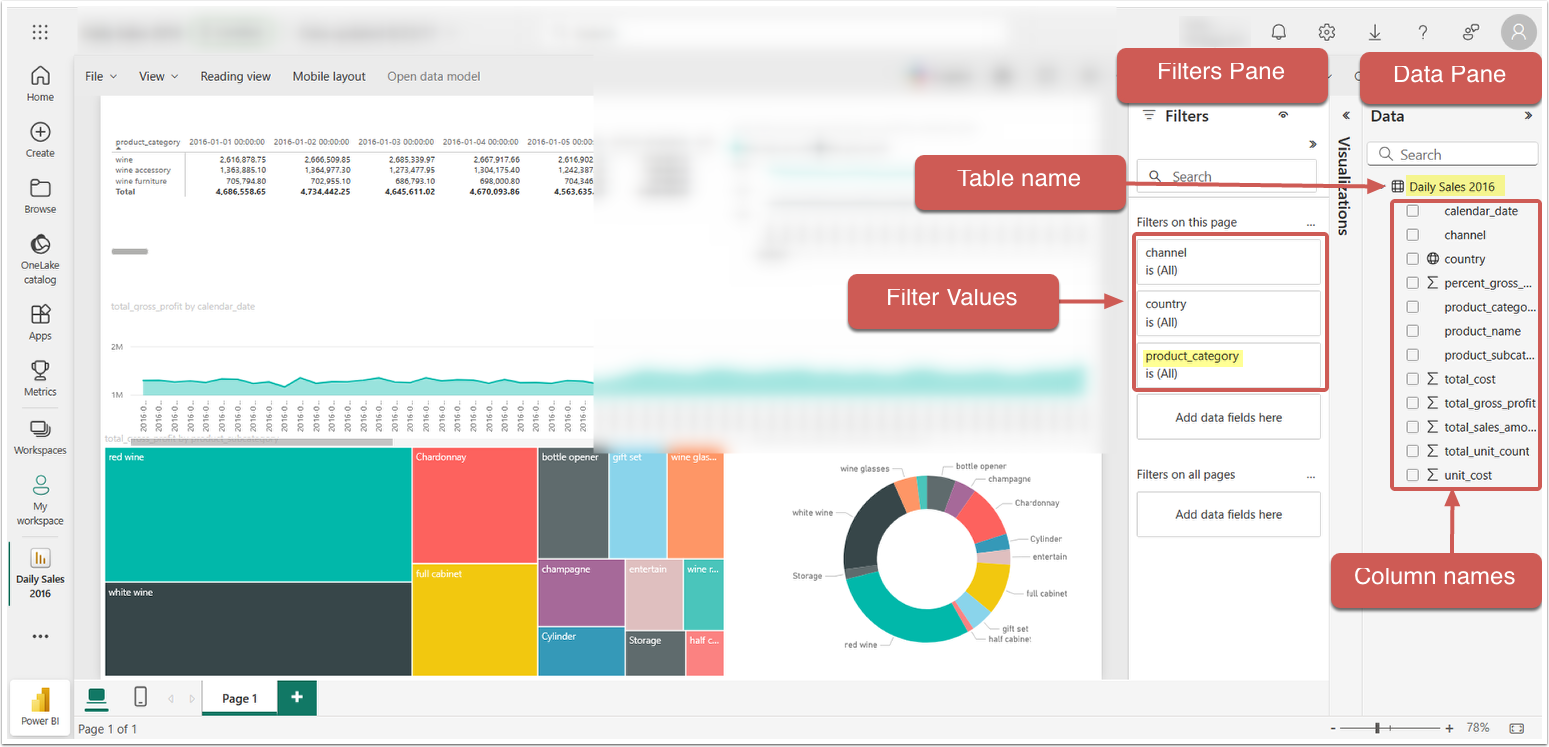
When in Report Edit mode:
- In the Data pane, you will see table and column names.
- Join the table and column name with a period, like
table.column(no space between the names).- This is the Microsoft Power BI Cloud Filter Name to use when building External Reports in Metric Insights.
- Filter values are displayed in the Filters pane. You can use these Filter values when adding them manually to External Reports.