BETA FEATURE: "Talk to Your Data" for Microsoft Power BI Cloud External Reports is a beta feature introduced in v7.2.1. Functionality, configuration steps, and supported options are subject to change as the feature evolves.
NOTES:
- The Tenant.Read.All permission is required to collect Power BI metadata. Metadata collection enables the LLM to learn how the semantic model(s) are structured and to extract measure and dimension metadata for generating DAX statements. Without metadata, the LLM cannot answer questions about the semantic model or build DAX for KPIs. For more information, see Why Tenant.Read.All Permission Is Required.
- This feature sends report data to Concierge and, by extension, to the configured LLM. Ensure that data sharing with the LLM is acceptable for the reports used with this feature before proceeding.
Talk to Your Data, introduced in v7.2.1, lets users ask plain-language analytical questions while viewing Power BI Cloud External Report(s) in Metric Insights. Questions are answered in the context of any filters the user has applied to the Report, and can address comparisons, anomalies, and metric breakdowns across Dimensions: the kinds of questions that filters and slicers cannot answer on their own.
Concierge powers this experience. It first tries to answer questions natively from the Power BI Semantic Model. If it needs more information, it can then route to available third-party agents registered as Domains: any MCP-compatible tool, such as Snowflake Cortex or Databricks Genie.
The Concierge experience can also be built into Custom Apps. This requires code modifications to the App. Please reach out to Metric Insights Support for help modifying any existing Custom App to include Concierge.
When Use User Token is enabled on the Report (see Step 7: Enable the 'Use User Token' Option), queries run under the user's Power BI identity, so users see only data they are already permitted to see in Power BI.
To enable this functionality, ensure ALL of the prerequisites are met, then follow the steps below.
PREREQUISITES:
- An External Report from Microsoft Power BI Cloud.
- The Azure App used in the Metric Insights Data Source must be configured for OAuth and must be granted Dataset.Read.All and Tenant.Read.All permissions.
- The Metric Insights Data Source of the External Report must have the OAuth Auth Type.
- The External Report must have the Power BI OAuth Report Profile.
- Concierge must be installed and configured. See Installing and Configuring Concierge v7.1.2.
TABLE OF CONTENTS:
1. Grant Tenant.Read.All Permission
Access Microsoft Azure > App registrations > open the Azure application for Power BI
NOTE: Credentials of this Azure application will be used for the Data Source connection in Metric Insights.
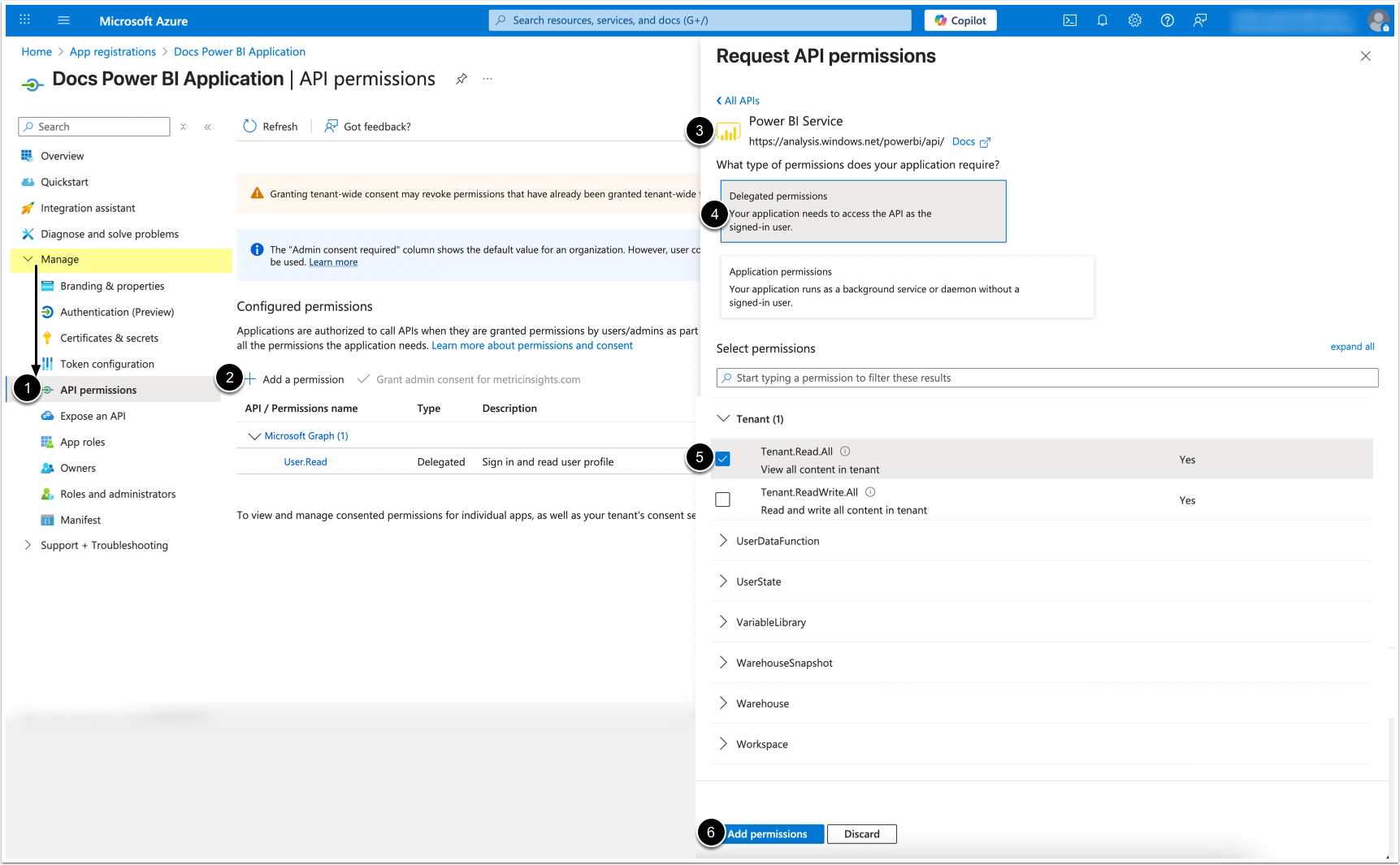
- Under Manage, click on API Permissions.
- [ + Add a permission]
- Scroll to and select Power BI Service.
- Click on Delegated permissions.
- Under "Tenant", find and check Tenant.Read.All
- [Add permissions]
2. Enable ENABLE_TALK_TO_YOUR_DATA System Variable
Access Admin > System > System Variables

- Enter
ENABLE_TALK_TO_YOUR_DATAin the search box. - Locate the ENABLE_TALK_TO_YOUR_DATA System Variable, select the gear icon, assign the value to Y, then [Save]
- [Commit Changes]
3. Check the MI Data Source Configuration
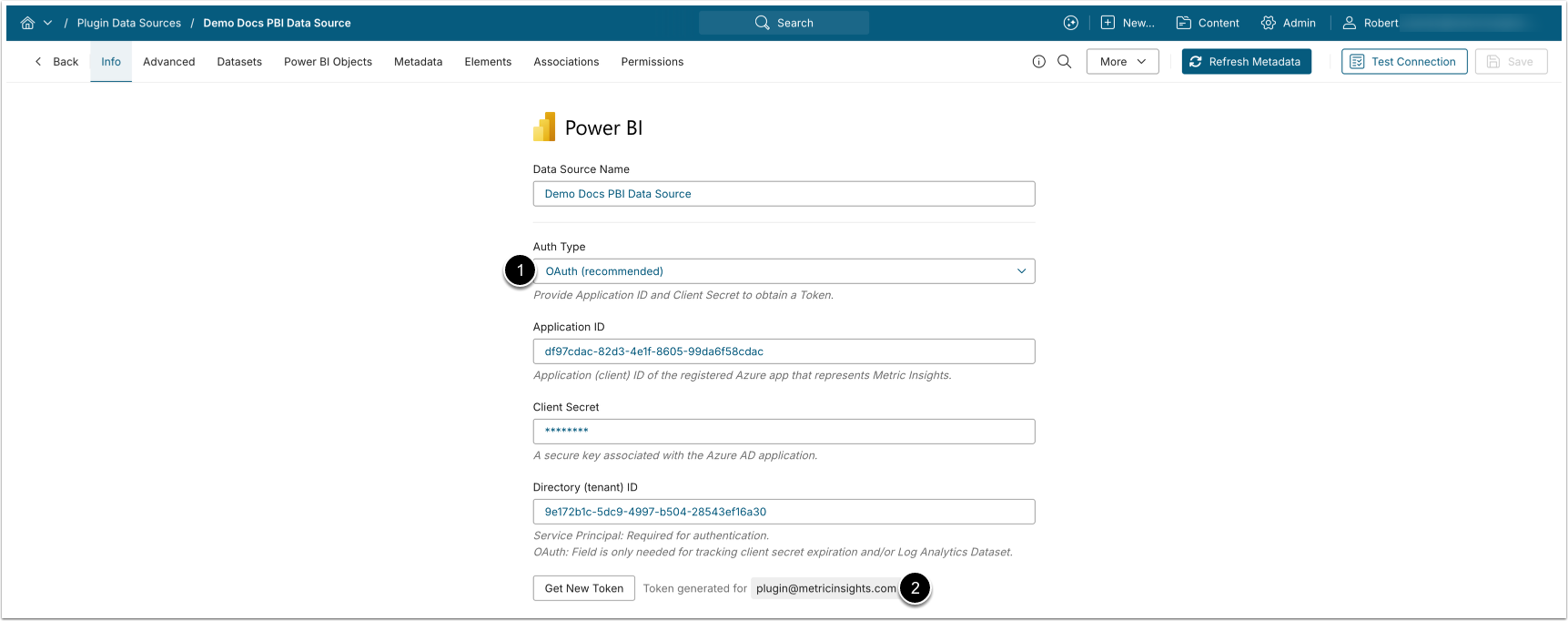
NOTE: See Configure Microsoft Power BI OAuth in Azure AD for details on creating a new Metric Insights Data Source that uses OAuth.
- Ensure that OAuth Auth Type is selected.
- Verify that the Token has been generated for the User, who has access to the corresponding Power BI objects.
3.1. Refresh Object List (Required for New MI Data Sources or Tokens)
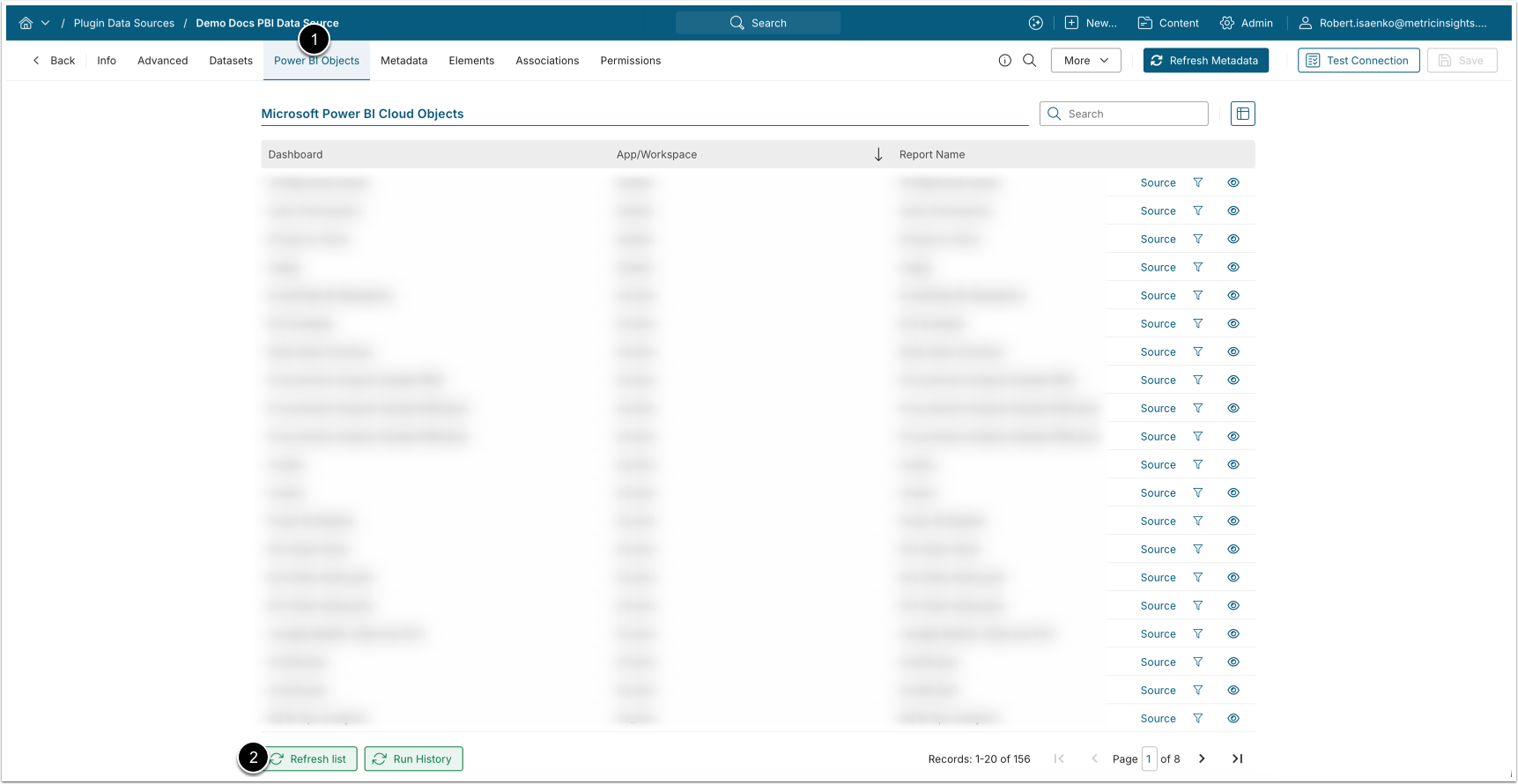
NOTE: If the MI Data Source is new, or if the Token has been generated for a new user, refresh the Power BI Object list prior to syncing metadata. Otherwise, proceed to sync metadata.
- Access Power BI Objects tab
- Scroll to the bottom of the page, click [Refresh list]
4. Sync Metadata
Access the Metadata tab
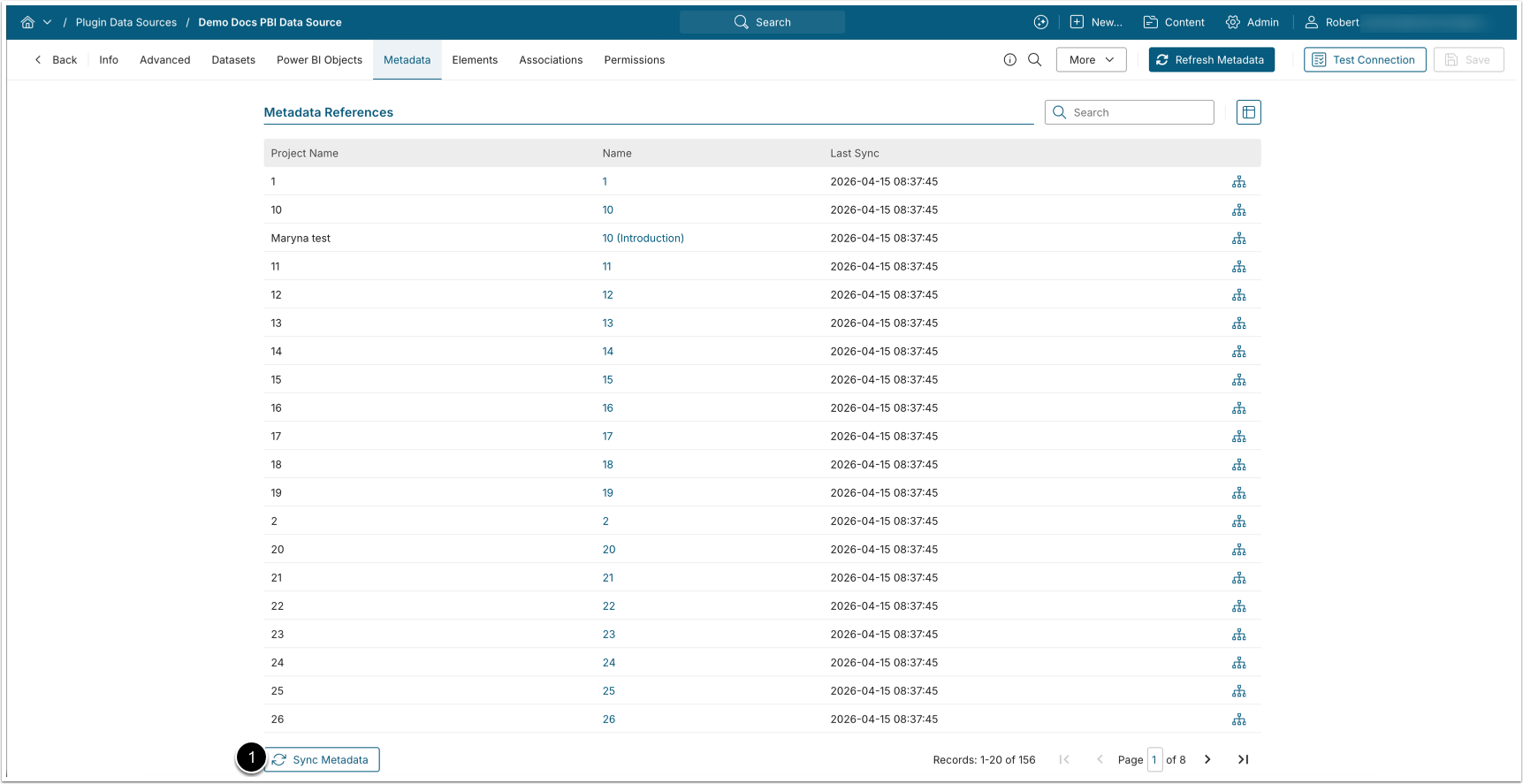
- [Sync Metadata] at the bottom of the page to update the learnings for the External Report and improve Concierge answer speed.
5. Verify External Report Profile
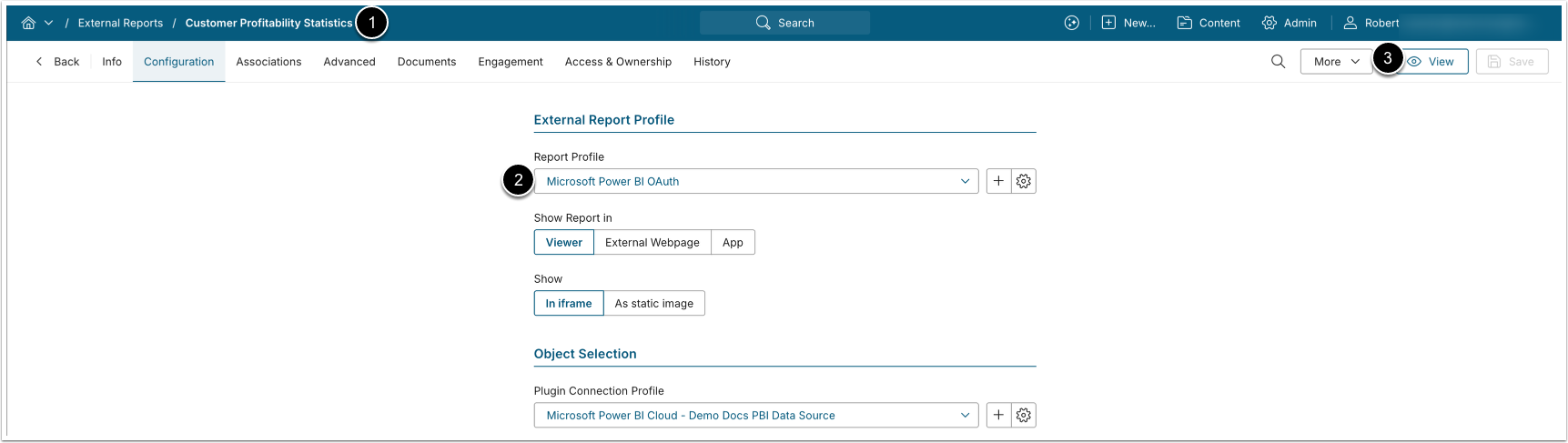
- Open the External Report.
- Verify that the External Report's Profile is set to Microsoft Power BI OAuth.
- [View] to open the external report in the viewer for the next step.
6. Enable Talk to Your Data for the External Report
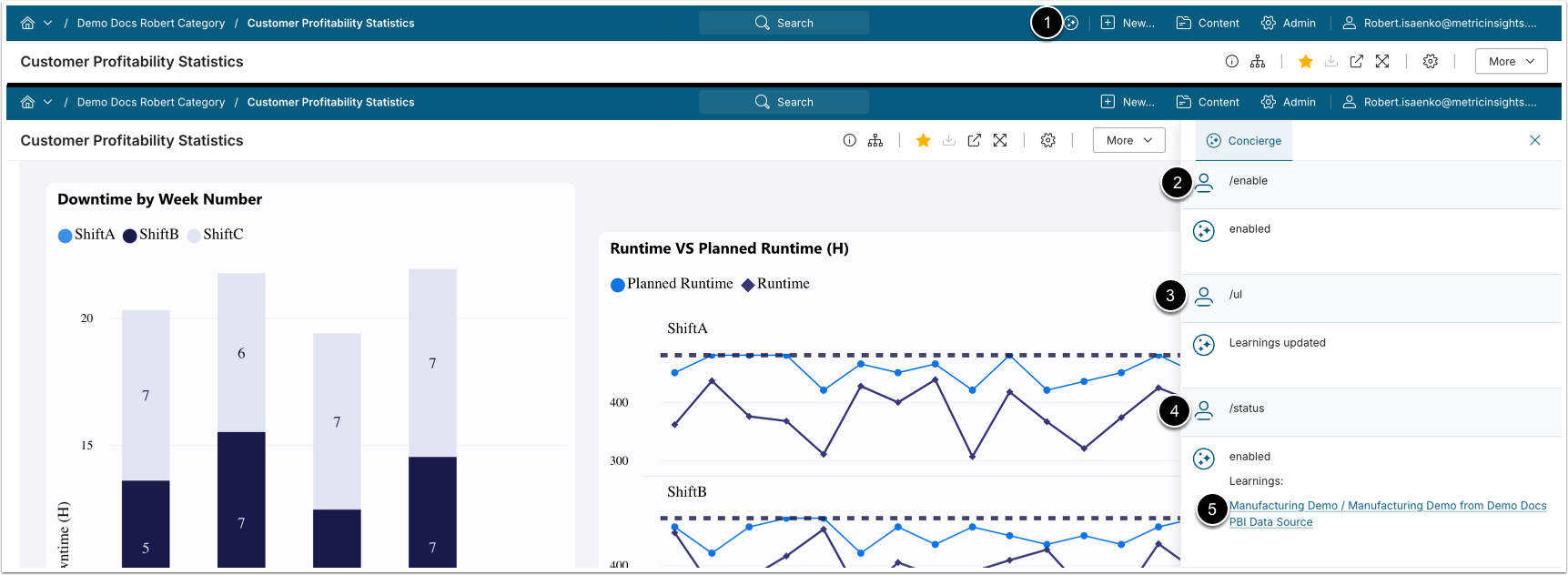
- Open Concierge.
- Enable "Talk to your data" for the External Report by entering the following slash command:
/enable- NOTE: On first use, several popups appear prompting authorization of Talk to Your Data on the Azure App side. Complete each authorization step before proceeding.
- Update learnings:
/ul - Verify the status of learnings:
/status - Access the generated learnings.
Talk to Your Data slash commands:
- /enable: Enables Talk to Your Data feature in the External Report.
- /ul or /updatelearning: Updates learnings.
- /status: Shows whether Talk to Your Data feature is enabled or disabled and shows a link for learnings that have been collected.
- /llm_log: Shows a detailed log of the current session.
- /disable: Disables Talk to Your Data feature and lets the user to query regular Concierge.
7. Enable the 'Use User Token' Option
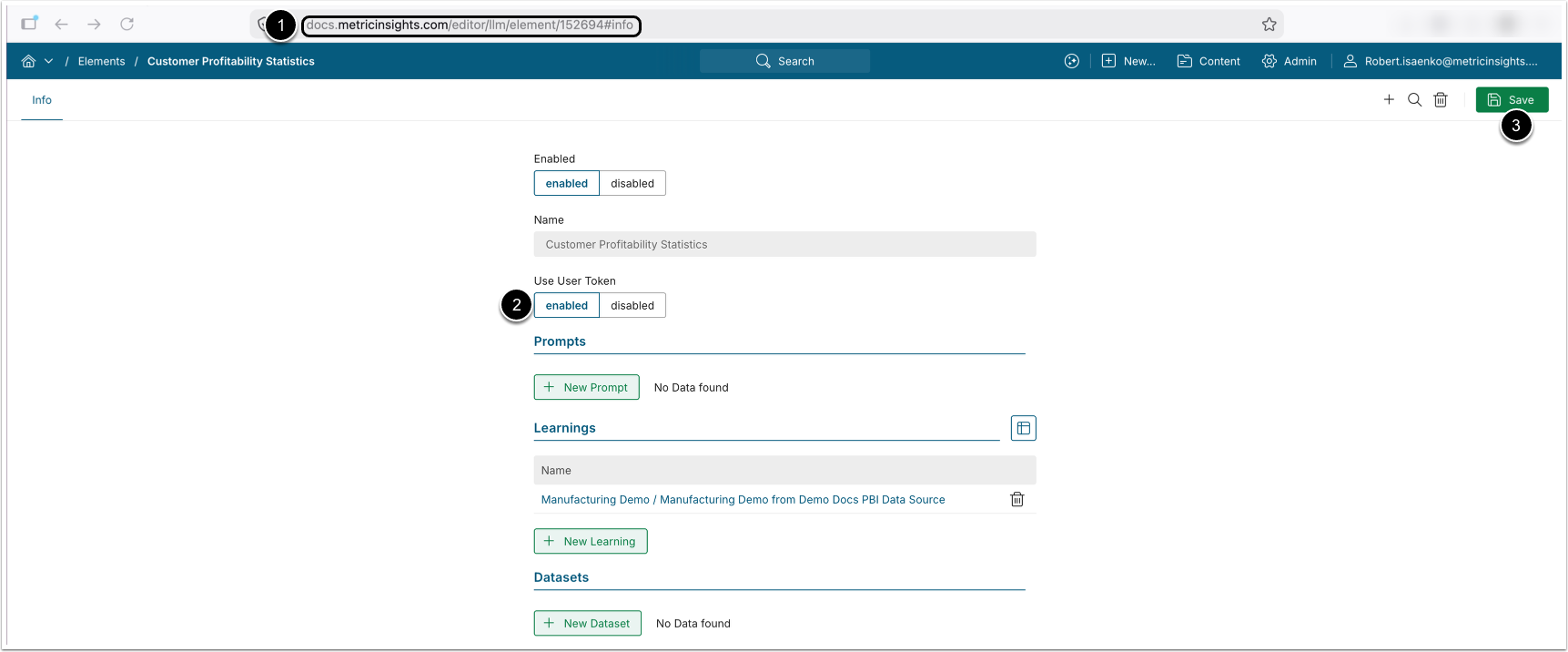
Recommended Configuration:
- Enabling the Use User Token option is highly recommended. This option limits the scope of accessed metadata to the user's permissions in Power BI, eliminating potential security risks related to service account credential usage.
- Navigate to:
https://<MI_hostname>/editor/llm/element/<Element_id>#infoto access the Element's Learnings configuration. Replace the following placeholders:<MI_hostname>: The hostname of your Metric Insights server.<Element_id>: The ID of the Microsoft Power BI Cloud External Report.
- Ensure the Use User Token option is enabled.
- [Save] if the configuration has been changed.
8. Talk to Your Data
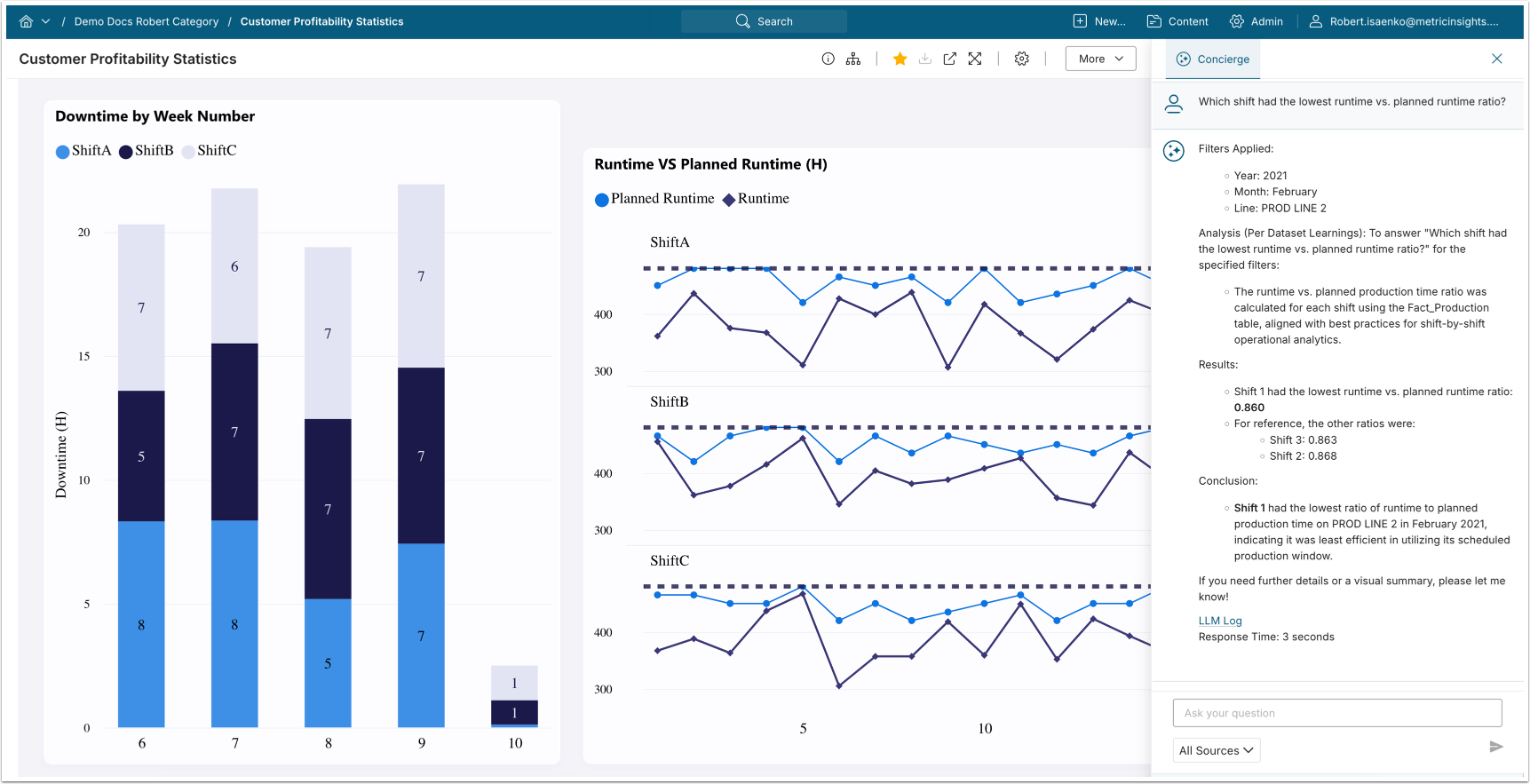
After verifying the learning configuration, setup is complete. Navigate back to the External Report viewer and ask questions about this External Report in the Concierge panel.