This article describes a first step of Connecting to Databricks MCP Server. Enable the MCP Server usage, generate Token and copy all the
In this article:
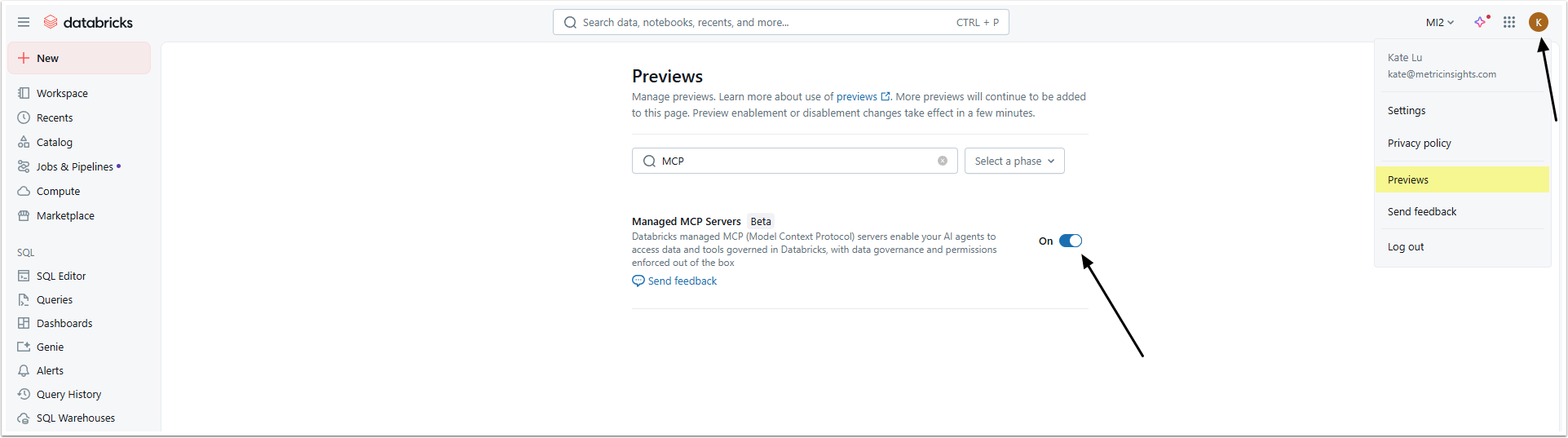
- Enable MCP Server Usage
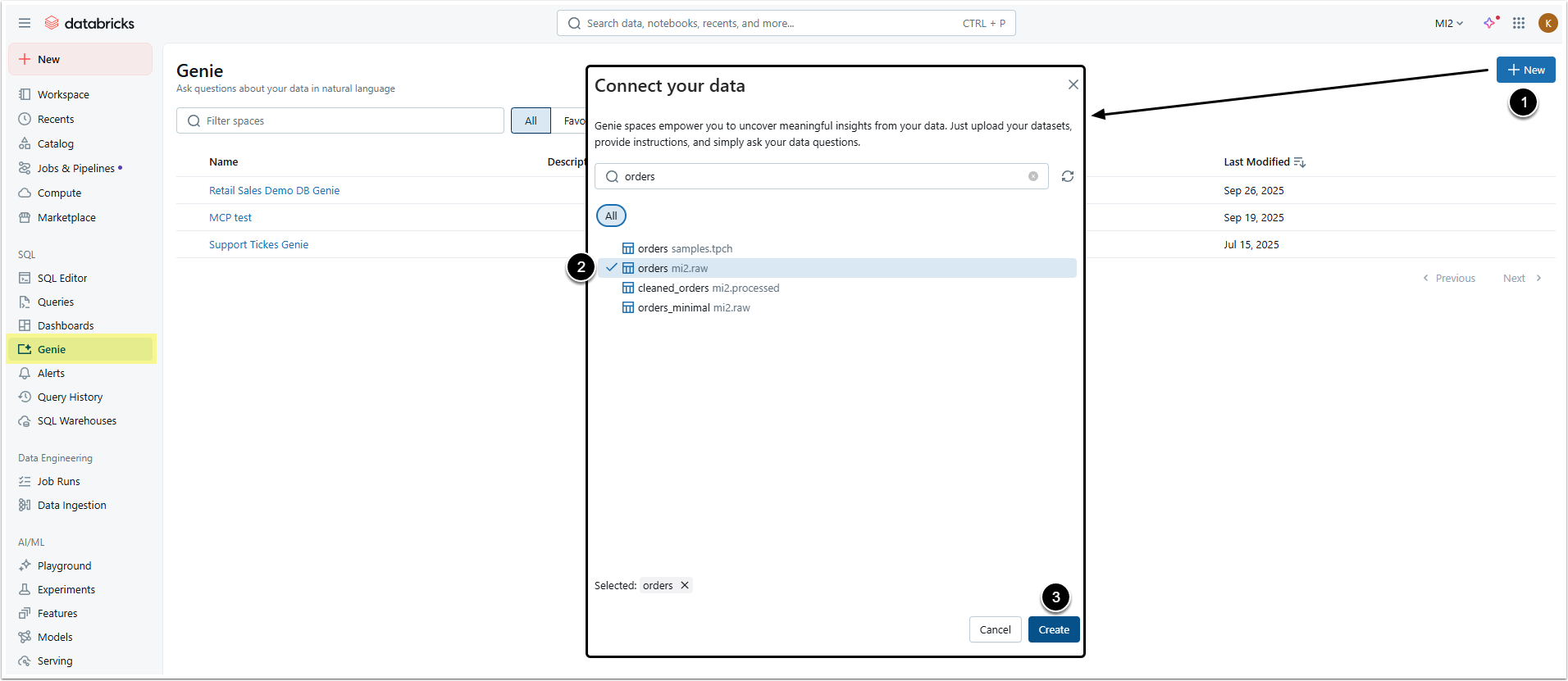
- Create New Genie Space
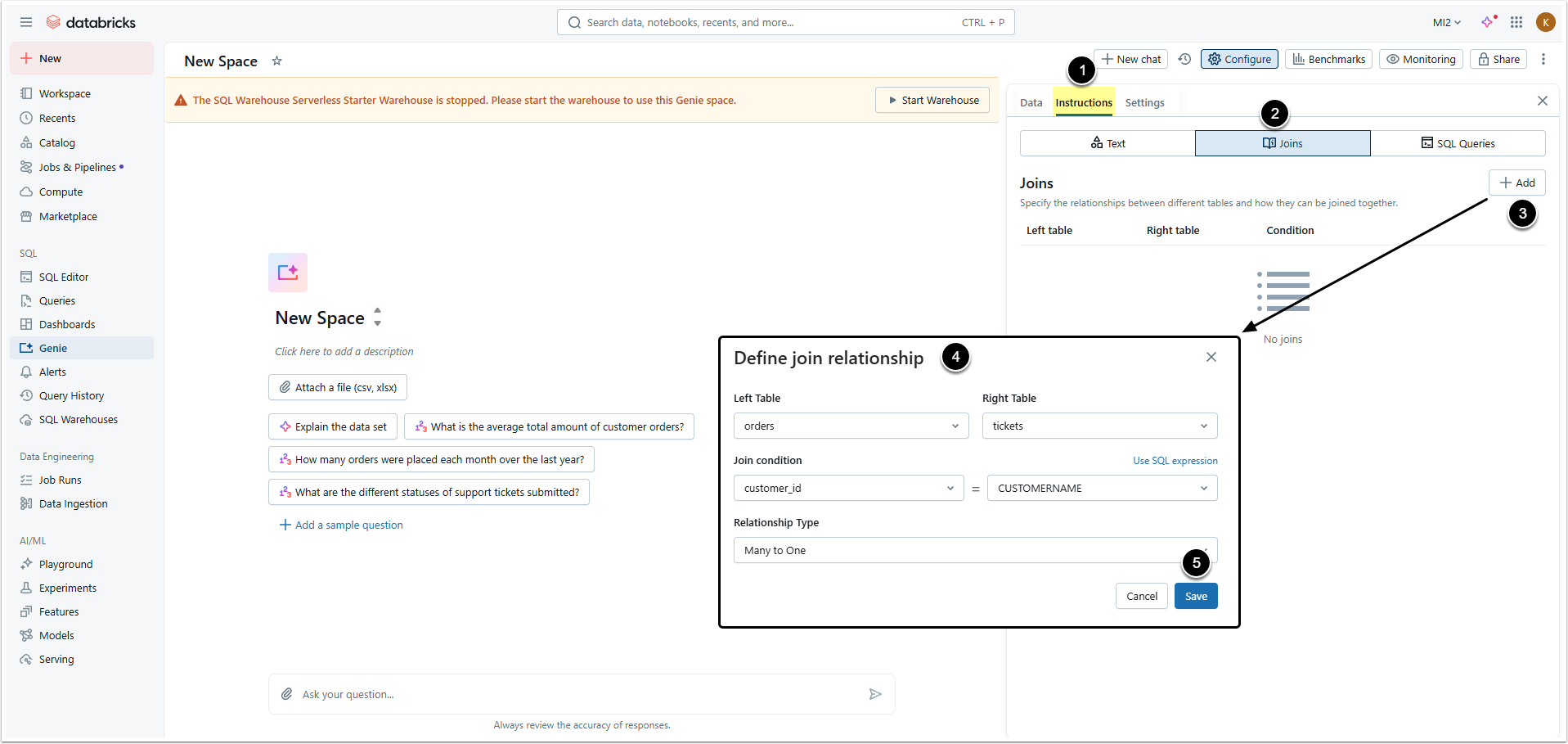
- Create Joins (Optional)
- Add New Autoimport
- and server URL target=" _self"="" data-internal-anchor="">Add New Autoimport.
5. Collect Data for Auth Type: Defined in Configuration
If you have chosen "Defined in configuration" Auth Type, collect the Token.
5.1. Open Token Management Page
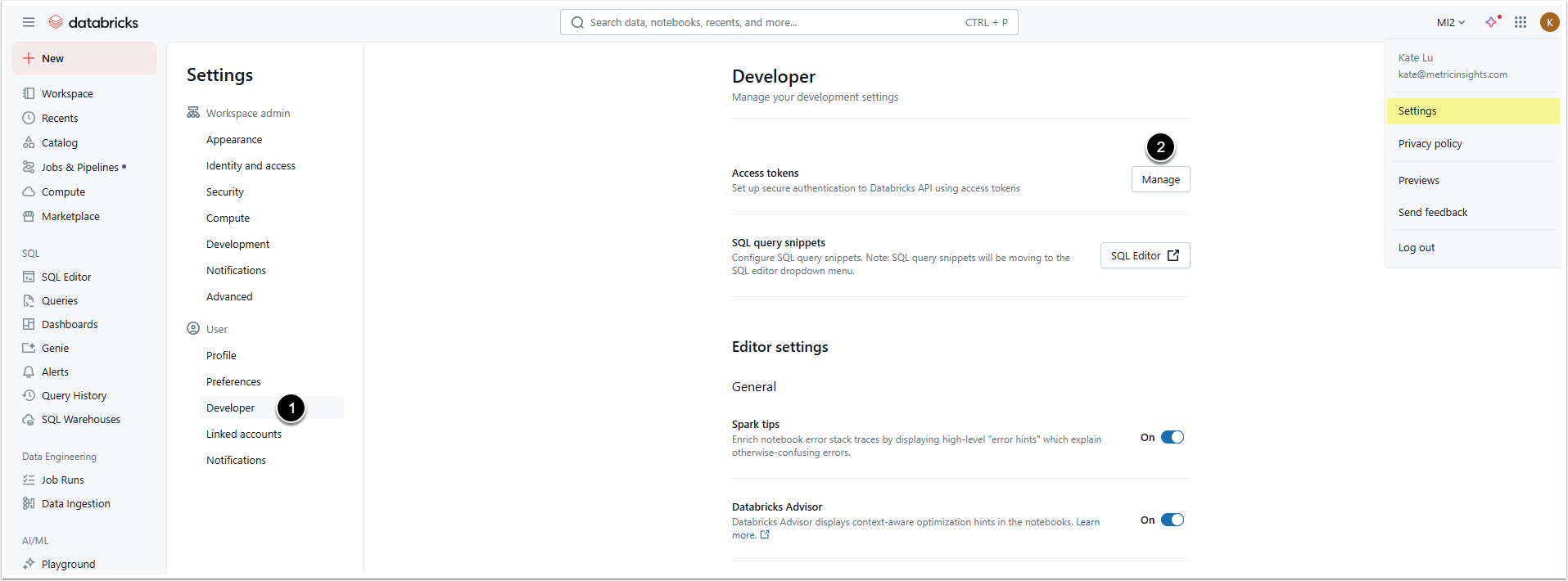
Open the user menu and select Settings.
- Open the Developer settings page.
- Click [Manage] in the Access tokens section.
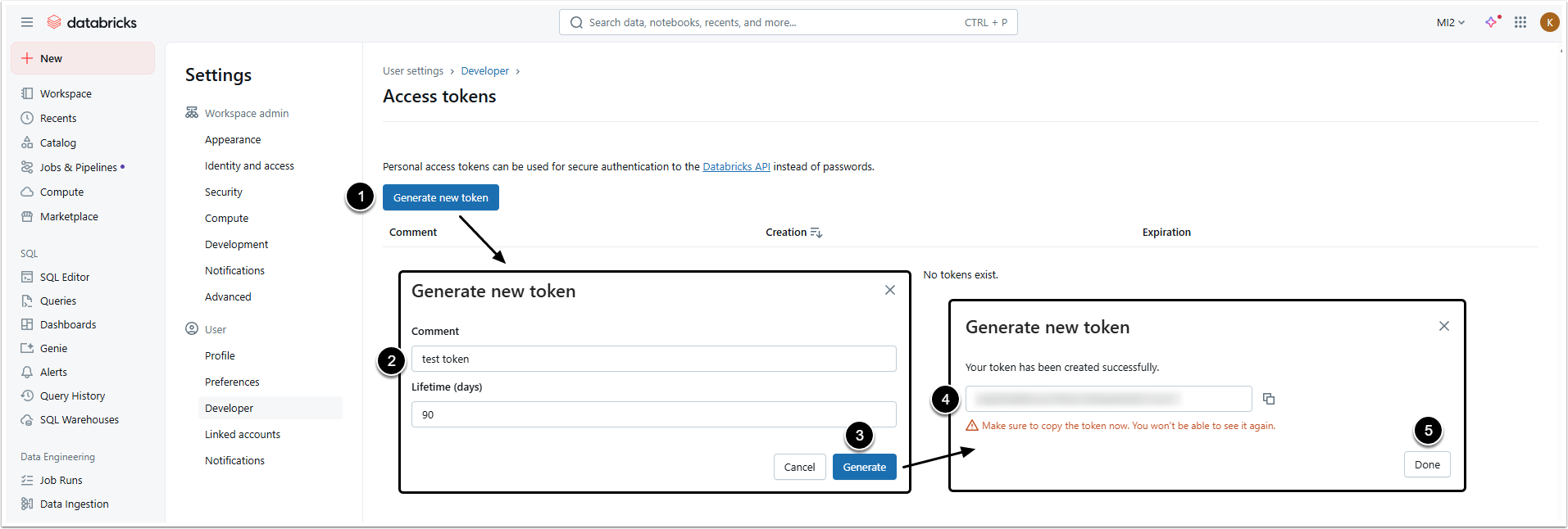
5.2. Generate Token
- [Generate new token]
- Comment: Give the token a description.
- [Generate]
- Copy the token, you won't be able to check it again later.
- [Done]
6. Collect Data for Auth Type: Service Account Token
If you have chosen "Service Account Token" Auth Type, collect Application ID, Client Secret Value and Server URL. After that, give the Service Principal some Permissions and share it with Genie Space.
6.1. Collect Application ID
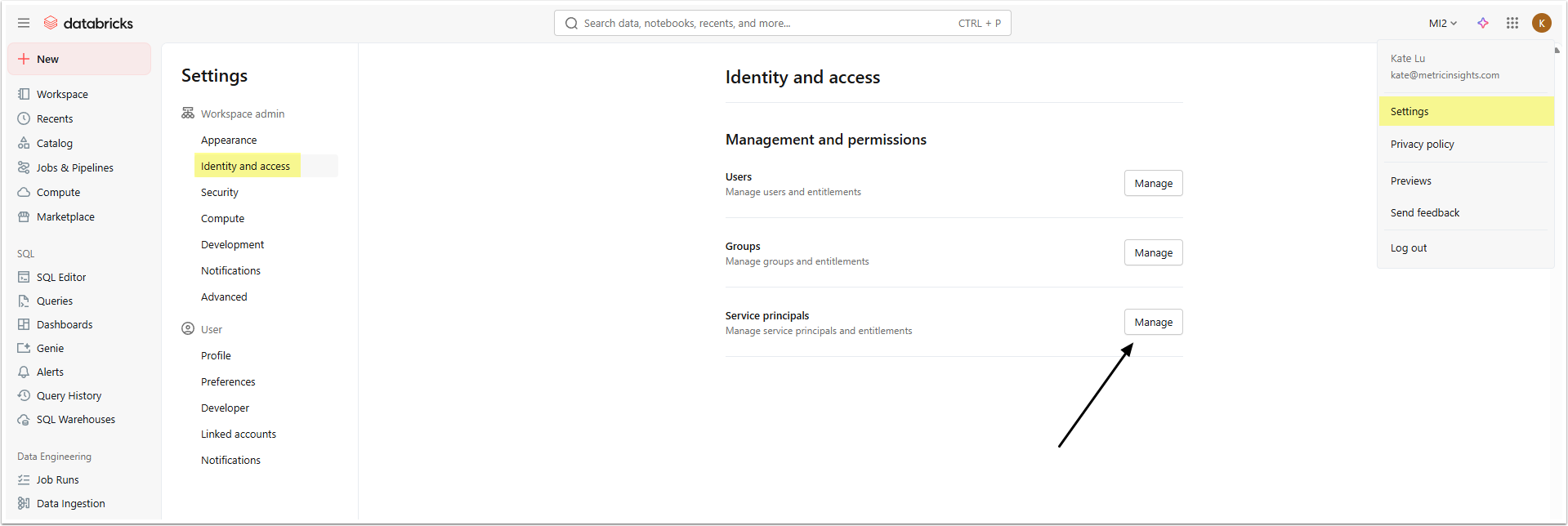
Open the Databricks account and access User menu > Settings > Identity and access
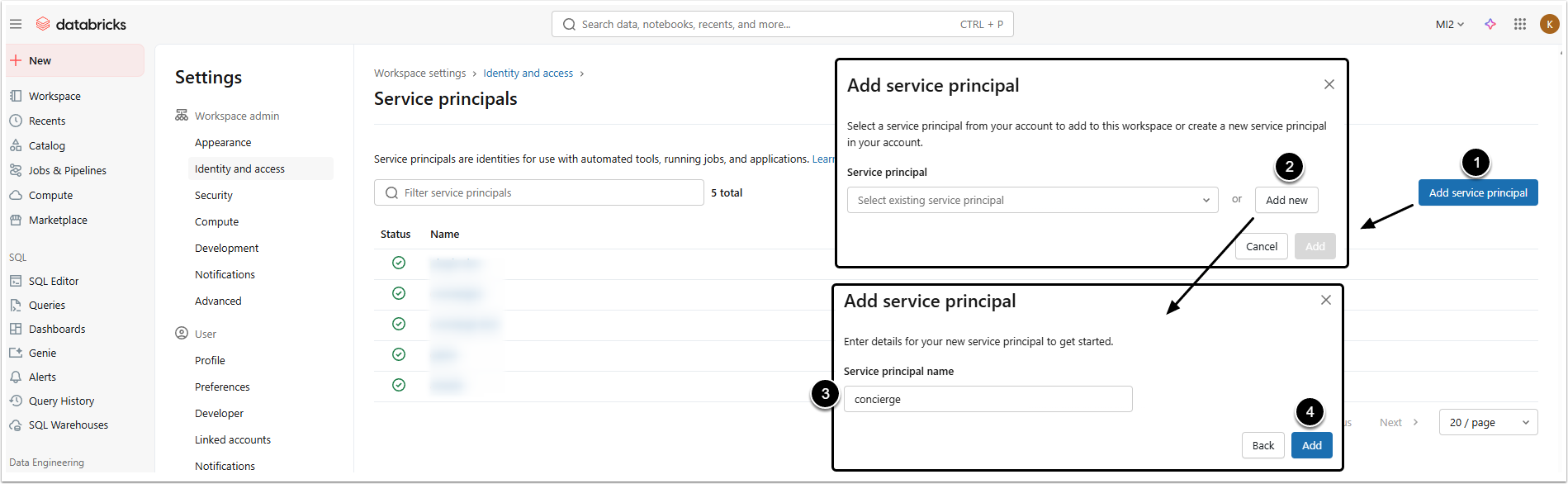
Click [Manage] in Service principals section and create a new Service principal.
- [Add service principal]
- [Add new]
- Provide a Service principal name.
- [Add]
The new service principal will appear in the list. Copy the Application ID.
6.2. Collect Client Secret Value
Click the name of the created service principal to open its editor and go to Secrets tab.
- [Generate secret]
- Set the lifespan of the Secret.
- [Generate]
- Copy the Secret. You won't be able to see it again!
- [Done]
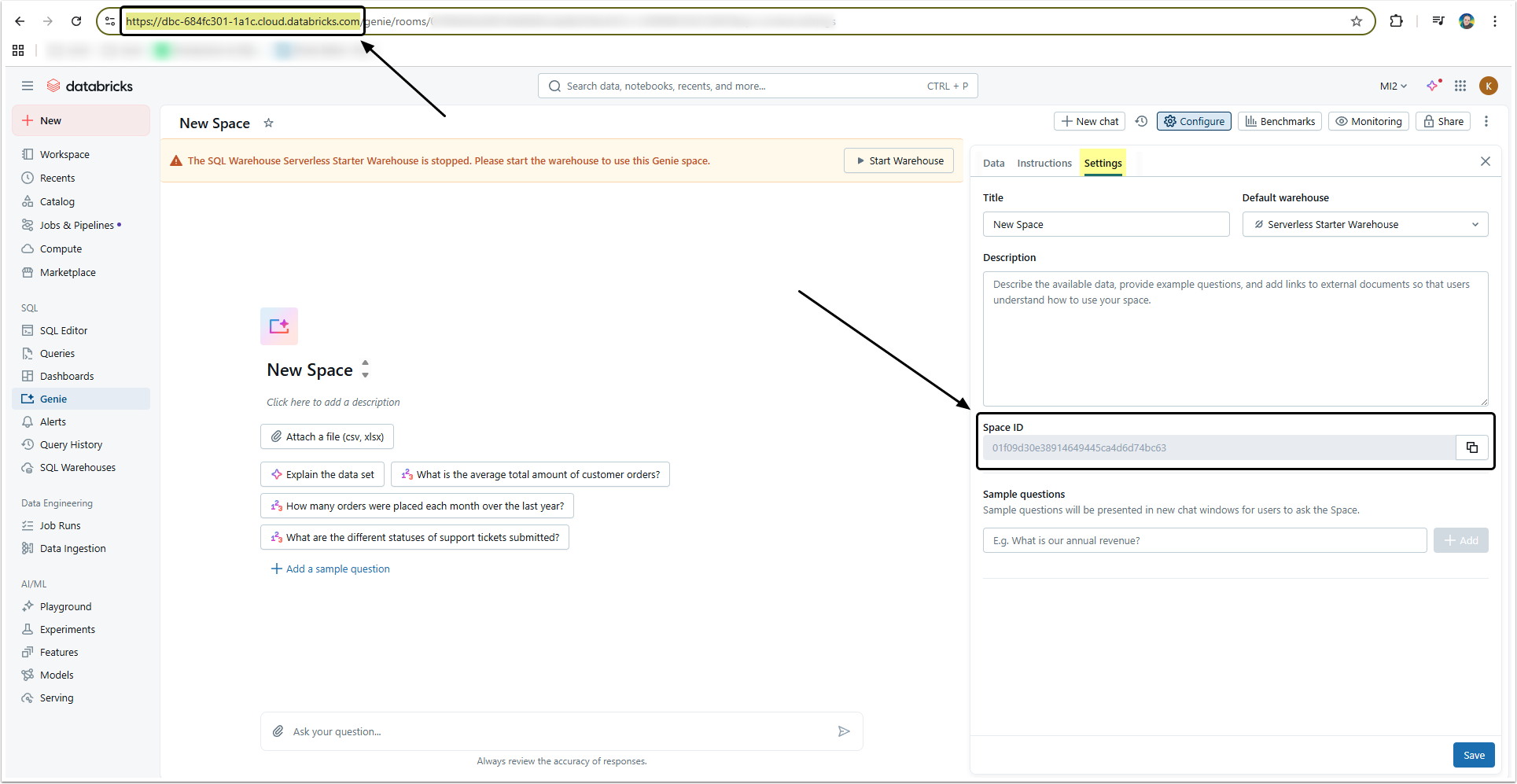
6.3. Collect Server URL
It is he same that was obtained in the Step 4.
6.4. Give Service Principal Permissions
Go to Catalog and open the specific one that will be used with Concierge. Open Permissions tab.
- [Grant]
- Principals: Select the created service principal.
- Grant that principal the SELECT and USE SCHEMA privileges.
- [Confirm]
6.5. Share Principal with Genie Space
Access Genie and click the necessary Space name to open the editor.
- [Share]
- Select the created service principal.
- Select "Can Manage" option.
- [Add]