Bookmarks are custom Filter combinations that can be saved. Bookmarks are User-specific and only accessible to those Users who configured them. They can also function as the source for Report Notifications. When a Bookmark is selected, its Filter combinations are delivered via email. Bookmarks can be set for Reports and External Reports.
NOTE: Bookmarks can be created only for External Filter combinations. If the Report or External Report doesn't have External Filters set up by the Element creator, the Bookmarks icon is not shown in the Viewer.
1. Setting Bookmarks for Report Viewer
Personalized Bookmarks can be created from the Report Viewer or the External Report Viewer. Setup options available in the Bookmark pop-up enable Users to override naming and display priority defaults.
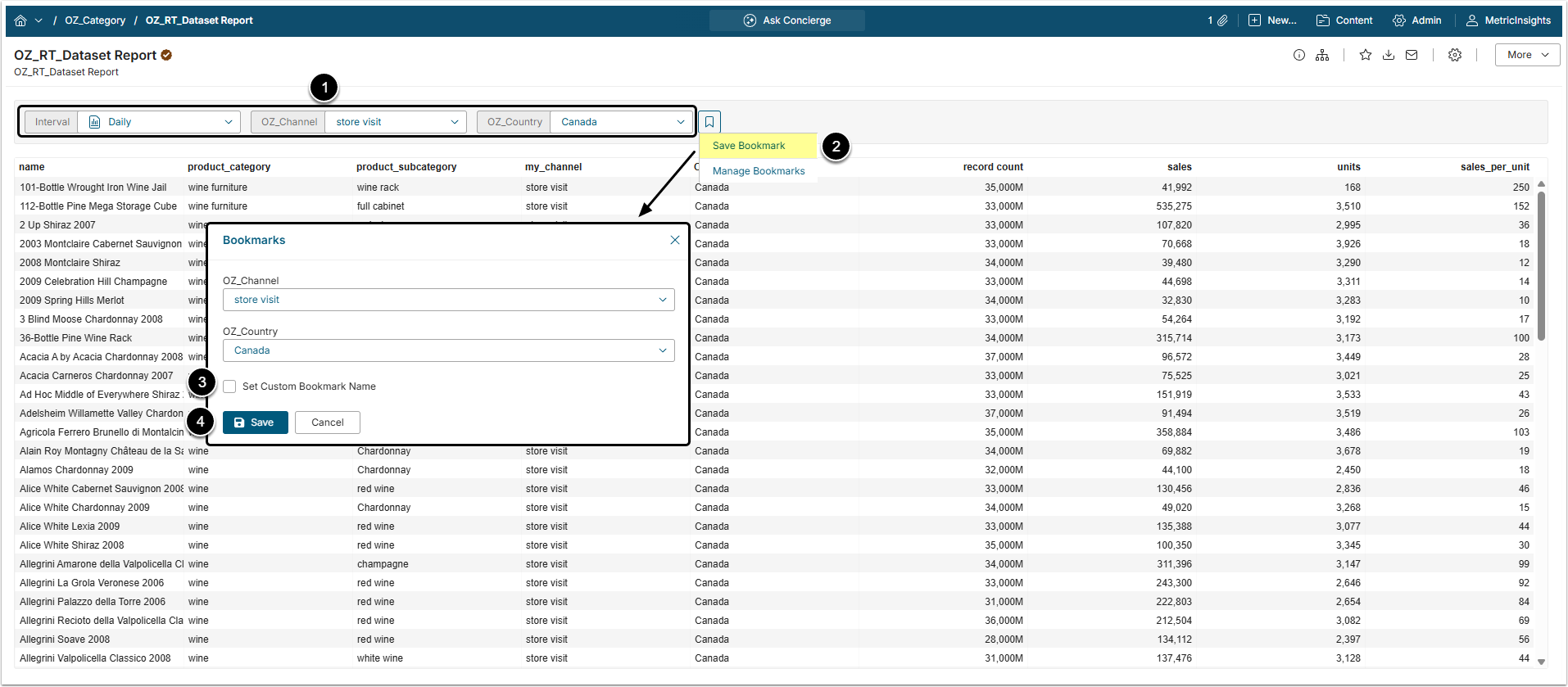
- Set the Filters to the viewing options you want as your personal Viewing defaults.
- Open the Bookmark menu dropdown and select Save Bookmark.
- In the Bookmark window check the chosen Filter preferences. You can also set a Custom Name for your Bookmark.
- [Save]
You can continue to save multiple Bookmarks based on changed filter values. The most recently added will become your default bookmark.
2. Managing Bookmarks
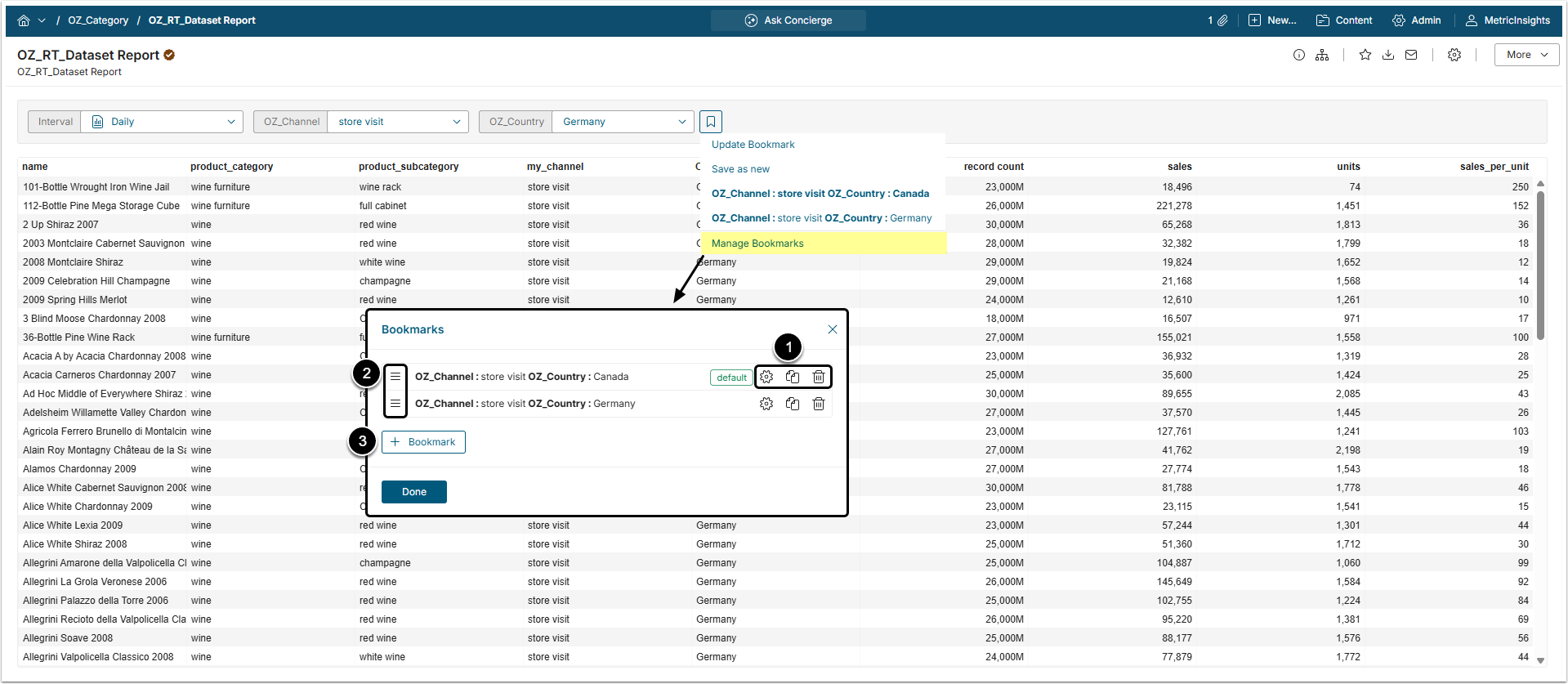
Click the Bookmarks icon and select Manage Bookmarks in the dropdown menu. In the Bookmarks window you can:
- Edit, Duplicate, or Delete Bookmarks.
- Drag Bookmarks to reorder them. The top Bookmark will always become the default.
- Add new Bookmarks.