In order to connect to your Metric Insights server from Windows, you will need to install an SSH client such as PuTTY. This article assumes that you will use PuTTY.
TABLE OF CONTENTS:
1. Download PuTTY and PuTTYgen
PuTTY and PuTTYgen can be downloaded from https://putty.org/index.html. They are executable files, no installation is required.
2. Use PuTTYgen to Generate a Public/Private Key Pair
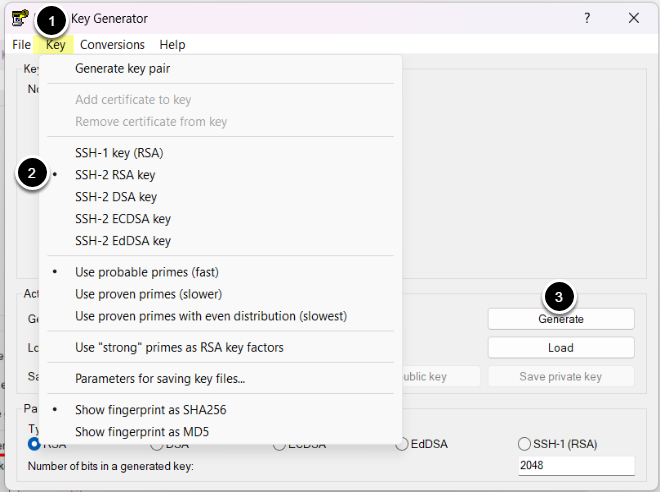
Start PuTTYgen and generate a public/private key pair:
- Access Key
- Select SSH-2 RSA key. We recommend keys with at least 2048 bits.
- [Generate]
3. Save Your Public and Private Keys
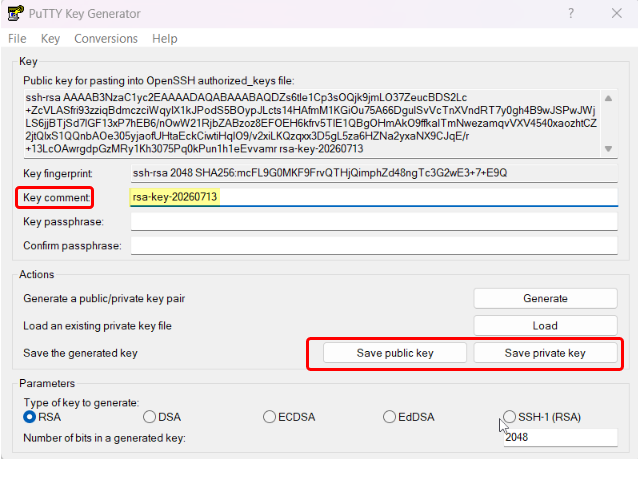
Enter a "key comment" that will help you to remember the purpose of the key-pair, then save the public and private keys that you generated. Send the public key to the person who administers your Metric Insights server. Keep the private key to yourself, treat it like a secret password. (You can protect your private key with a "key passphrase" if you like.)
4. Create a New SSH Connection
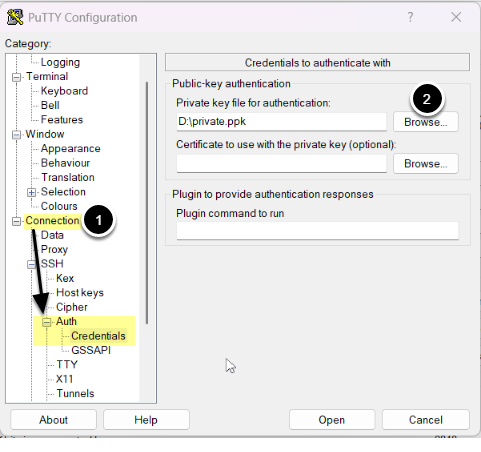
Start PuTTY:
- Access Connection > Auth > Credentials
- [Browse], then select your private key generated on the previous step.
4.1. Enter the Hostname for Your Metric Insights Server
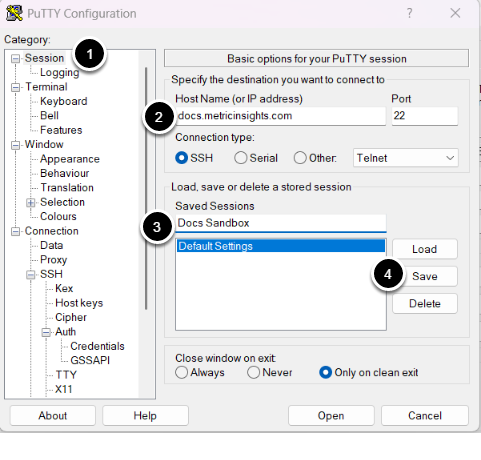
- Access Session
- Enter the hostname for your Metric Insights server.
- The port number should be set to 22, that's the default port for SSH connections.
- Enter a name for your new SSH connection.
- [Save]
5. Connect to Your Metric Insights Server
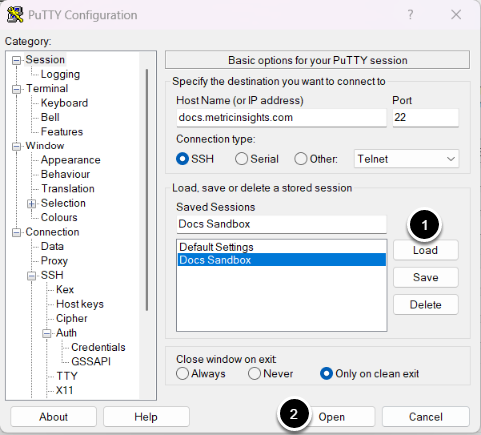
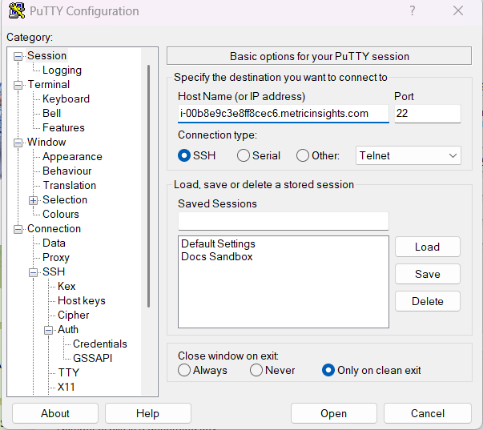
- [Load] the connection that you created in the previous step.
- [Open]
5.1. Ignore the Warning Message
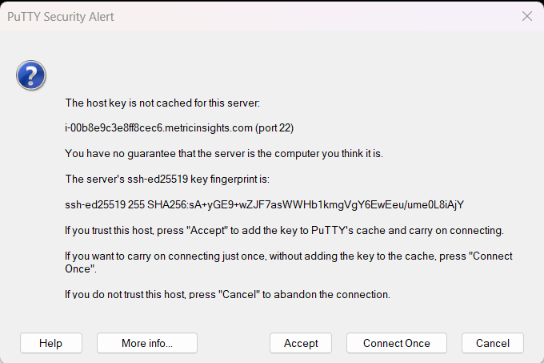
If this is the first time you're connecting to your Metric insights server, you may receive a warning message. Assuming that you've entered the correct hostname for your server, you can ignore the warning.
6. Login as Root
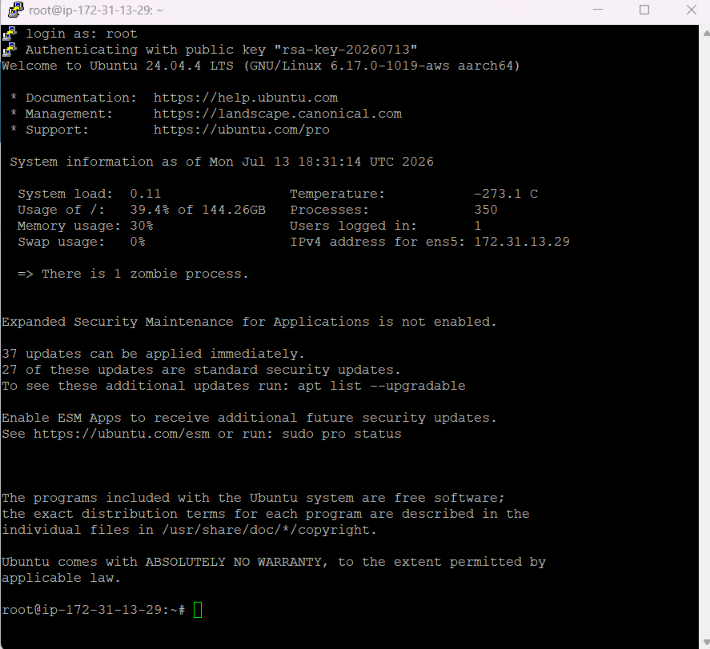
Enter 'root' at the login prompt. Assuming that your Metric Insights administrator has correctly installed your private key, you will not be prompted for a password.