Beginning in v7.2.0, you can automate API testing using Playwright. The test suite helps consistently verify authentication, permissions, and API endpoint behavior across different environments.
The Playwright-based API tests support:
- Automated validation of core API functionality;
- Execution against multiple environments (for example, dev, staging, production);
- Secure configuration using environment-specific
.envfiles.
This guide walks you through setting up the test suite, configuring required credentials, verifying your setup, and running tests successfully.
PREREQUISITES:
- Node.js v18 or later
- Git (for cloning the repository)
- Playwright
- Installed automatically via
npm install; - Browsers installed separately.
- Installed automatically via
TABLE OF CONTENTS:
1. Obtain External Application ID and Key
Access Admin > System > External Applications
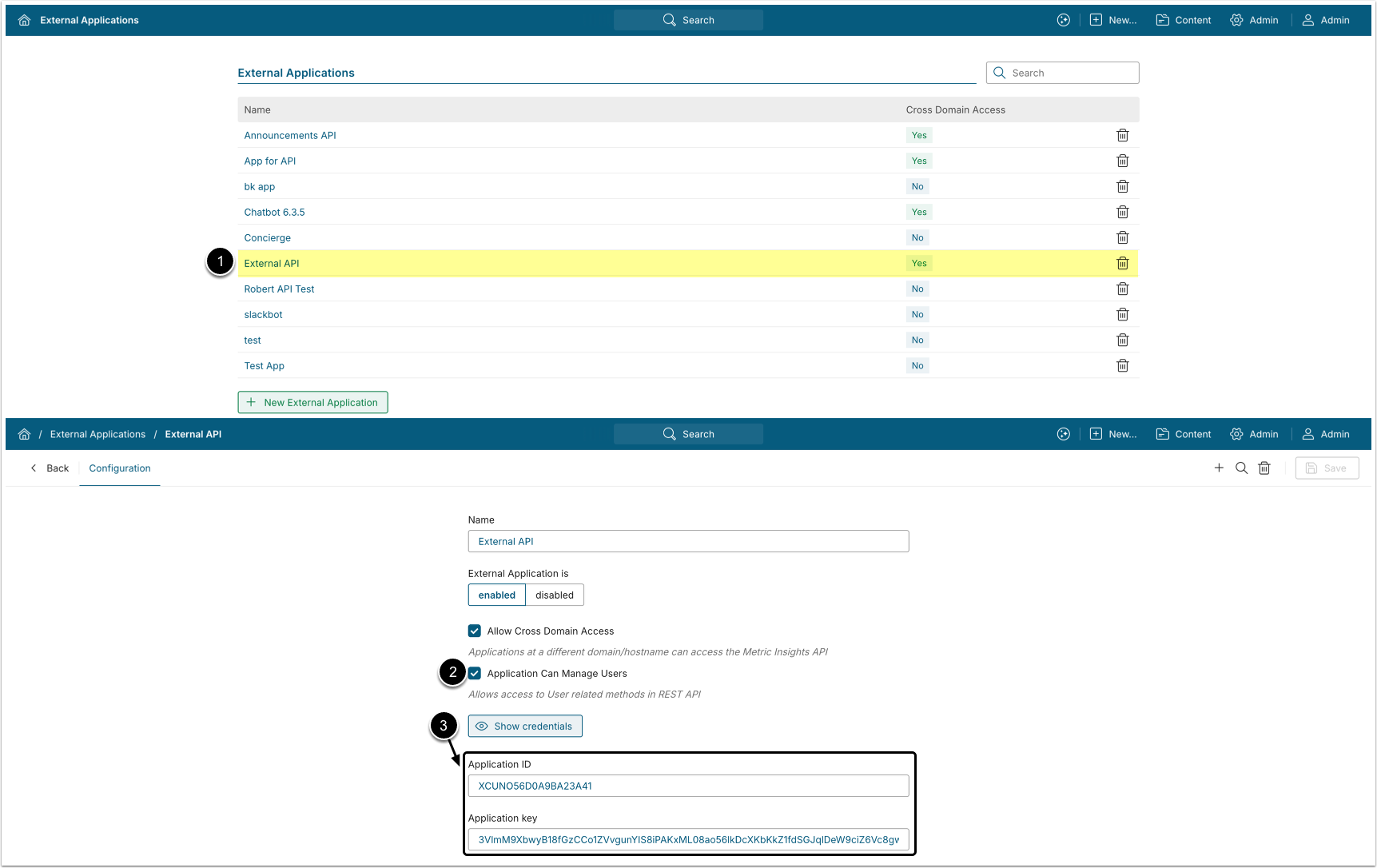
- Select an External Application.
- Enable Application Can Manage Users.
- [Show credentials], copy the values of the Application ID and Application key.
2. Install Test Suite
- Clone the repository and switch to the root directory:
git clone https://github.com/metricinsights/playwright-testing-guide.git
cd playwright-testing-guide- Install dependencies.
- This includes Playwright, TypeScript, and other required packages:
npm install- Install Playwright browsers.
- This step is required only for the first time you run the test suite:
npx playwright install chromium3. Create .env Files
After installing the test suite, create one .env file per environment.
- Single environment:
cp .env.example .env.staging- Multiple environments:
cp .env.example .env.dev
cp .env.example .env.staging
cp .env.example .env.production4. Configure .env Files
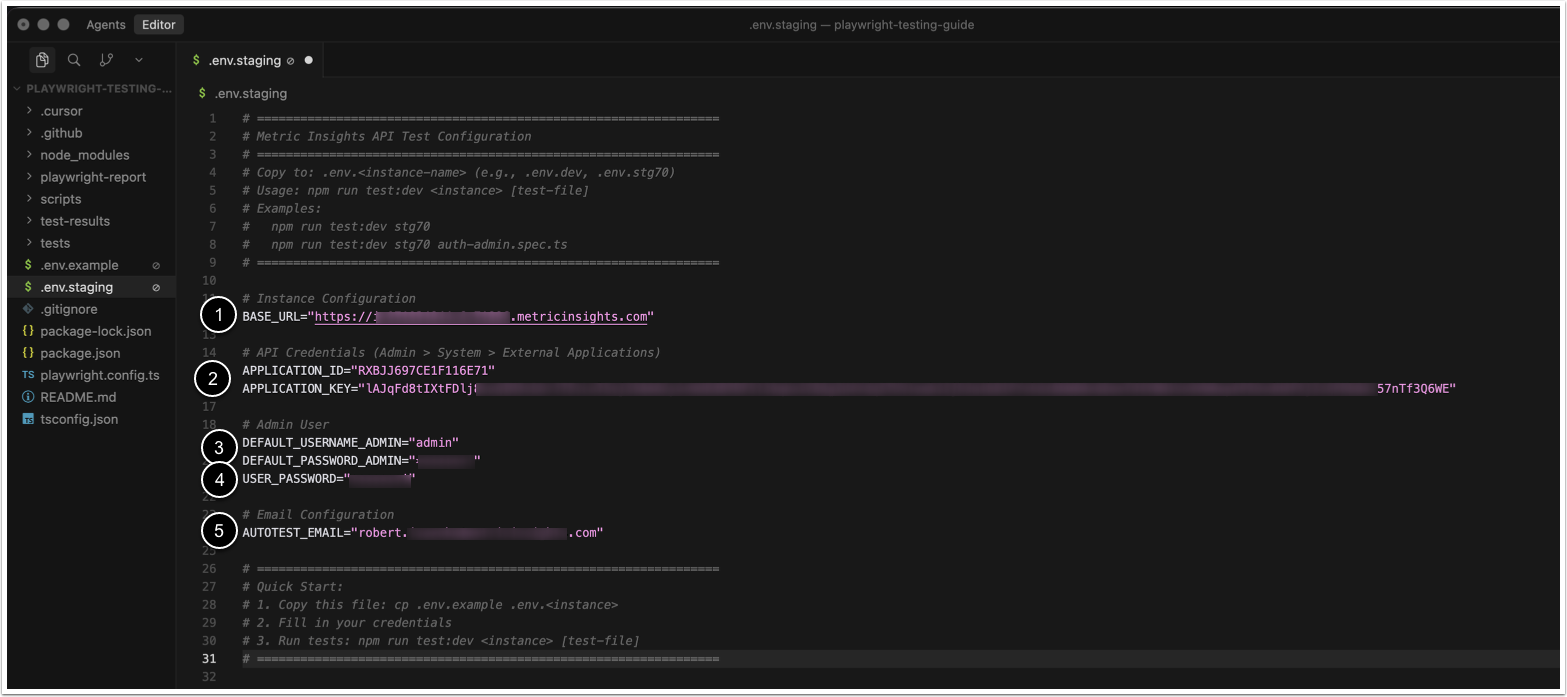
NOTE: All environment variables in the .env files must be defined as strings.
Assign values to the following variables:
BASE_URL: Full URL of the Metric Insights instance.APPLICATION_ID,APPLICATION_KEY: Credentials for the Metric Insights External Application.DEFAULT_USERNAME_ADMIN,DEFAULT_PASSWORD_ADMIN: Metric Insights Admin user credentials.USER_PASSWORD: Password to be used for newly created test users.AUTOTEST_EMAIL: Email address used for creating test users.
5. Verify Setup
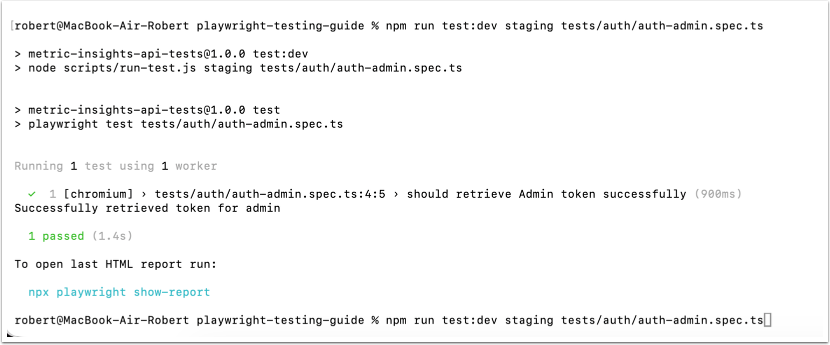
Run a quick test to confirm that your configuration is correct:
npm run test:dev staging tests/auth/auth-admin.spec.ts6. Run Tests
You can run the full test suite or limit execution to specific files or directories.
- Run all tests:
npm run test:dev staging tests/- Run a specific test file:
npm run test:dev staging auth-admin.spec.ts- Run a specific directory:
npm run test:dev staging tests/auth7. Troubleshooting
"Invalid URL" Error
Problem: Tests fail with URL-related errors.
Solution: Check that BASE_URL in .env is correct and includes https://.
"Unauthorized" (401 Error)
Problem: Authentication fails.
Solution:
- Verify that
APPLICATION_IDandAPPLICATION_KEYare correct. - Check that the API user has the required permissions.
- Ensure the admin user credentials are correct.