Beginning in v7.2.2, Metric Insights can apply Power BI row-level security (RLS) automatically to a viewer's report, so each person sees only the rows their Power BI roles allow, across viewing, image capture, and PDF/PowerPoint/CSV exports. This feature is available only for Service Principal authentication.
With RLS context collection turned on, Metric Insights collects the report's RLS roles and their members during metadata sync, looks up each viewer's roles at view time, and applies that identity automatically wherever the report is rendered. This does not extend to the raw data Metric Insights pulls from Power BI to build Datasets or Metrics, which required additional setup and is covered in Collect Row-Level-Filtered Data below.
For example, if your organization embeds the same Power BI report for many partners or clients, this feature lets each viewer automatically see only their own territory, account, or region, from a single shared connection, instead of maintaining a separate connection or report for every viewer.
NOTE: This functionality applies to Power BI Reports only. For an embedded Dashboard, Power BI RLS is not applied automatically, see Enable Row-Level Security (RLS) for Embedded Power BI Dashboard for a workaround.
PREREQUISITES:
- The connection profile's Auth Type is Service Principal.
- The Service Principal has Tenant.Read.All permission, so Power BI's metadata scanning (scanner) APIs can read dataset roles and members.
- If you also need RLS-filtered raw data collection for Datasets or Metrics, not just report viewing and exports, a Remote Agent running Windows must be configured and selected, see Collect Row-Level-Filtered Data.
Table of Contents
1. Turn On RLS Context Collection
Access Admin > Collection & Storage > Data Sources > Select a Microsoft Power BI Cloud Data Source with Service Principal auth type
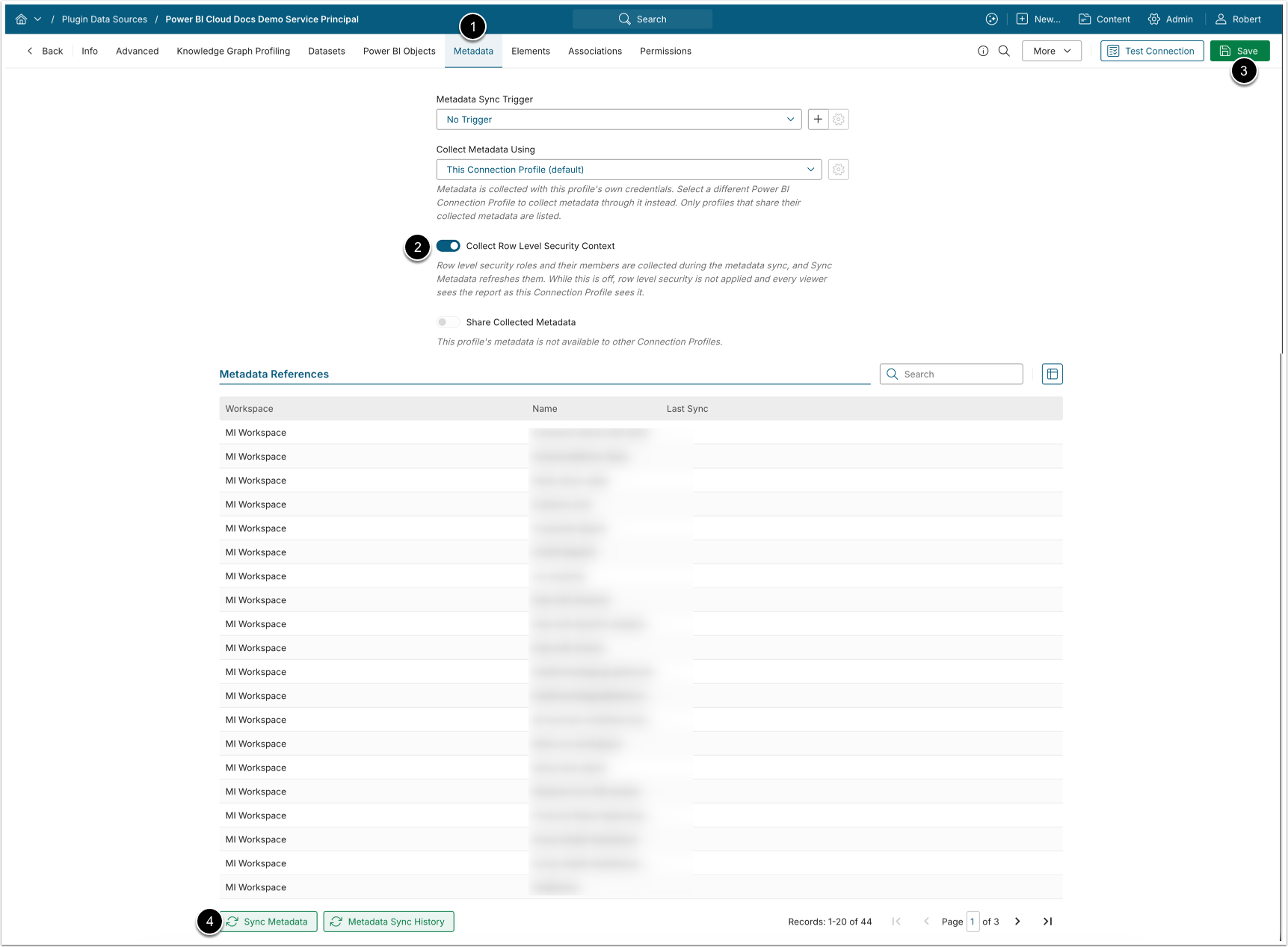
- Access the Metadata tab.
- Activate Collect Row Level Security Context.
- [Save]
- Run [Sync Metadata] to collect the RLS role definitions and their members.
Why am I not seeing the setting? This toggle is hidden on a profile that collects its metadata through another connection profile; instead, you'll see a line naming that profile, and RLS is controlled there. If your profile shares its own metadata with other profiles, the toggle still appears here, since it's still collecting metadata on its own behalf.
NOTE: Turning the toggle off takes effect immediately and clears the cached per-viewer access for this profile and for any profile that collects its metadata through it. Turning the toggle on takes effect after the next metadata sync, once the roles and members have been collected.
2. Collect Row-Level-Filtered Data
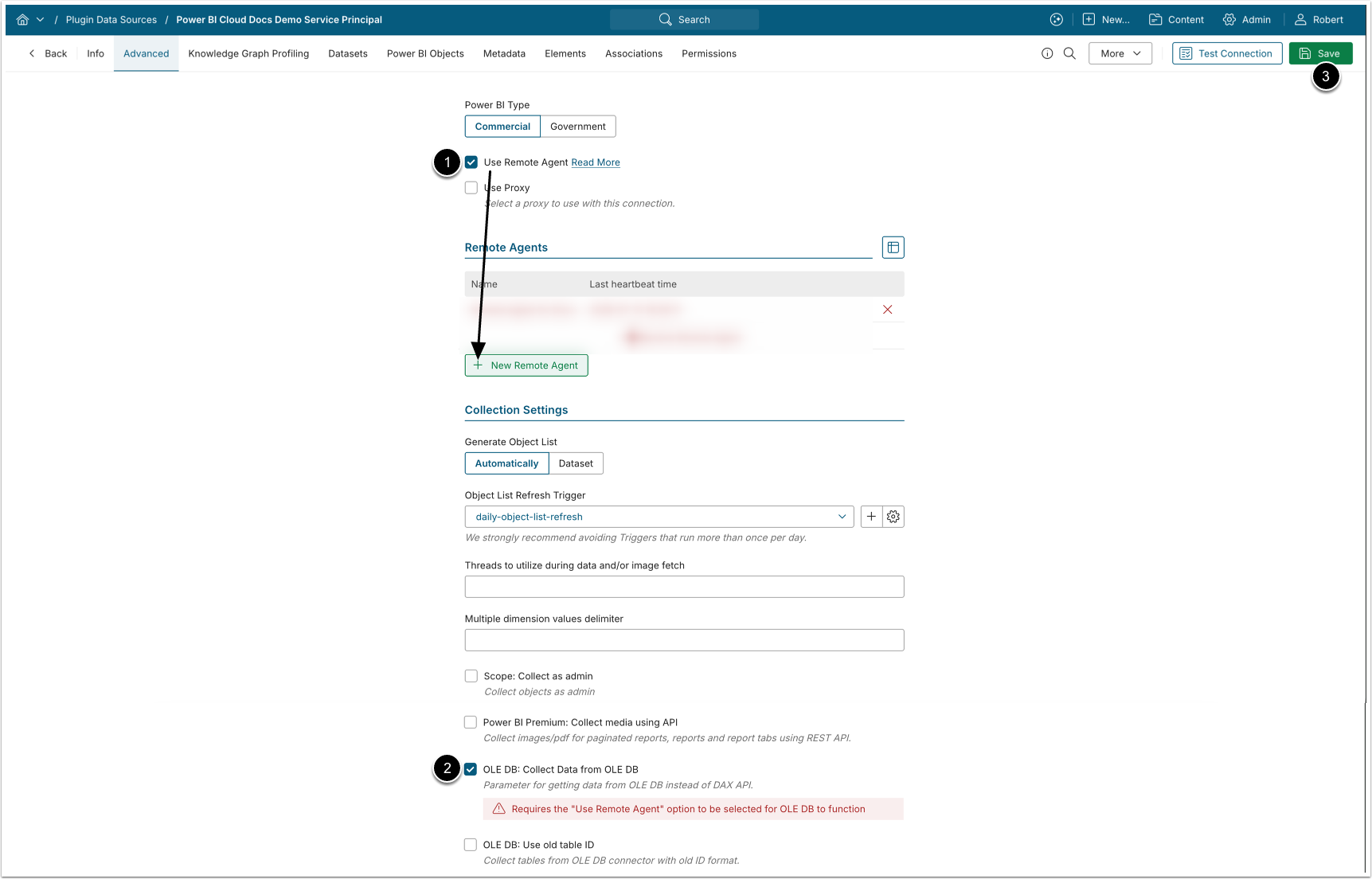
Access the Advanced tab
NOTE:
- To enable RLS-filtered data collection, you must use OLE DB collection with a functioning Remote Agent. Without it, collected results will contain rows the viewer is not entitled to see.
- Activate Use Remote Agent, [+ New Remote Agent], select a configured Remote Agent, then [Save]
- Enable OLE DB: Collect Data from OLE DB
- [Save]
3. Limitations
Power BI lets a semantic model use two kinds of RLS roles, and Metric Insights supports both automatically:
- Static roles list specific people as members directly in Power BI and filter by a fixed value, such as one country per role. A viewer only gets that role's filtering if they're added as a member.
- Dynamic roles have no member list at all. Instead, they filter automatically by matching each viewer's own identity, so the role applies on its own to anyone whose identity fits, with nothing to set up per viewer in Power BI.
NOTES:
- Dynamic roles require admin-level Service Principal access (not just workspace access) and a role defined in Power BI to match the viewer's Metric Insights email address.
- If Metric Insights cannot confirm a report's RLS roles, it blocks the report for that viewer rather than showing unfiltered data.