A Virtual Dataset lets an Admin or Power User query a Microsoft Power BI Semantic Model directly from Metric Insights, by writing a DAX query against that Semantic Model instead of relying on Power BI's auto-imported table metadata. This article describes how to create a Virtual Dataset from a Power BI Cloud connection, available in Metric Insights v7.1.2 and later.
A Semantic Model is a curated Power BI object that exposes governed tables, columns, and measures. Sourcing a Virtual Dataset from a Semantic Model is useful when you need custom query logic against that governed layer; e.g., combining measures and filtering rows in ways a standard imported Dataset cannot, while keeping Power BI's Semantic Model as the single source of truth for that logic.
Table of Contents
1. Understand How a Virtual Dataset Differs from a Regular Dataset
A regular Power BI Dataset collects a fixed set of fields or table columns that Power BI's metadata describes automatically, then stores a copy in Metric Insights on the dataset's schedule. A Virtual Dataset instead runs a DAX query that you write yourself directly against the Power BI Semantic Model, so you control exactly which tables, columns, and measures come back, including custom combinations a regular Dataset's auto-imported metadata can't express.
Both still collect on the dataset's Measurement Interval and keep the results cached for fast reuse by default, so the difference is in how the data is selected, not whether it's stored. The one Virtual-Dataset-specific option is Cache query results: turn it off and Metric Insights skips the cache entirely, querying Power BI live on every request instead of serving the last collected copy (see Configure Data Collection).
2. Confirm Prerequisites
Confirm the following before you begin, in order:
- For Metric Insights prior to v7.2.1: enable the the
ENABLE_EXTERNAL_DATASETSSystem Variable. - The Create Dataset privilege, granted to your Admin or Power User role.
- At least one active Microsoft Power BI Cloud plugin connection, which must be configured before it can be selected as the Data Source.
- One or more Power BI Semantic Models present in the Workspace that the connection points to, required before a Semantic Model can be selected.
3. Create New Power BI Cloud Virtual Dataset
Access Content > Datasets > Virtual Datasets
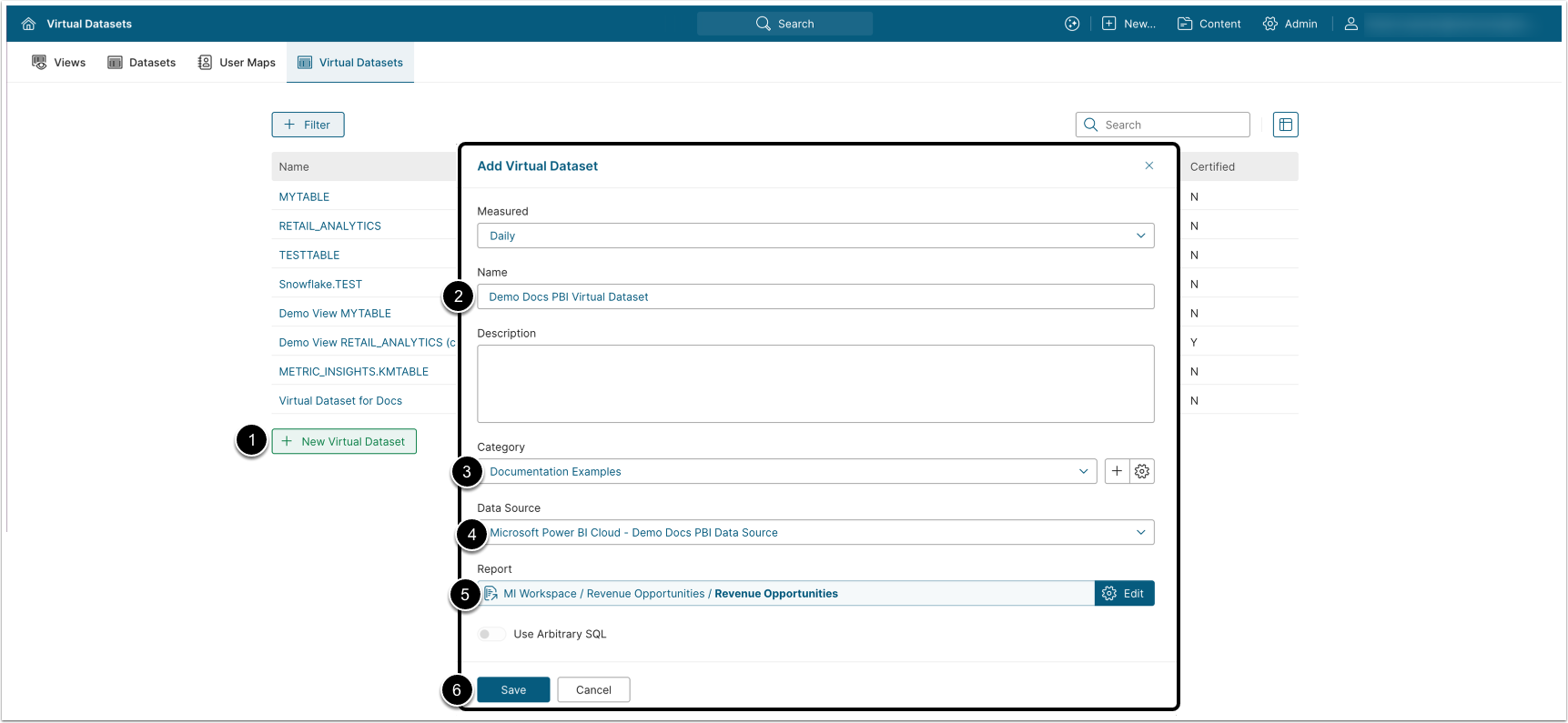
- [+ New Virtual Dataset]
- Enter a Name.
- Assign a Category.
- Select a Data Source.
- Report: Select a Semantic Model from which to build a Virtual Dataset.
- [Save]
NOTE: For Power BI connections, Use Arbitrary SQL is always on and can't be turned off. Power BI Datasets are always queried using a query you write directly, in DAX (Data Analysis Expressions, Power BI's native query language), not SQL. The name "Arbitrary SQL" is shared across all connector types for consistency, but for Power BI it specifically means arbitrary DAX.
4. Configure Data Collection
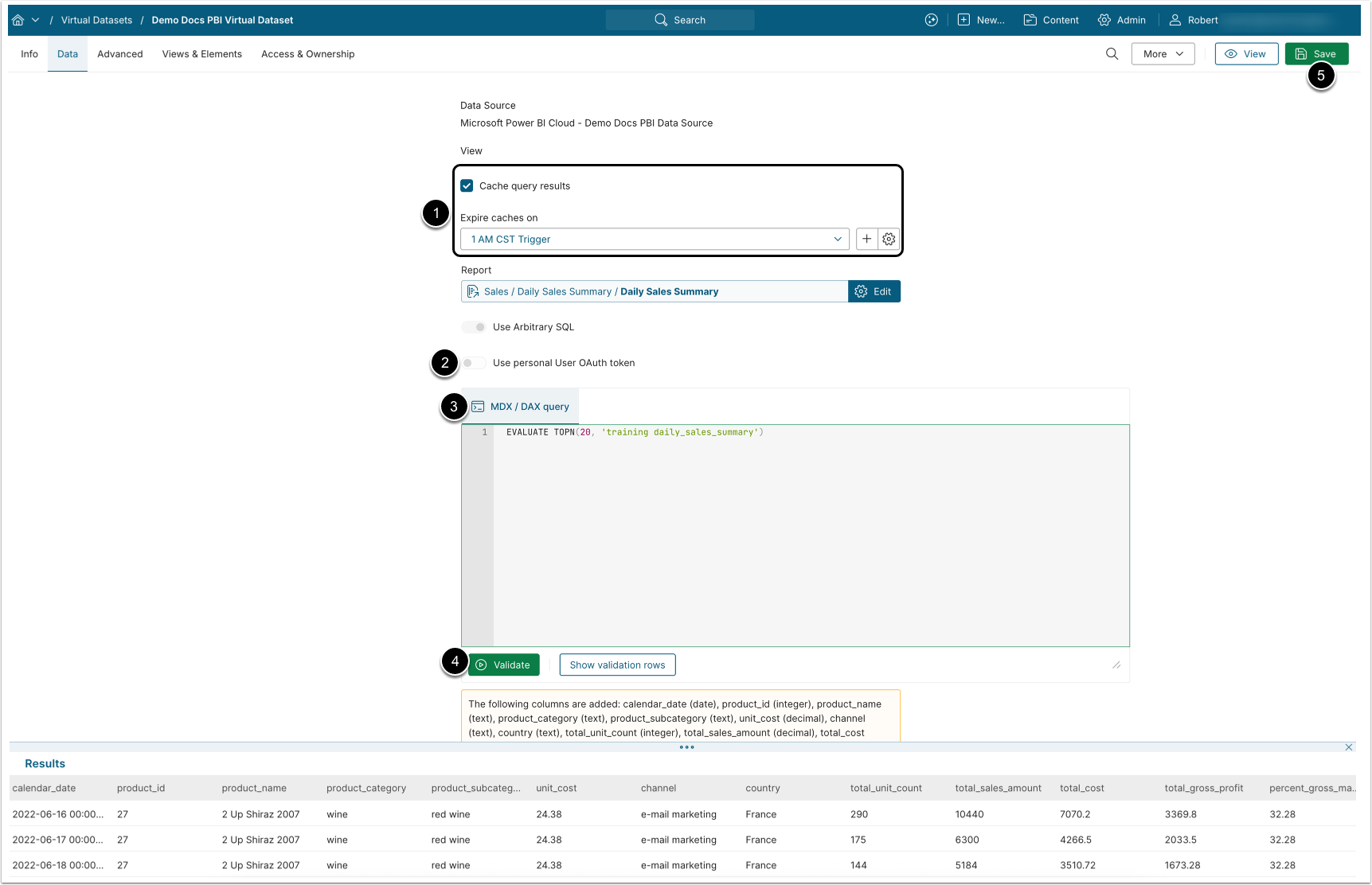
- Cache query results: Enabled by default. Metric Insights collects and caches the query results so dashboards and reports reuse them instead of re-querying Power BI on every request. Disable this setting to always query Power BI live.
- Expire caches on: Only shown when Cache query results is enabled. Sets the Trigger that refreshes the cached results.
- Use personal User OAuth token: Enable to collect data using the Power BI personal OAuth token. With it on, each user queries Power BI as themselves, so Power BI's own Row-Level Security applies per person instead of everyone sharing the connection's single credential, and a user who hasn't personally authenticated can't collect data that way.
- Enter MDX/DAX query that returns data from the Semantic Model's tables, columns, and measures; e.g., an
EVALUATEstatement against one or more tables.- See the note below for tips on writing DAX queries.
- [Validate]. After the query validates, the Dataset columns are populated from the query results.
- Re-sync the columns in the Virtual Dataset Editor whenever you change the query so the column list matches what the query now returns. You can then refine individual columns as needed.
- [Save]
Tips for writing the DAX query:
- A DAX query must start with
EVALUATEfollowed by a table expression; e.g.,EVALUATE 'Sales'returns every row and column of theSalestable. - Reference columns as
'Table'[Column]. To return only specific columns (optionally renamed), useSELECTCOLUMNS:EVALUATE SELECTCOLUMNS('Sales', "Order Date", 'Sales'[OrderDate], "Revenue", 'Sales'[Revenue]). - While testing, wrap the query in
TOPNto limit how many rows come back; e.g.,EVALUATE TOPN(10, 'Sales'), then remove it once the query is correct. - Results are capped at 100,000 rows / 1,000,000 values per request (a Power BI REST API limit). Summarize or filter in the query itself; e.g., with
SUMMARIZECOLUMNSorFILTER,if the Semantic Model table is larger than that.
For the full DAX query syntax and function reference, see Microsoft's DAX queries documentation.
5. View Synced Columns
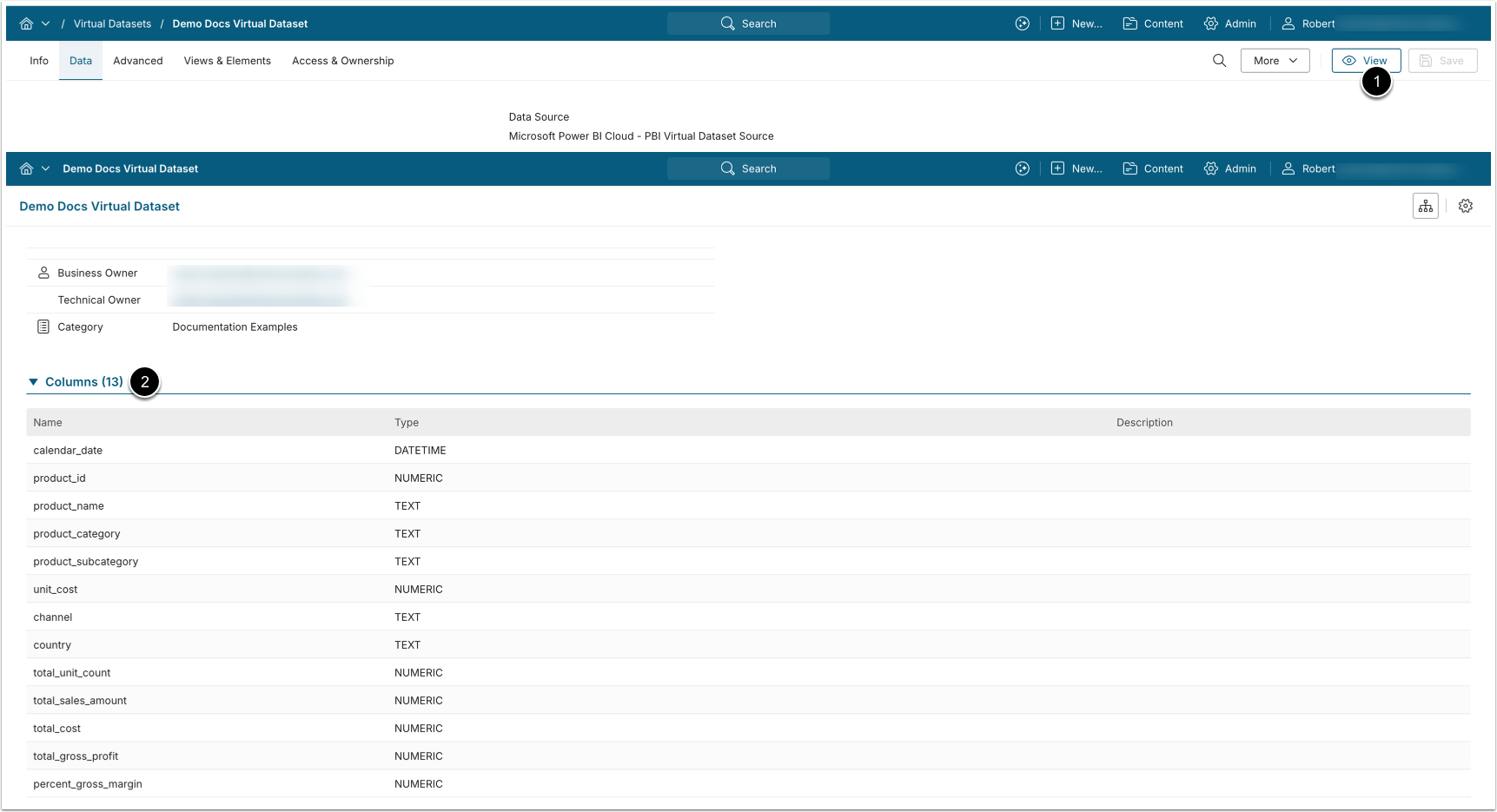
- Click [View] to view the collected columns.
- The synced columns are available for building Datasets, Reports, and Metrics.