This article describes the second step of Connecting to Sigma MCP Server. Proceed to creating and configuring a Concierge External Resource and finish establishing connection between Concierge and Sigma.
Prerequisites:
- Metric Insights Administrator account.
- Values collected from Sigma account:
- For "User OAuth" Auth Type:
- Sigma MCP URL;
- client_id;
- client_secret.
- For "Defined in configuration" Auth Type:
- Token.
- For "User OAuth" Auth Type:
1. Create an External Resource
Go to Metric Insights, access Admin > Concierge > Concierge Setup and open the Content Sources tab
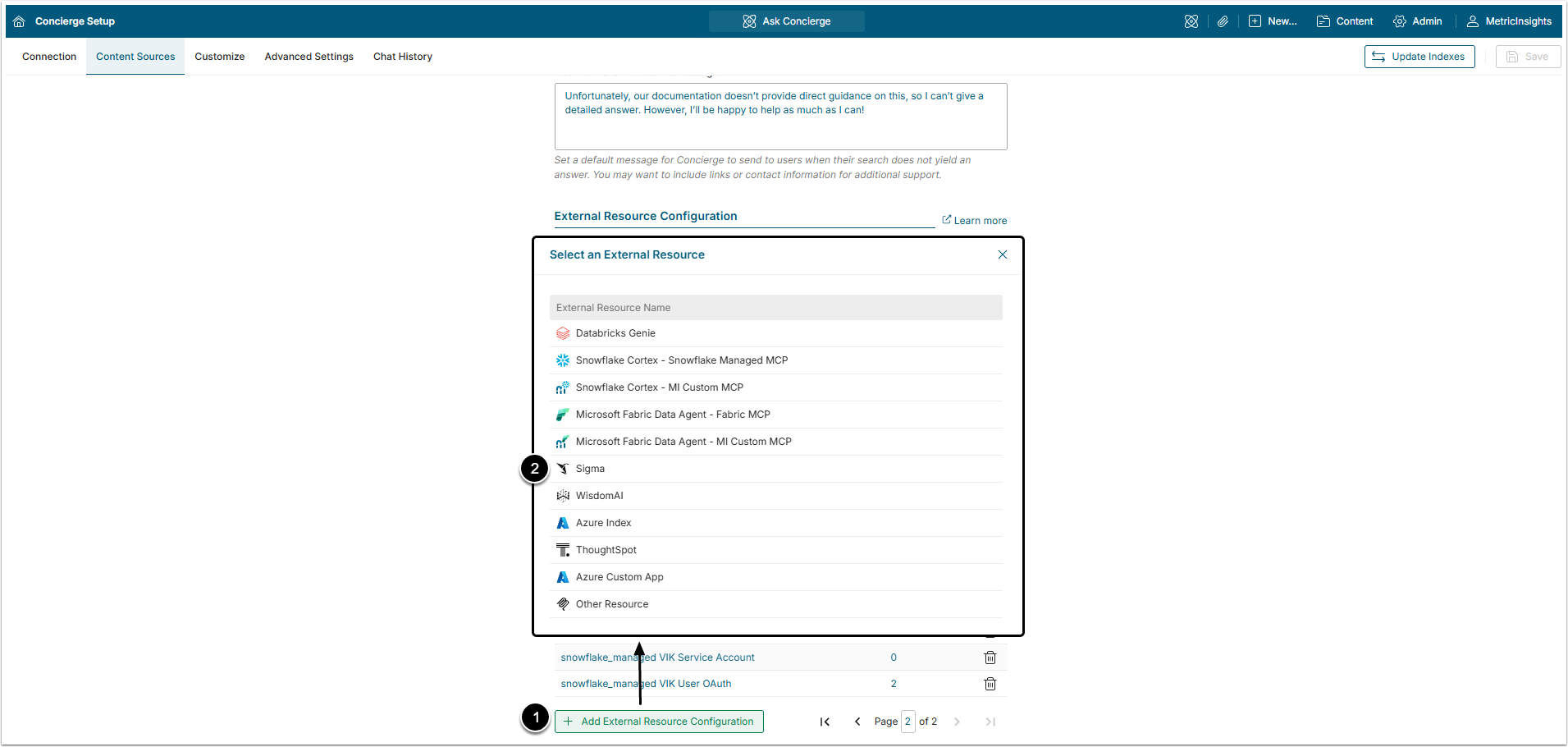
- Click [+ Add External Resource Configuration].
- Select Sigma from the list.
After that, the User will be redirected to the External Resource Editor.
2. Complete Authentication Tab
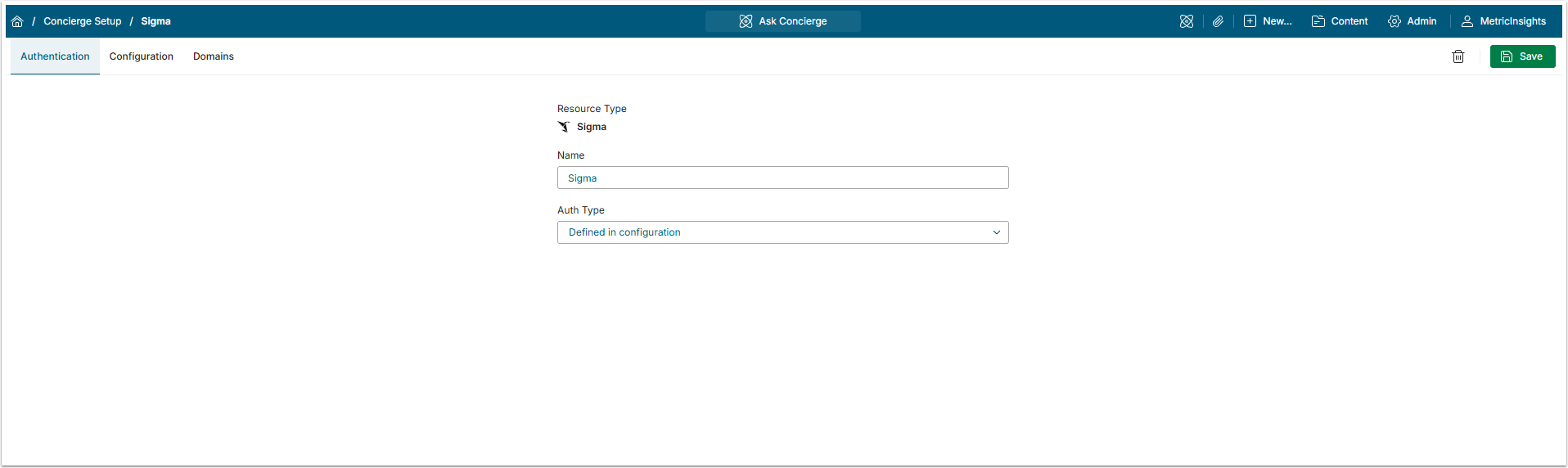
The Name is generated automatically, but it can be changed. This name will be used to identify this External Resource when assigning Domains and if using User OAuth, when User is asked to Authenticate.
2.1. Auth Type: Defined in Configuration
Choosing "Defined in configuration" type of authentication means that the Token, copied from the Sigma account will be inserted into the configuration code as is.
This type of authentication is the most flexible and should be used when the long-lasting Token can be generated within the external tool. Be aware, that when the Token expires, it has to be re-entered into the code on Configuration tab manually.
2.2. Auth Type: User OAuth
Choosing "User OAuth" type of authentication means that the Token will be requested and then automatically inserted to the configuration code by Metric Insights. When the "User OAuth" type is chosen, Concierge checks what accesses the User that makes query has and provides answers according to them. "User OAuth" authentication type is used when Sigma account has a security model configured which gives users different access rights.
The Token, obtained this way will have a priority over the one hardcoded into the server configuration.
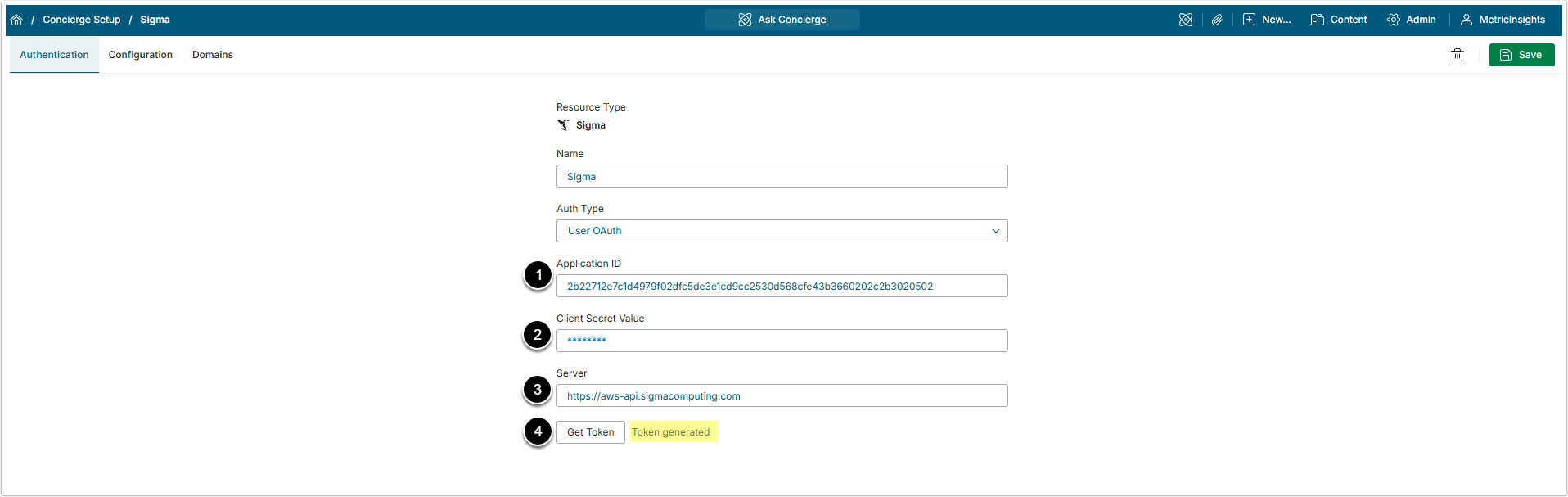
- Application ID: Insert
client_idvalue. - Client Secret Value: Insert
client_secretvalue. - Server: Insert the Sigma MCP URL value.
- Click [Get Token], so Metric Insights will obtain the Token from Sigma. If Token was generated successfully, the confirmation message "Token generated" will appear.
3. Complete Configuration Tab
Go to Configuration tab
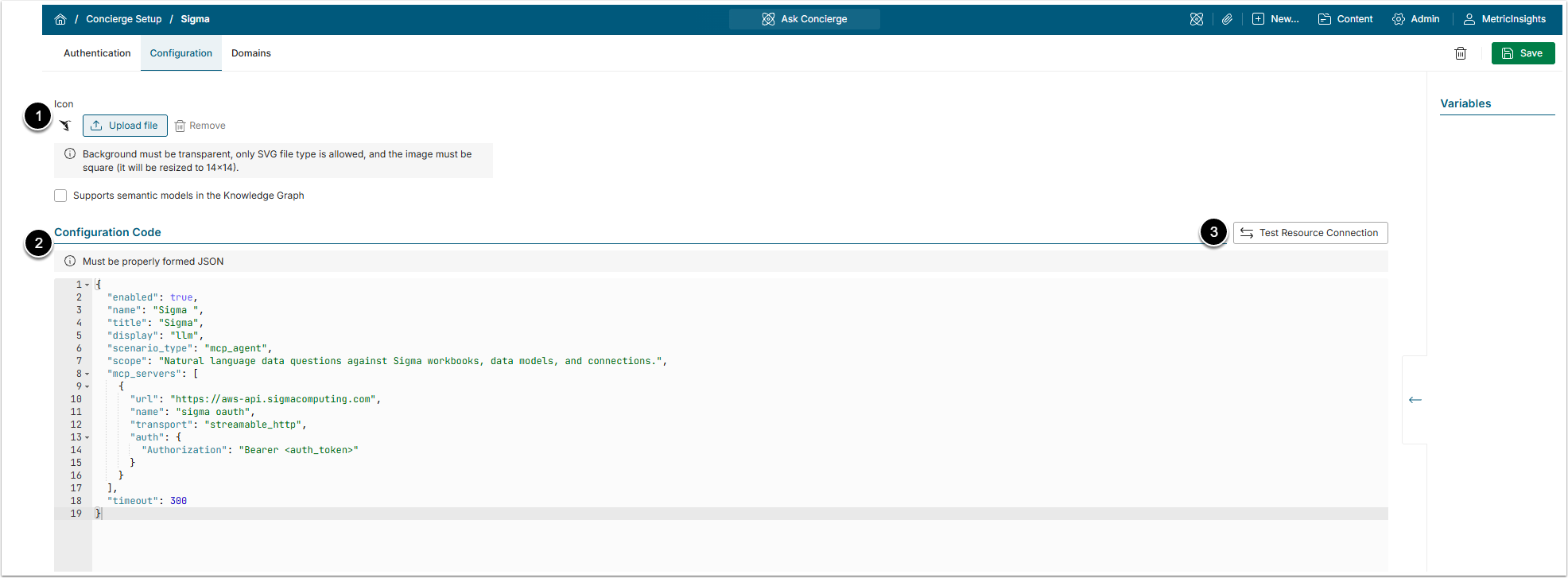
- Icon: To add a custom icon, upload an SVG image on a transparent background.
- A block of example JSON code is added to the field automatically. The parts in percent symbols ("%%") has to be filled with information specific to your environment.
- For more details about how to build the configuration, check the Connecting External Agents to Concierge via MCP Server article.
- [Test Resource Connection] to check if it is possible to establish connection to the external tool.
Check the JSON code usage example for Sigma External Resource configuration:
Code Example
{
  "enabled": true,
  "name": "sigma",
  "title": "%display title%",
  "display": "llm",
  "scenario_type": "mcp_agent",
  "scope": "Natural language data questions against Sigma workbooks, data models, and connections.",
  "use_in_slack_bot": false,
  "use_in_msteams_bot": false,
  "mcp_servers": [
    {
      "url": "https://%sigma_environment%.sigmacomputing.com/mcp/v2",
      "name": "%unique mcp server name%",
      "transport": "streamable_http",
      "auth": {
        "Authorization": "Bearer <auth_token>"
      }
    }
  ],
  "timeout": 300
}
Sigma Code Specifics
| Field | Description | |
|---|---|---|
enabled | This field allows for the External Resource to be disabled instead of having to delete it. If it is true, the External Resource is enabled. If it is false, the External Resource is disabled.NOTE: After disabling the External Resource, make sure to disconnect or disable all Domains connected to it, or the user will see an error message in Concierge. | |
name | The value of this field should be unique and exactly match the Name field on the Authentication tab. It may contain A-Z/a-z letters, numeric digits, and underscore (_). | |
title | The display name for this external resource. This name is shown when associating Domains and sometimes in error messages in the Concierge panel if there is a problem with the External Resource. | |
display | Defines how data from the external agent is processed and shown. The llm is the recommended option for this field. In this mode, Concierge uses an LLM to reformat the external agent’s data for display. | |
scenario_type | The mcp_single_tool option is mandatory for this field. | |
scope | This optional field may be included to provide a general description for this external resource to the Concierge LLM. This is useful for providing instructions that are shared across all Domains that use this external resource. | |
use_in_slack_bot | If this field is true, it allows this external resource to be used for requests from the Slack bot. | |
use_in_msteams_bot | If this field is true, it allows this external resource to be used for requests from the MS Teams bot. | |
mcp_server | This field defines the connectivity and authentication to the MCP server. | |
url | URL for the MCP Server is a required value. Insert the Sigma MCP URL value here. | |
name | A unique name for this MCP server that identifies this specific connection. This can be the same as the name field above. | |
auth |
| |
transport | This field is required. Databricks MCP server supports only the streamable_http transport mode. | |
timeout | How many seconds Concierge will wait for a response from the external resource. The default value is 300. | |
3.1. Save Changes
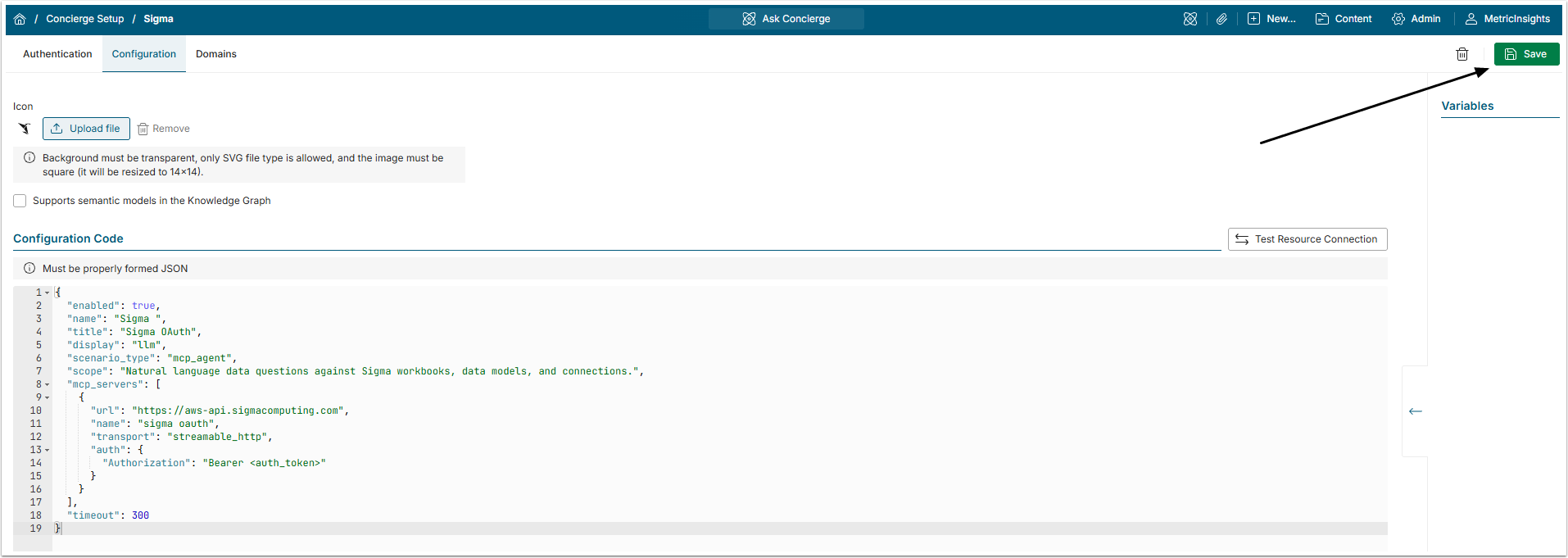
Don't forget to [Save] the External Resource.
4. Add Variables (Optional)
You can use Variables to replace values in the JSON code block. This is especially useful for sensitive information, since Variable values can be encrypted.
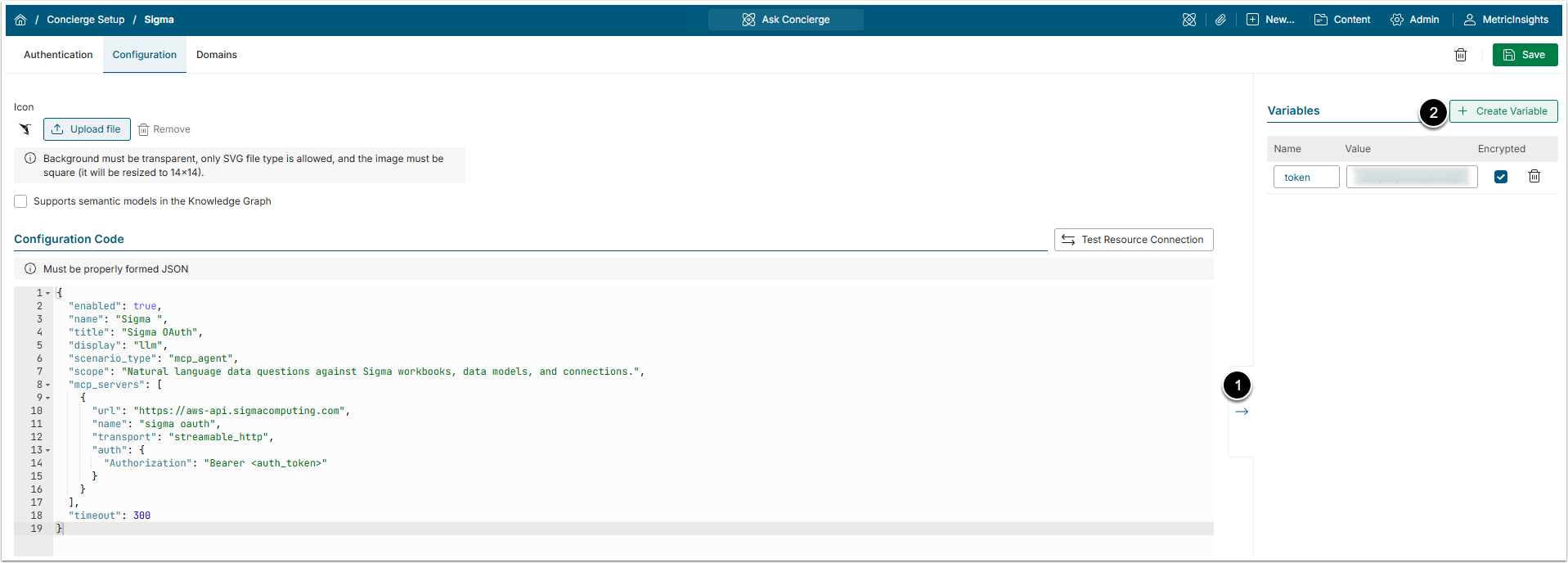
- Click the arrow icon to open the Variables side menu.
- Click [+ Create Variable] and add the Name and Value. Select Encrypted to encrypt the contents in the Value field. This will be hidden upon refresh of the page. No need to to save anything.
The Variable Name can now be used in the adjacent JSON code block surrounded by square brackets (for example, [token]) in the code instead of the actual Token itself.
5. Associate Domain with External Resource
Sigma External Resource itself does not appear in the All Sources menu. It must be associated with a Domain and that Domain Name is what shows in the All Sources menu.
Go to Domains tab
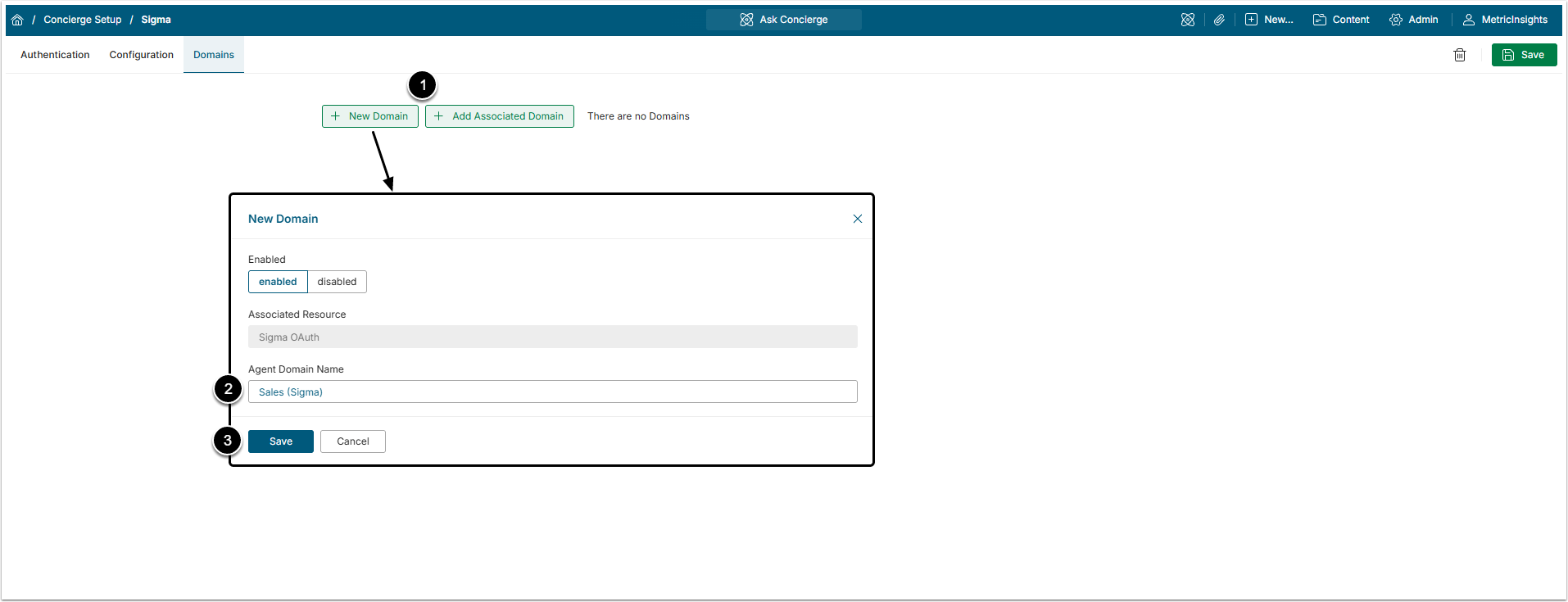
- Click [+New Domain] to create a new Domain or [+Add Associated Domain] to assign an existing Domain to External Resource.
- Agent Domain Name: Give the Domain a descriptive name or select the name of existing Domain.
- [Save]
- If you are creating a new Domain, you will be redirected to the Domain Editor page.
After that give the system about 15 seconds to update, refresh the page and after that the Domain in the All Sources menu will be connected to the external tool.