If your organization uses ChatGPT for regular interactions, you can connect it to the MI MCP server to receive answers from Concierge service. Team members won't have to open Metric Insights to receive answers that come from the organization's data. Because those answers come from your organization's governed definitions, the numbers match what the reports already show.
Please follow this step-by-step guide to configure your ChatGPT account and connect it to the Metric Insights MCP server.
PREREQUISITES:
- Concierge MCP server configured.
- If you're using your team Workspace, you will need administrator rights.
1. Activate Developer Mode
Go to your ChatGPT account, open the user menu, and go to Settings > Plugins > Developer mode
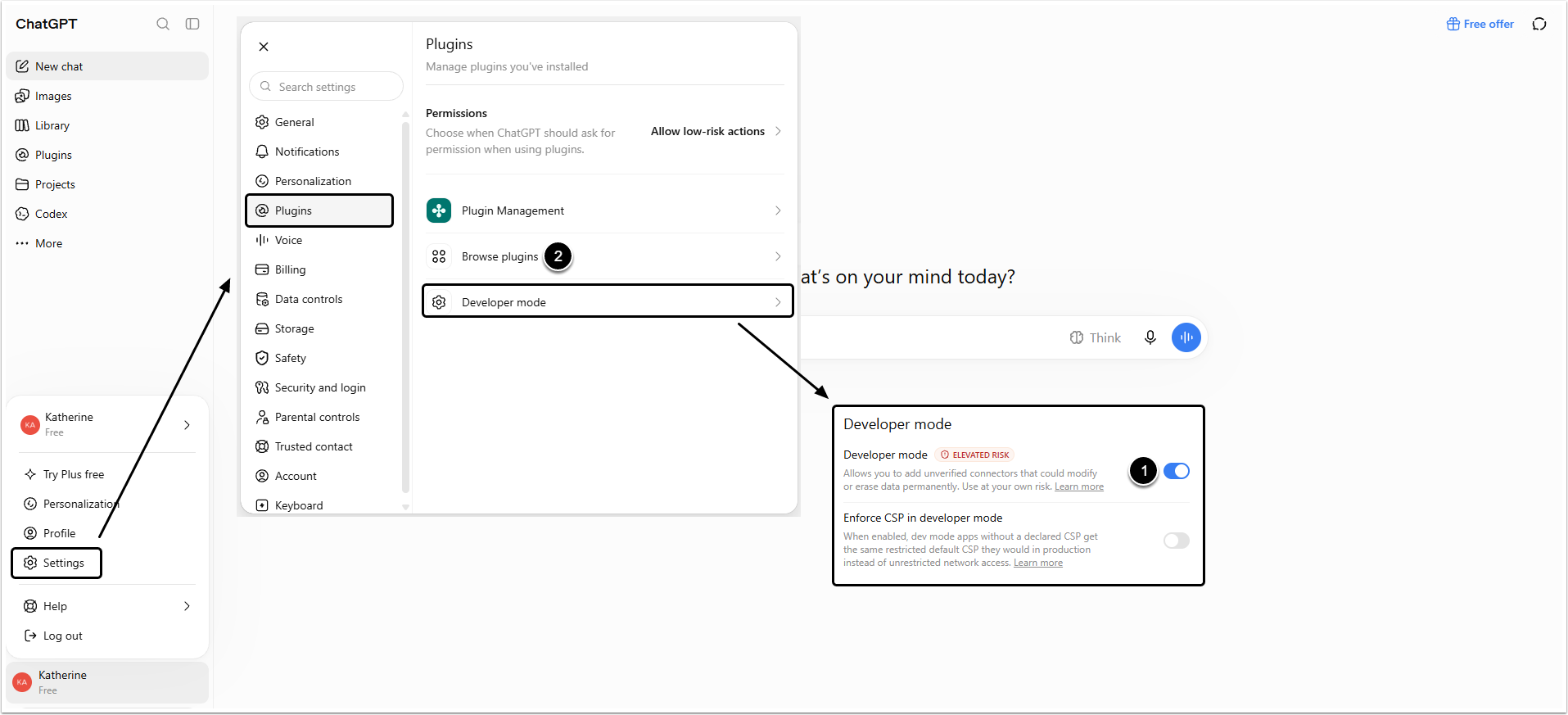
- Scroll the menu, find the Developer mode section, and activate the Developer mode toggle switch.
- Click Browse plugins to open the plugins list.
2. Create New Plugin
On the plugins list page, click the plus icon to create a new plugin.
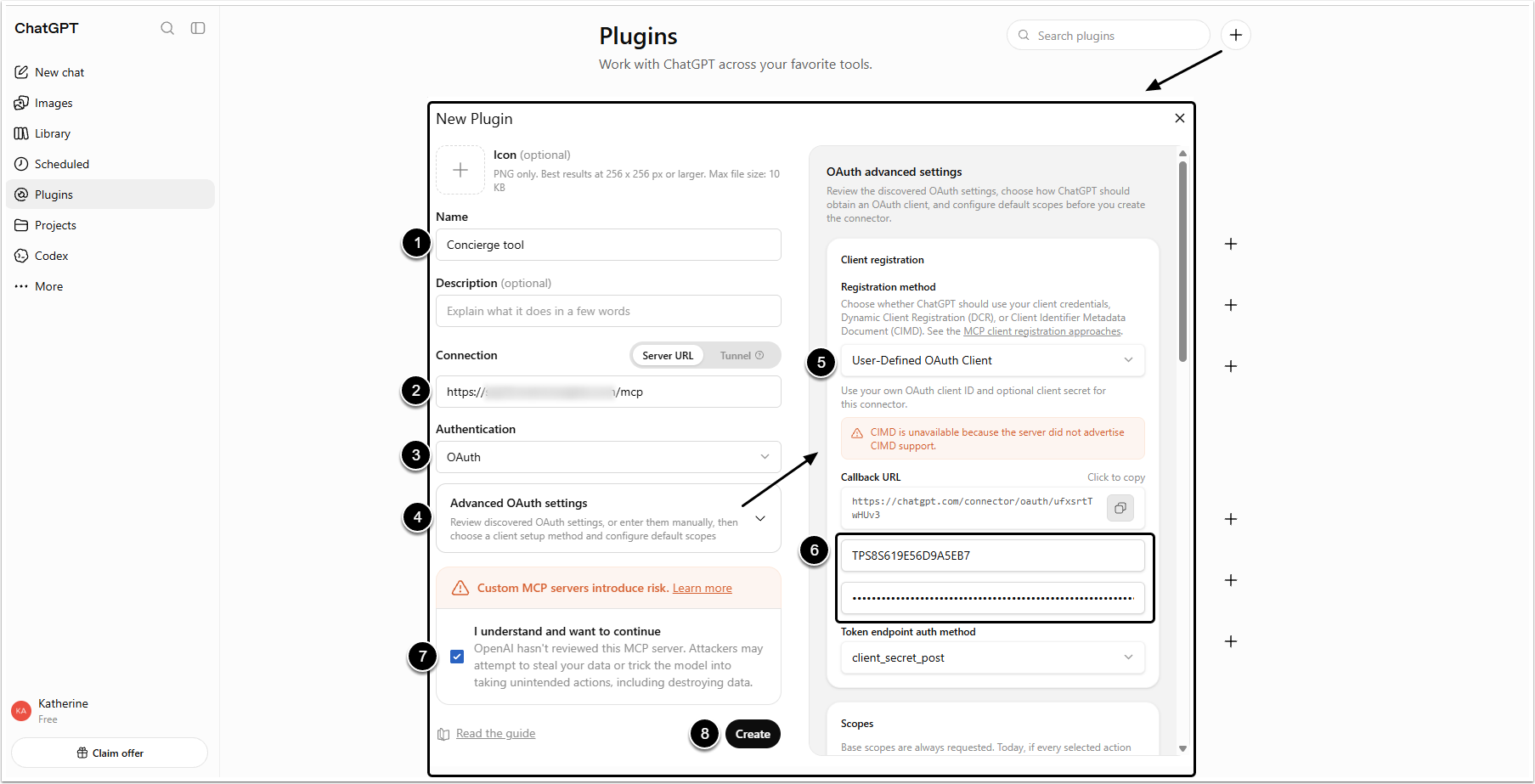
- Name: Give the plugin a descriptive name.
- Connection: Insert your MI instance address.
- Authentication: Select the "OAuth" option.
- Click [Advanced OAuth settings] to open the specialized sub-menu.
- Registration method: Select the "User-Defined OAuth Client" option.
- Insert Application ID and Key, copied from Concierge External Application.
- Confirm you understand the risks involved by selecting the I understand and want to continue checkbox.
- [Create]
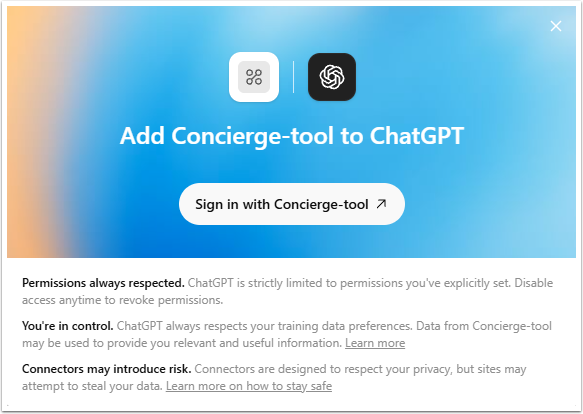
After creating the plugin you will be asked to sign into your MI account. Once you sign in, the plugin will be installed and ready to use.
3. Connect the Plugin
Created Concierge plugin will appear in the installed plugins list. Click it to open the plugin's page.
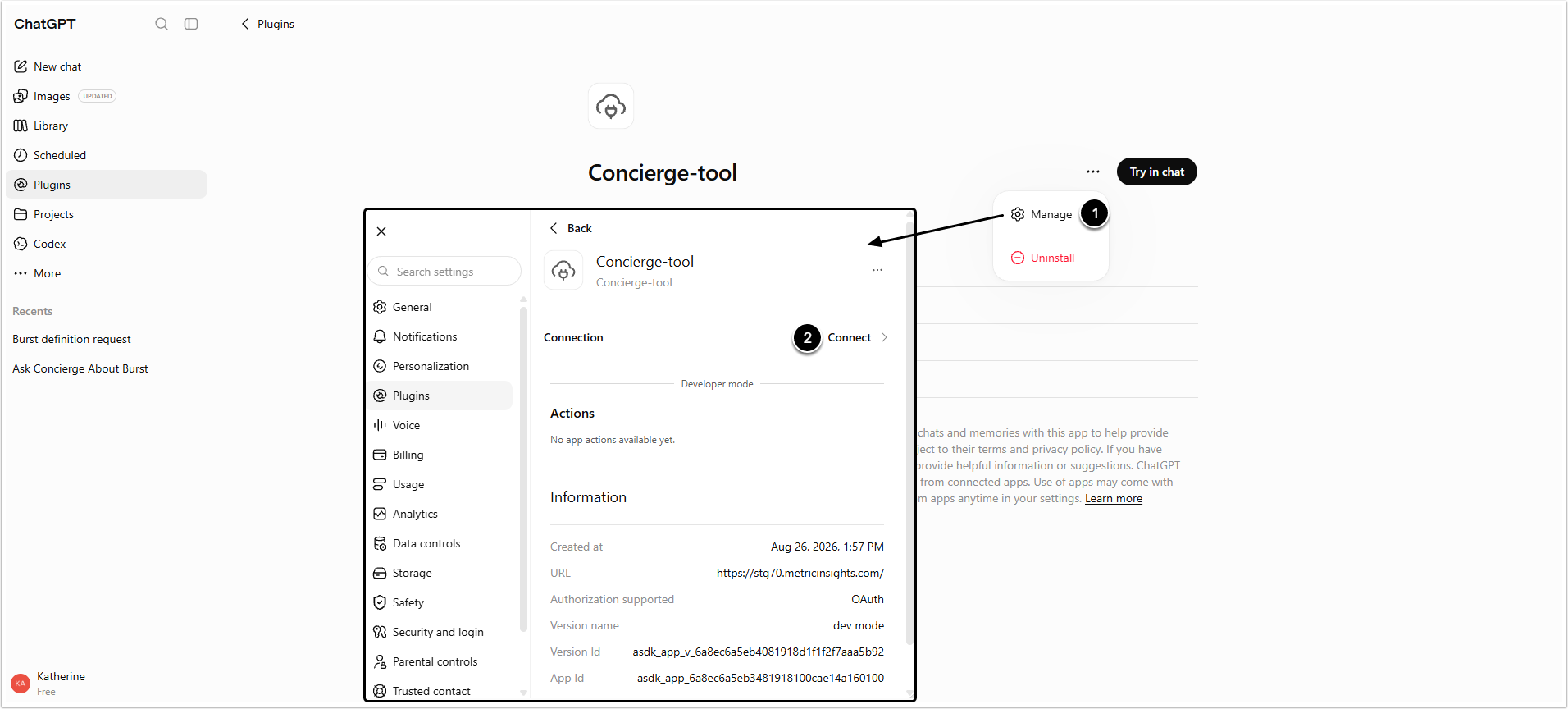
- Open the three dots menu icon and select "Manage" option.
- Click [Connect].