Concierge supports integration with external AI agents through the Model Context Protocol (MCP) Server and there is a list of External Resources for which all the necessary configuration is already done. However, it is also possible to connect Concierge to an External Tool that is not in the list. For that, the Other Resource option is used.
This article describes how to connect custom external tool to Concierge using MCP Server.
PREREQUISITES:
Be aware, that only Administrators can perform Concierge configuration. Before configuring the External Resource in Metric Insights, check the following:
- The MCP server is running and is reachable from the Concierge host.
- The following information is collected:
- MCP server URL, endpoint path included.
- Exact Tool Name. Tool names are described in more details in the Discovering Tool Names section below.
- Authentication Headers or Tokens required by the MCP server.
- (Recommended) One or more Domains exist in Concierge Setup to associate with the resource.
In this article:
- Open Concierge Setup Page
- Info Tab
- Configuration Tab
- Add Variables
- Add Domain
1. Open Concierge Setup Page
Access Admin > System > Concierge Setup
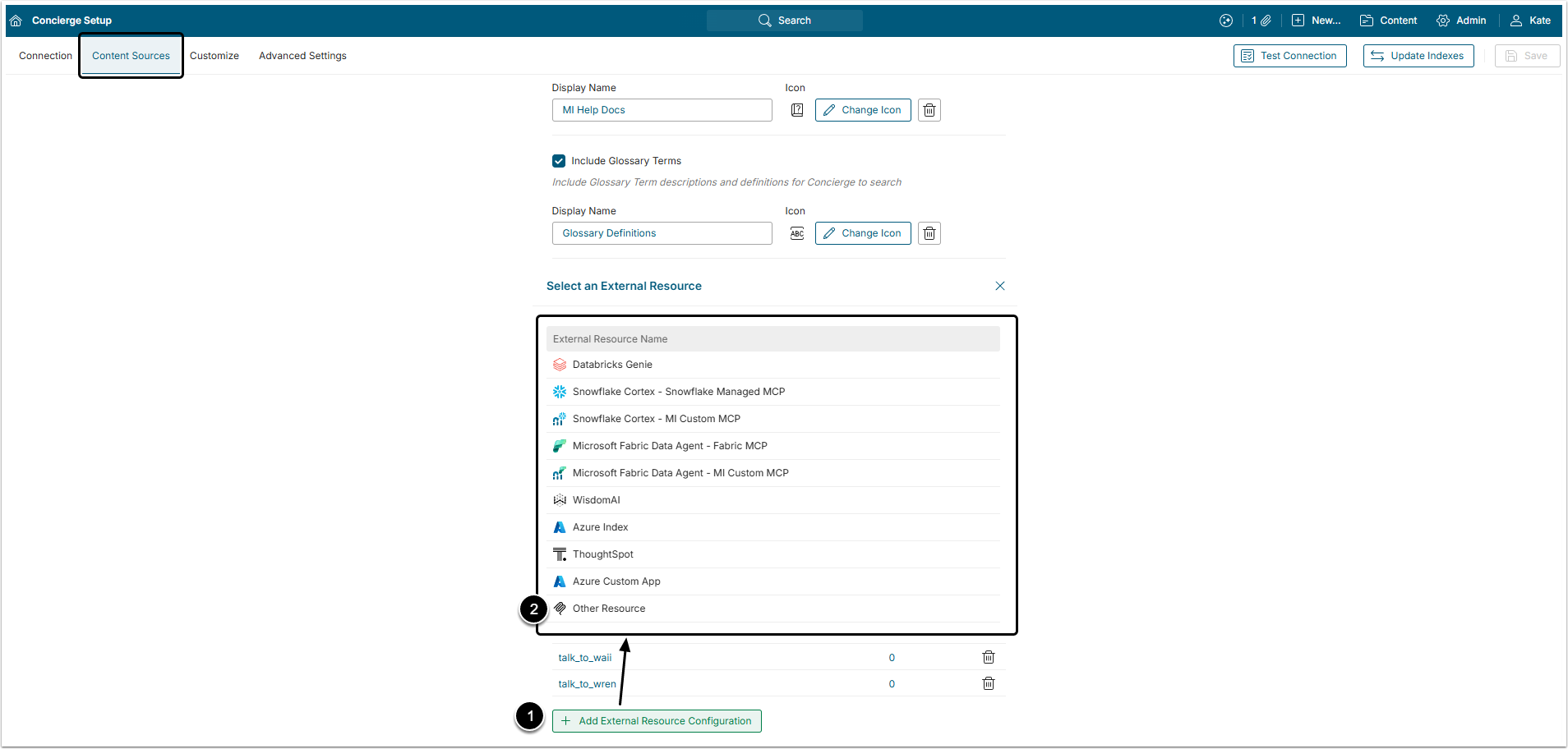
Open the Content Sources tab and scroll to the bottom of the page to find the External Resource Configuration section.
- Click [+ Add External Resource Configuration].
- There is a list of tools that have preset configuration. Select the "Other Resource" option.
2. Info Tab
A default name is attached to the External Resource upon its creation, but you can change it here if necessary, as long as the name is unique.
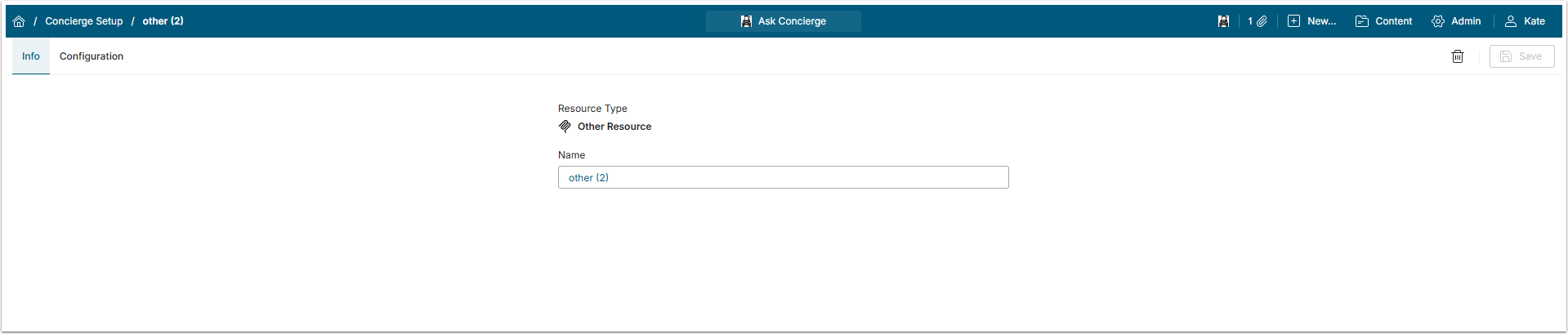
3. Configuration Tab
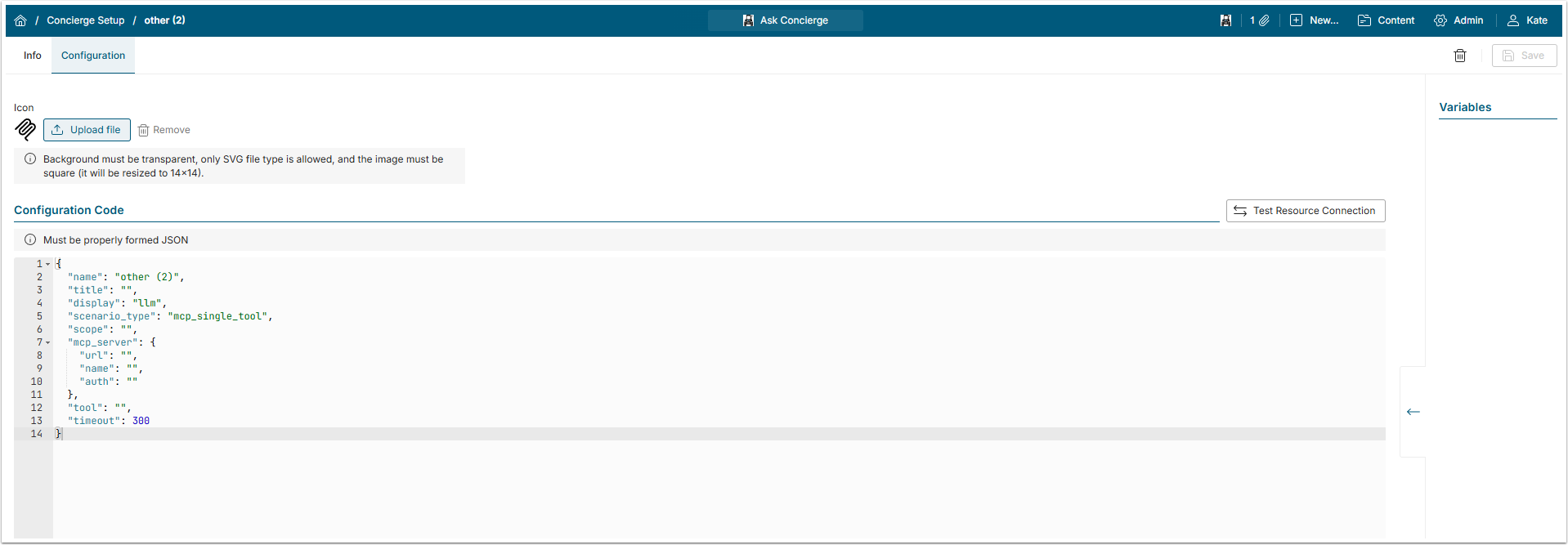
In this tab the User can change the icon used for the external tool, insert the configuration JSON code and create Variables.
3.1. Configuration Code
A block of example JSON code is added to the field automatically. The parts inside the empty quotation marks (" ") has to be filled with information specific to your instance.
Required Fields
| Field | Purpose | |
|---|---|---|
name | The resource name. It has to be the same as the name entered in the Name field of the Edit External Resource Configuration. | |
title | The display name. | |
scenario_type | Specifies how Concierge will interact with the external resource. See more details in the Selecting scenario_type section. | |
scope | A prompt that instructs the LLM when to use this External Resource. | |
mcp_server | url | This field must be filled with full MCP server endpoint URL. |
| name | This field must contain a server name, unique across all External Resources on this instance. | |
| auth | This field contains HTTP headers with their values necessary for authentication. See more details in the Authentication section. | |
tool | The exact name of the tool that is registered on the MCP server to use for this resource, if scenario_type is set to mcp_single_tool. See more details in the Discovering Tool Names section. | |
Selecting <scenario_type>
The Metric Insights MCP Server supports two options for this field:
mcp_single_tool: This is a default option for the Other Resourse. Select this option if you want MCP server to expose one primary tool for answering User questions. It is also a better choice if you want the fastest, most predictable routing.mcp_agent: Select this option if you want MCP server to expose multiple tools to answer User questions that may need to be called in sequence. For example, the User checks the metadata and want to analyze it. Usemcp_serversinstead ofmcp_serverif you select this option.
Discovering Tool Names
The value of the tool field must match a tool name exactly. To find the tool name:
- Check the external tool MCP server vendor documentation or admin UI.
- Use the vendor's MCP CLI or inspector, if available, to list tools (
toolsorlistcommand).
NOTE: After saving the External Resource, Concierge caches tools schema at startup. If the tool name is wrong, Concierge logs an error and the External Resource will not work.
To prevent that, validate the configuration before saving. Click [Test Resource Connection] on the Configuration tab, or send a POST request to /api/v1/test_external_resource with the JSON body. The check verifies connectivity, unique mcp_server.name, and that the configured tool exists on the server.
Authentication
While it is possible to directly incert the Token ans a value of the mcp_server.auth field, it is not recommended. For security's sake, it is better to create a Variable in the right-side menu and use it instead of the Token itself.
Additional Fields
| Field | Purpose | When to add | |
|---|---|---|---|
mcp_server | transport | Defines the MCP Transport type. Available values are sse, streamable_http, or http as defined in the MCP Transport Specification. | If the transport type is not autodetected. |
display | llm | In this mode, Concierge uses an LLM to reformat the external agent’s data for display. | |
raw | In this mode, data is displayed exactly as received from the external agent. It is then transformed into the custom MCP Server or into the data_transformer. | ||
| Changes the way the user question is presented to the MCP Server. | When the MCP tool expects | |
timeout | Timeout in seconds. If the external resource does not respond within this time, Concierge shows an error message. The default value is 300. | If the external tool's MCP is slow, increase the timeout via this field. | |
| The template for displaying MCP execution progress status messages from the MCP server, if available. | If the MCP server streams status updates. | |
| This is the name of the MCP tool argument used to pass the target domain to the MCP server for setups involving parameterized domains on the MCP server side. If an MCP server supports features like agents/spaces/catalogs as tool parameters, where user requests may be processed using different data catalogs, the Admin may want to treat those entities as separate Domains in MI terminology instead of having multiple MCP servers serving different domains. For this purpose, use assigned domain IDs to pass corresponding values to the MCP server as values of the tool argument specified by this field. The default value is domain_id. | When the External Resource serves multiple MI Domains via a tool argument | |
{
  "name": "acme_analytics",
  "title": "Acme Analytics",
  "display": "llm",
  "scenario_type": "mcp_single_tool",
  "scope": "Natural language questions about Acme sales and inventory data.",
  "mcp_server": {
    "url": "https://mcp.acme.example.com/v1/mcp",
    "name": "acme_mcp",
    "transport": "streamable_http",
    "auth": {
      "Authorization": "Bearer [acme_api_key]"
    }
  },
  "tool": "ask_data",
  "mcp_user_message_field": "question",
  "timeout": 300
}4. Add Variables
For better security, it is recommended to place sensible information (like Token) into the encrypted substitution Variable. The Variable can then be used instead of the variable by adding its name in square brackets (like this: [TOKEN]).
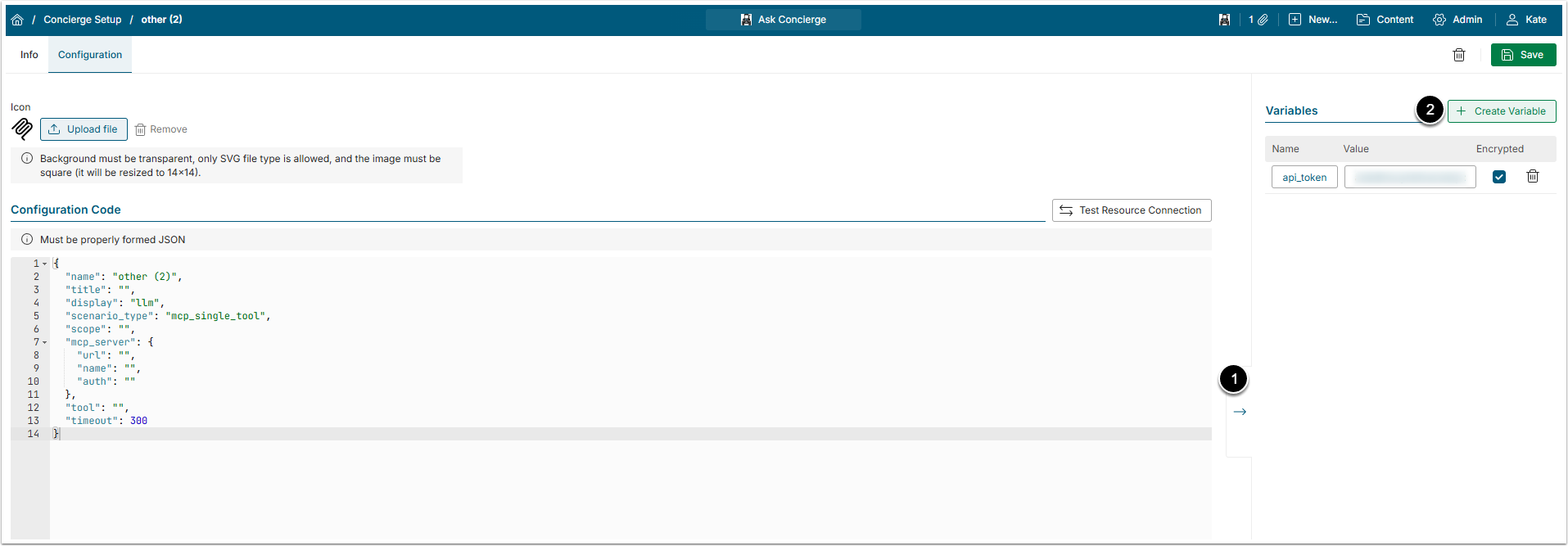
- Click the arrow icon to open the Variables side menu.
- Click [+ Create Variable] and add token as Variable. Use Variables to keep the sensitive information safe. It is optional to encrypt the variable by selecting the checkbox in Encrypted column.
Don't forget to [Save] the External Resource.
5. Add Domain
The External Resource won't appear in the All Sources menu. That menu only shows Domains, because they are wider topics that are easier for Users to understand. So, you must associate the External Resource with one or several Domains.
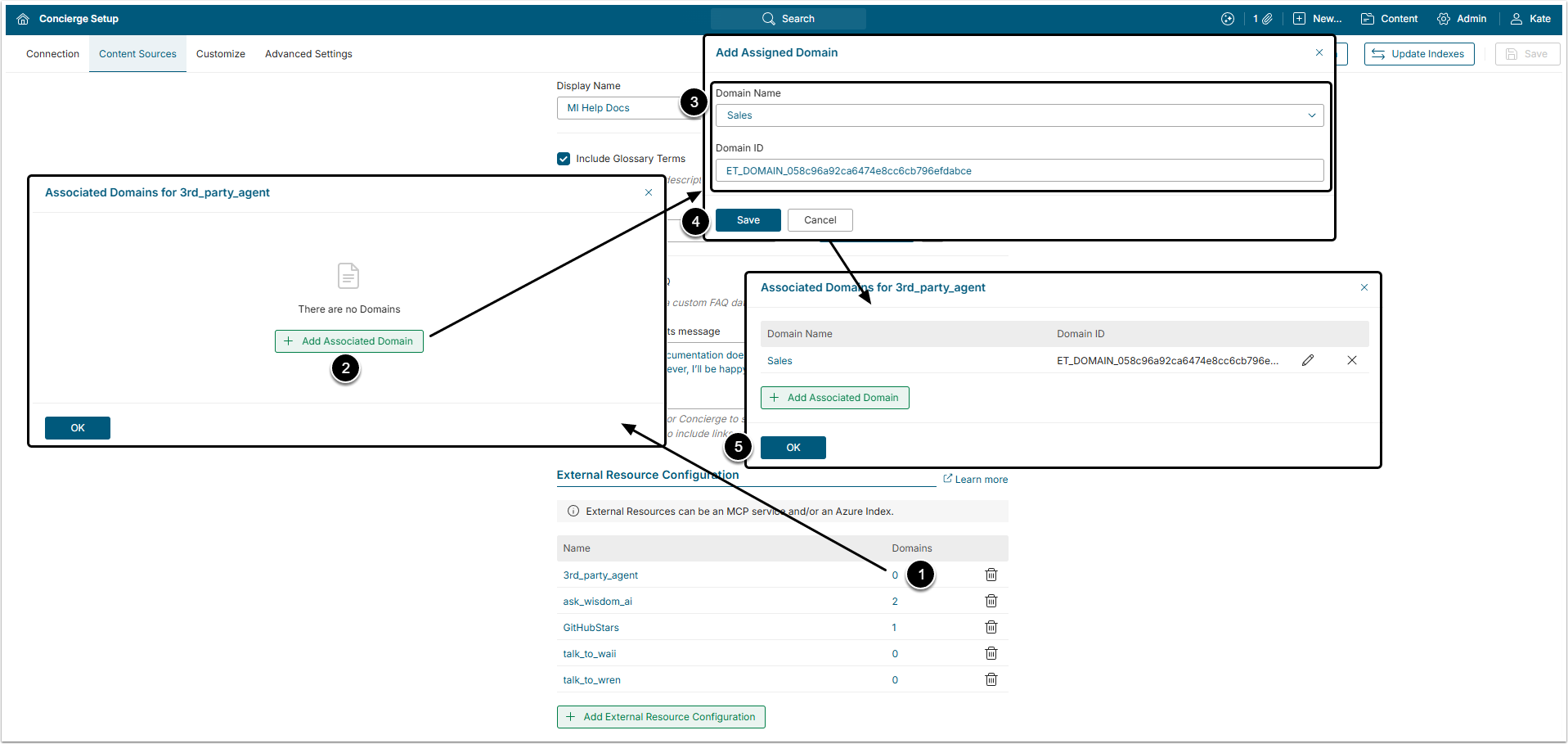
- In the external resource row click the Domains number to open the Associated Domains for window.
- [+ Add Associated Domain]
- Domain Name and Domain ID: Select a Domain from the dropdown list and enter the corresponding Domain ID.
- For more details on Domain creation, see the Creating a Domain article.
- [Save]
- [OK]
After that give the system about 15 seconds to update, refresh the page and after that the Domain in the All Sources menu will be connected to the external tool.