In Metric Insights, a Domain is an Object that helps Concierge decide when to use connected External Resources, even if the User does not explicitly select them in the All Sources menu. Each Domain represents a general topic. When the User asks a question related to that topic, Concierge routes the request to the External Resource(s) linked to the corresponding Domain. A Domain can be linked to multiple External Resources. Likewise, a single External Resource can be linked to multiple Domains.
This article describes how to create a new Domain.
In this article:
- Create a New Domain
- Info Tab
- Concierge Tab
- Access & Ownership Tab
- Associated Elements Tab
- Check the Domain
1. Create a New Domain
Access Admin > System > Concerge > Agent Domains and click [+ New Domain]
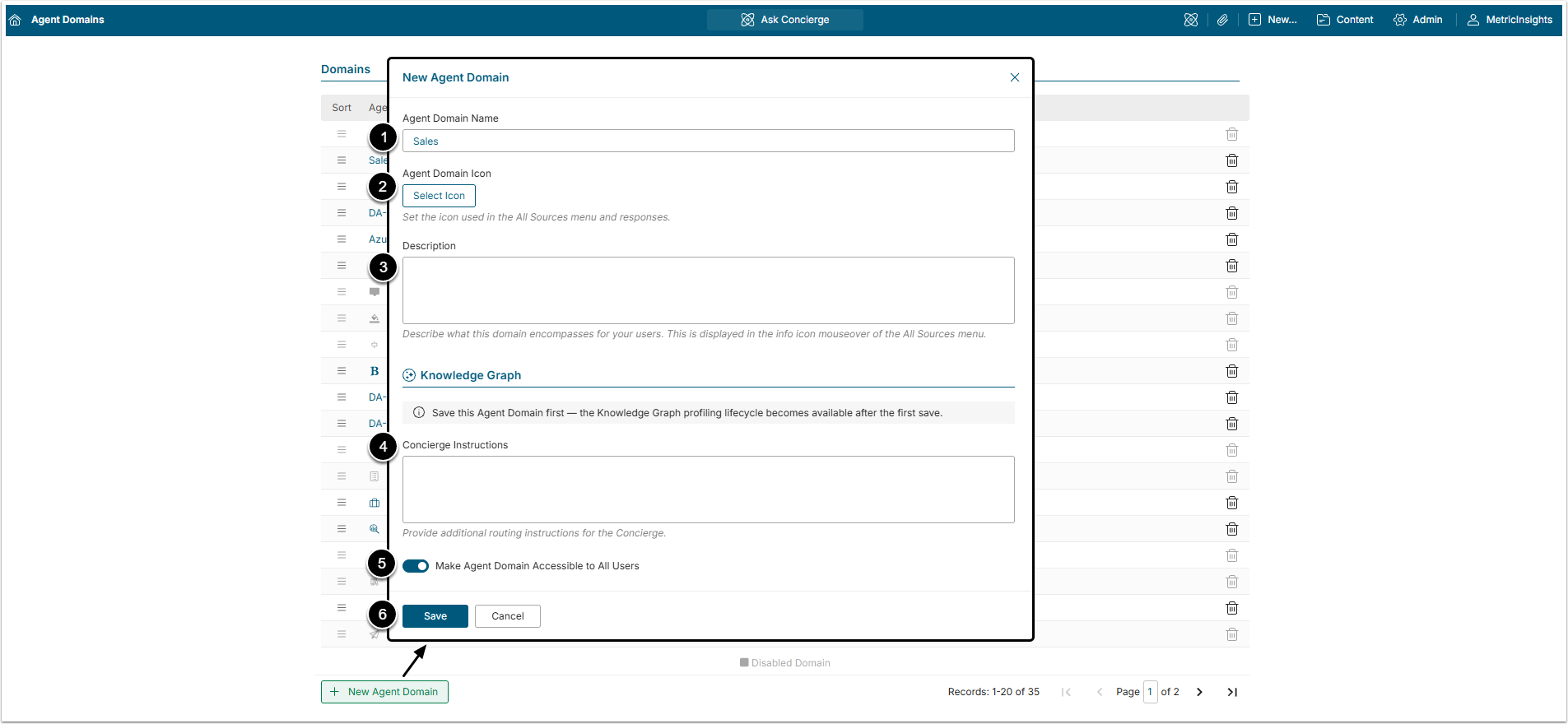
- Agent Domain Name: Give the Domain a unique name.
- Agent Domain Icon: Select an icon from the available gallery.
- Description: Add a description of the Domain. It will be displayed in a tooltip after hovering over the information icon of the Domain in the All Sources menu.
- Concierge Instructions: Enter instructions for Concierge about how to use the Domain and in what occasions.
- Make Domain Accessible to All Users:
Define access to the Domain:- If this toggle switch is active, all Users can see the Domain in the All Sources menu.
- If it is deactivated, only Users given access to the Domain, either via Category, Group or directly, will be able to see it in the All Sources menu.
- [Save]
After saving the User is redirected to the Domain Editor.
2. Info Tab
2.1. Associated Resources
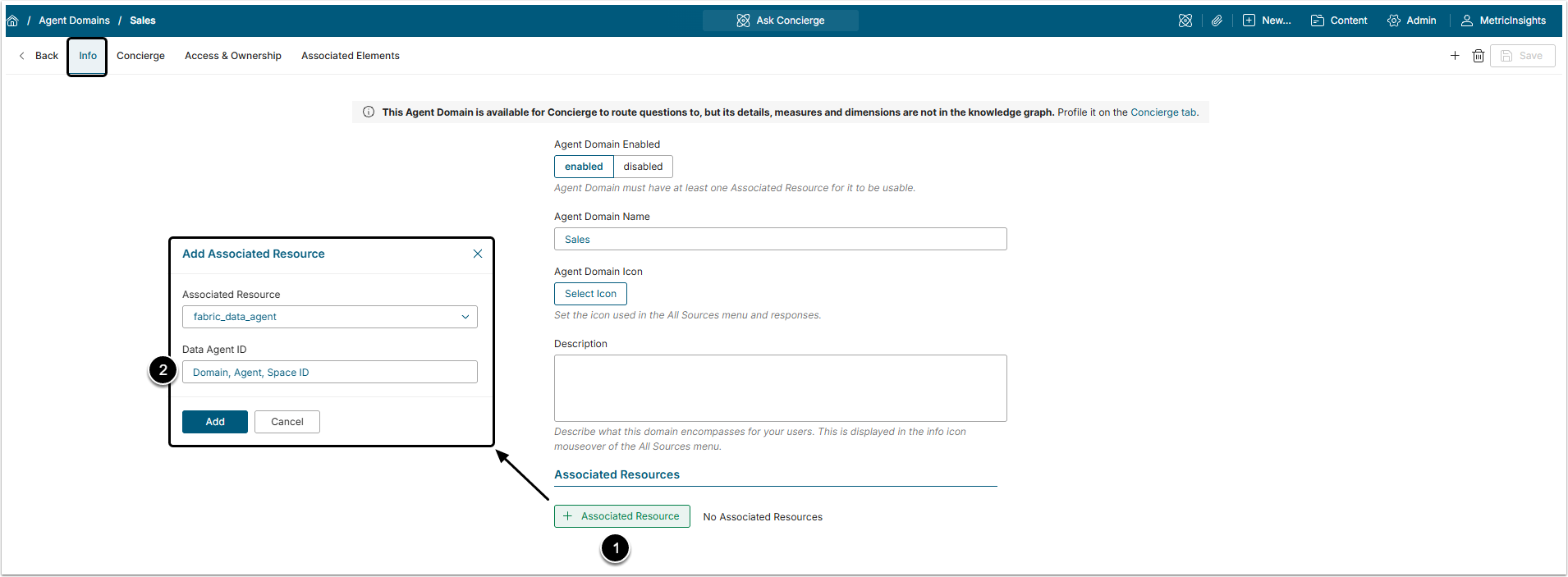
- By clicking [+ Associated Resource] the User can connect the Domain with an External Resource. All connected Resources are listed in this section.
- Domain/Space/Data Agent ID: Use this field to send a specific identifier for Concierge to use with this external resource.
- For Databricks Genie, insert a Space ID.
- For Snowflake Cortex Agents, insert an Agent Name, Agent DB and Agent Schema .
3. Concierge Tab
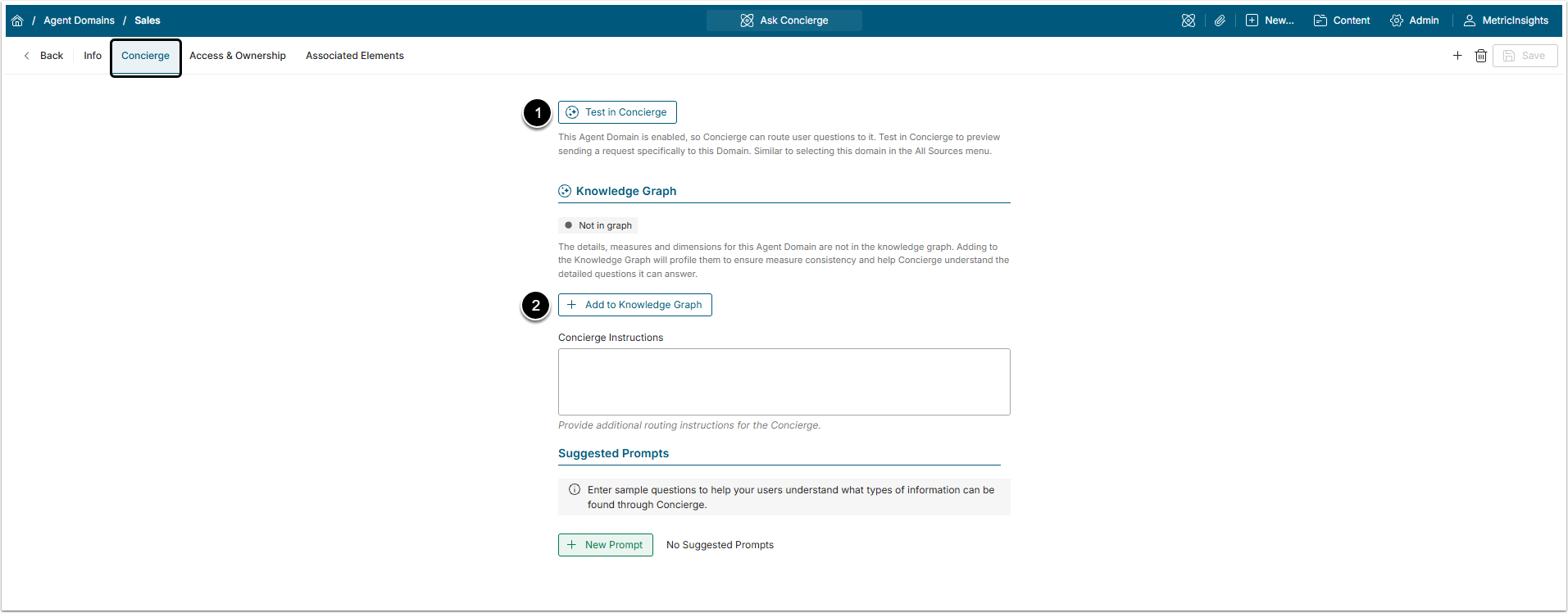
- Click [Test in Concierge] to test queries against this Domain. The results will be similar to those you get when you select this Domain in the All Sources menu.
- Click [+ Add to Knowledge Graph] to manually add this Domain to the Knowledge Graph.
3.1. Suggested Prompts (Questions)
Click [+ New Prompt] to add sample questions. These questions are displayed in a tooltip when Users hover over the Domain’s information icon in the All Sources menu.
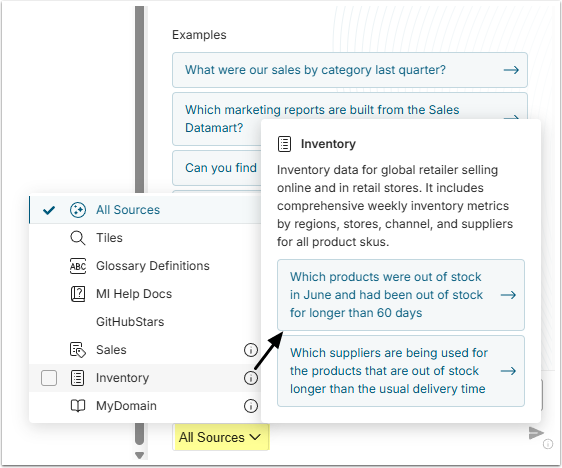
4. Access & Ownership Tab
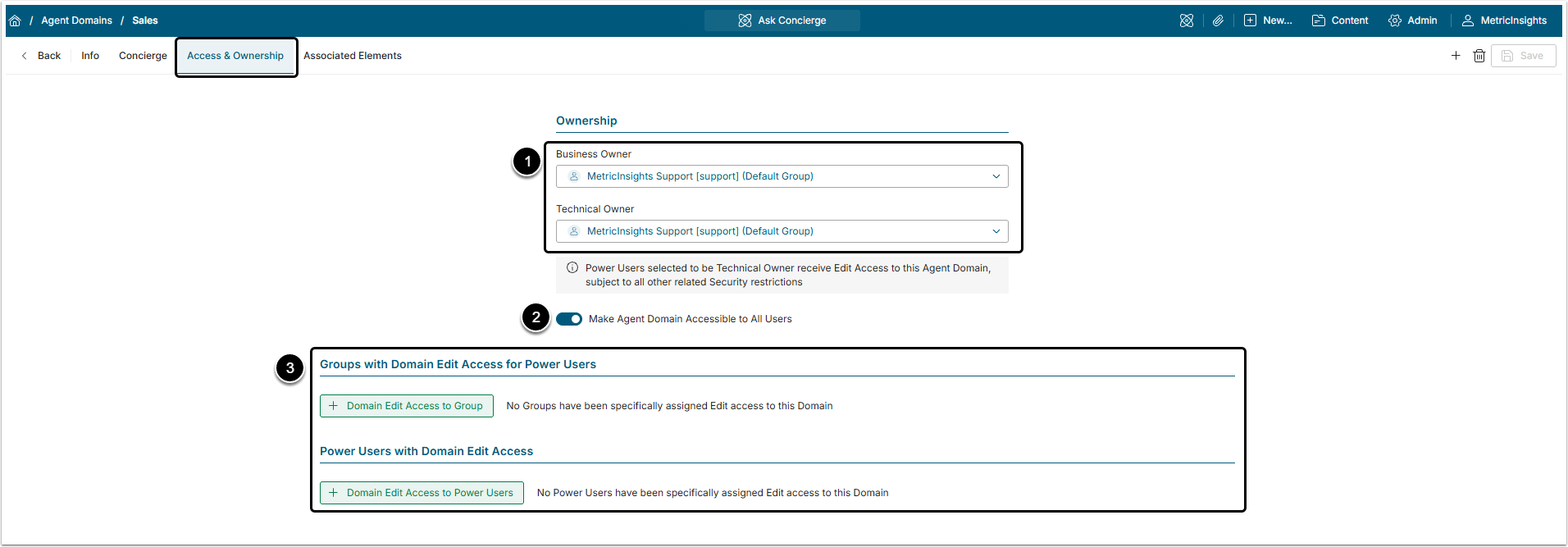
- Business / Technical Owner: Any User (Regular, Power User or Admin) can become the Business Owner of the Domain, but only Power Users and Admins can become Technical Owners. For more details about ownership, check the What Types of Users Exist in Metric Insights? article.
- Make Domain Accessible to All Users: Activate this to make the Domain appear in the All Source menu for all Users.
- Groups or individual Power Users can be given Edit Access to the Domain here by clicking [+ Domain Edit Access to Group] or [+ Domain Edit Access to Power User].
NOTE: If the Administrator gives Domain Edit Access to a Group, only Power Users in that Group will be given Edit Access. Regular Users can not obtain Edit Access to Domains.
5. Associated Elements Tab
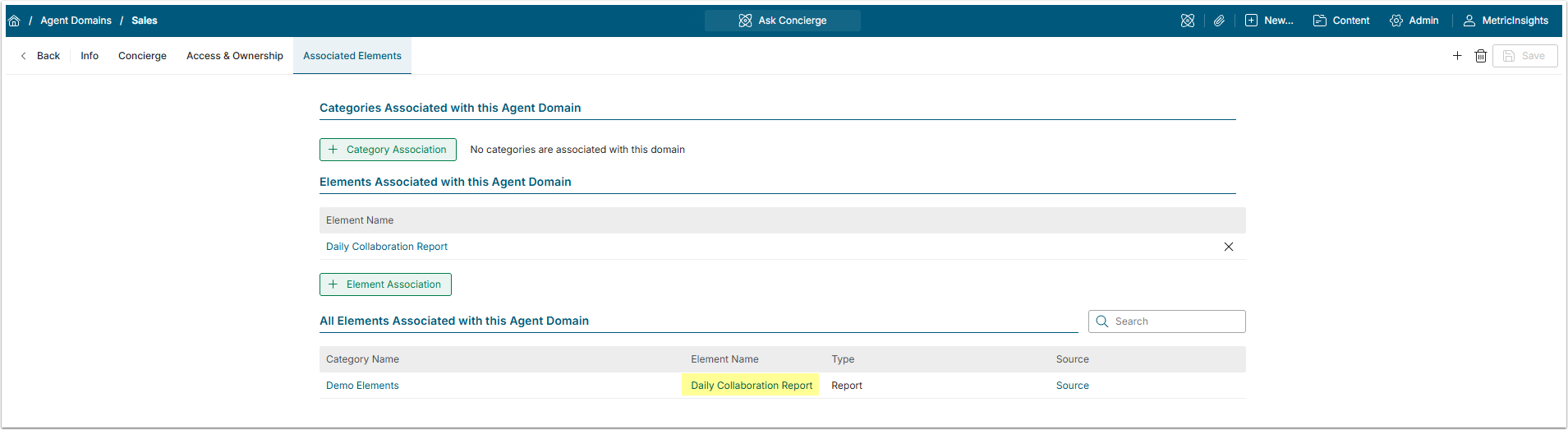
To help Users refine their searches, you can associate Categories or Elements with a Domain. When a User opens the Viewer for an Element associated with a Domain and then launches Concierge, that Element’s Domains are automatically selected in the All Sources menu.
6. Check the Domain
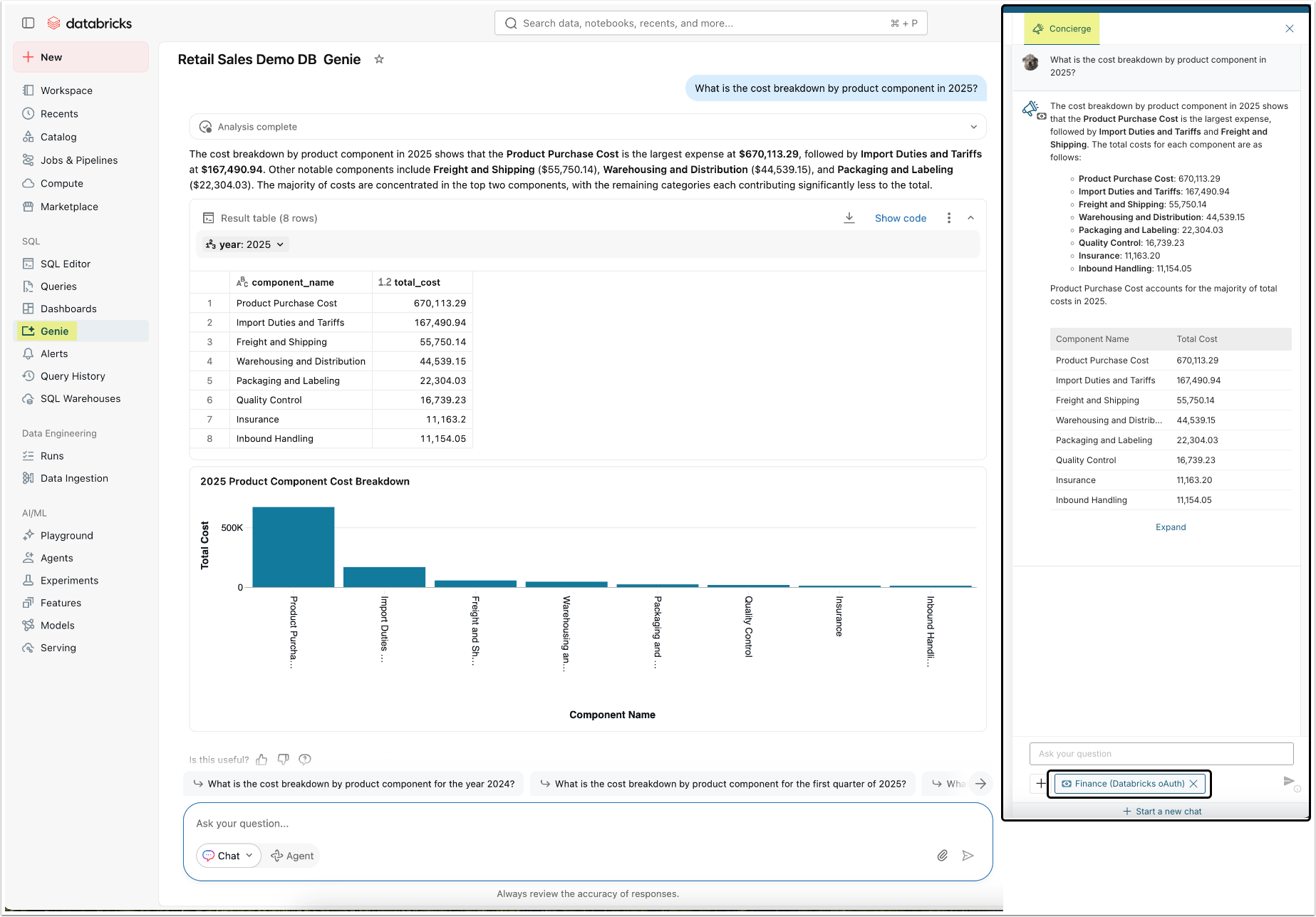
To check if everything is working as expected, you can ask the same question in the External Tool and then in Concierge. If the answers are identical, that means that connection was established correctly.
In this example, the same query was sent to Databricks Genie and Concierge Domain that is connected to Databricks External Resource.