BETA FEATURE: BI Optimizer is a beta feature. Functionality, configuration steps, and supported options are subject to change as the feature evolves.
NOTE: We recommend configuring Log Analytics for Lineage to improve the precision of Lineage metadata collection. With Log Analytics enabled, Lineage returns more accurate data on columns and tables from which the Reports are derived. In case Log Analytics is disabled, the metadata returned from the Power BI available in Lineage may contain duplicates, such as extra tables and columns.
- See Configure Power BI Lineage Collection with Log Analytics for instructions.
This article explains how to configure Microsoft Power BI Cloud Data Source for Lineage collection. This configuration is required for enabling BI Optimizer in Metric Insights.
The instructions are intended for the Metric Insights administrator and assume that the configuration in Azure has been completed by your organization's Azure administrator, and you have been provided with the configured Azure application credentials. These credentials will be used to set up Data Source in Metric Insights.
Before proceeding, ensure that all prerequisites are met and that the initial configuration for your selected authentication type is complete. Then enable metadata collection and configure the Power BI Cloud Data Source, set up Object List Refresh, and sync metadata.
PREREQUISITES:
TABLE OF CONTENTS:
1. Enable Metadata Collection in Metric Insights
This step is not required for Metric Insights v7.2.0 and later.
Access Admin > System > System Variables
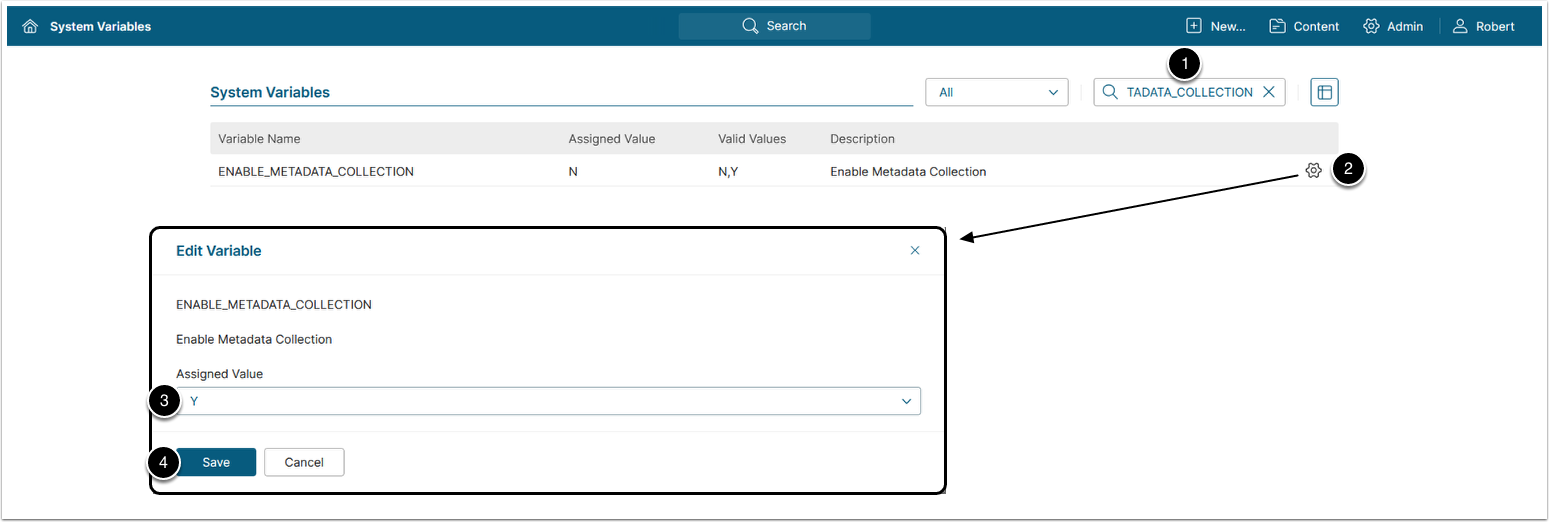
- Enter
ENABLE_METADATA_COLLECTIONin the search field. - Click the gear icon.
- Assigned Value:
Y. - [Save], then [Commit Changes]
NOTE: See Setting System Variables for information on System Variables configuration.
2. Configure Power BI Cloud Data Source in Metric Insights
2.1. Create a Microsoft Power BI Cloud Data Source
See the instructions on creating a new Microsoft Power BI Cloud Data Source for your Metric Insights version:
2.2. Configure Auth Parameters
Proceed with the Data Source parameters configuration based on the selected Auth Type:
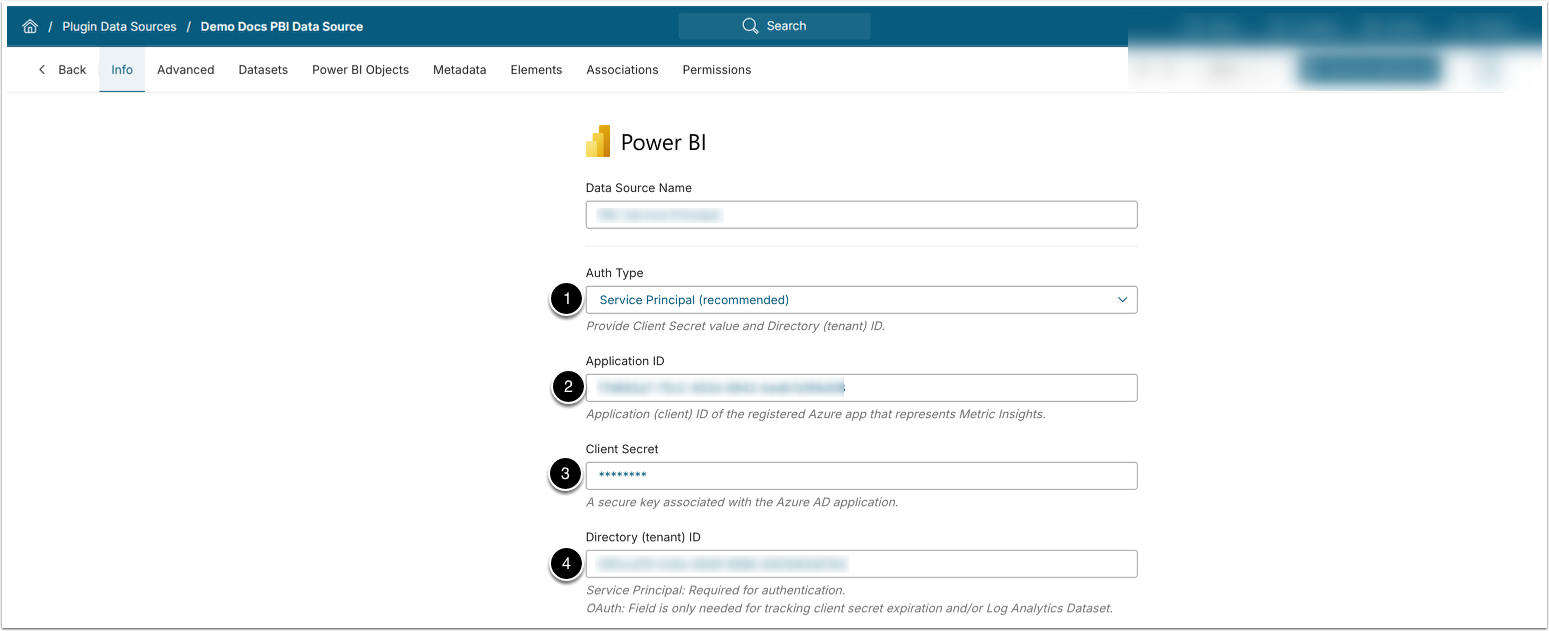
- Auth Type: Service Principal.
- Application ID: Enter the Application (client) ID of the Azure application.
- Client Secret: Enter the Client Secret Value of the Azure application.
- Directory (tenant) Id: Enter Directory (tenant) Id of the the Azure application.
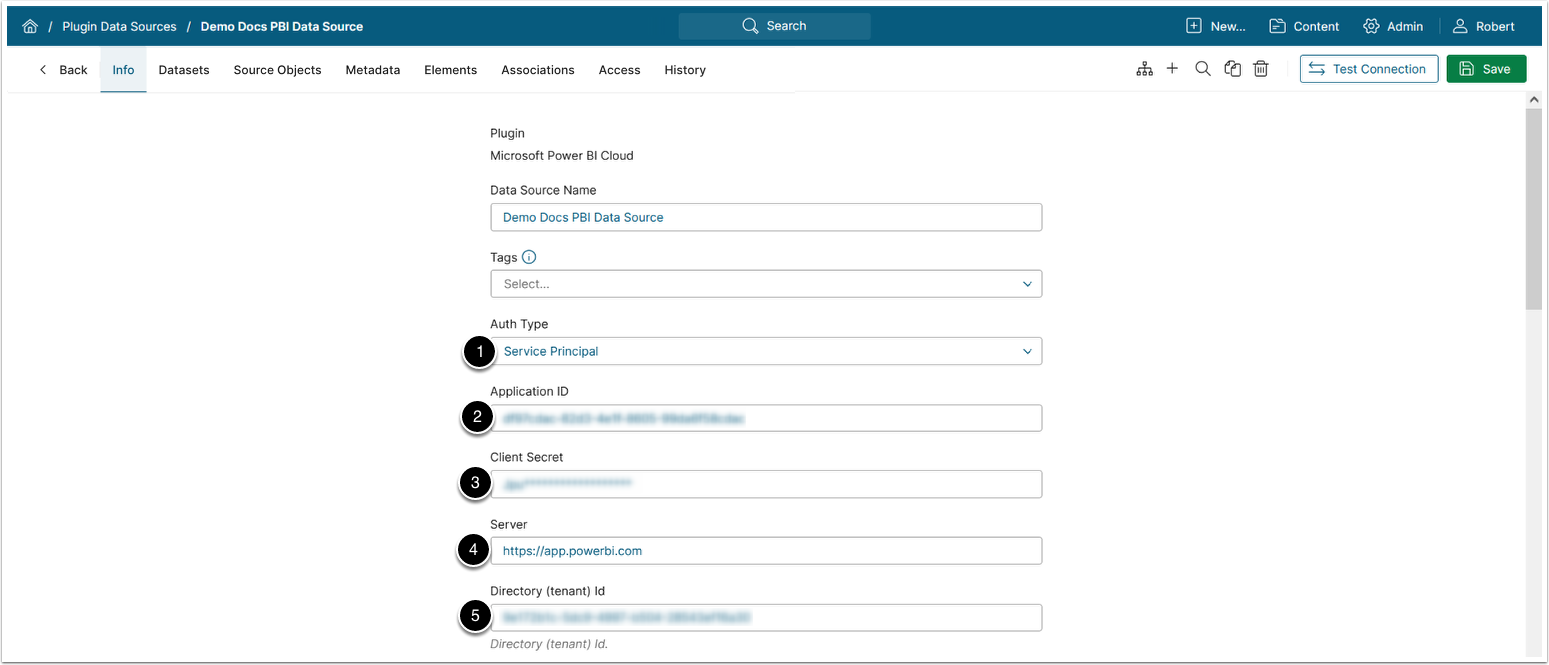
- Auth Type: Service Principal.
- Application ID: Enter the Application (client) ID of the Azure application.
- Client Secret: Enter the Client Secret Value of the Azure application.
- Server:
https://app.powerbi.com. - Directory (tenant) Id: Enter Directory (tenant) Id of the the Azure application.
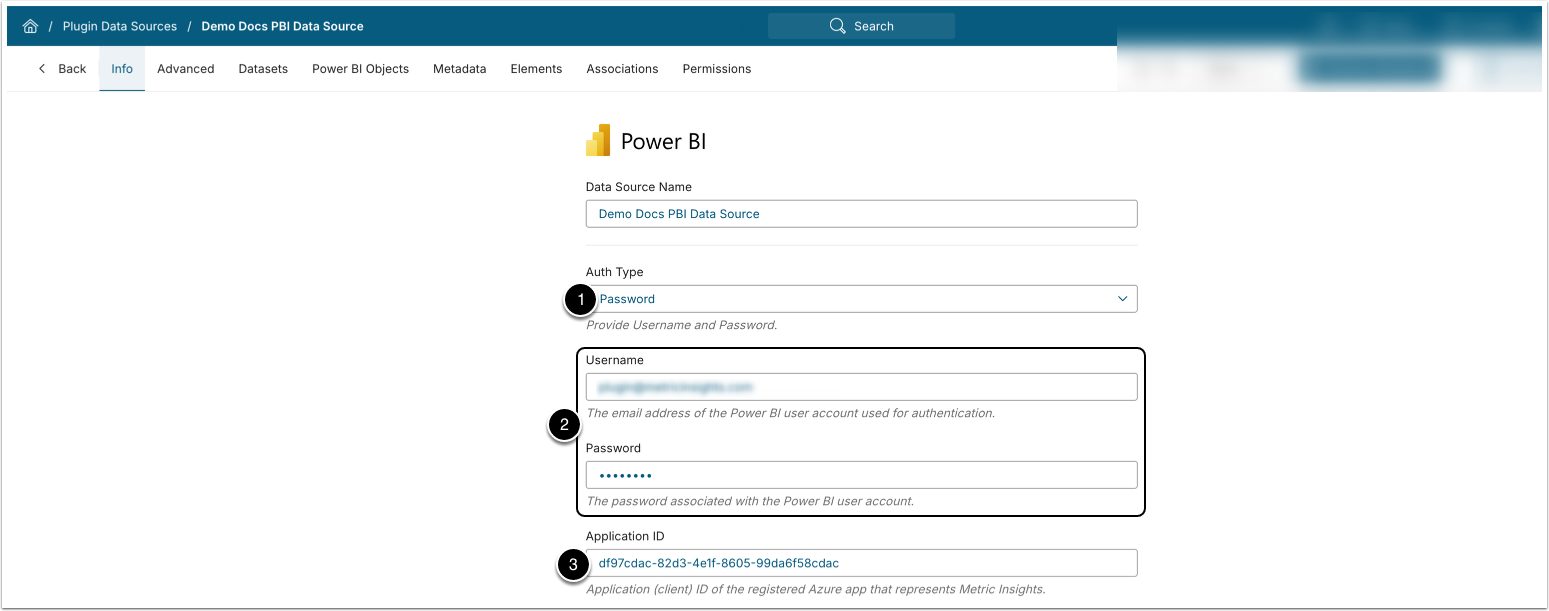
- Auth Type: Password.
- Username, Plugin Password: Enter the credentials of a Fabric Administrator user.
- Application ID: Enter the Application (client) ID of the Azure application.
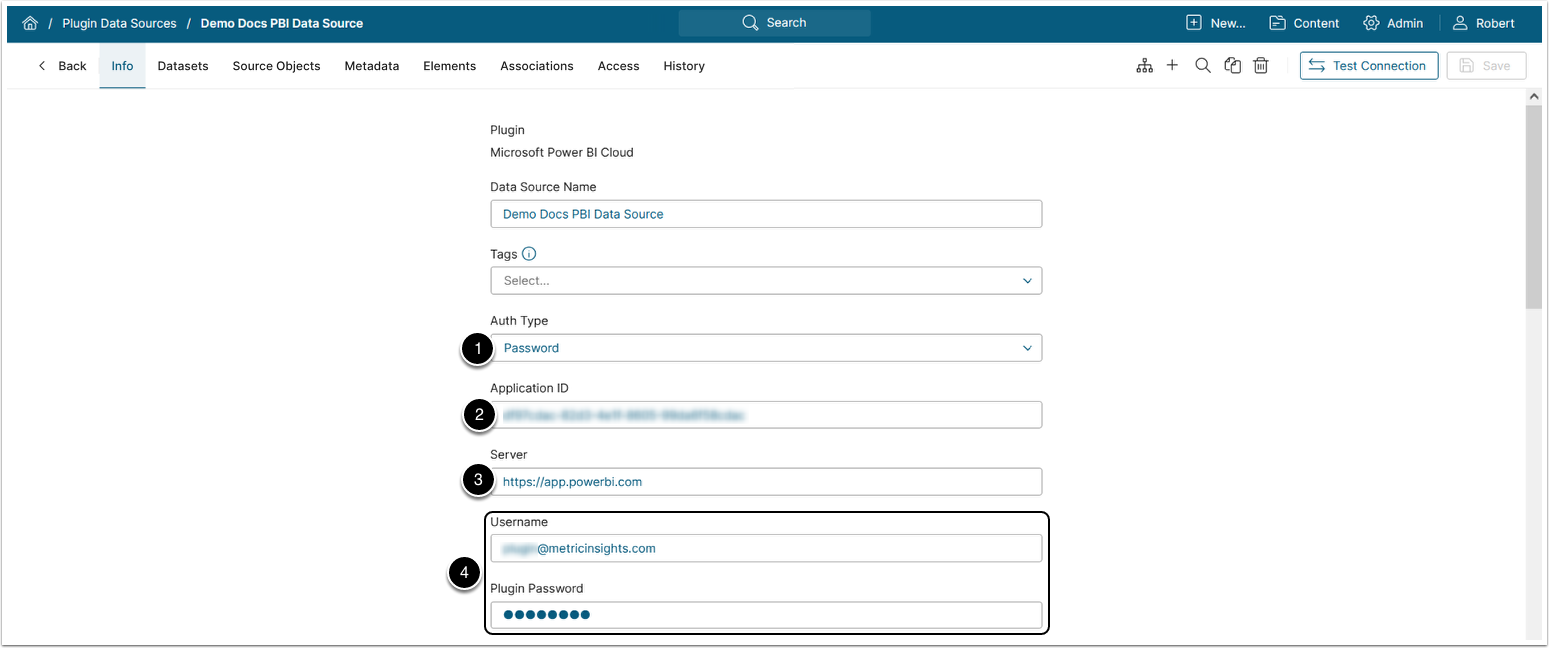
- Auth Type: Password.
- Application ID: Enter the Application (client) ID of the Azure application.
- Server:
https://app.powerbi.com. - Username, Plugin Password: Enter the credentials of a Fabric Administrator user.
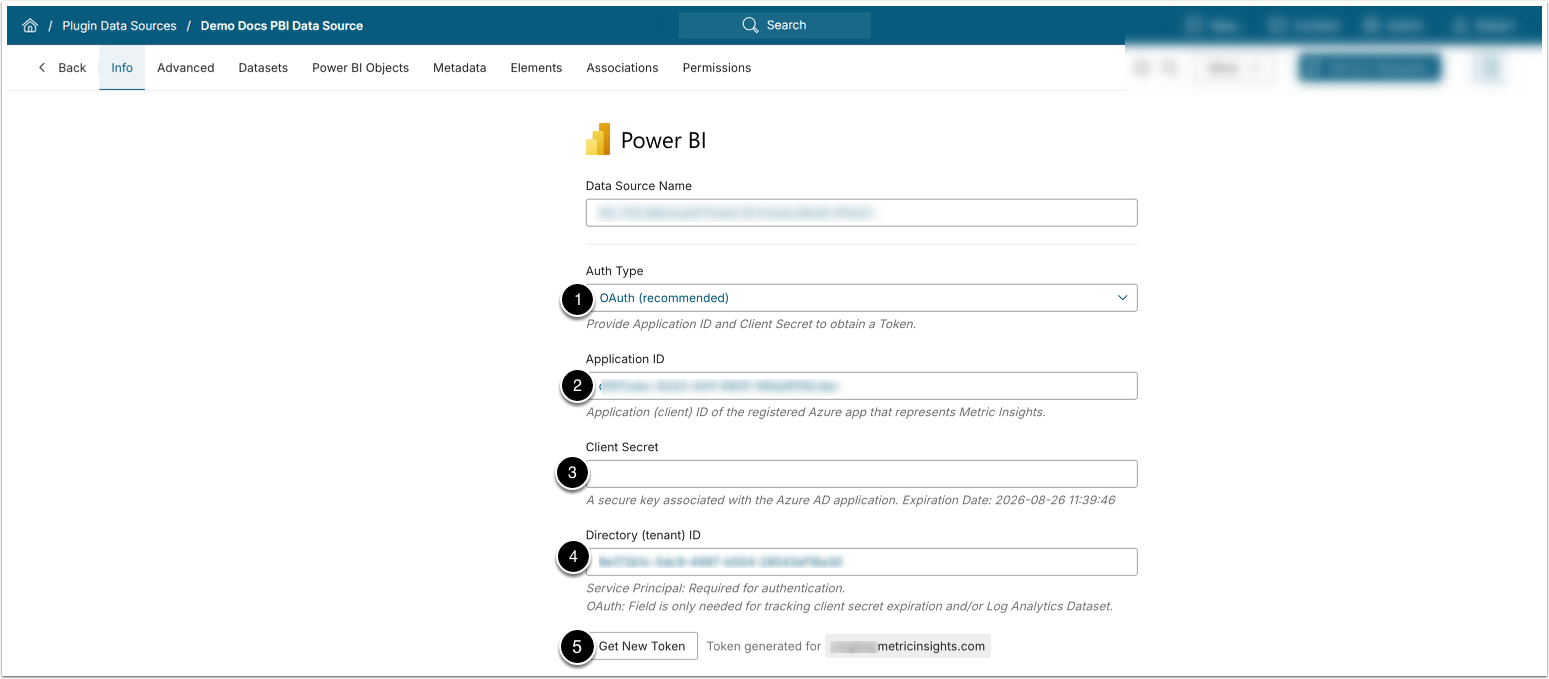
- Auth Type: OAuth.
- Application ID: Enter Application (client) ID of the Azure application.
- Client Secret: Enter Client Secret Value of the Azure application, if it has been generated.
- Directory (tenant) Id: Enter Directory (tenant) Id of the of the Azure application.
- [Get Token], enter credentials of a Fabric Administrator in the pop-up window.
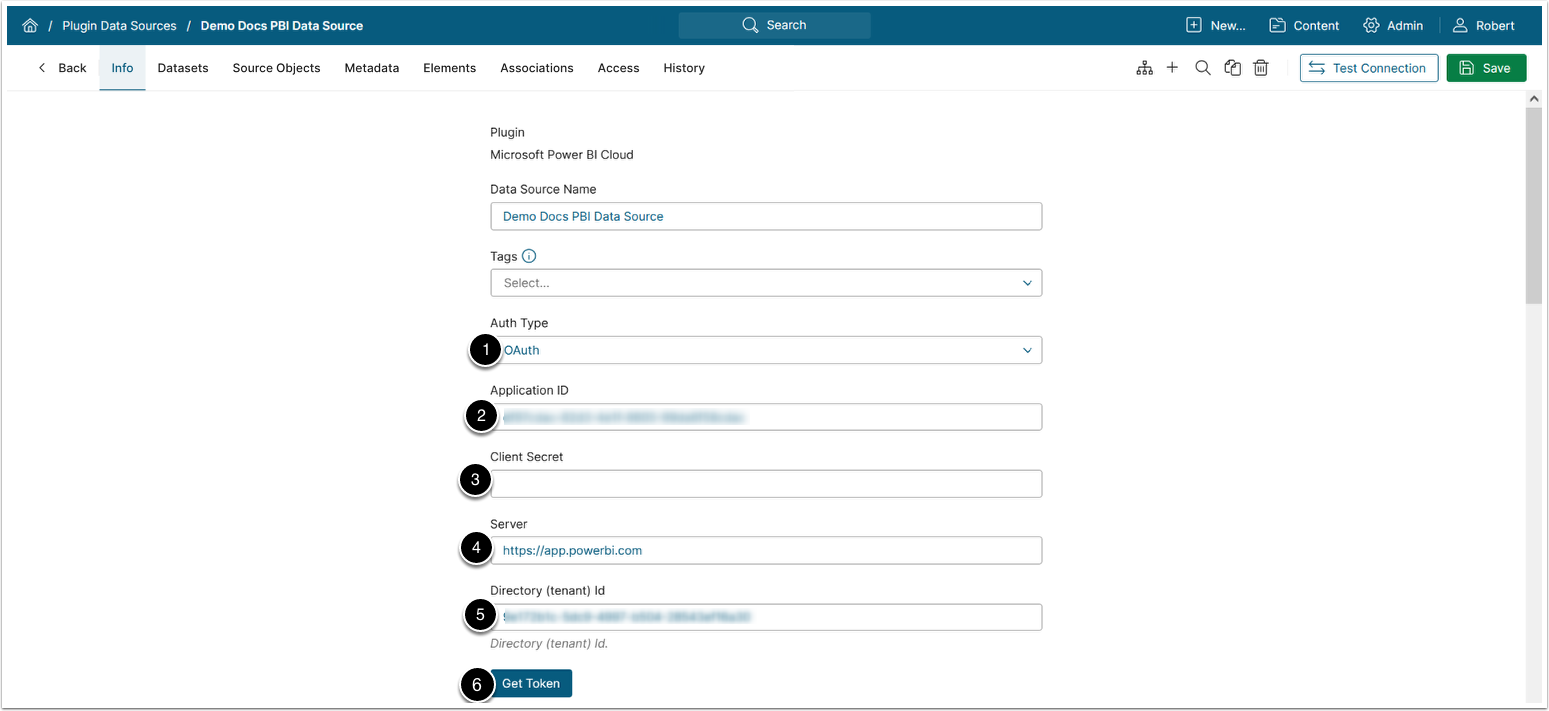
- Auth Type: OAuth.
- Application ID: Enter Application (client) ID of the Azure application.
- Client Secret: Enter Client Secret Value of the Azure application, if it has been generated.
- Server:
https://app.powerbi.com. - Directory (tenant) Id: Enter Directory (tenant) Id of the of the Azure application.
- [Get Token], enter credentials of a Fabric Administrator in the pop-up window.
2.3. Configure Other Data Source Parameters
See parameter configuration details specific to your MI version:
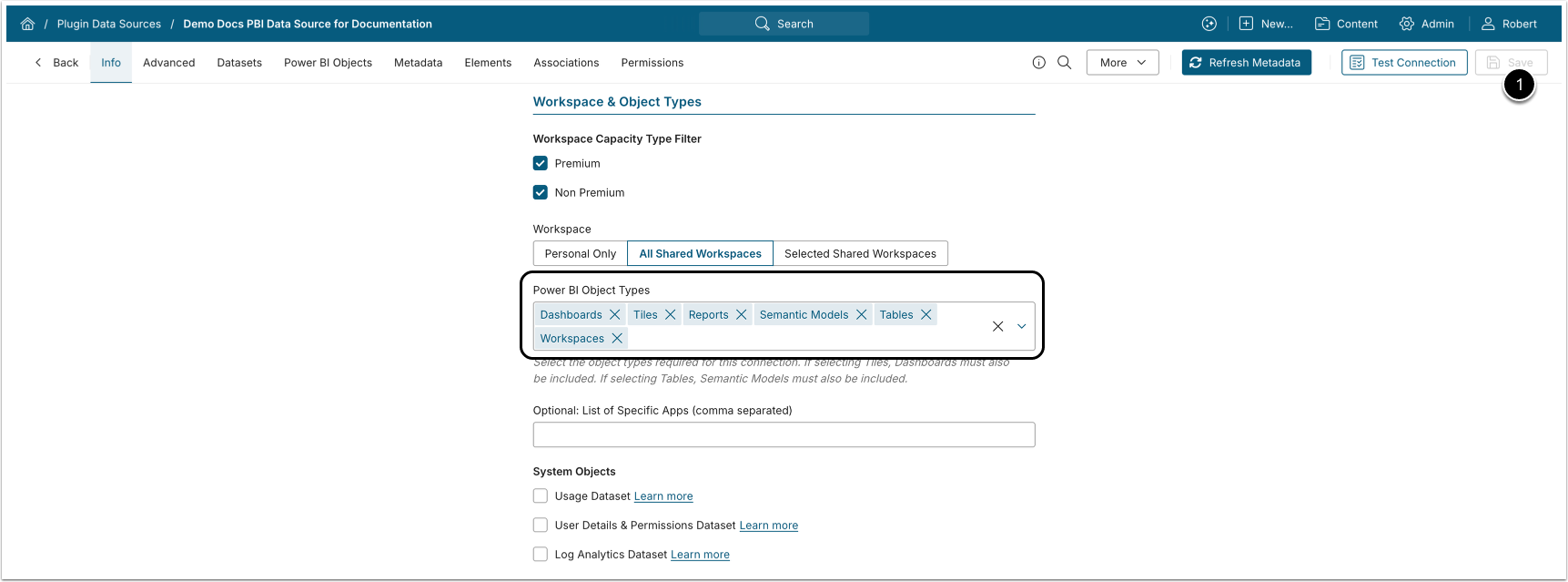
Power BI Object Types must include Dashboards and Reports.
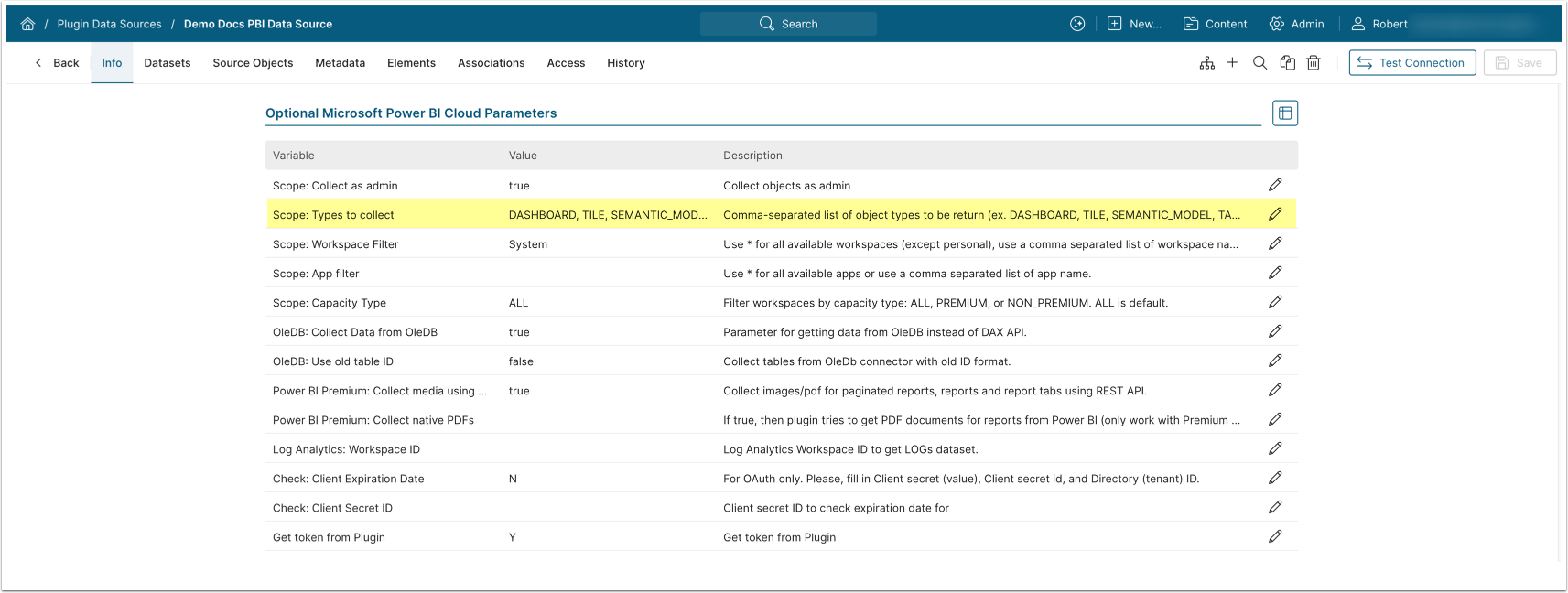
Scope: Types to collect must include DASHBOARD, REPORT, and LOG.
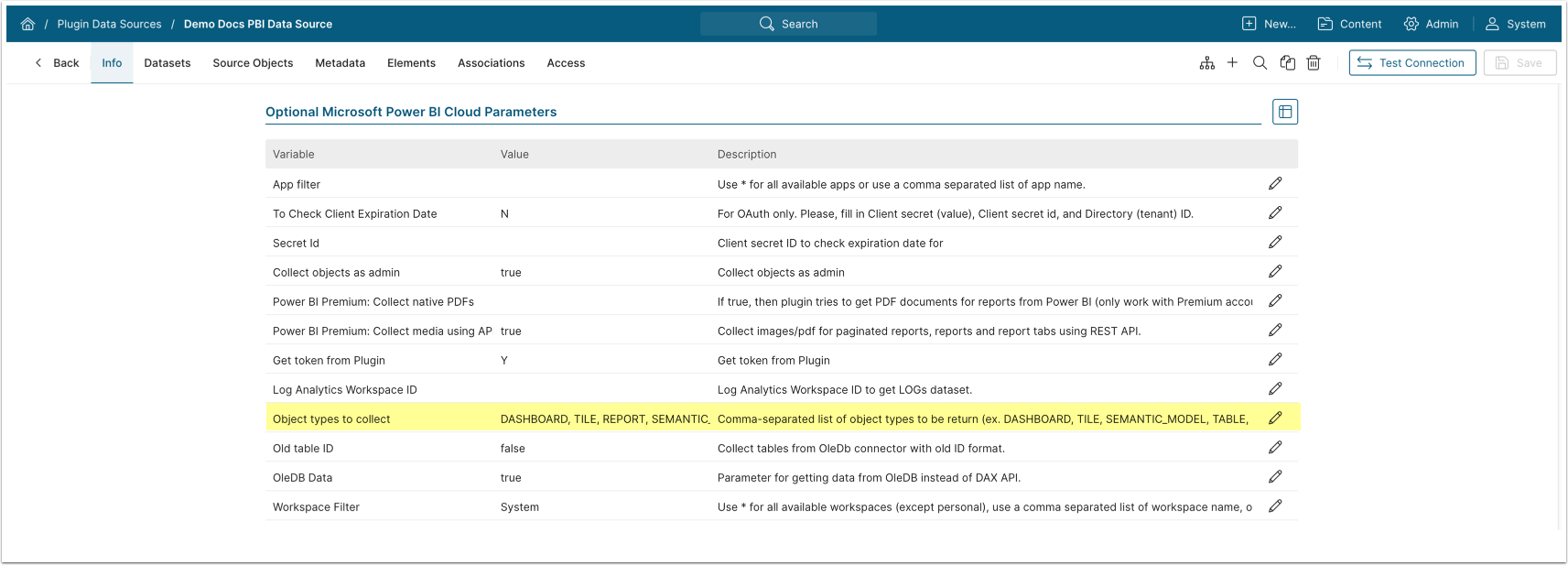
Object types to collect must include DASHBOARD, REPORT, and LOG.
2.4. Configure Object List Refresh
2.4.1. Manually Refresh Object List
Access Source Objects tab
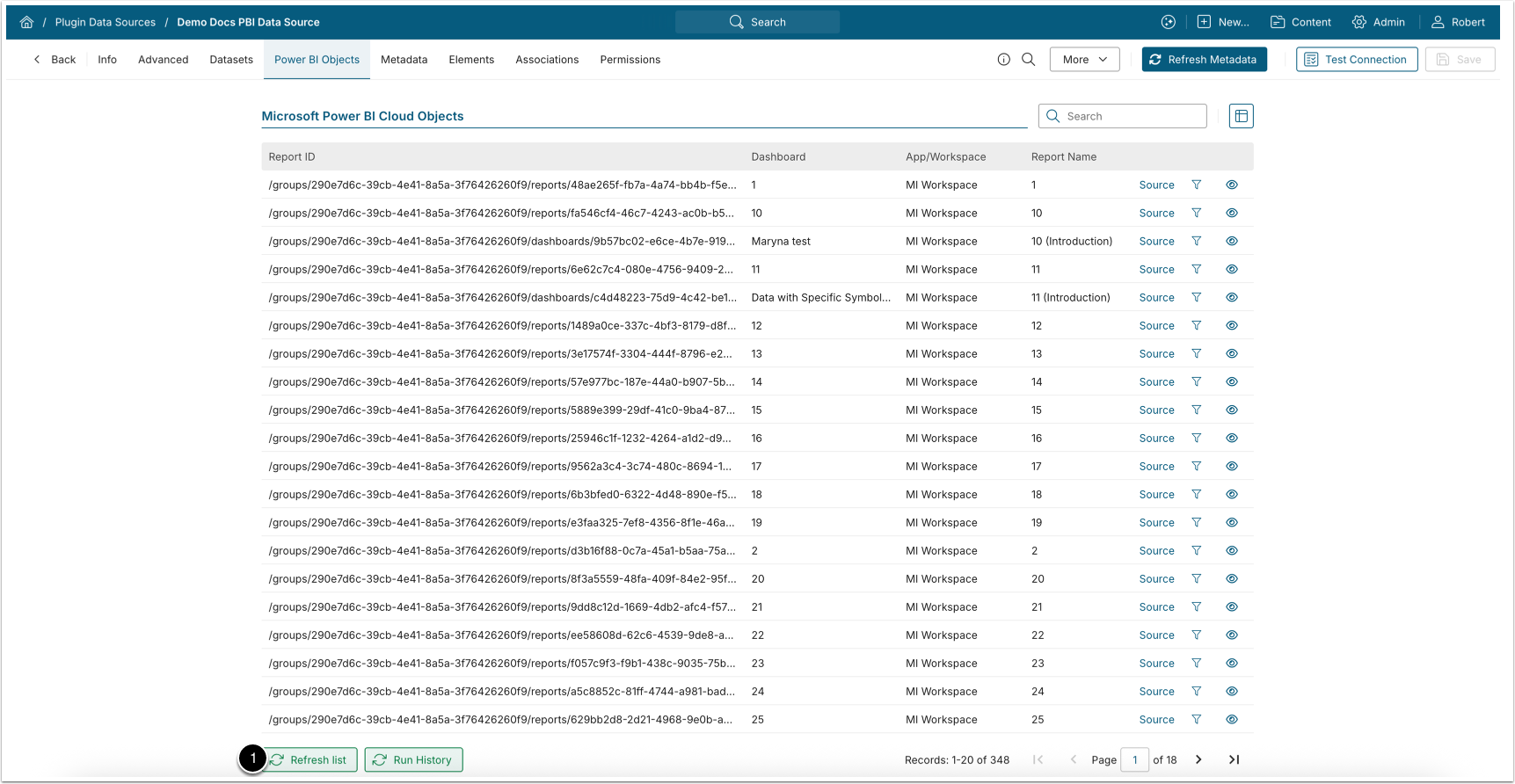
- [Refresh list]
2.4.2. Add Object List Refresh Trigger
Adding an Object List Refresh Trigger allows to automatically refresh the Object List at the configured time interval.
See the instructions for your MI version:
Access the Advanced tab
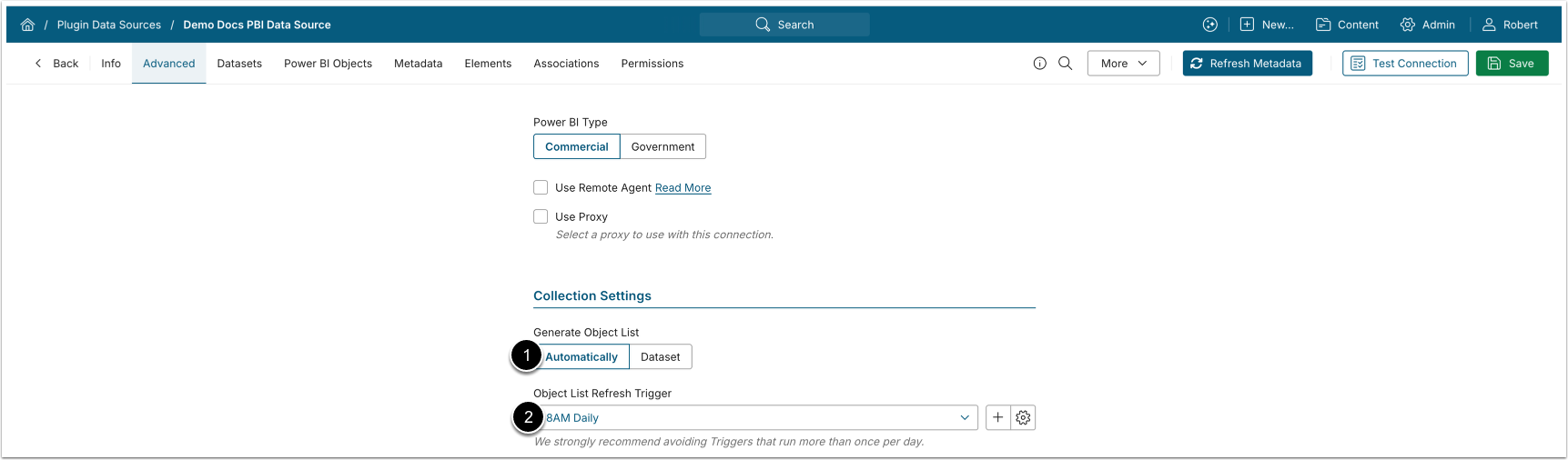
- Generate Object List: Automatically.
- Object List Refresh Trigger: Select a daily Trigger.
- See What is Data Collection Trigger? for details.
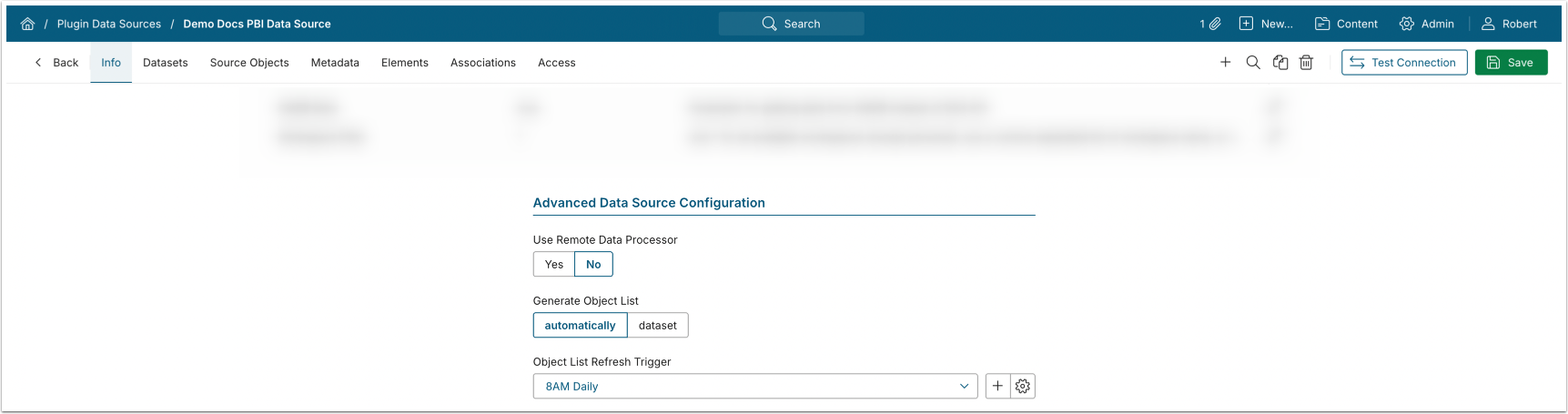
- Generate Object List: automatically.
- Object List Refresh Trigger: Select a daily Trigger.
- See What is Data Collection Trigger? for details.
2.5. Sync Metadata
NOTE: Metadata sync is not related to the previously configured Object List Refresh Trigger and needs to be updated manually on the regular basis.
See instructions on syncing Metadata for your MI version:
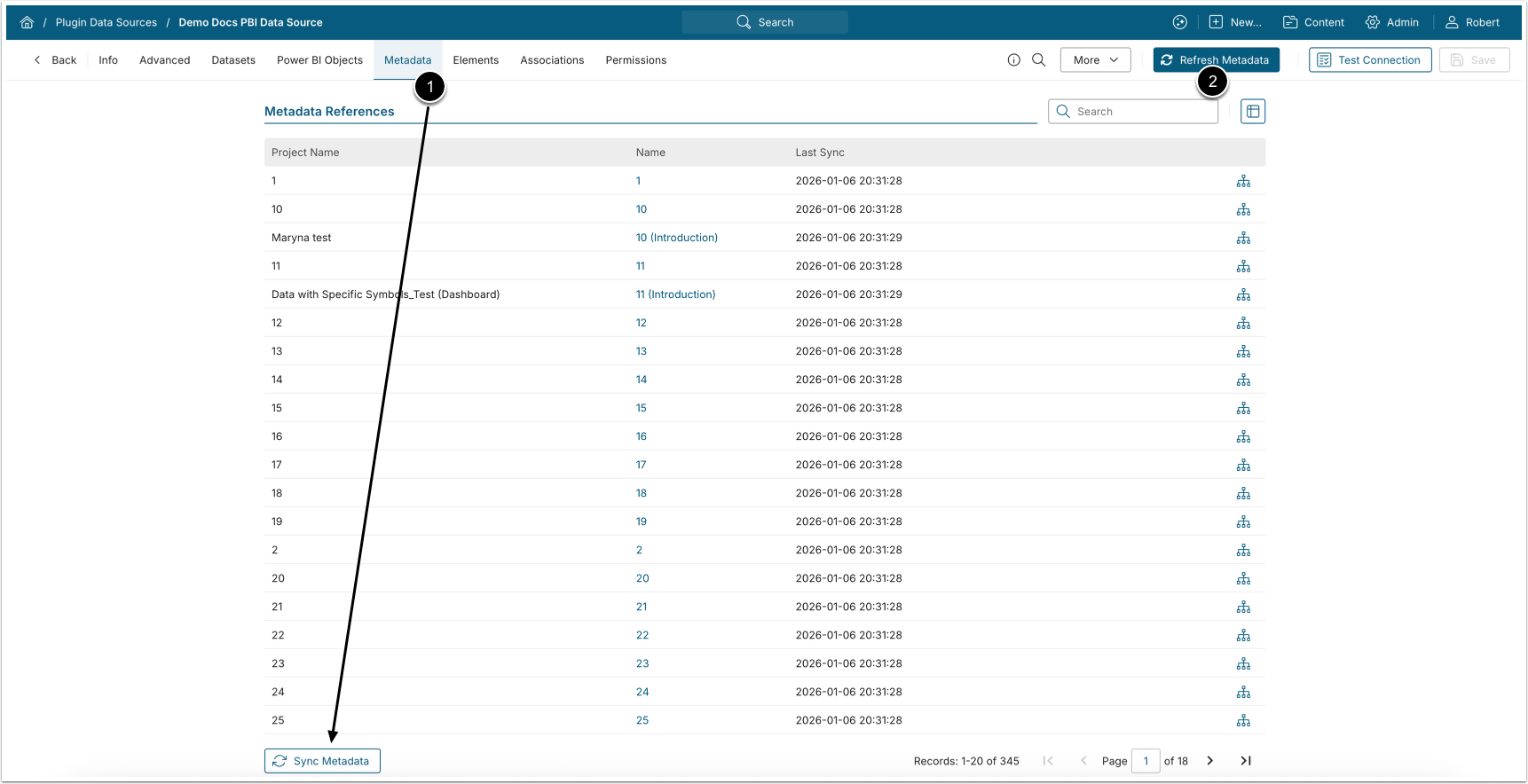
Beginning in v7.2.0, Metadata can be synced from either of the following locations:
- From the Metadata tab: click [Sync Metadata]
- From any tab in the Plugin Data Source Editor: click [Refresh Metadata] in the top panel.
Access Metadata tab
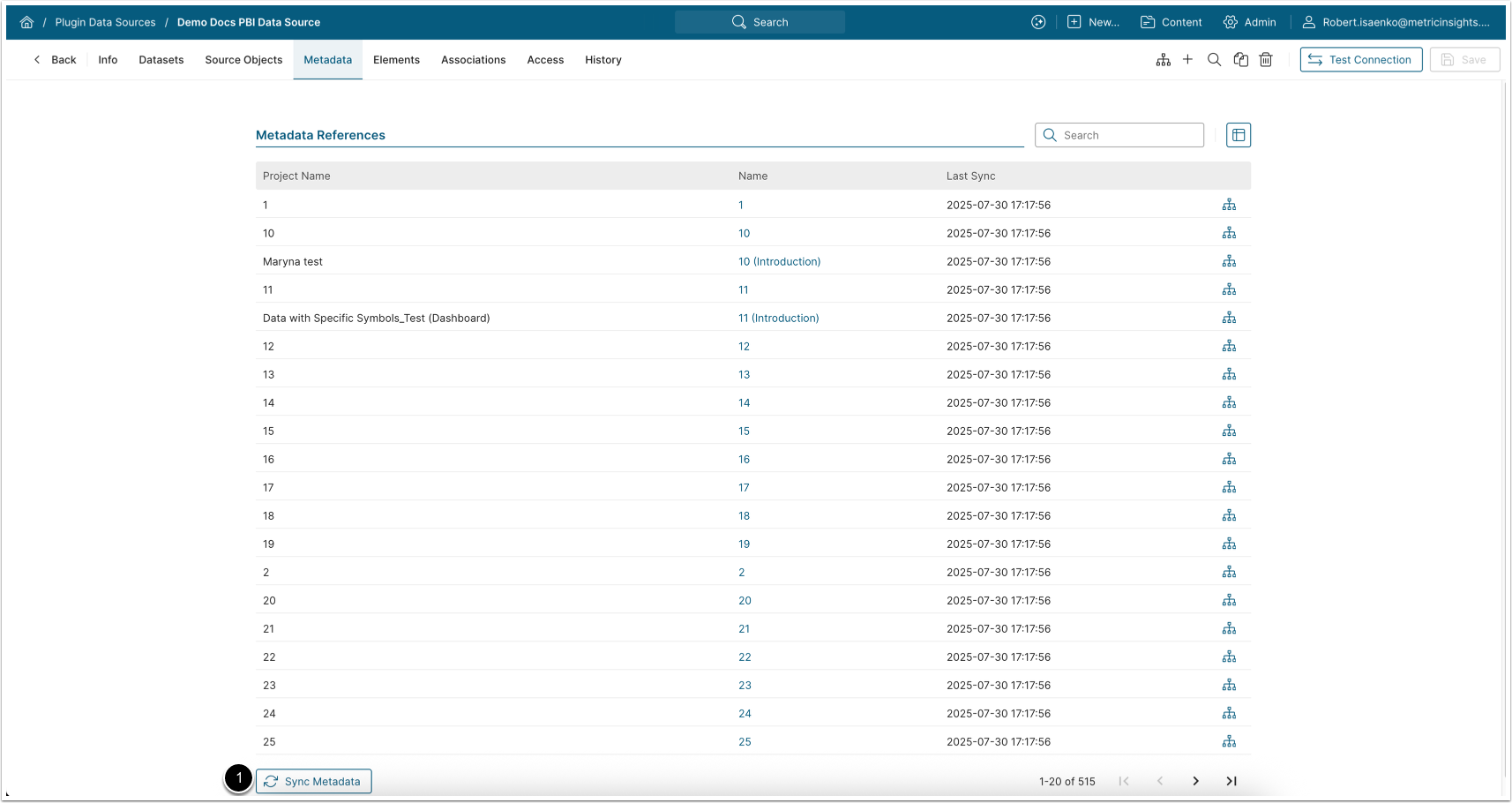
- [Sync Metadata]