BETA FEATURE: BI Optimizer is a beta feature. Functionality, configuration steps, and supported options are subject to change as the feature evolves.
This article explains how to configure an existing Tableau Data Source intended for BI optimization.
The next steps are covered in Configure BI Optimizer for Tableau.
- To create a new Data Source, refer to Establish Connectivity to Tableau Server.
1. Enable ENABLE_METADATA_COLLECTION System Variable
This step is not required for Metric Insights v7.2.1 and later.
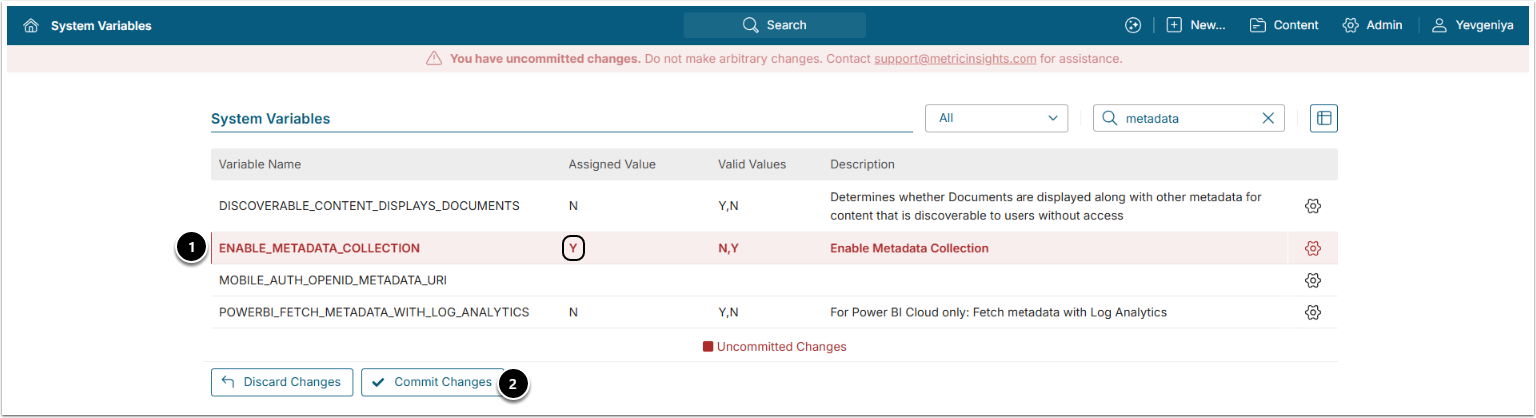
- Set ENABLE_METADATA_COLLECTION to "Y" and save.
- [Commit Changes]
- Configuring this Variable will unhide the Metadata tab in the Data Source Editor.
2. Configure Optional Parameters
Access Admin > Collection & Storage > Data Sources > Data Source Name Link
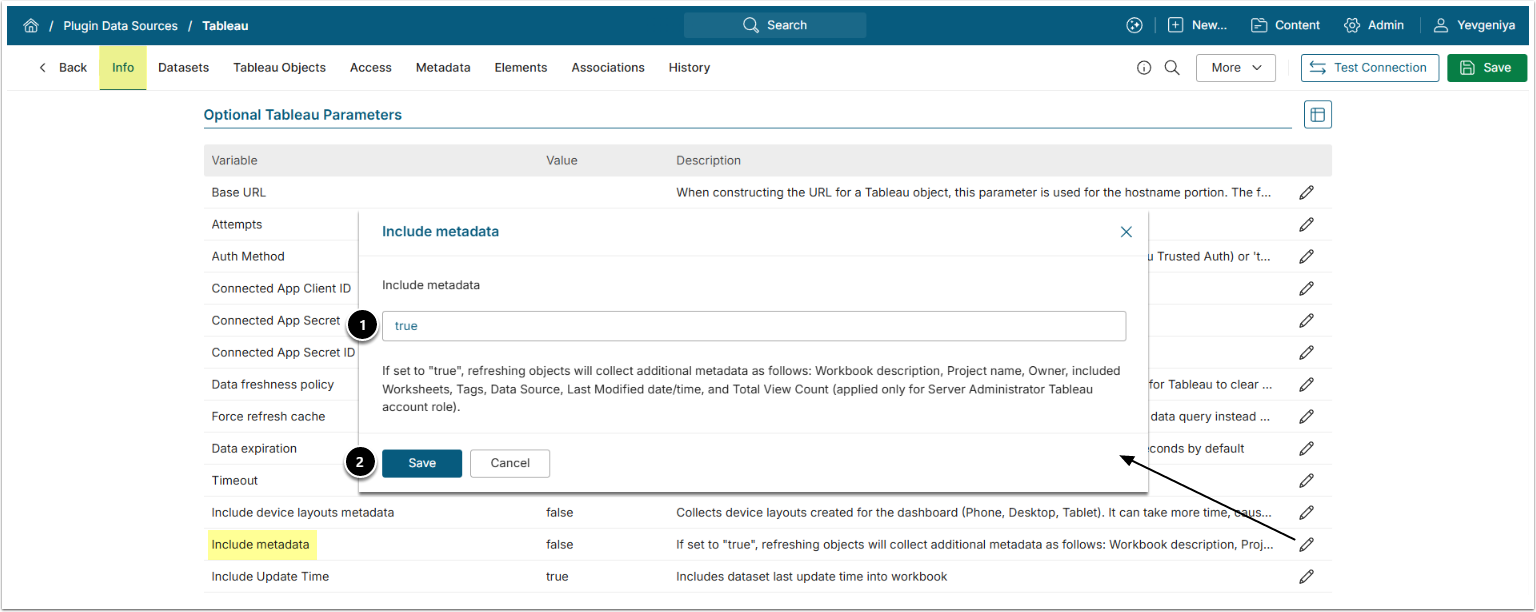
- On the Info tab, scroll to the Optional Tableau Parameters section and set Include Metadata to "true".
- [Save]
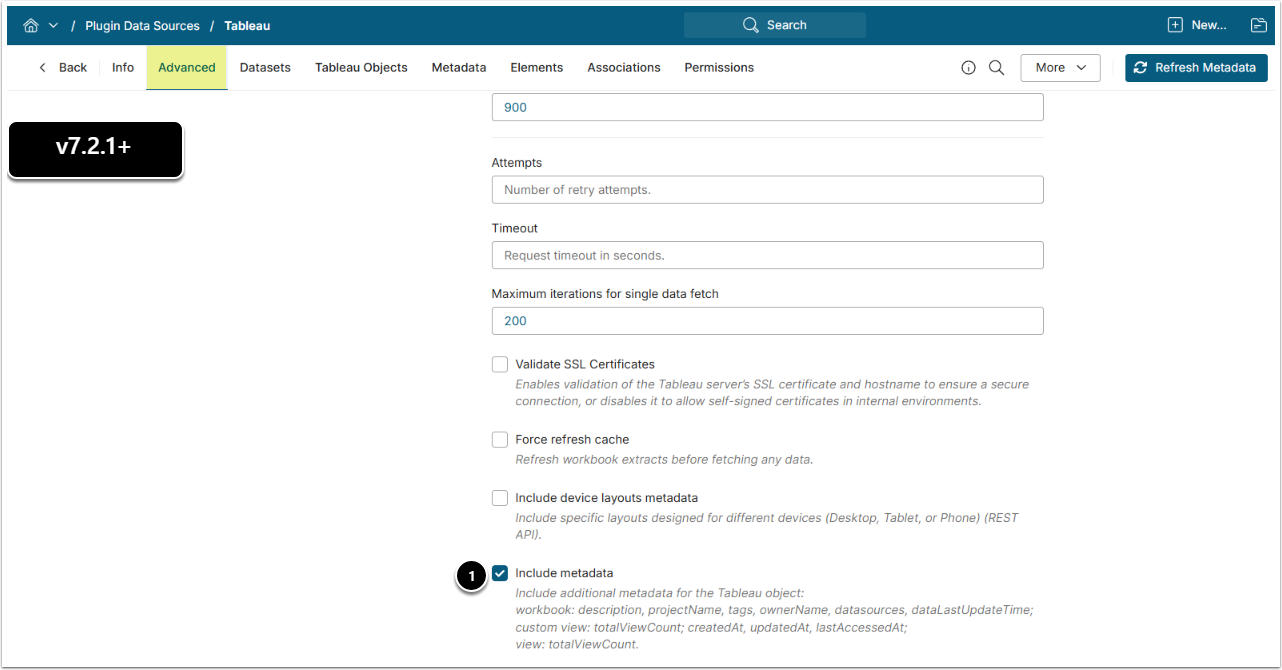
- On the Advanced tab, scroll to the Optional Tableau Parameters section and enable Include metadata.
3. Add Object List Refresh Trigger
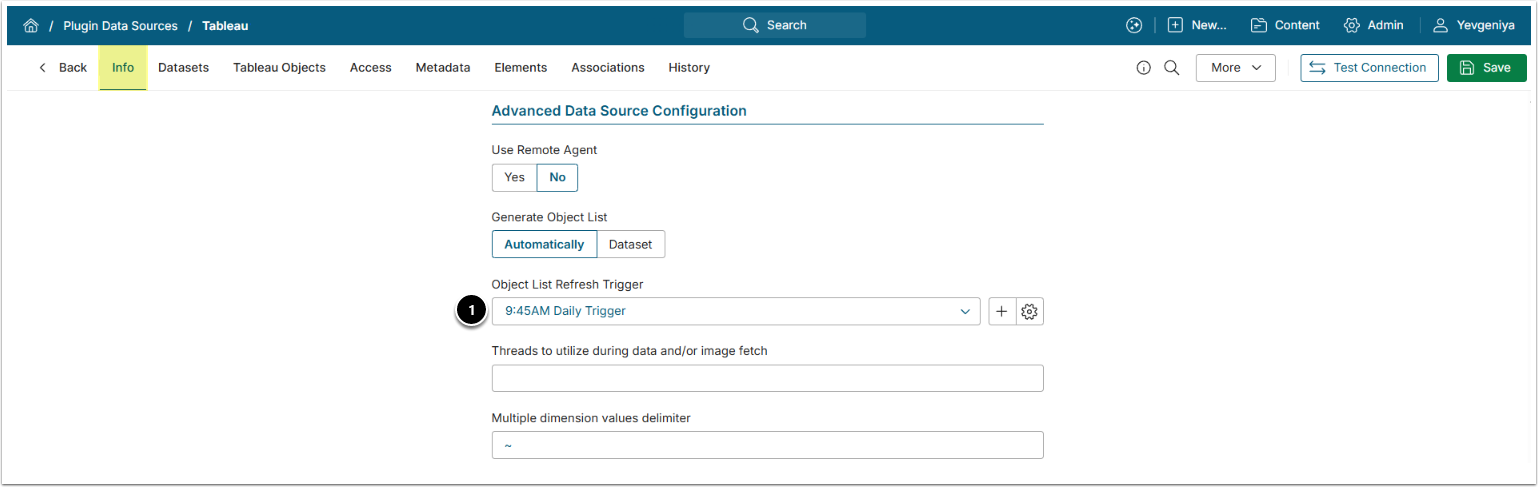
- On the Info tab, continue scrolling to the Advanced Data Source Configuration section and set Object List Refresh Trigger to run daily.
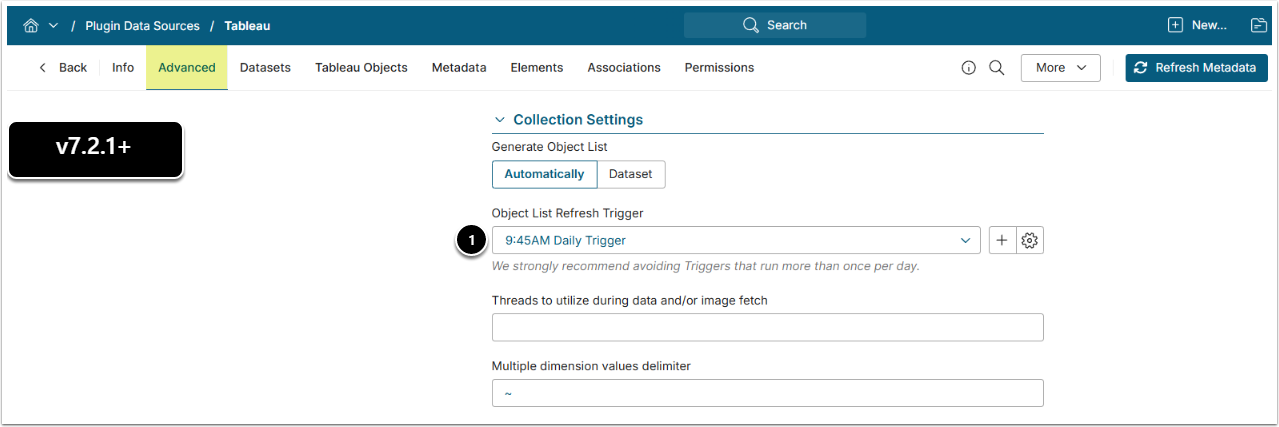
- On the Advanced tab, set Object List Refresh Trigger to run daily.
4. Refresh Object List
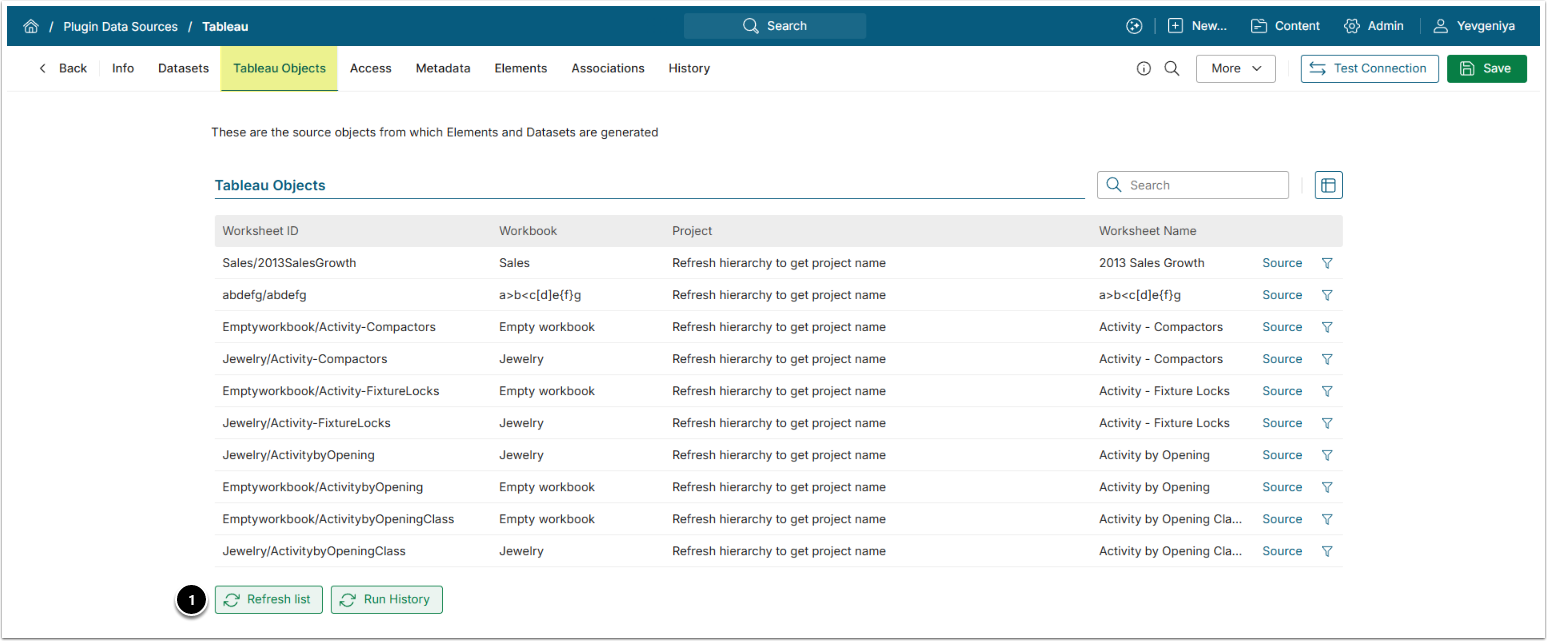
- Switch to the Tableau Objects tab, click [Refresh list].
- NOTE: Processing time may increase when handling a large number of objects.
5. Sync Metadata
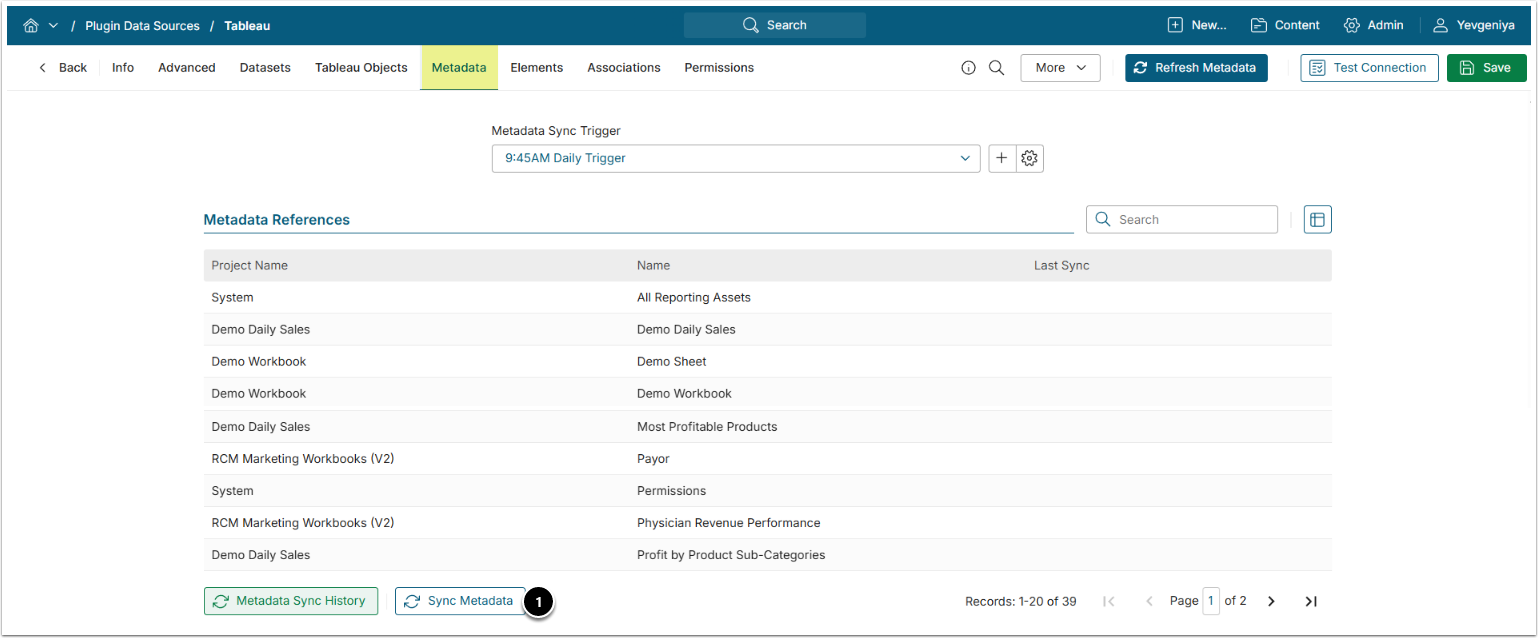
- Go to the Metadata tab, click [Sync Metadata].
- NOTES:
- Processing time may increase when handling metadata for a large number of objects.
- Beginning in v7.2.2, you can set Metadata Refresh Trigger to automatically sync metadata once a day.
- NOTES:
6. Note the Data Source ID
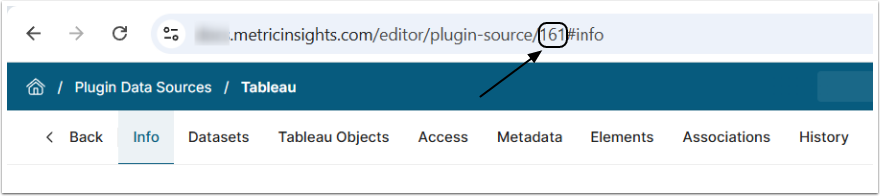
Make a note of the Data Source ID. This value is required in Step 5.1 of the following instructional article.